The Wallboard gives you a real-time, big-screen view of everyone currently on-site at your location. Designed for a TV or screen in your lobby, it lets anyone walking by see who's checked in today at a glance. Once configured, the Wallboard updates on its own with no further action needed from your team.
How It Works
- Visitly pulls all visitors currently signed in for today at the location you select.
- The Wallboard refreshes automatically every 10 seconds, so the screen always reflects who's actually on-site.
- You control exactly which fields and visuals appear, since this view is meant for public display.
- The generated link runs continuously once opened, so there's nothing to refresh or manage on the display itself.
Complete all pre-requisites before starting setup. Missing any of these will prevent the Wallboard from displaying correctly.
Visitly requirements:
- Active Visitly account with Admin access
- At least one location configured
- A TV or screen with a web browser, connected to the internet, placed in your lobby
Setup Guide
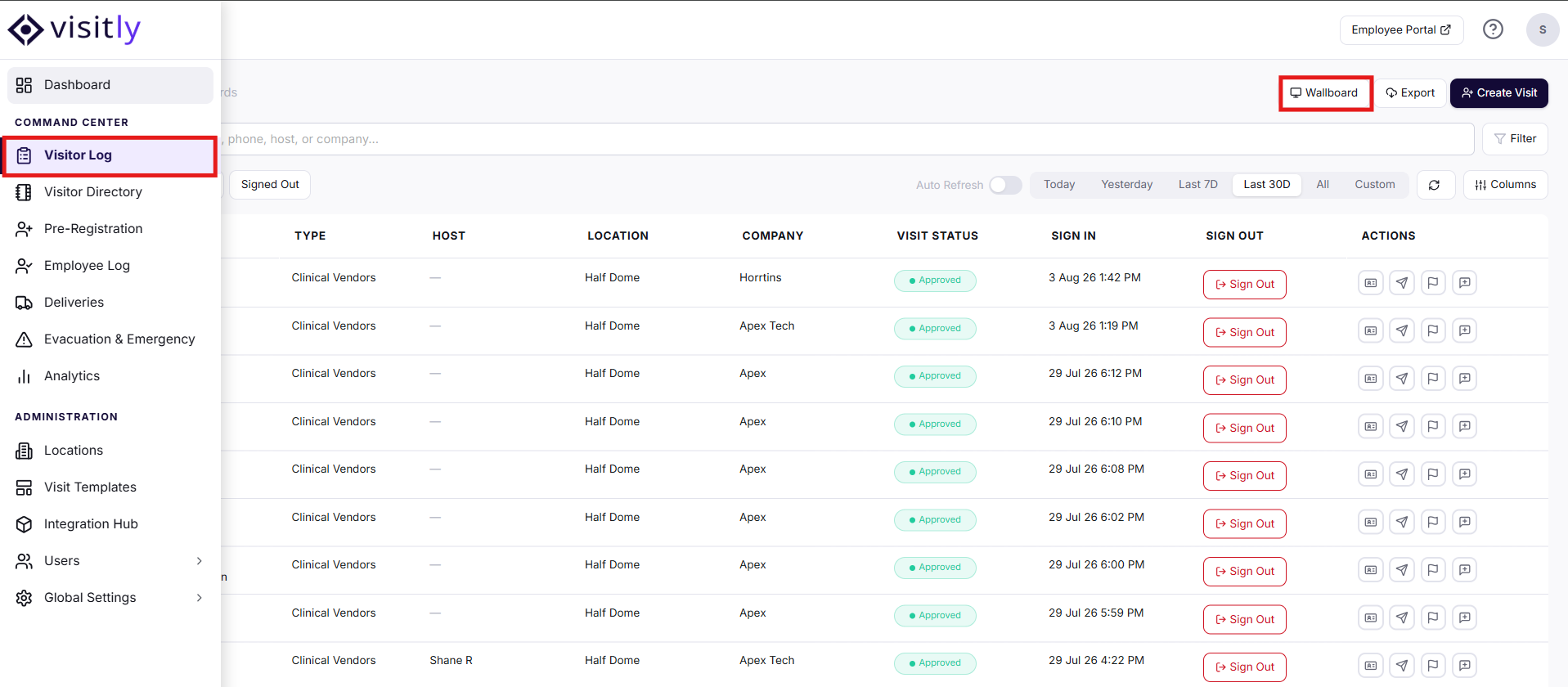
- Log in to your Visitly Admin Dashboard, select Visitor Log , then click Wallboard .
- Enter a Title for this Wallboard view, and choose a Template for the display style: Card or List.
- Select the Location whose on-site visitors you want to show.
- Set Sort By / Sort Order to control how visitors are ordered, such as by Sign In time, ascending or descending.
- Choose whether to enable Show Picture, then select which visitor details to display under Fields, such as Type, Host, Company, Visit Status, or Sign In time.
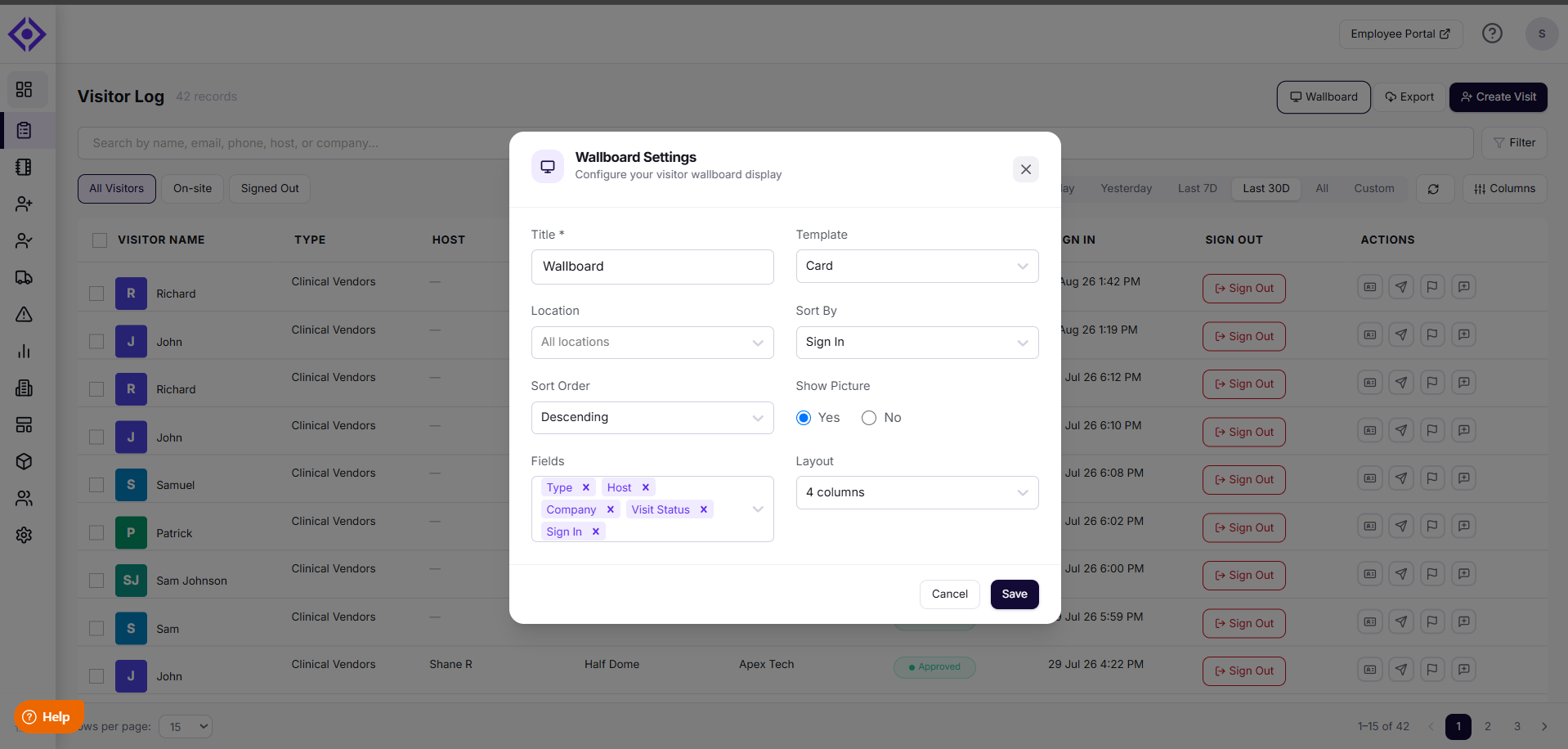
- Set the Layout to choose the number of columns for the display, and click Save.
Your Wallboard is now live and will refresh automatically every 10 seconds.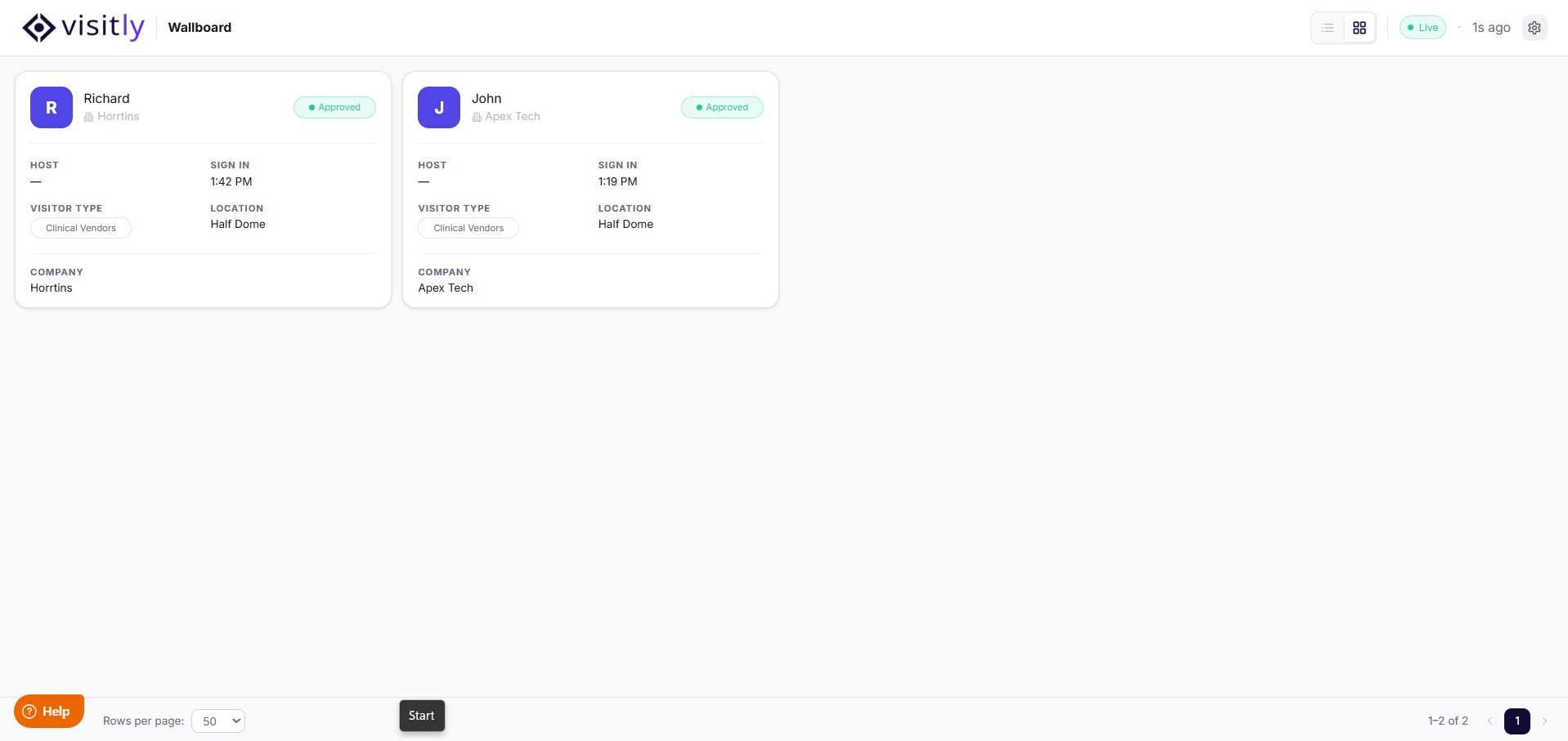
Since the Wallboard is meant for public display, only select fields that are appropriate to show to anyone passing by.
Managing multiple locations? Set up a separate Wallboard for each location you want to display, since each Wallboard is tied to a single location.
Good to Know
- Only currently signed-in visitors for today appear on the Wallboard. Visitors from past days or upcoming pre-registrations are not shown.
- The Wallboard is a live, view-only display. It does not accept input from the screen it's shown on.
Troubleshooting
The Wallboard isn't showing any visitors.
Confirm that visitors are currently signed in for today at the location selected in the Wallboard settings. The Wallboard only displays same-day, currently signed-in visitors — it will appear empty if no one is on-site or if the wrong location is selected.
The Wallboard shows visitors from the wrong location.
Open Wallboard Settings and check the Location field. If your account manages multiple locations, confirm the correct one is selected, or create a separate Wallboard for each location.
The screen appears frozen or isn't updating.
Confirm the display's browser has an active internet connection. Refresh the page manually — the Wallboard will resume automatic 10-second refreshes once connectivity is restored.
A field I selected isn't appearing on the display.
Return to Wallboard Settings and confirm the field is still checked under Fields. Some fields may not display if the corresponding visitor data wasn't collected at check-in.
Need help? Contact the Visitly support team at support@visitly.io
Was this article helpful?
That’s Great!
Thank you for your feedback
Sorry! We couldn't be helpful
Thank you for your feedback
Feedback sent
We appreciate your effort and will try to fix the article