What is a Visitly Pass?
The Visitly Pass makes visiting your workplace faster and more convenient for repeat visitors. Instead of filling out the same details every time they arrive, visitors can check in instantly using a QR code.

A Visitly Pass works like a digital entry pass. Visitors can save it to their phone wallet (such as Apple Wallet or Google Wallet) and use it whenever they visit your location.
When a visitor arrives with an active Visitly Pass, they simply scan the QR code shown on the Visitly iPad app for a smooth, contact-free check-in.
How Visitors Receive Their Visitly Pass
After a visitor signs in on the Visitly iPad, they automatically receive an email with a link to download their Visitly Pass.
To make sure visitors receive this email, you’ll need to have a visitor email notification enabled in your Visitly account. This email includes the link that allows visitors to add the Visitly Pass to their phone wallet.
For step-by-step guidance, see our Notification Template Guide.
How Expiration Works During Check-in
When a visitor scans their Visitly Pass QR code at the Visitly iPad app, the system checks the pass’s expiration status in real time.
If the Visitly Pass is active, the visitor is checked in successfully.
If the Visitly Pass has expired, the scan will fail and the visitor will see an error message such as: “Pass expired. Please check in again.”
In this case, the visitor must complete a new sign-in on the Visitly iPad to receive a fresh Visitly Pass.
Set Visitly Pass Expiration
Follow these simple steps to set how long Visitly Passes should remain active:
1. Log in to your Visitly dashboard at visitly.io
2. Click Global Settings
3. Select Visitly Pass
4. On the right-hand side, find the Visitly Pass settings.
5. Choose how long passes should stay active:
7 days
15 days
30 days
60 days
90 days
6. Click Save & Confirm
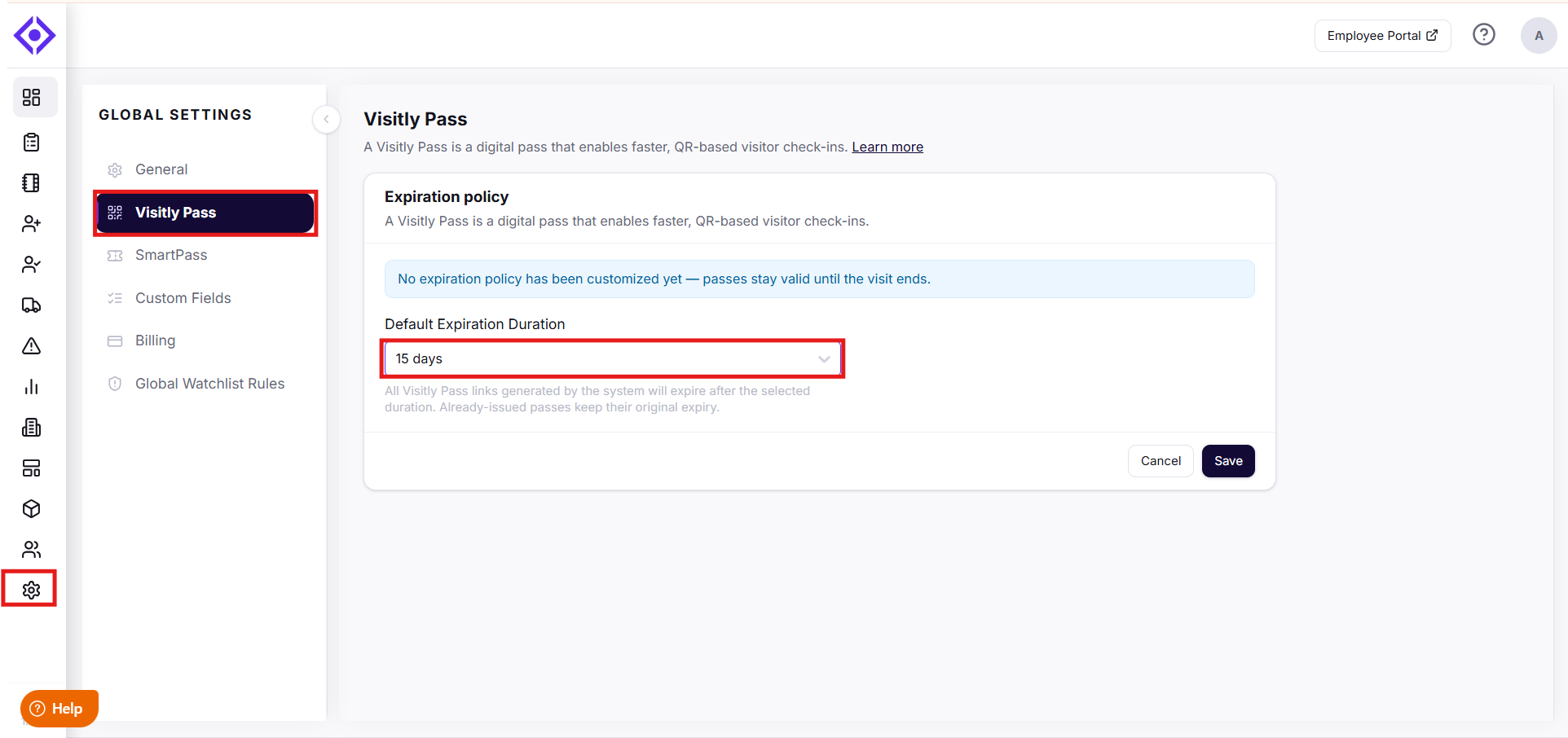
That’s it. All newly issued Visitly Passes will now expire automatically based on your selection.
Important Things to Know
The expiration setting applies to new Visitly Passes created after the update
Existing passes will continue to work until their current expiration date
Expired Visitly Passes cannot be used to check in
Visitors will need to sign in again to receive a new Visitly Pass once the old one expires
Frequently Asked Questions (FAQs)
Who can change the Visitly Pass expiration?
Only users with Global Admin access can set or update the expiration period.
What happens when a Visitly Pass expires?
Once a pass expires, the QR code will no longer work. The visitor will need to sign in again on the Visitly iPad to receive a new Visitly Pass.
Can I set different expiration periods for different visitors?
Currently, the expiration setting applies globally to all Visitly Passes issued by your organization.
Will visitors be notified when their Visitly Pass expires?
Visitors are not notified automatically when a pass expires. However, they will be prompted to sign in again if they attempt to use an expired pass.
Can I turn off expiration completely?
At this time, an expiration period must be selected to ensure consistent access control and security.
Was this article helpful?
That’s Great!
Thank you for your feedback
Sorry! We couldn't be helpful
Thank you for your feedback
Feedback sent
We appreciate your effort and will try to fix the article