You can invite a visitor directly from either dashboard or visitors tab.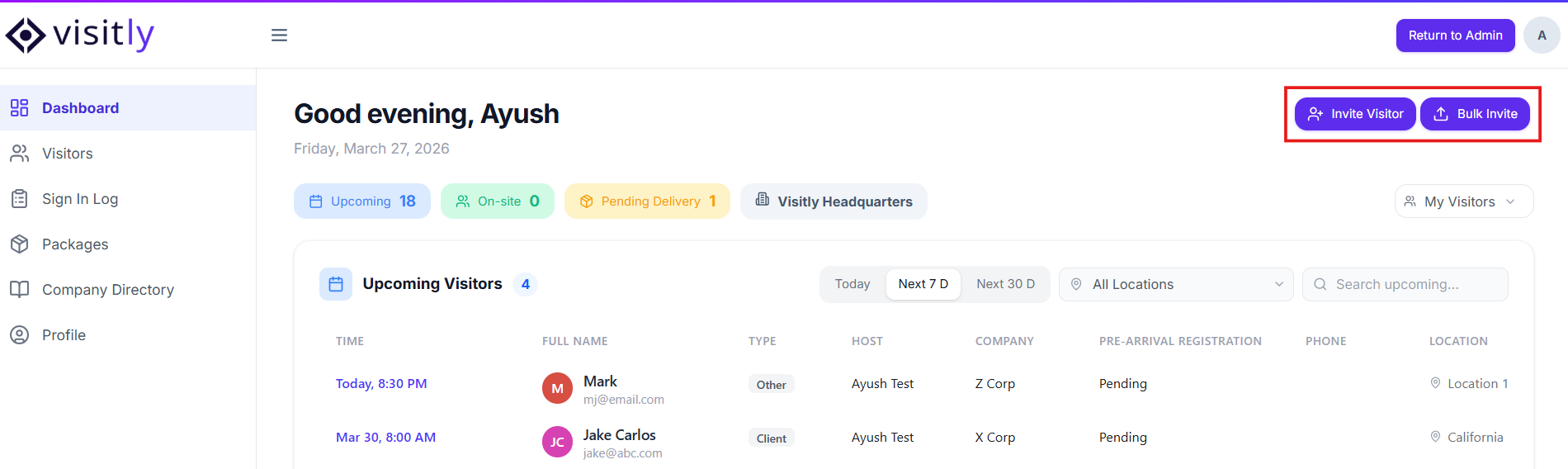
1 . Choose your invite type:
Invite Visitor — Pre-register one visitor at a time.
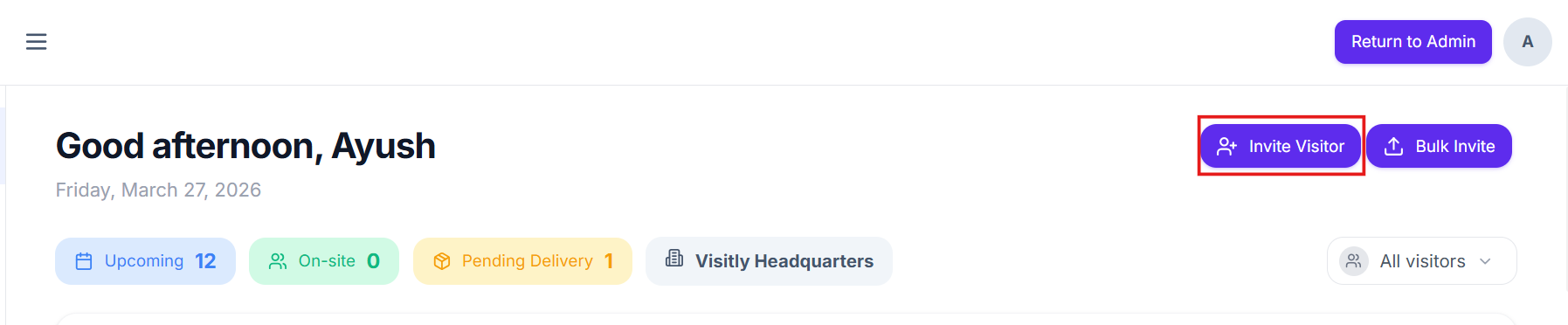
Bulk Invite — Add multiple visitors at once for larger groups.
Invite Visitors
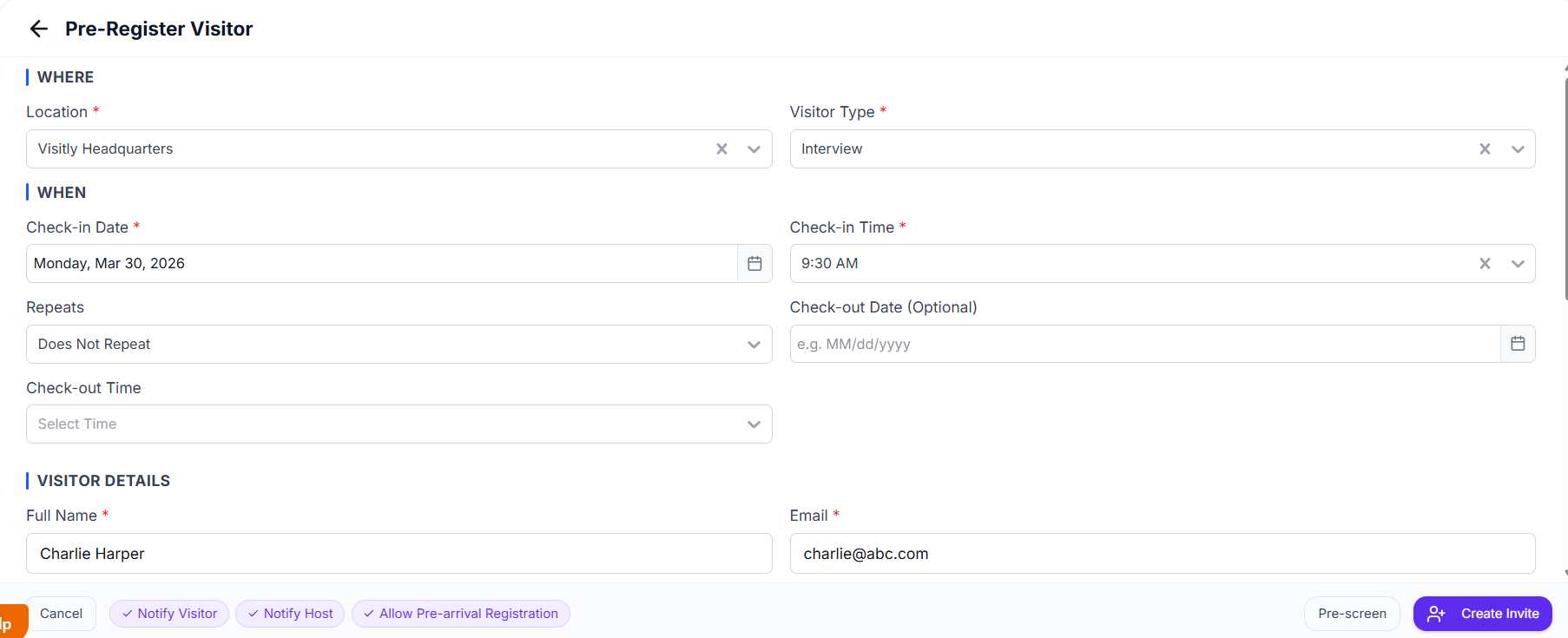
Fill all the required fields.
Location — Select which location the visitor will be visiting. Select this to unlock visitor type.
Visitor Type — Choose the appropriate visitor category (e.g. Guest, Contractor, Delivery).
Scheduled Check-In Date & Time — When the visitor is expected to arrive.
Scheduled Check-Out Date & Time — When the visitor is expected to leave.
Repeat — Set if this visit repeats. Options include:
Does not repeat (default)
Daily
Weekly
Weekdays
Monthly
Annually
Enter the visitor's details and assign a host.
Visitor Details — Name, email, and any other required information for the visitor.
Host — The person responsible for welcoming this visitor.
Co-Host (optional) — Add up to 9 co-hosts who will also be notified and associated with this visit.
If your organization has configured any additional custom fields, they will also appear in this step.
Review all the details you've entered before creating the invitation. 
Review the notification settings before creating invite. 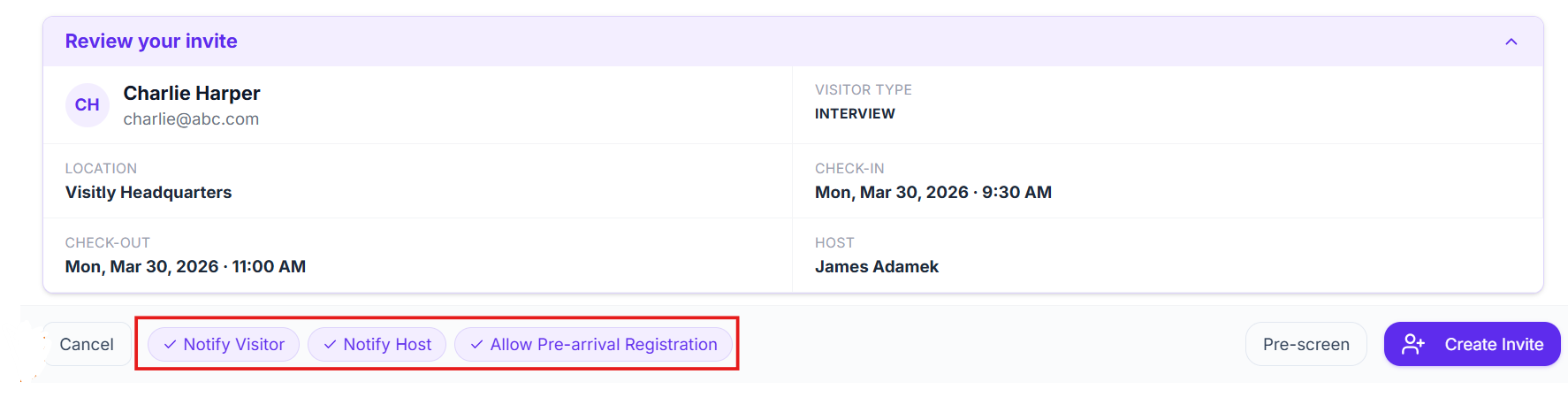
Notify Host — Send a notification to the assigned host.
Notify Visitor — Send an invitation email to the visitor.
Allow Pre-Arrival Registration — Let the visitor pre-fill their information before arriving, making check-in faster at the kiosk.
Once everything looks good, click Create to send the invitation.
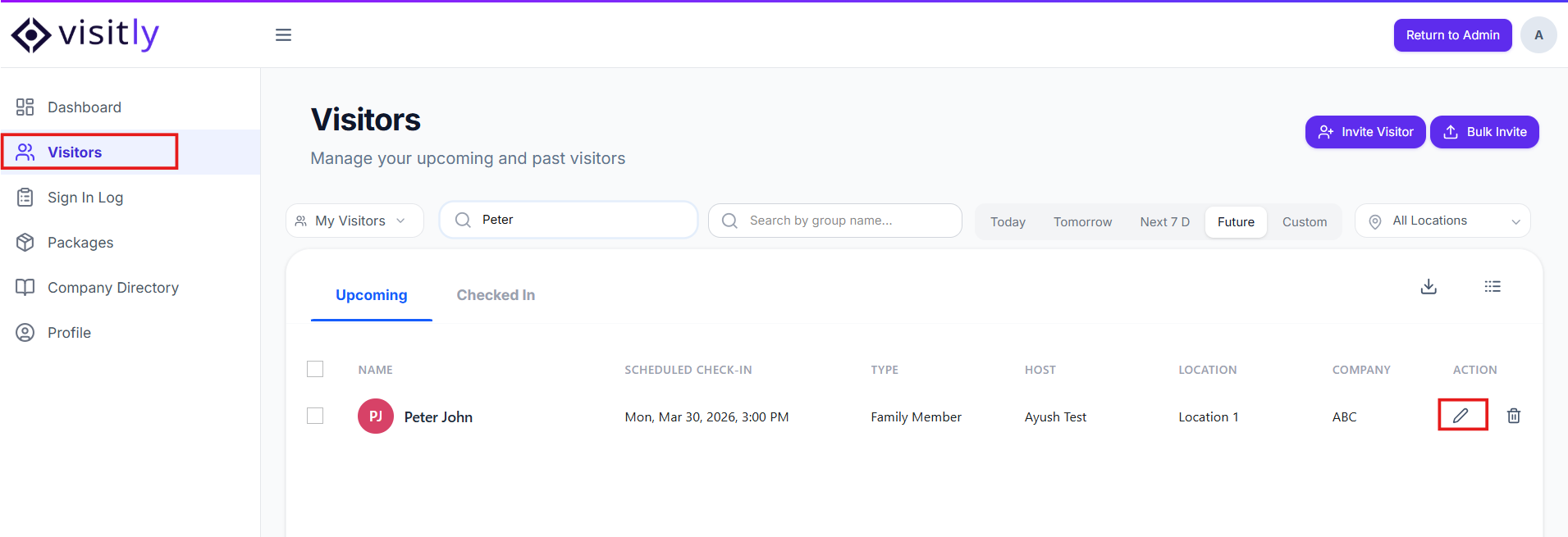
Edit Invite
You can edit invite details depending upon the visitor’s action to pre-arrival registration.
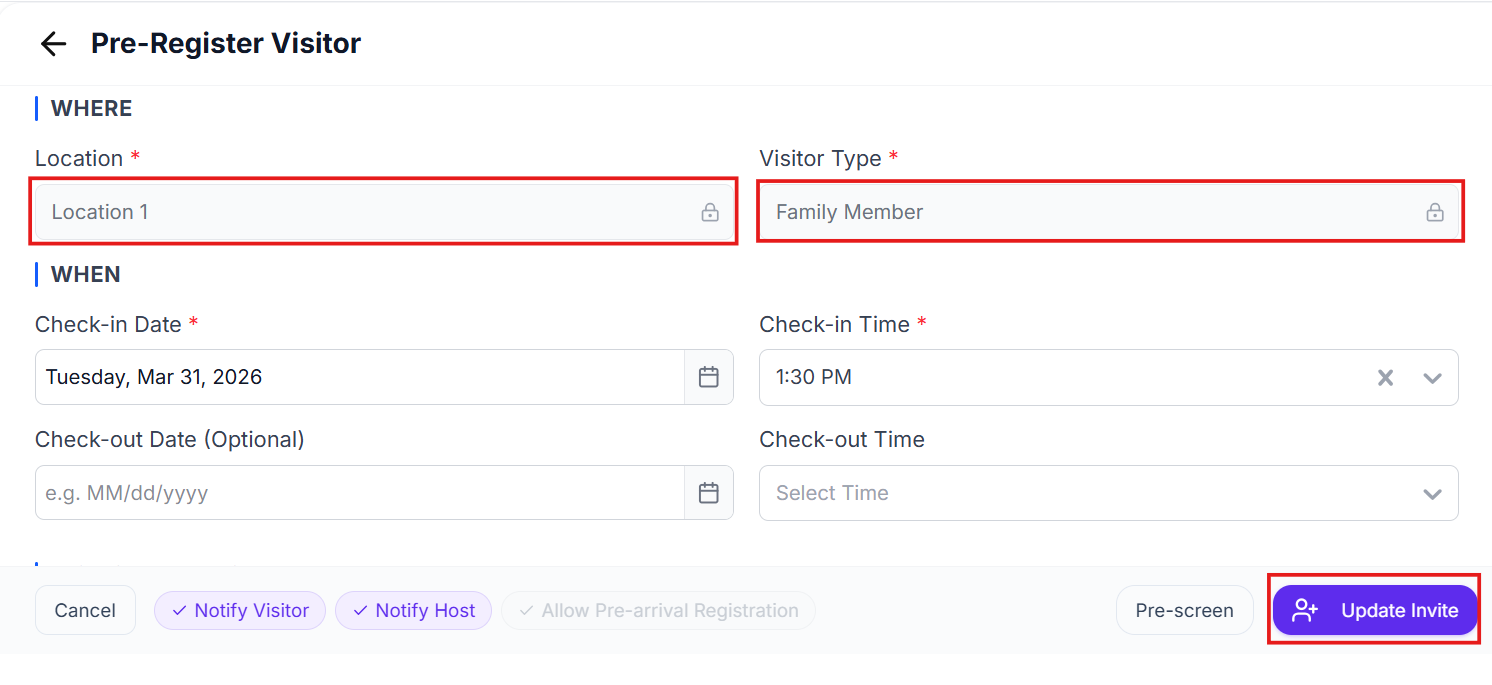
1. Pre-arrival Pending -
In this case, You can edit all fields expect location & visitor type.
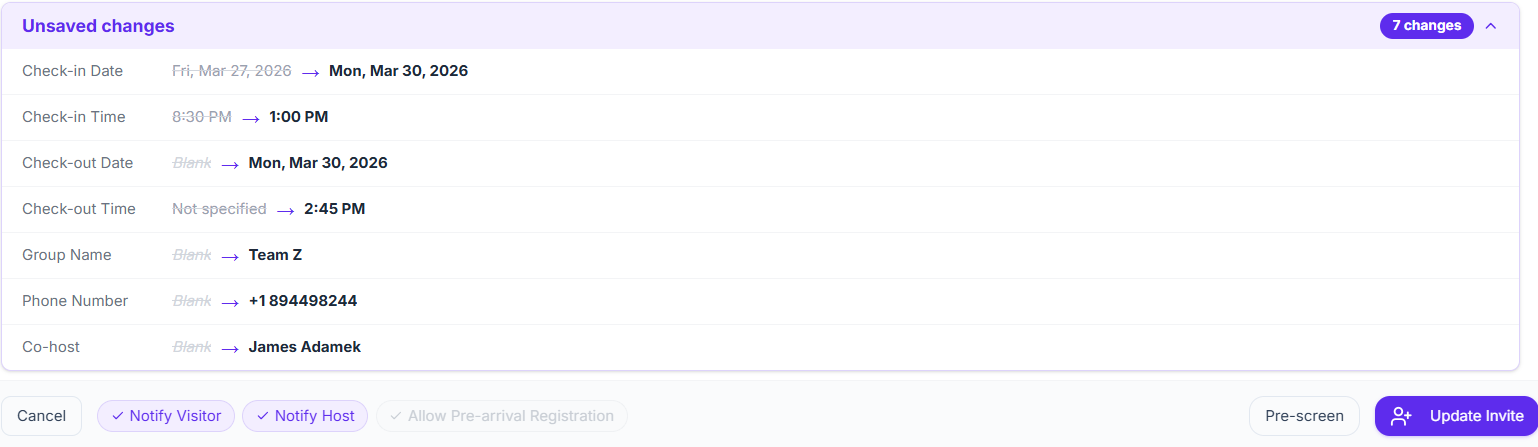
You can see a summary of all the changes you have done before updating the invite.
2. Pre-arrival Complete -
In this case, You can only edit Group name & internal notes.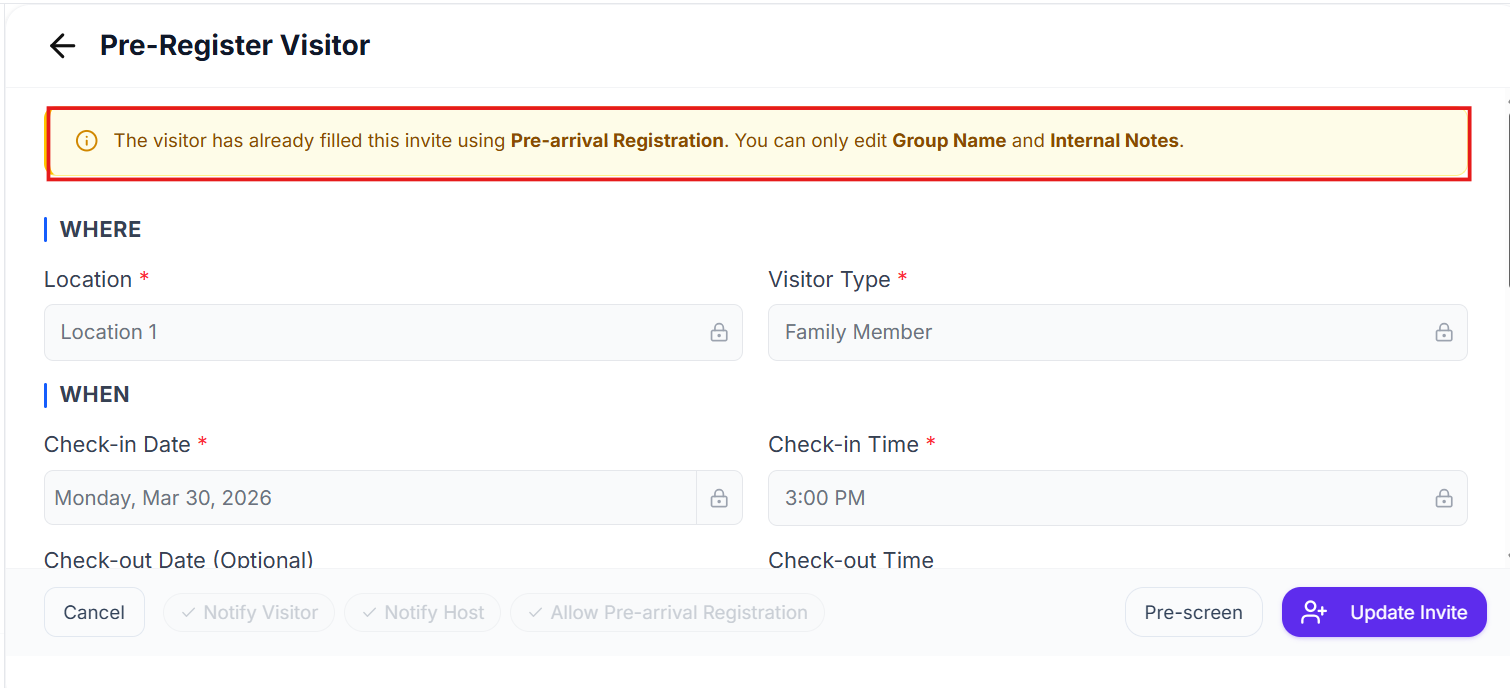
You can also see the summary of the changes you have made.
3. Recurring Invites -
You can only edit Group name & internal notes.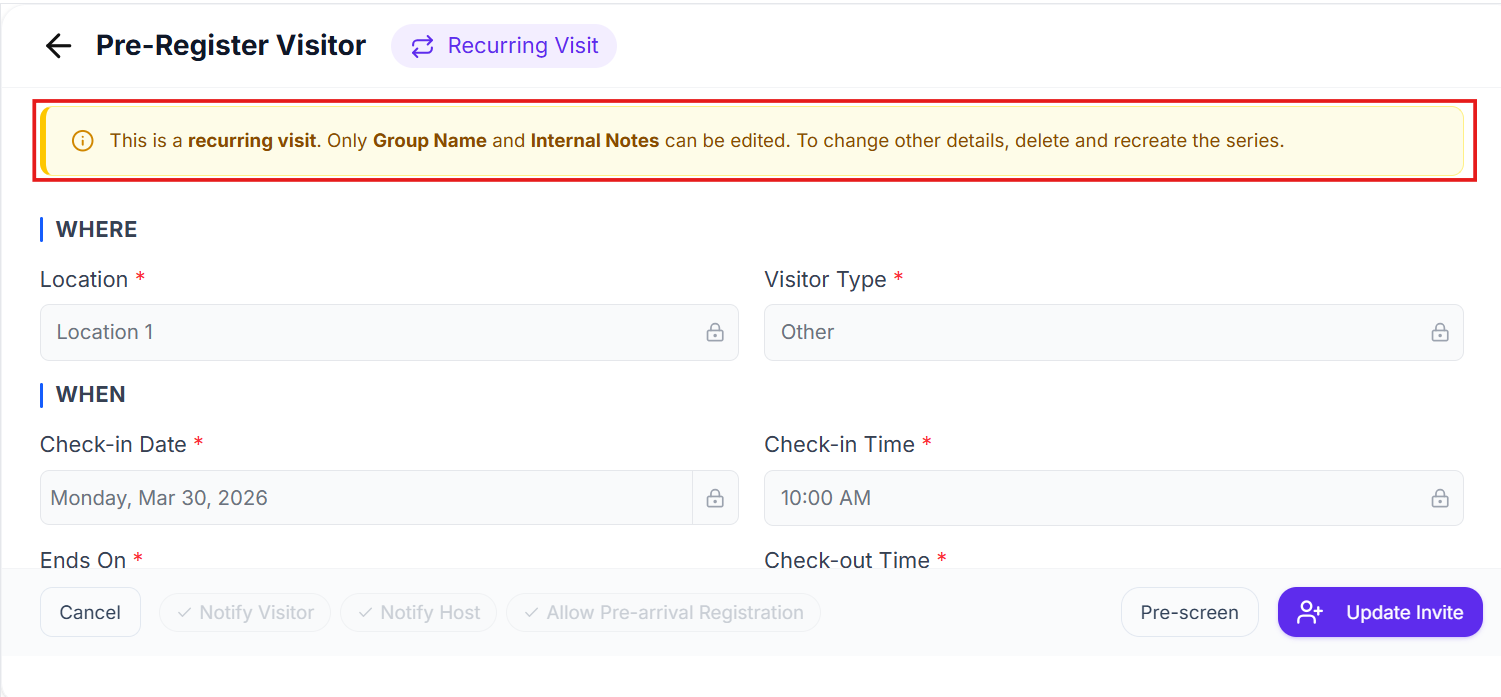
Was this article helpful?
That’s Great!
Thank you for your feedback
Sorry! We couldn't be helpful
Thank you for your feedback
Feedback sent
We appreciate your effort and will try to fix the article