The Dashboard is your home base in Visitly. As soon as you log in, you get a clear picture of everything happening at your location today — all in one place.
Overview Cards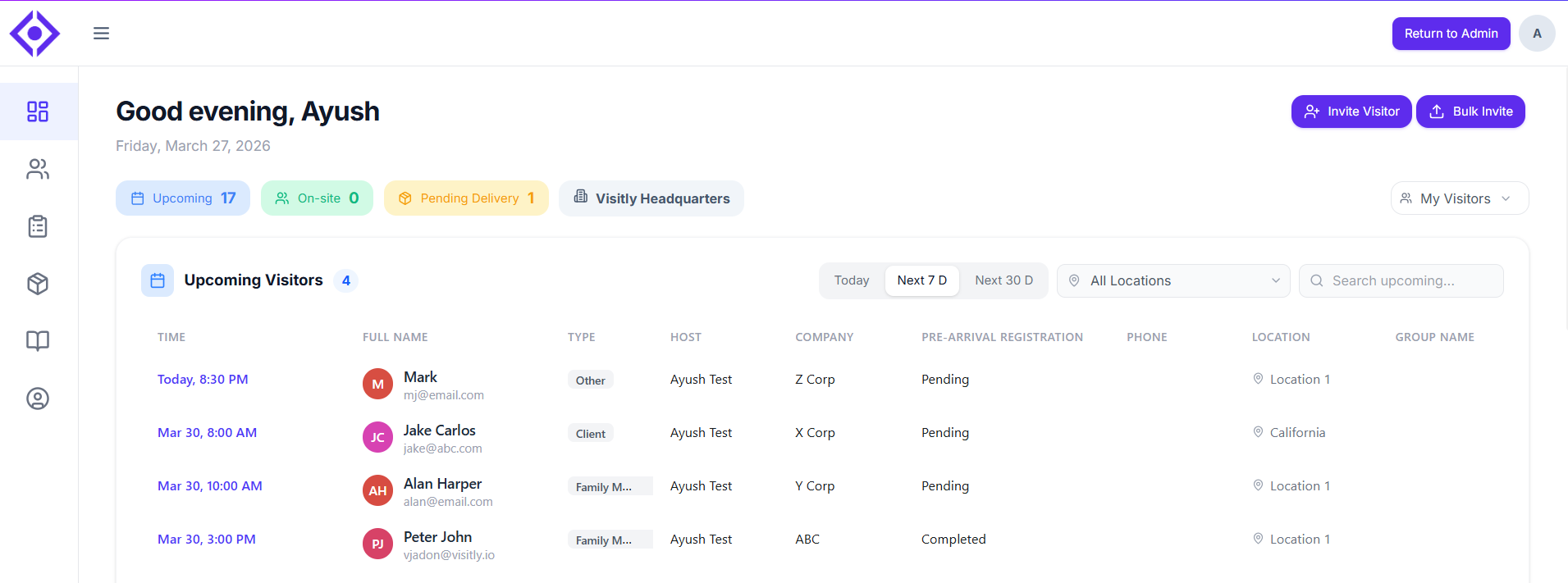
At the top of the Dashboard, you'll see summary cards showing today's snapshot:
Upcoming Visitors — Visitors who are pre-registered and expected to arrive today.
Checked-In Visitors — Visitors who have already checked in and are currently onsite.
My Deliveries — Packages received and awaiting pickup (visible for organizations with the Delivery feature enabled).
Inviting a Visitor from the Dashboard
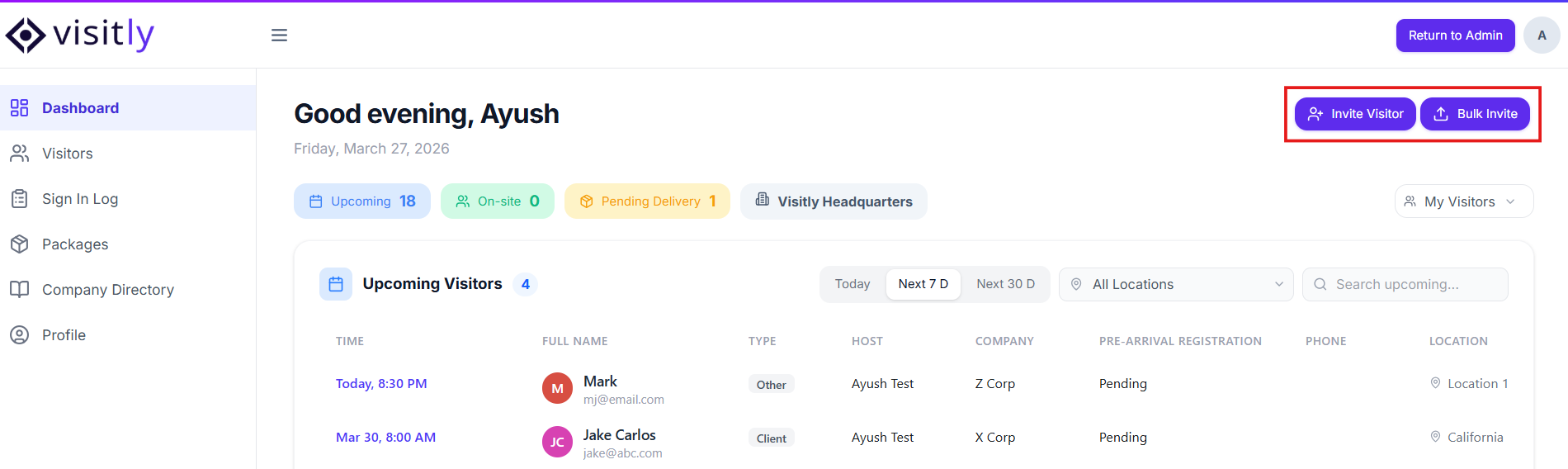
1. Click Invite Visitor.
2. Choose your invite type:
Single Invite — Pre-register one visitor at a time.
Bulk Invite — Add multiple visitors at once, ideal for large groups or recurring visits.
Upcoming Visitors
A detailed list of everyone scheduled to visit your location today.
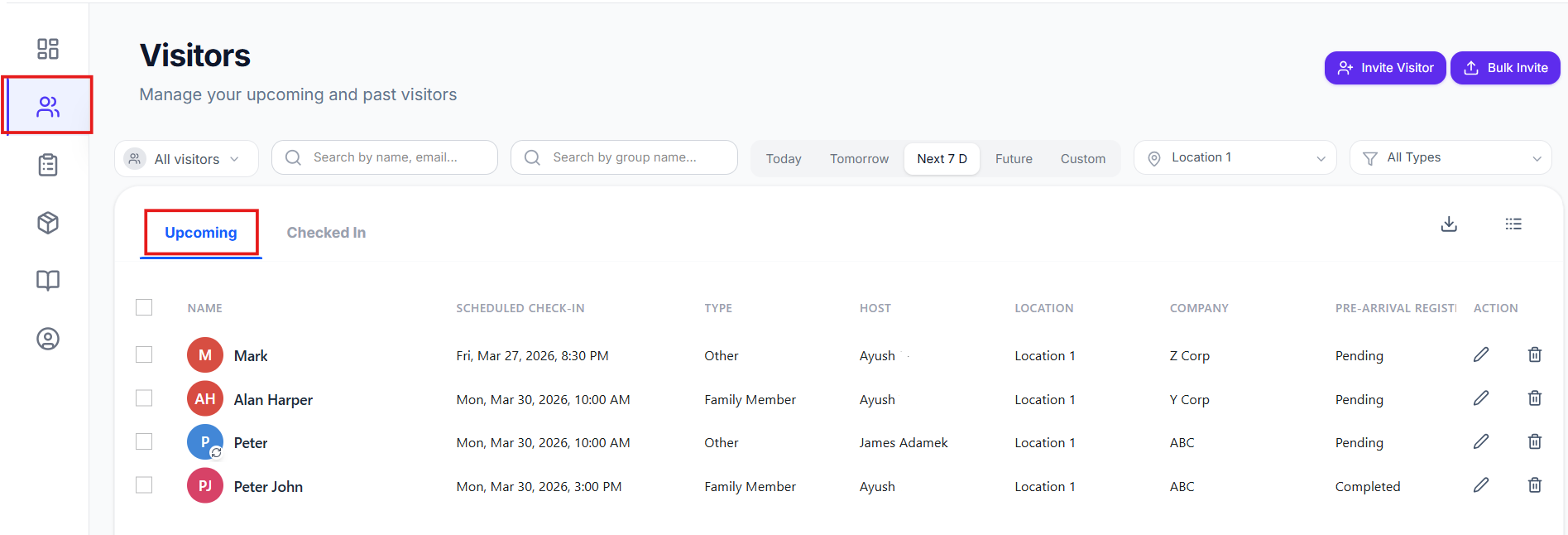
Location — Filter by a specific location if you're associated with more than one.
Search — Look up a visitor by name or host.
View filter:
All — Shows all upcoming visitors across the location.
My Visitors — Shows only the visitors you are hosting.
My Delegates — Shows upcoming visitors for hosts you are acting as a delegate for.
Checked-In Visitors
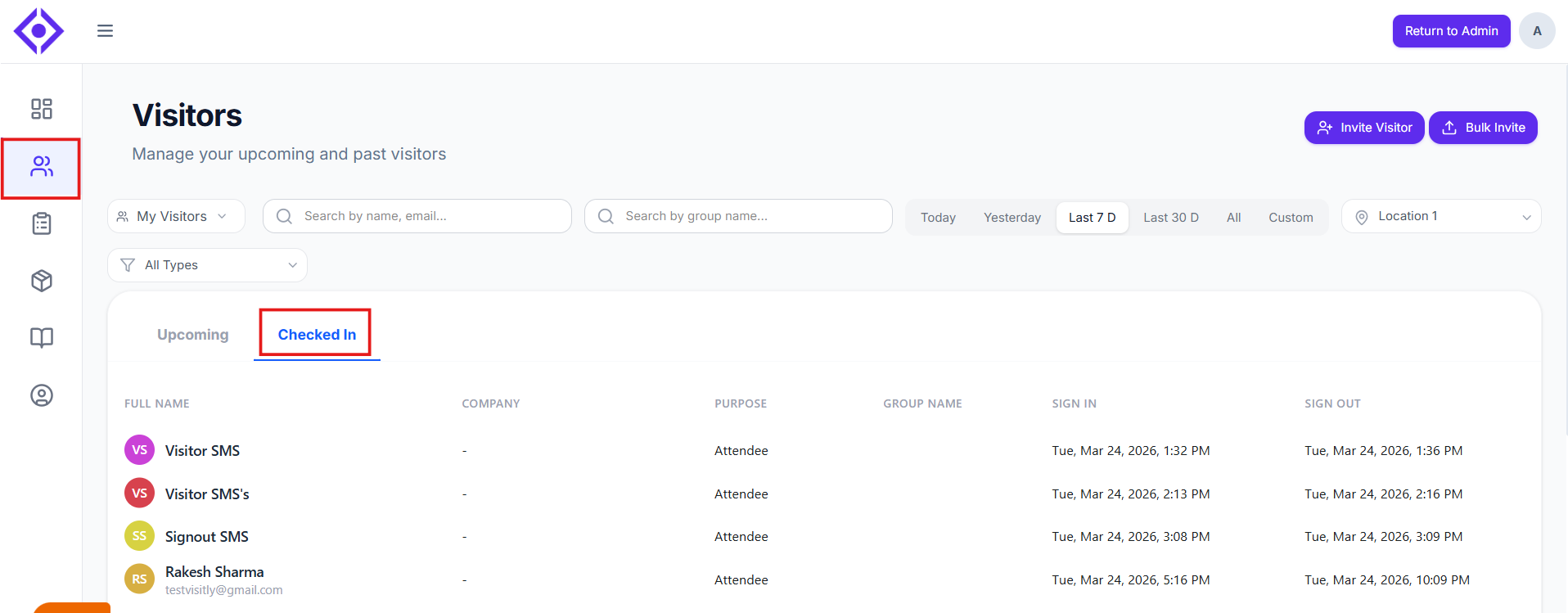
A real-time list of visitors who have checked in and are currently onsite. Like Upcoming Visitors, this list can be filtered by:
All — All checked-in visitors at the location.
My Visitors — Only the checked-in visitors you are hosting.
My Delegates — Checked-in visitors for hosts you are a delegate for.
My Deliveries
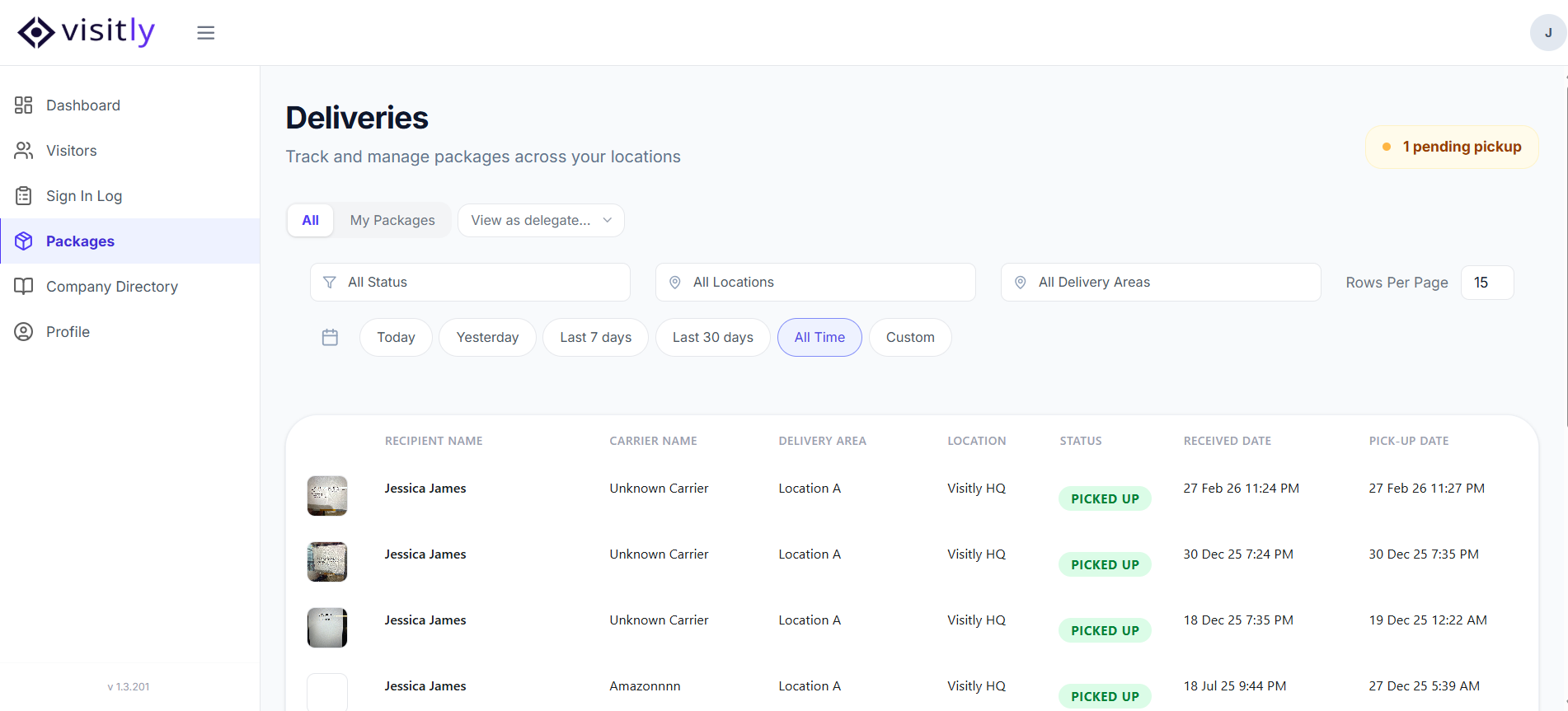
If your organization has the Delivery feature enabled, this section shows all packages received for you today. You can filter deliveries the same way:
All — All pending deliveries at the location.
My Deliveries — Deliveries addressed to you.
My Delegates — Deliveries for hosts you are a delegate for.
My Sign-In Log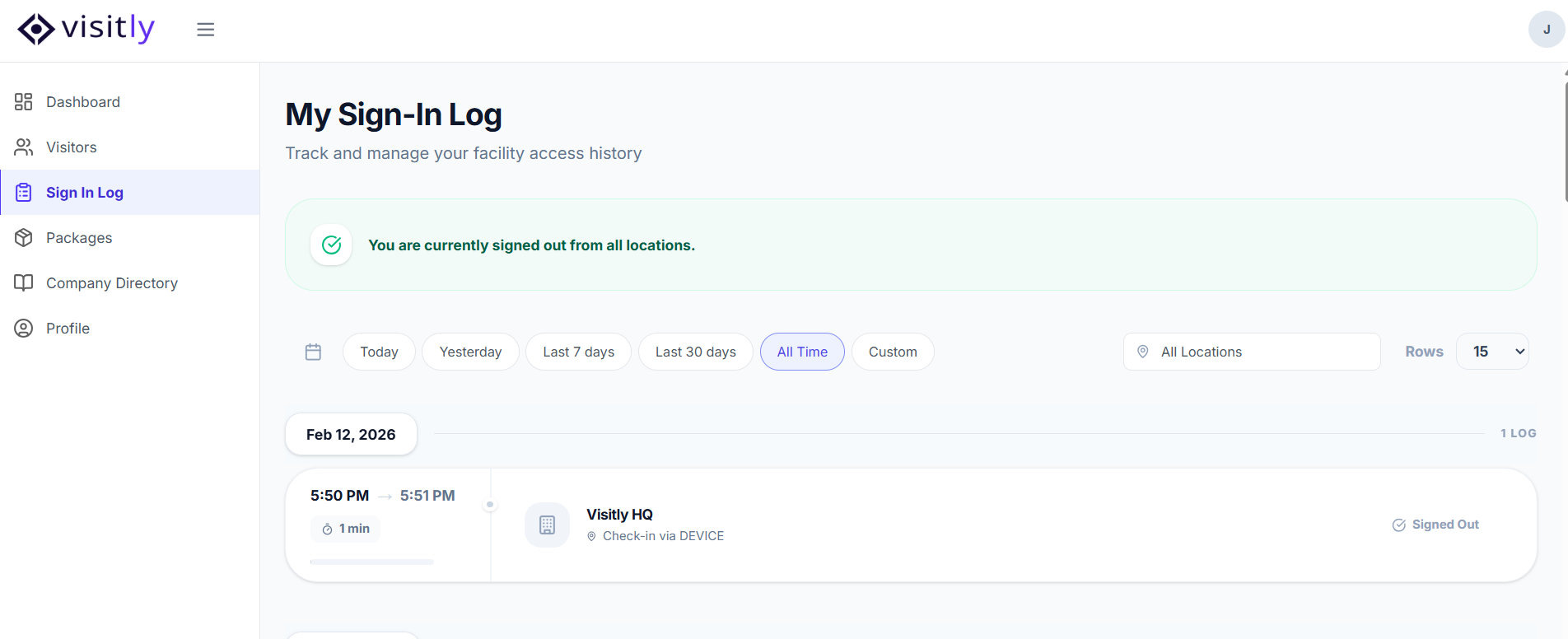
At the bottom of the Dashboard, you'll find your own sign-in details — showing where and when you checked in as an employee today.
For help pre-registering a visitor, see How to Pre-Register a Visitor. For any questions, feel free to contact our support team.
Was this article helpful?
That’s Great!
Thank you for your feedback
Sorry! We couldn't be helpful
Thank you for your feedback
Feedback sent
We appreciate your effort and will try to fix the article