Admin role required: Global Admin

Feature availability varies by plan. Check What's in each plan on our pricing page to see if it's included in yours, or talk to our sales team about upgrading.
Overview
Okta custom attributes allow you to add additional fields to user profiles—such as Department, Employee ID, or Location, which can be synced to Visitly. Once configured, user profile data is automatically synced, helping keep your directory accurate and up to date.
Pre-requisites
Before you begin, make sure the following are in place:
1. The Visitly app is added in Okta.
2. Provisioning settings are enabled.
3. You have administrative access to your Okta instance.
Set Up Okta Integration
Follow the steps in Visitly's Okta Integration Guide up to Step 5 before proceeding.
Navigate to Attribute Mapping
1. Log in to Okta as an administrator.
2. Open the Visitly app in your Okta admin dashboard.
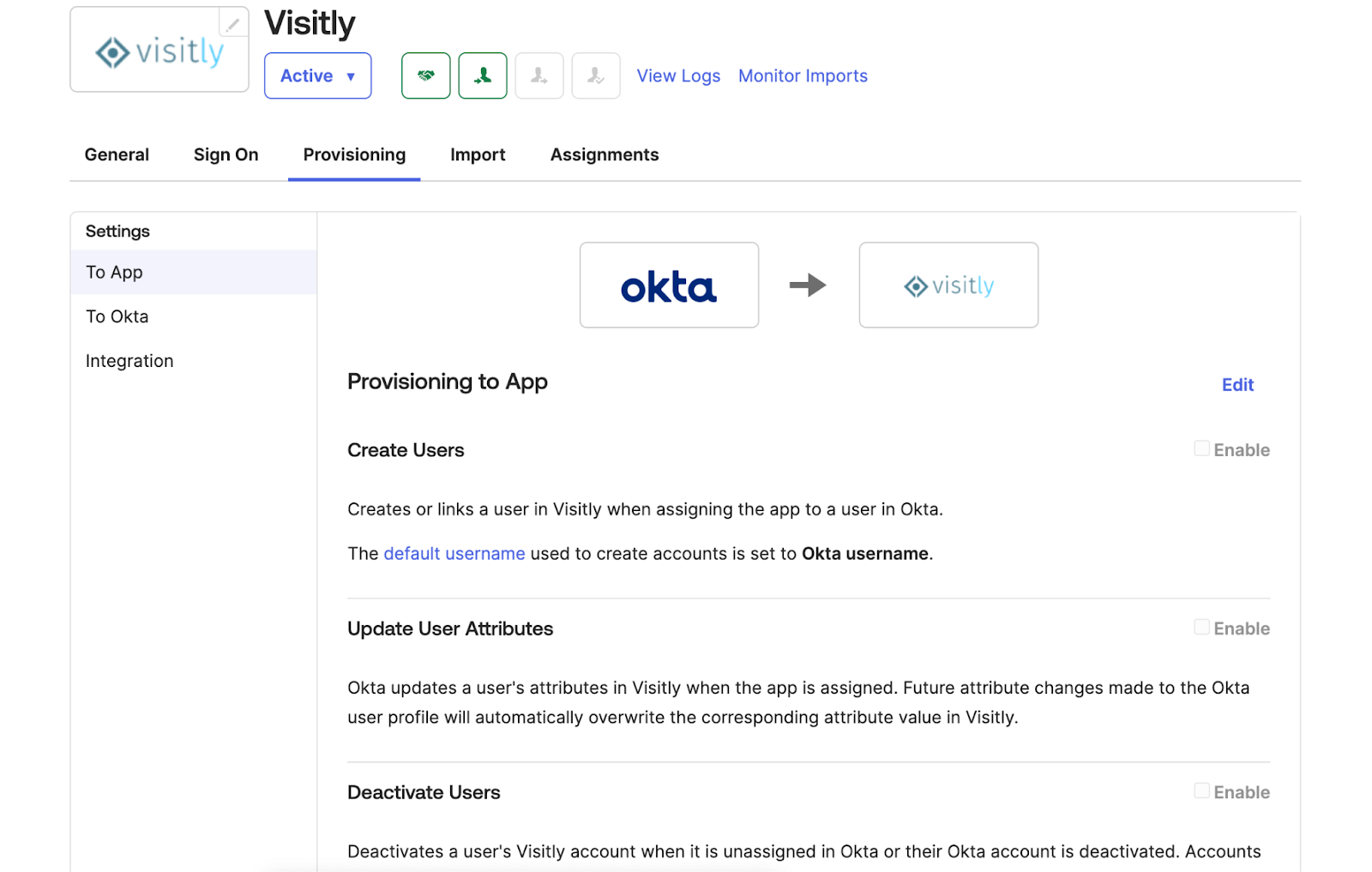
3. Go to the Provisioning tab.
4. Select Attribute Mapping.
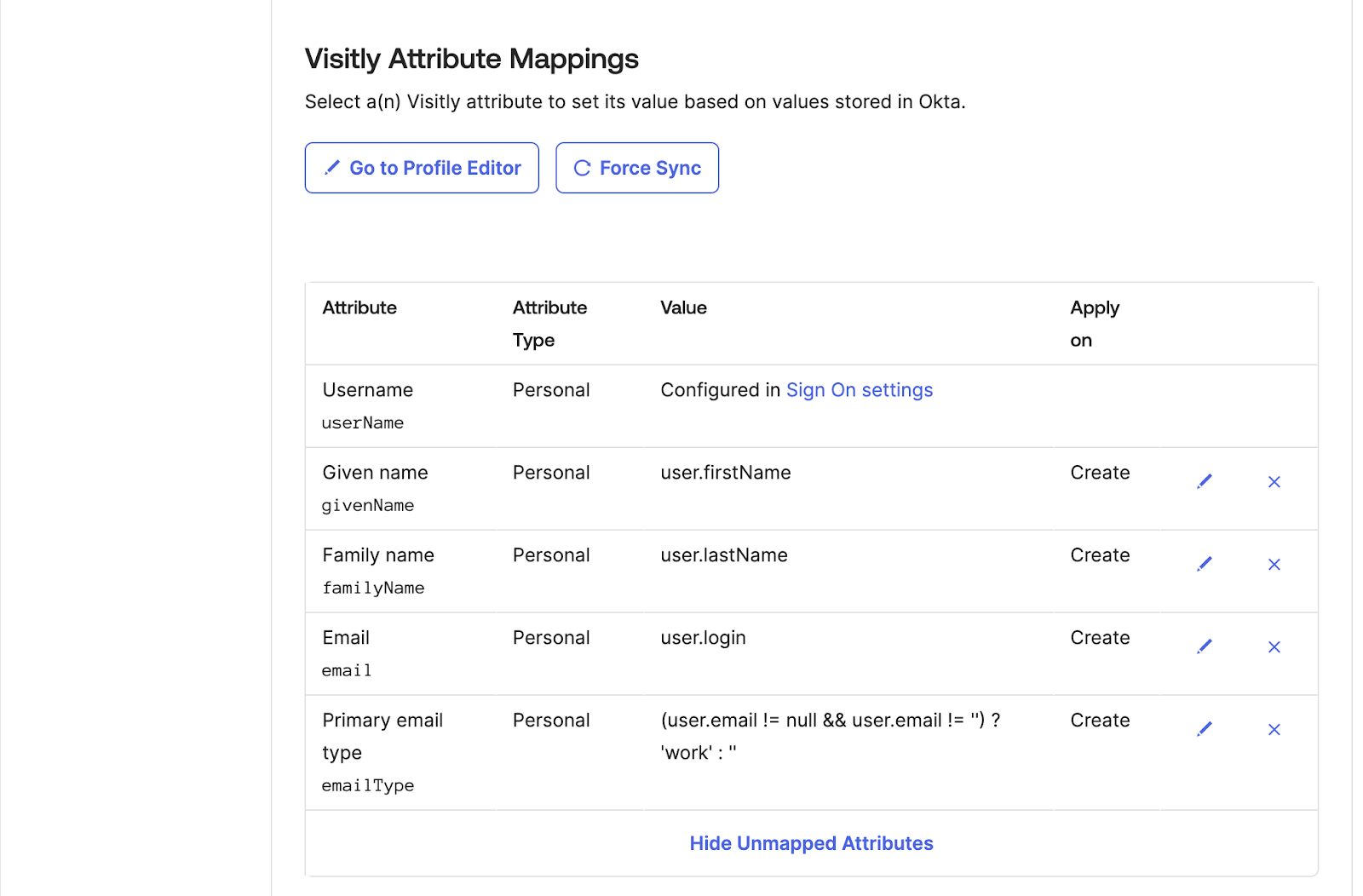
5. Click on Profile Editor.
6. Click on the Add Attribute button to create custom attributes.
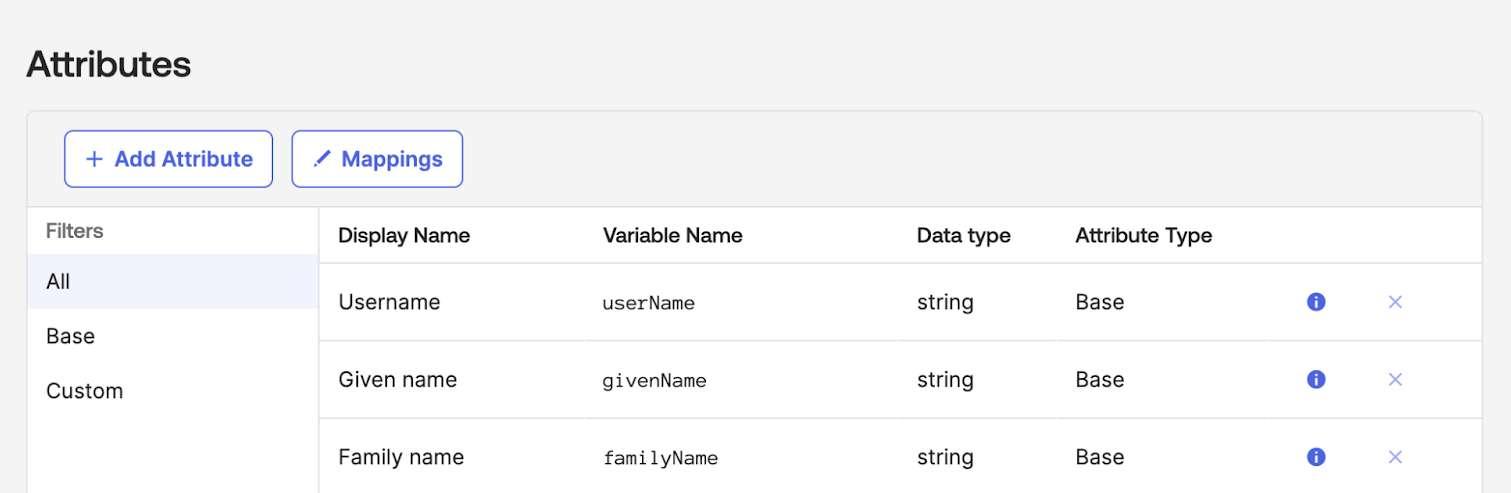
Add Custom Attributes
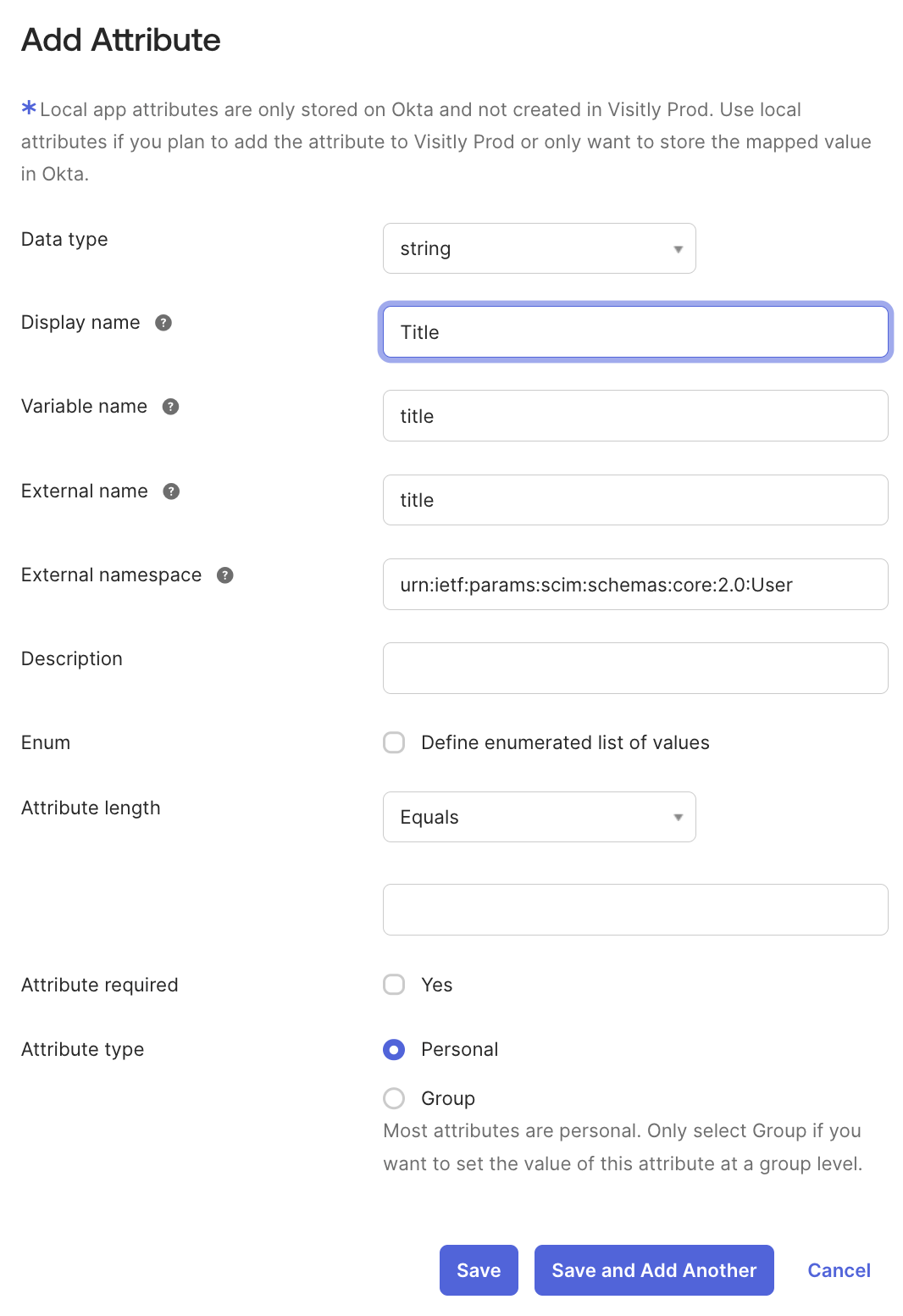
For each custom attribute, configure the following fields:
1. Title
Display Name: Title
Variable Name: title
External Name: title
External Namespace: urn:ietf:params:scim:schemas:core:2.0:User
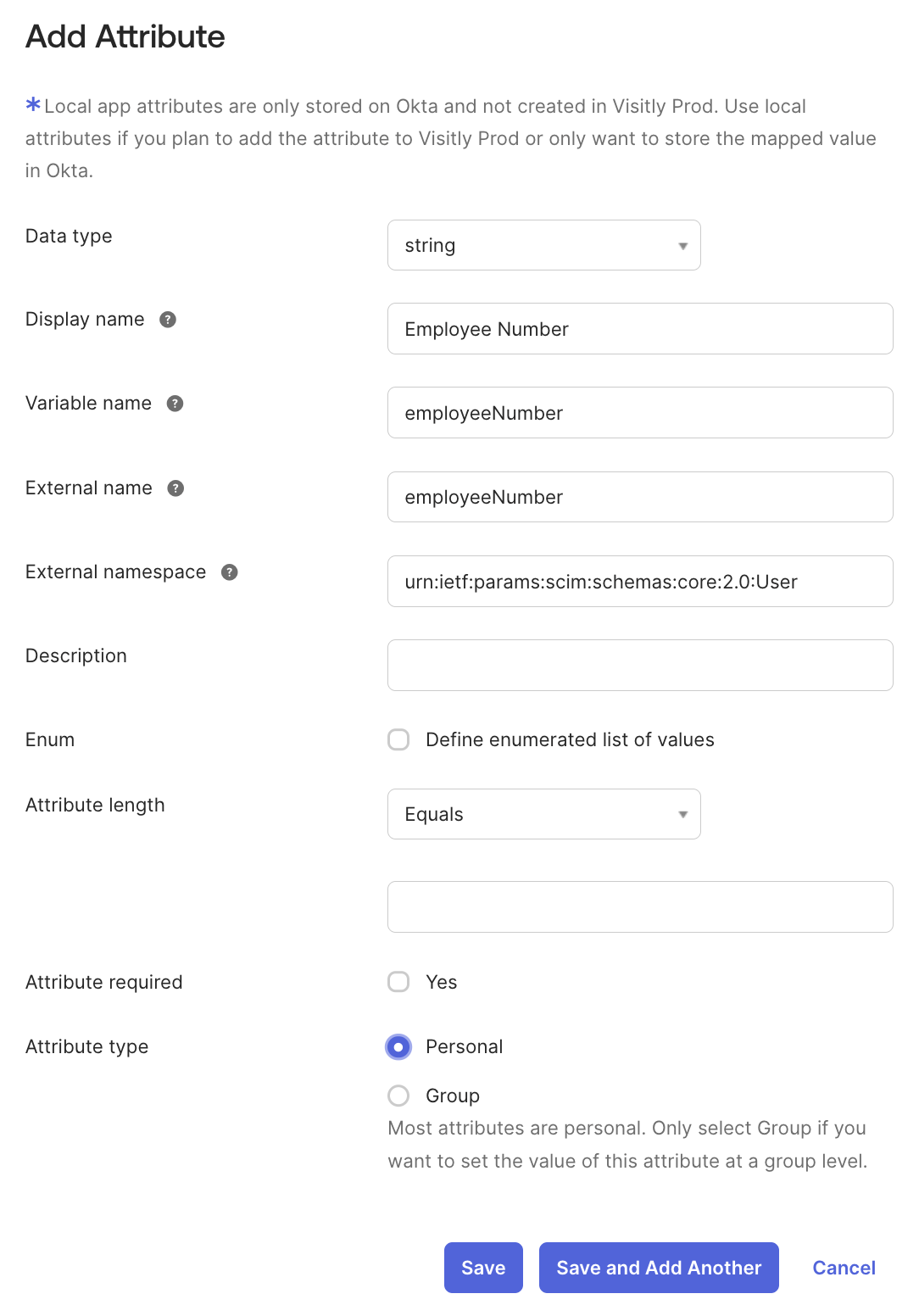
2. Employee Number
Display Name: Employee Number
Variable Name: employeeNumber
External Name: employeeNumber
External Namespace: urn:ietf:params:scim:schemas:extension:enterprise:2.0:User
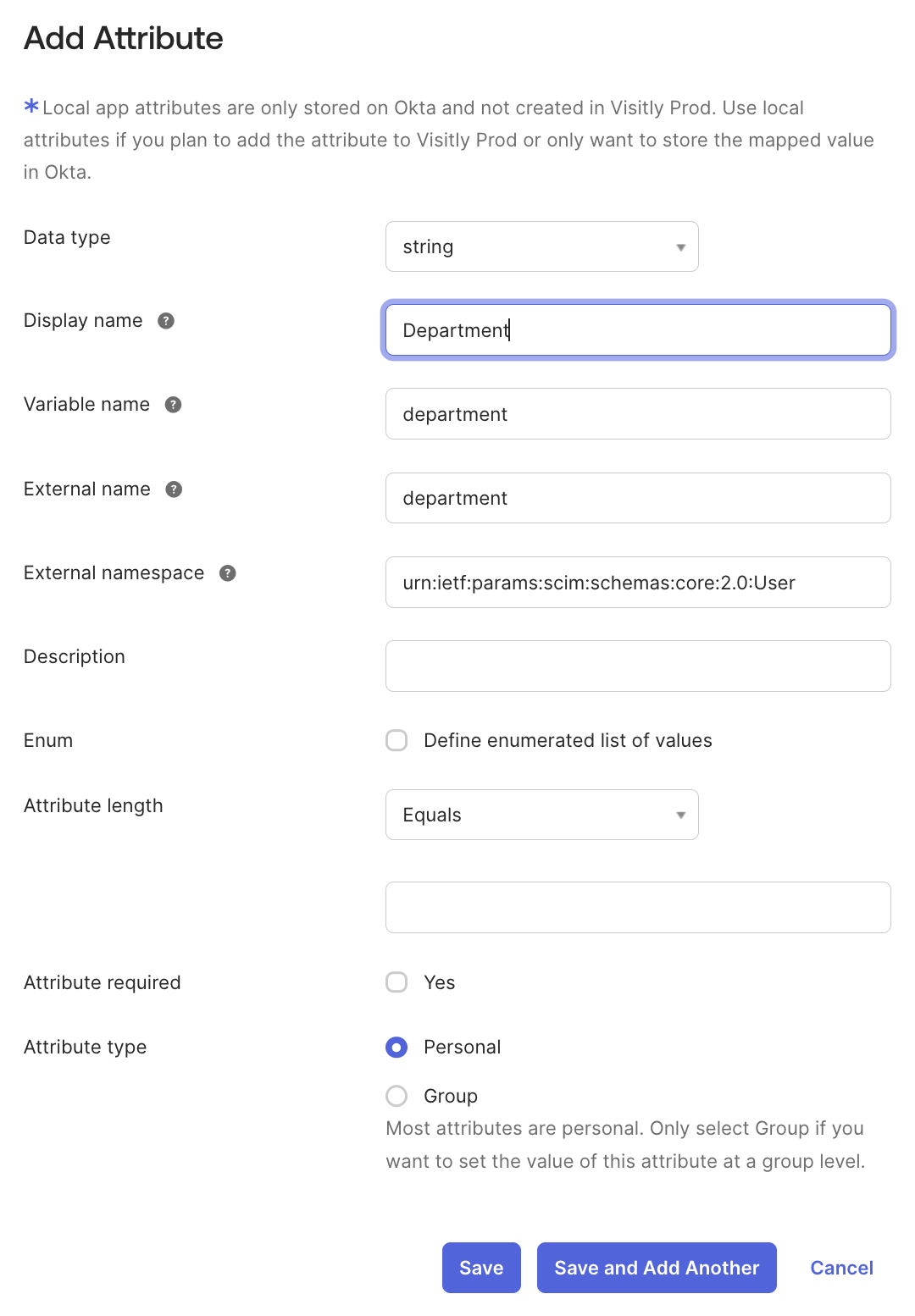
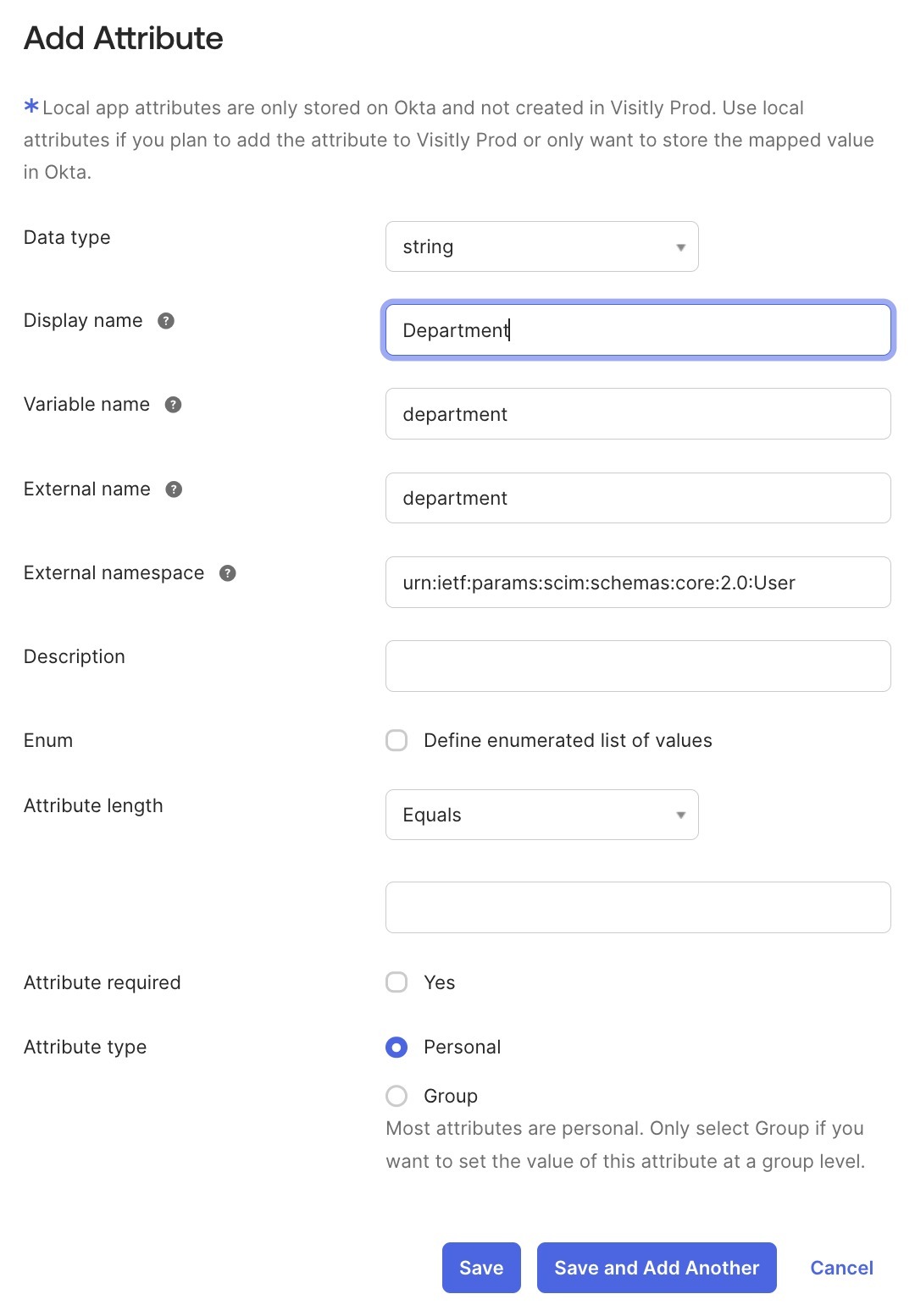
3. Department
Display Name: Department
Variable Name: department
External Name: department
External Namespace: urn:ietf:params:scim:schemas:extension:enterprise:2.0:User
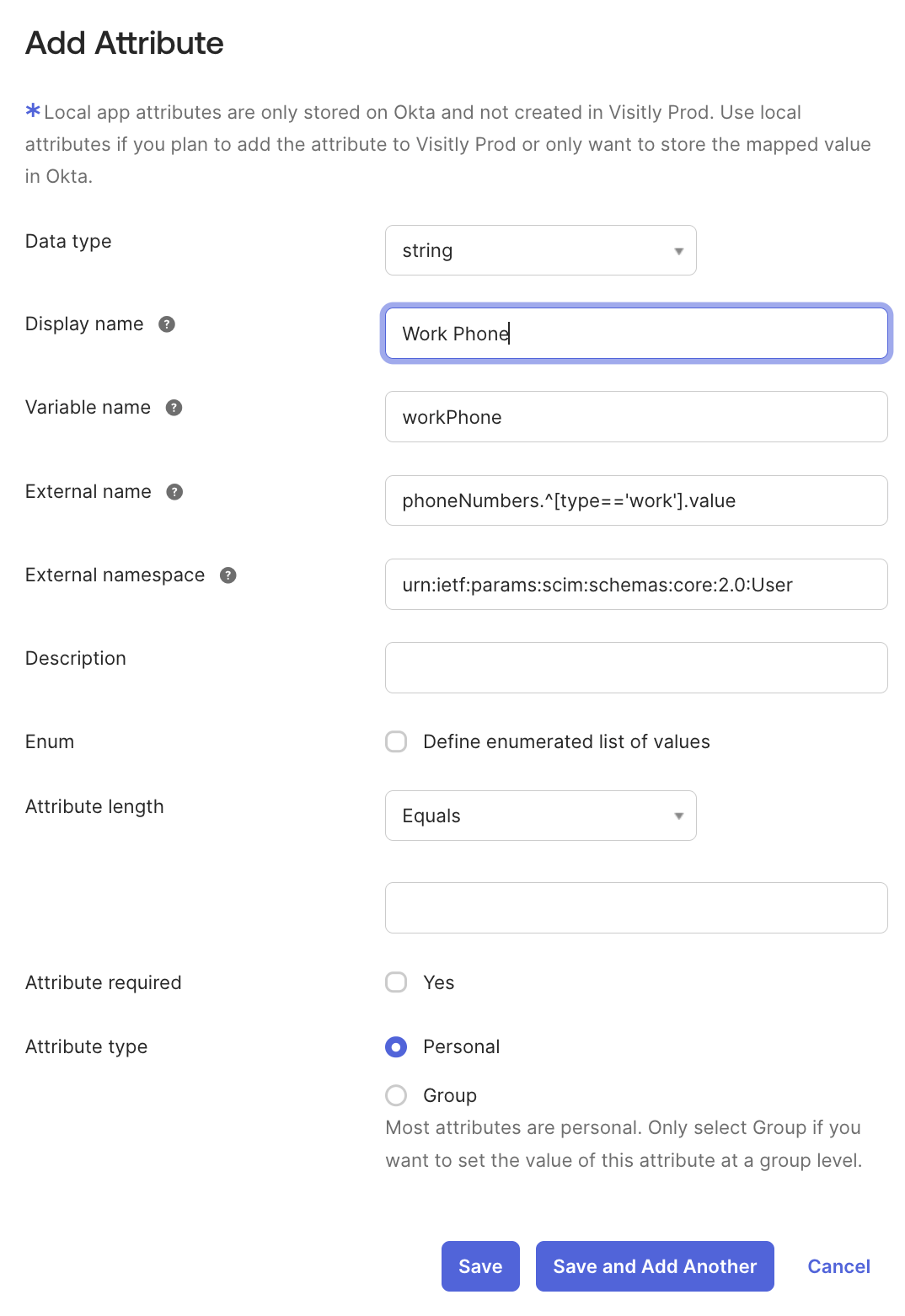
4. Work Phone
Display Name: Work Phone
Variable Name: workPhone
External Name: phoneNumbers.^[type=='work'].value
External Namespace: urn:ietf:params:scim:schemas:core:2.0:User
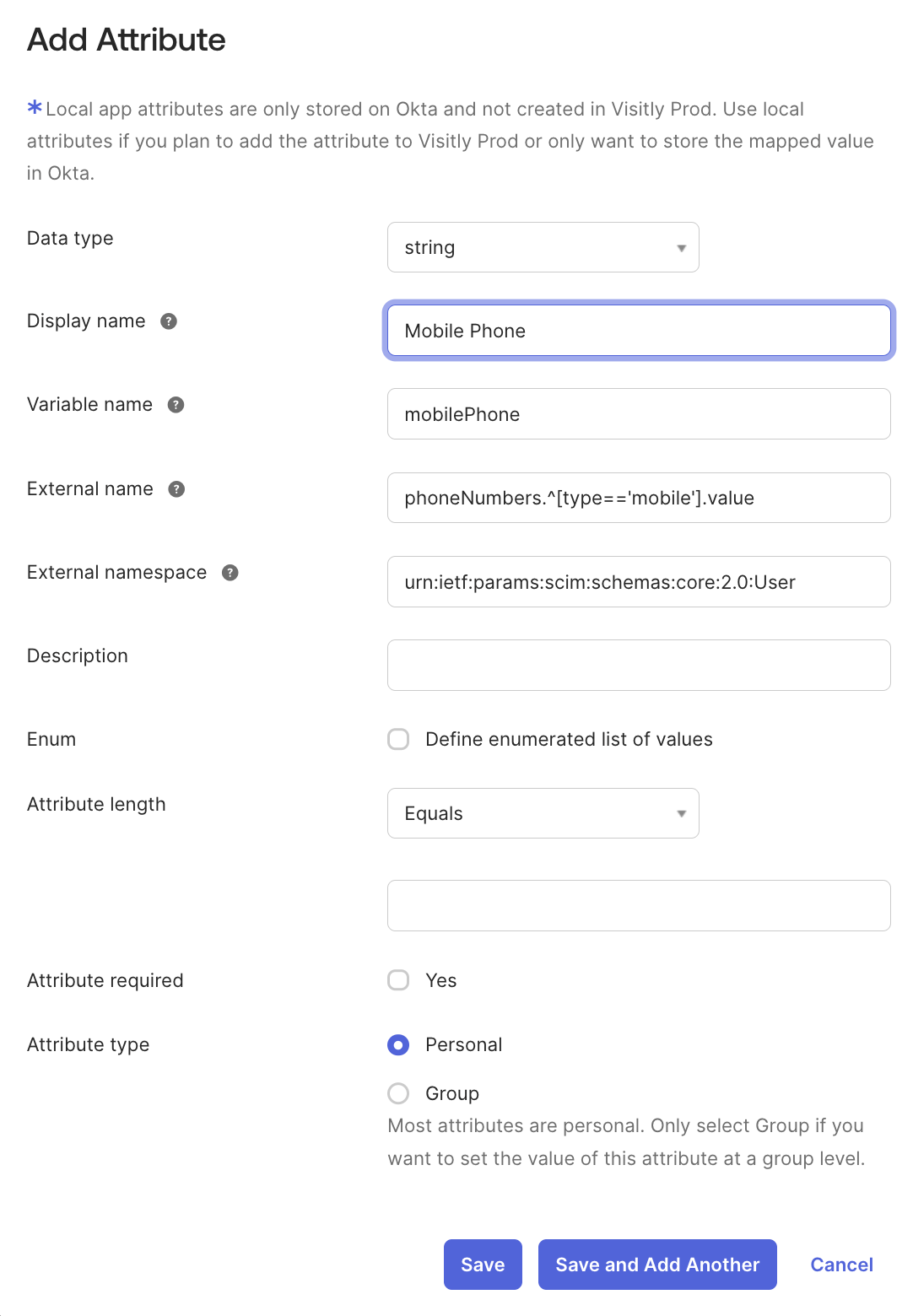
5. Mobile Phone
Display Name: Mobile Phone
Variable Name: mobilePhone
External Name: phoneNumbers.^[type=='mobile'].value
External Namespace: urn:ietf:params:scim:schemas:core:2.0:User
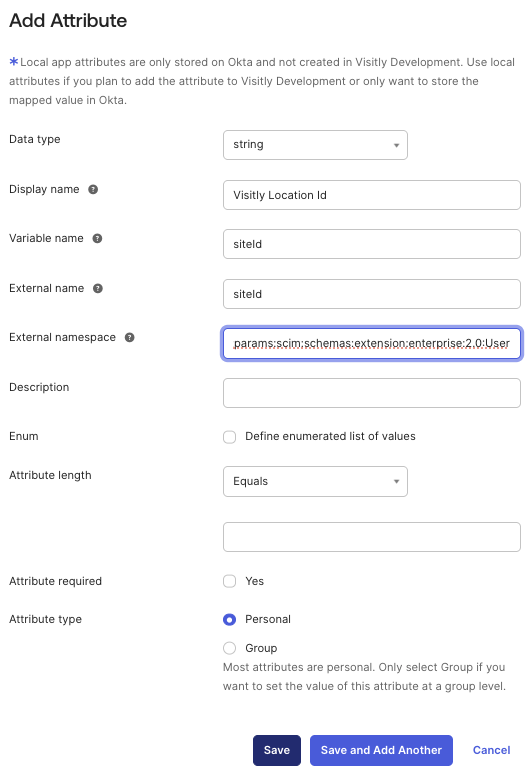
6. Primary Location
Display Name: Visitly Location Id
Variable Name: siteId
External Name: siteId
External Namespace: urn:scim:schemas:extension:visitly:core:1.0:User
Map Attributes to Visitly
1. After creating the custom attributes, map them to Visitly fields in Okta.
2. For the Primary Location attribute:
Use the unique attribute (e.g., City, ZIP Code, or State) that you shared with your Visitly account manager.
This ensures employees are assigned to the correct locations in Visitly.

3. Once all attributes are configured, click Save Attribute in Okta.
4. Test the integration by provisioning a test user to Visitly and confirming that the attributes (e.g., Title, Work Phone, Primary Location) are synced correctly.
Example For Adding Department Attribute
1. In Okta, go to Applications and select Visitly app.
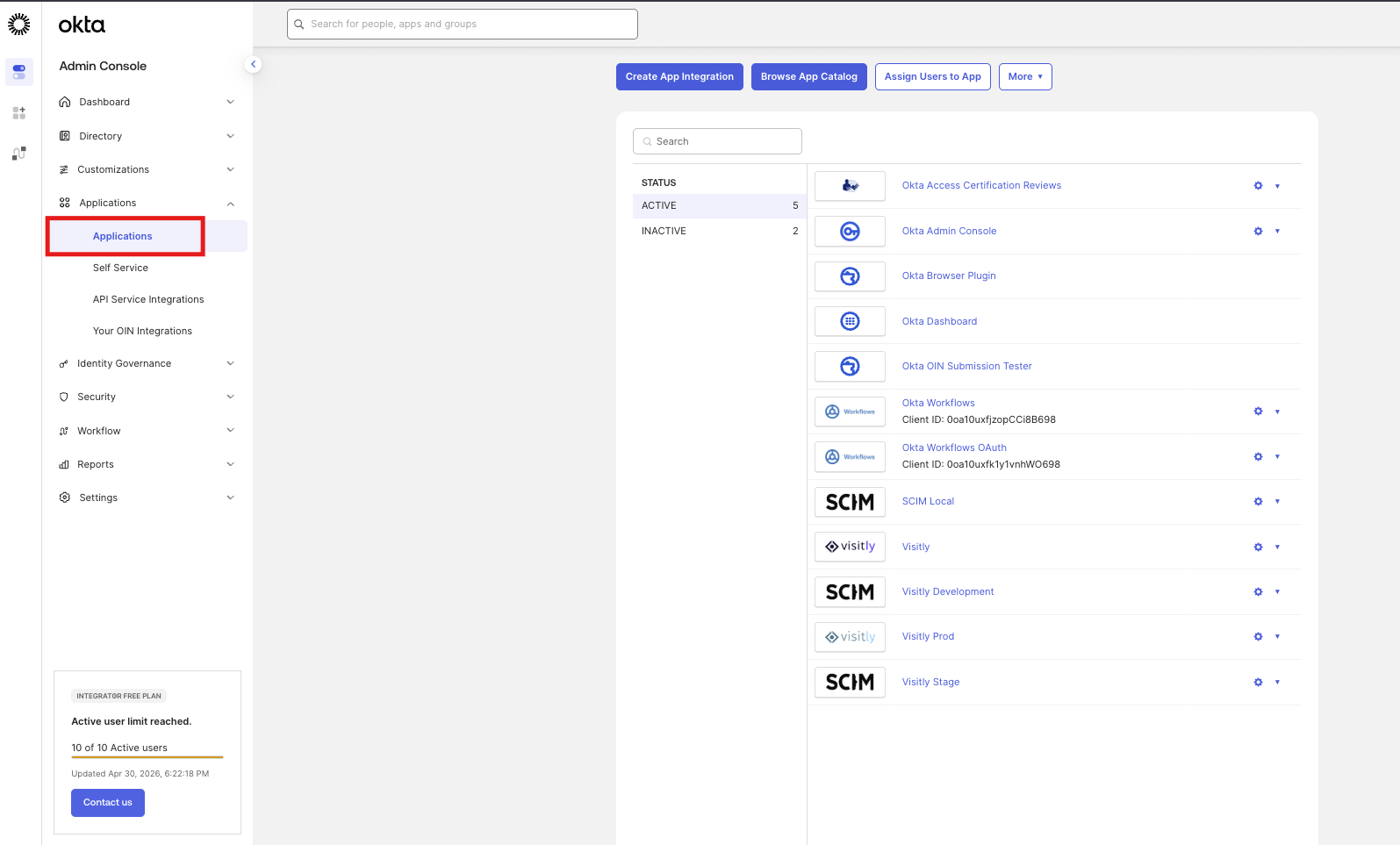
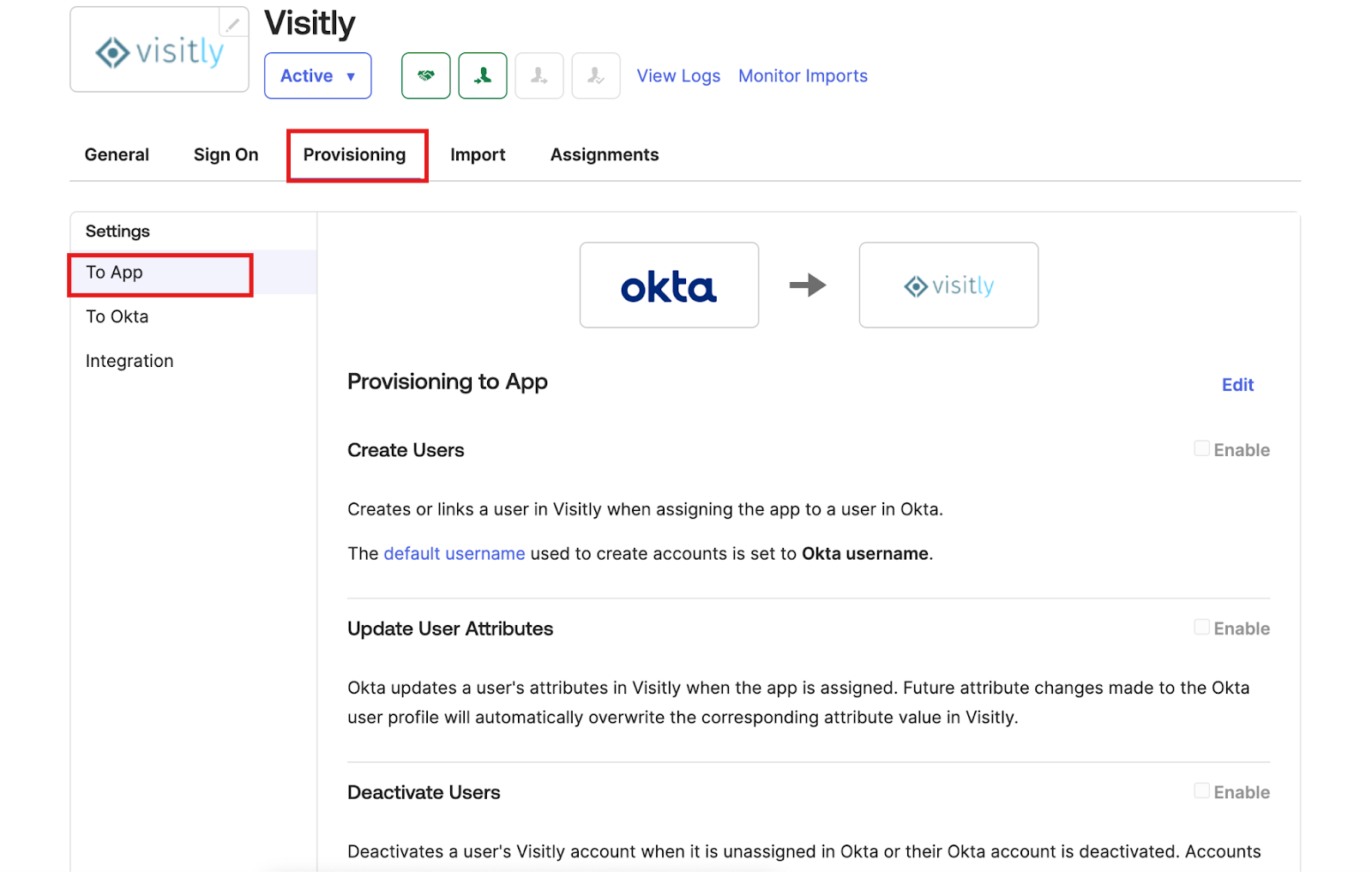
2. Open Provisioning > To App, then click Go to Profile Editor.
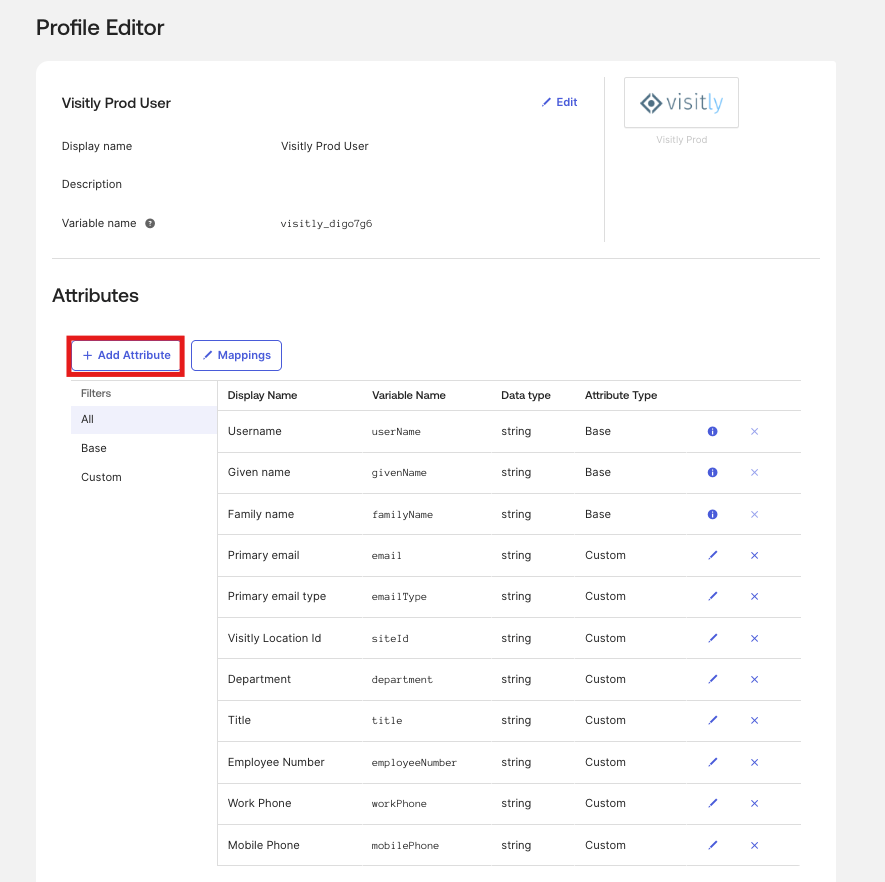
4. Set the data type to String, enter the attribute details for Department, and click Save.
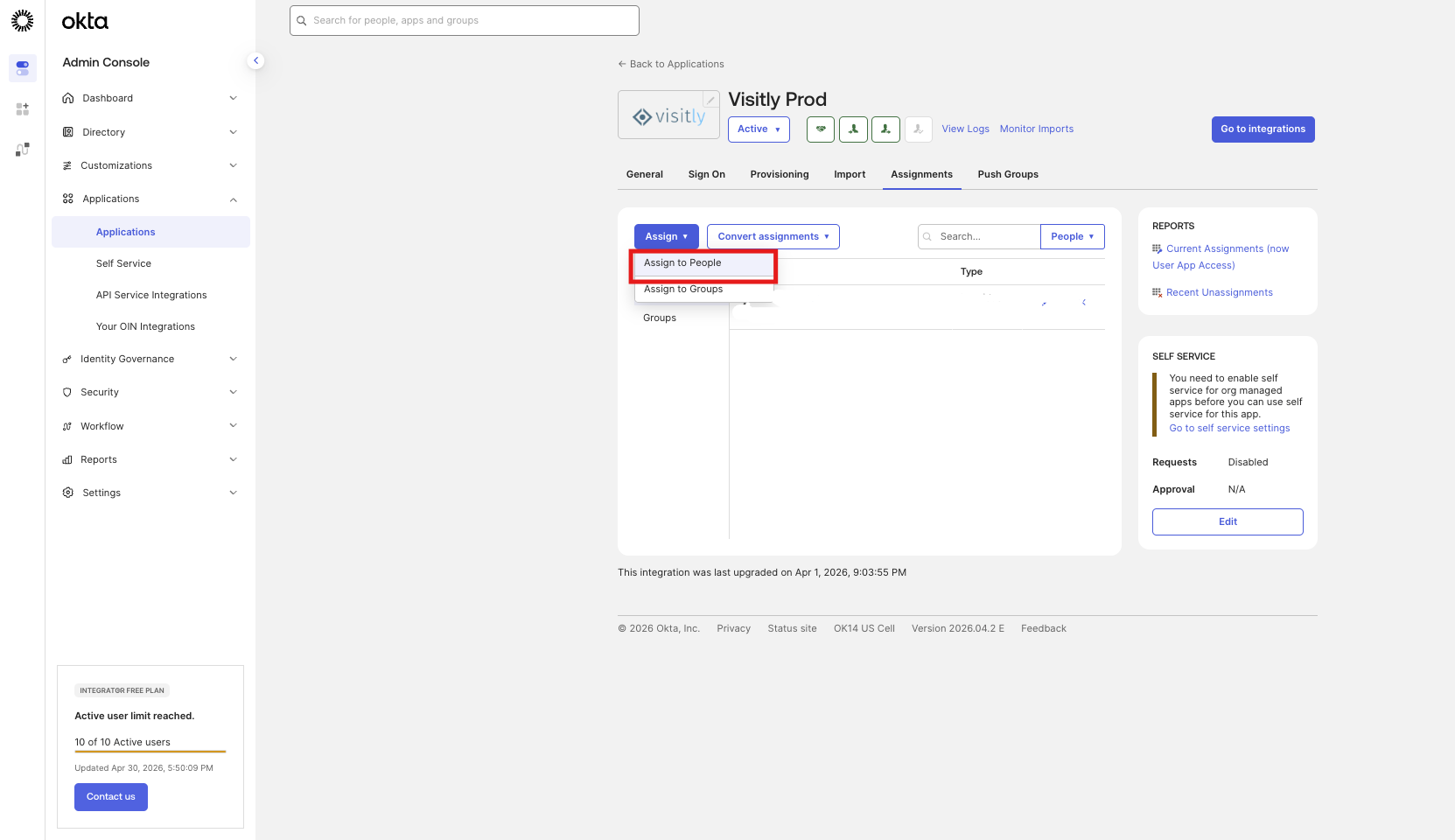
5. Go to Assignments> Assign to People
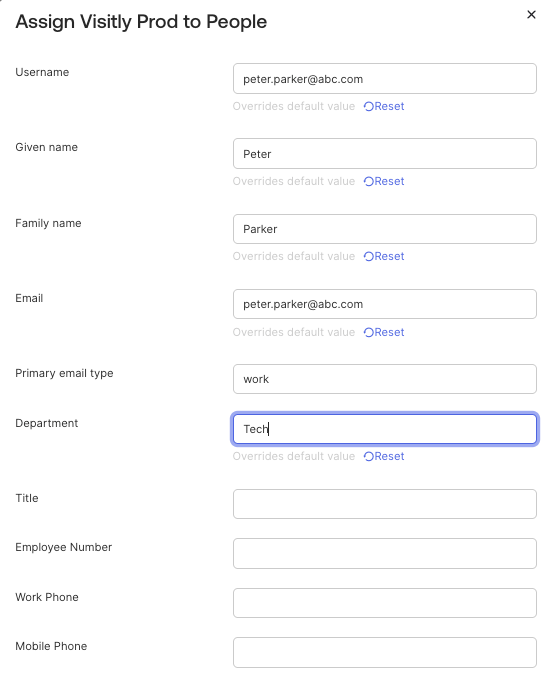
6. Add details for the users who should be synced to Visitly.
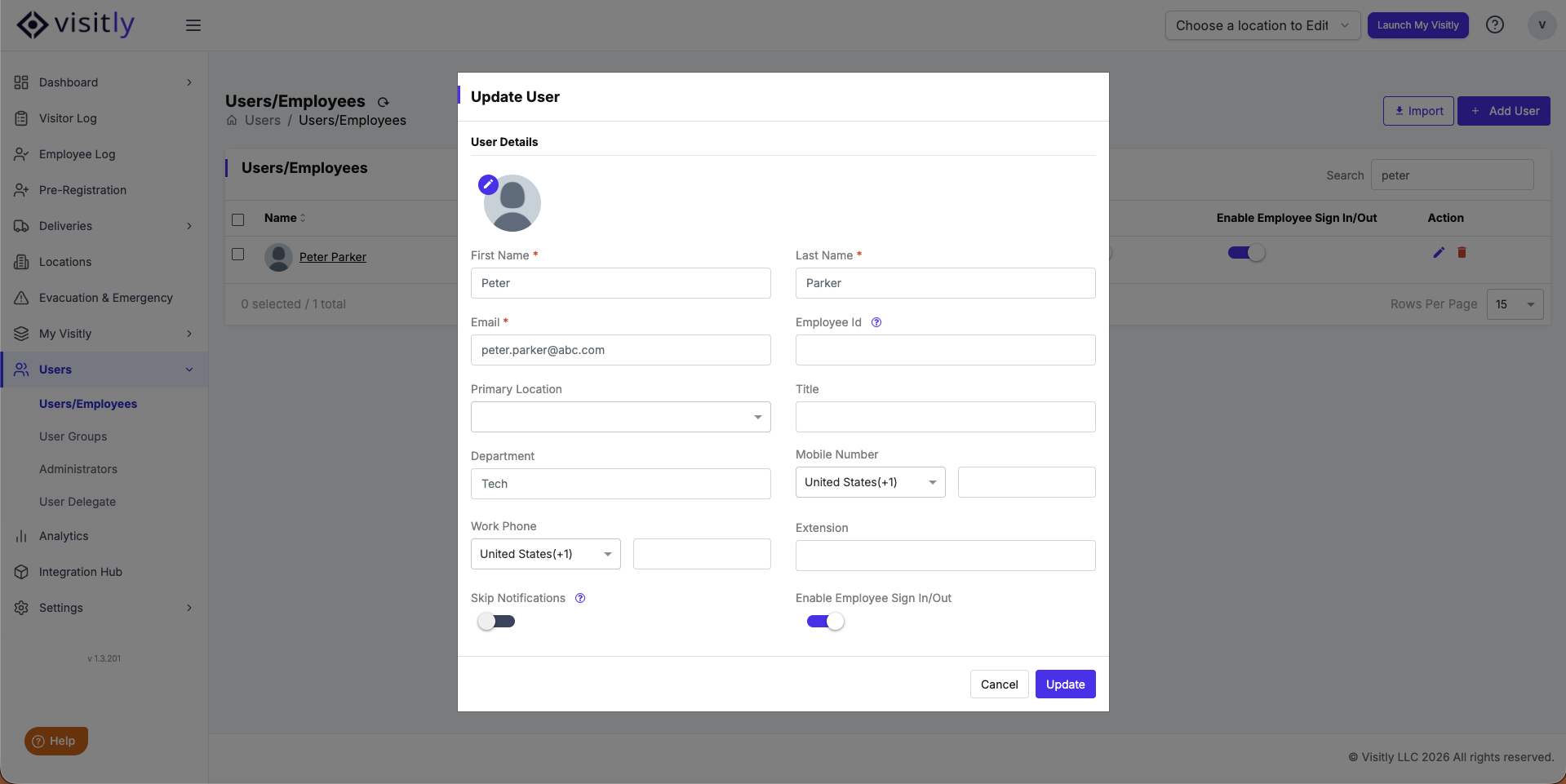
6. The Department attribute will now appear and sync in the Users section in Visitly.
For further assistance, please reach out to Visitly Support.
Was this article helpful?
That’s Great!
Thank you for your feedback
Sorry! We couldn't be helpful
Thank you for your feedback
Feedback sent
We appreciate your effort and will try to fix the article