Admin role required: Global Admin

Feature availability varies by plan. Check What's in each plan on our pricing page to see if it's included in yours, or talk to our sales team about upgrading.
Scheduled Reports emails your visitor log to the people who need it, automatically, on a daily, weekly or monthly schedule. Set it up once and your compliance, security or leadership teams get a fresh report without anyone logging in to export it
What Are Scheduled Reports?
Each scheduled report:
- Covers the visitor log for one location
- Runs at a time you choose, in that location's local time
- Is sent as a CSV or Excel file that recipients download from a secure link
- Can go to any email address, inside or outside your organization
Before You Begin
- Plan — Scheduled Reports is included on the Business and Enterprise plans. It is not available on Starter.
- Role — Only Global Admins can create and manage scheduled reports. Location Admins and Front Desk Admins won't see the Scheduled Reports tab.
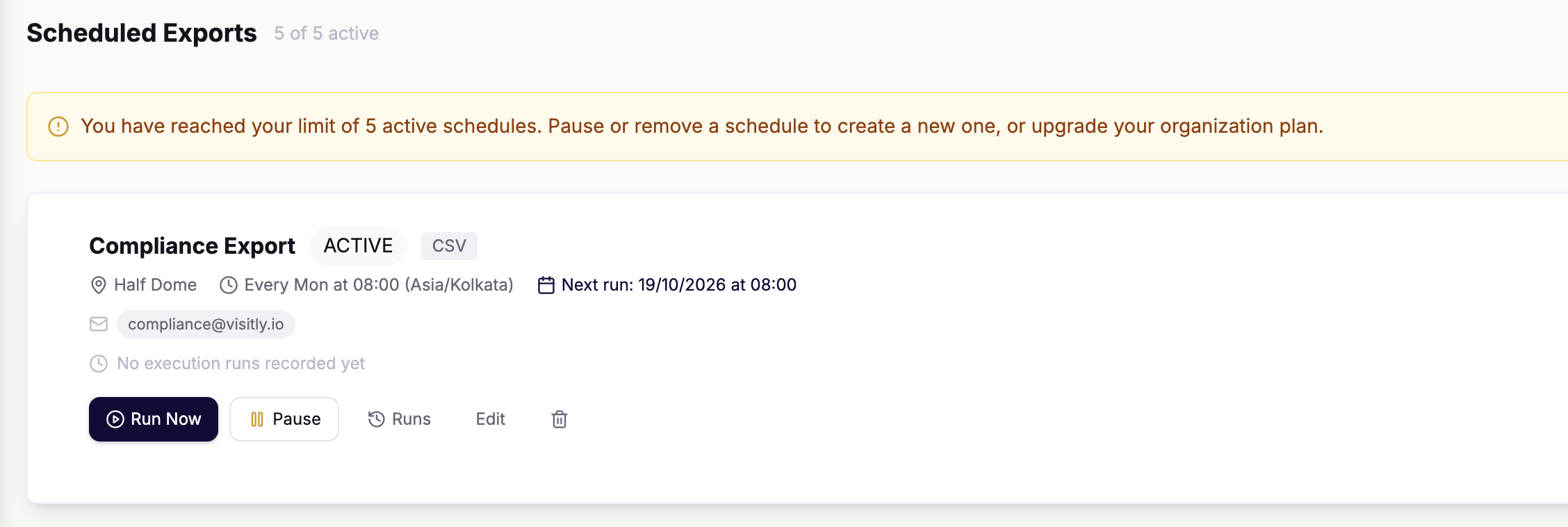
- Limit — Your organization can have up to 5 scheduled reports. Paused reports count toward this limit, so delete a report you no longer need to free up a slot.
Create a Scheduled Report
- In the left sidebar, select Analytics, then open the Scheduled Reports tab.
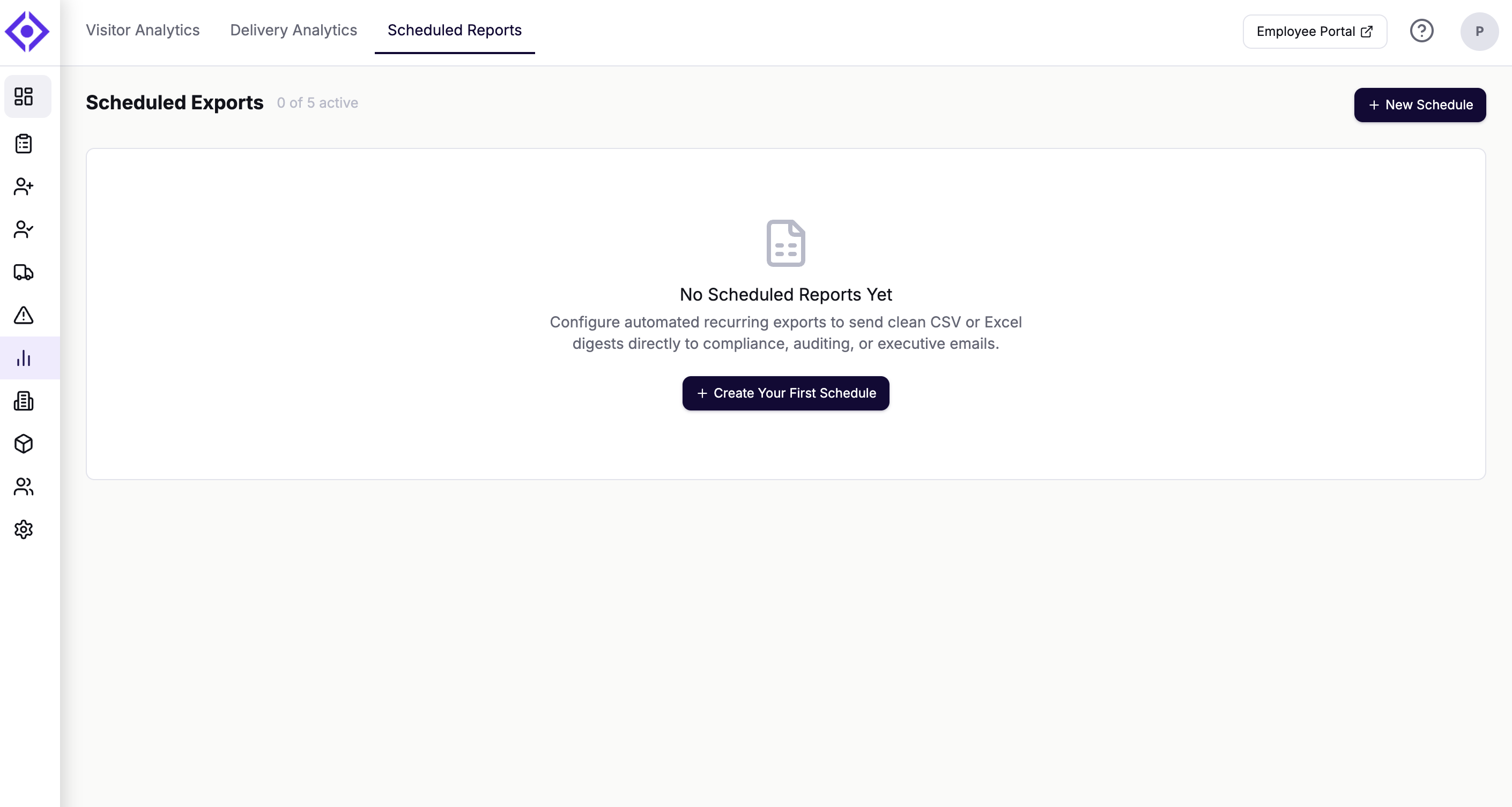
- Select New Schedule. If this is your first report, select Create Your First Schedule.
- Enter a Report Name, for example "Weekly Security Compliance Export". Recipients see this name in the file details, so make it clear.
- Choose the Facility / Location to report on. The location's time zone is shown next to its name.
- Choose a Frequency: Daily, Weekly or Monthly.
- Weekly — Pick the Day of Week.
- Monthly — Pick the Day of Month (1–31). If you pick the 29th, 30th or 31st, the report runs on the last day of shorter months.
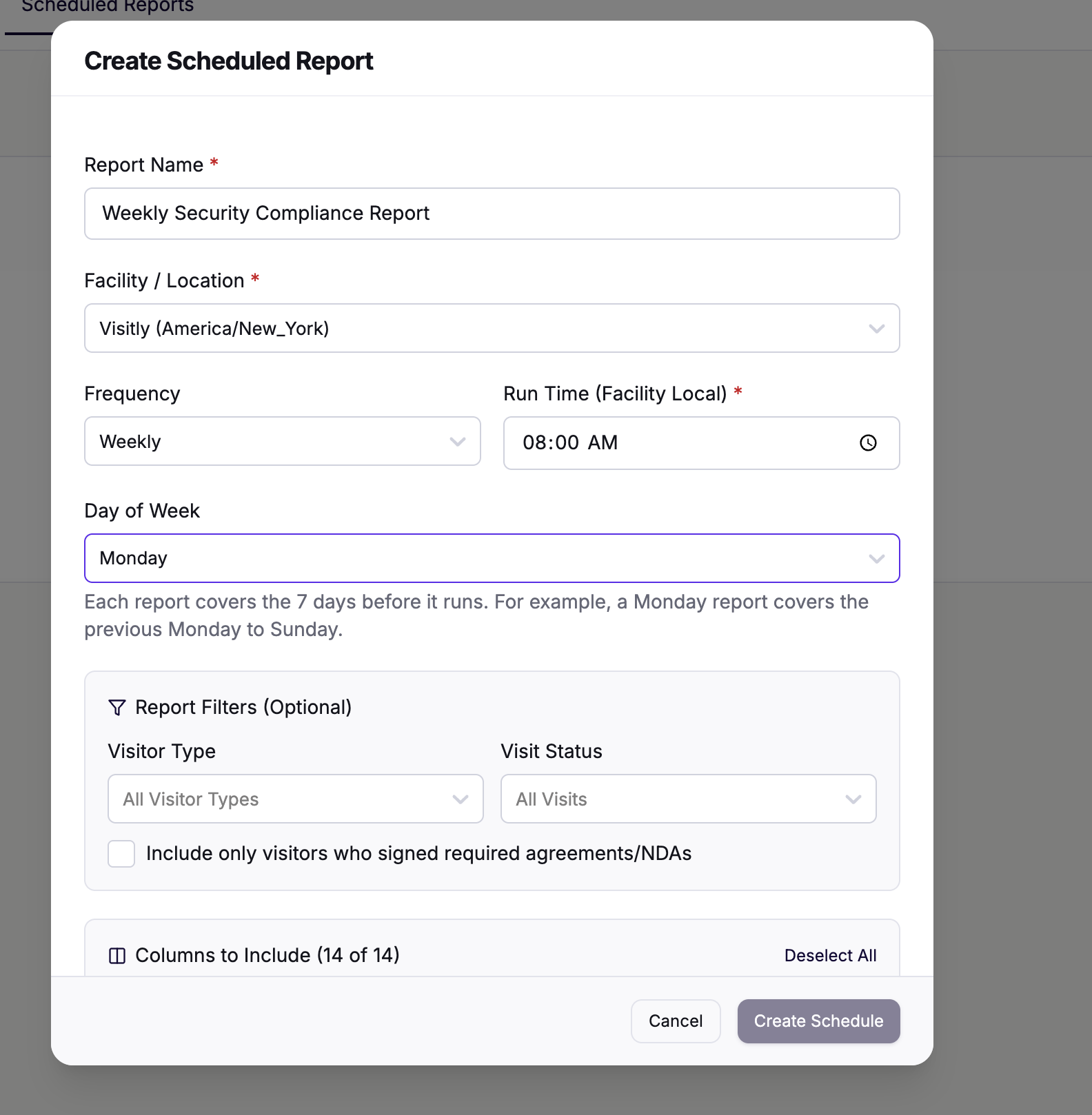
5. Set the Run Time. This is in the location's local time, not your own.
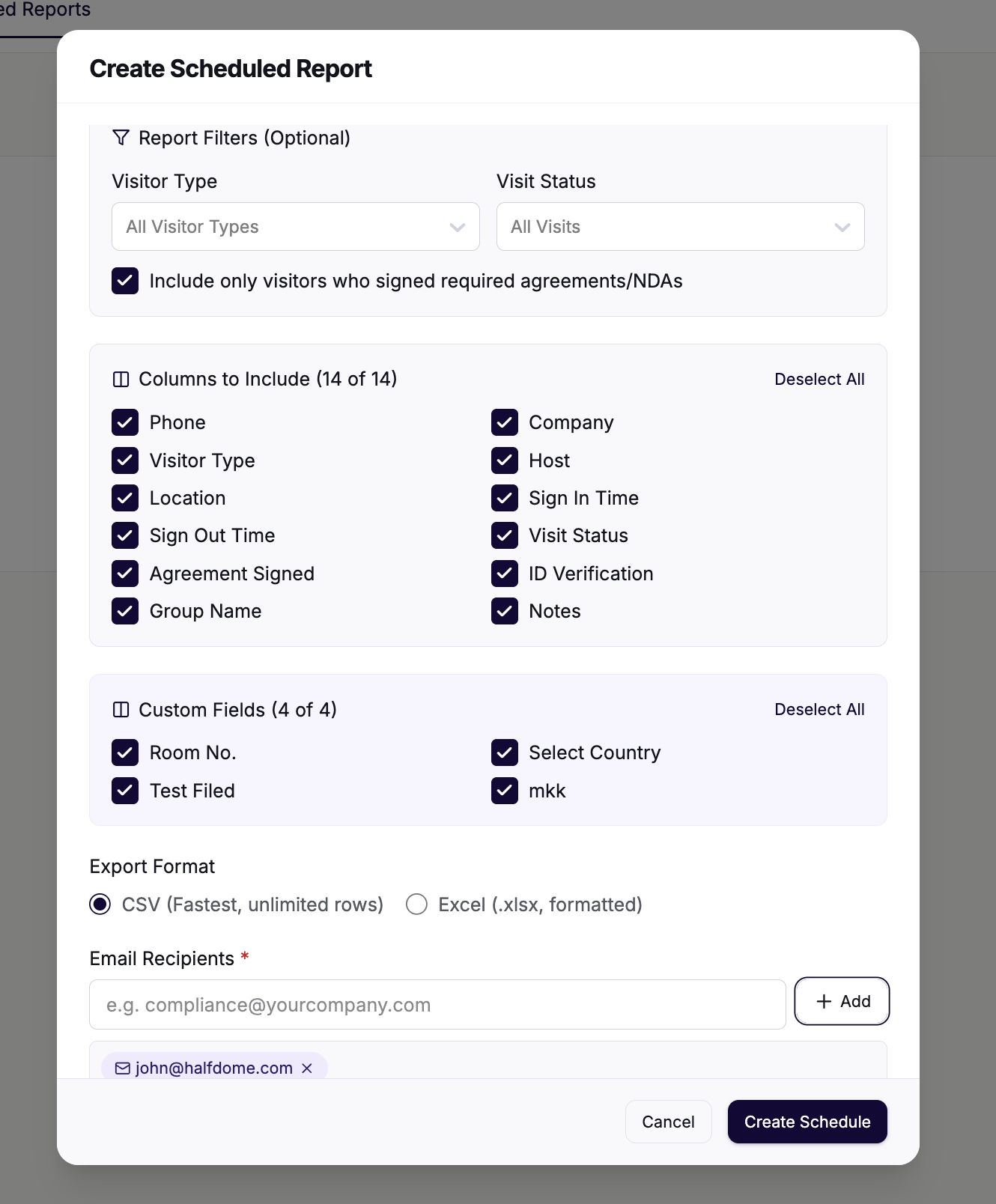
6. Optional: narrow the report under Report Filters:- Visitor Type — Include all visitor types or only one.
- Visit Status — Approved, Under Review or Declined.
- Signed agreements — Include only visitors who signed the required agreements or NDAs.
- Custom Fields — Choose which of your custom fields appear in the report. All are selected by default.
- CSV — Fastest, and best for very large reports.
- Excel (.xlsx) — A formatted spreadsheet with a single "Visitor Report" sheet.
8. Under Email Recipients, type an email address and select Add. Repeat for each recipient. You need at least one.
9. Select Create Schedule.
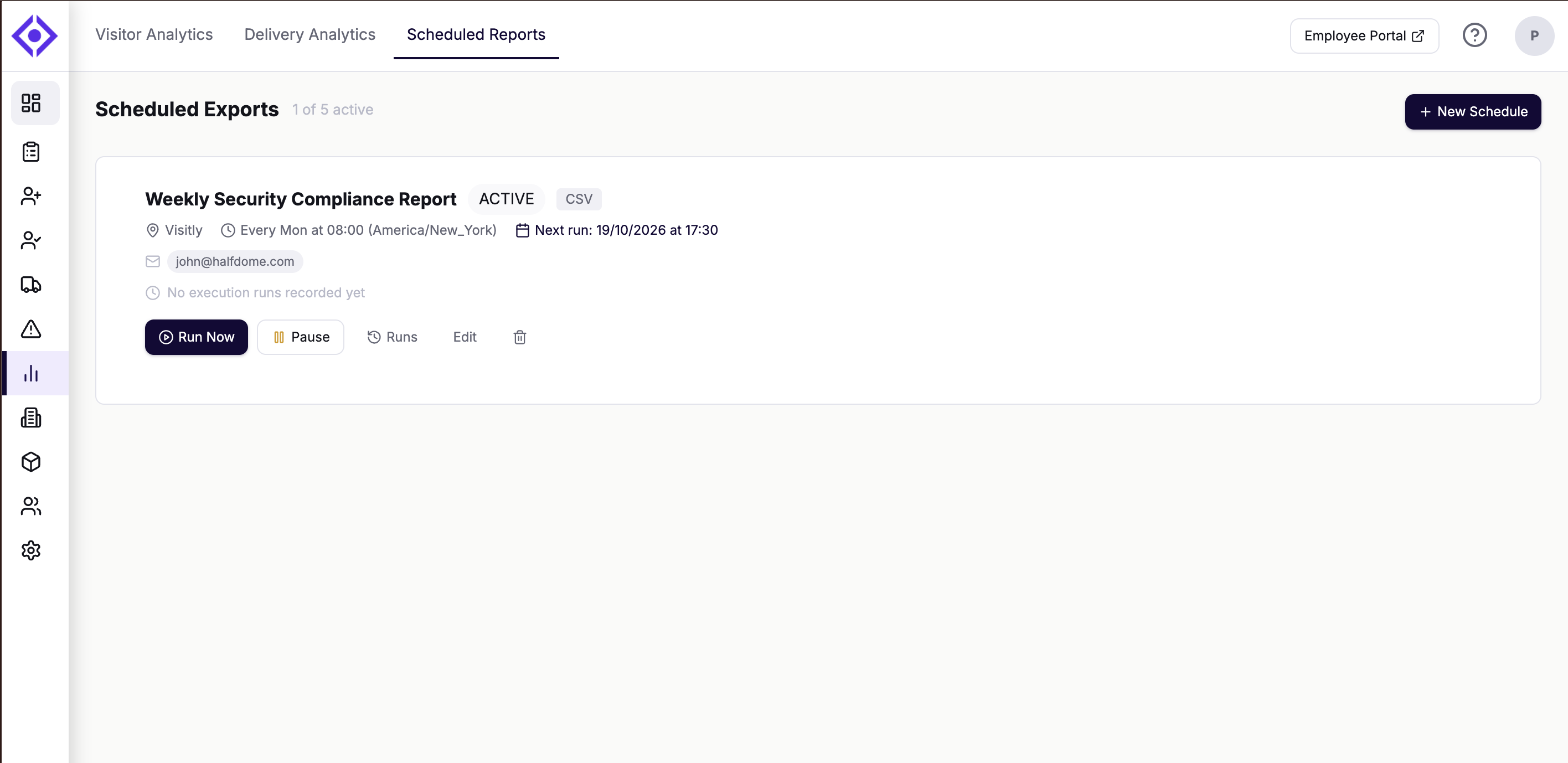
Your new report shows on the Scheduled Reports page with its schedule and next run time.
What Period Does Each Report Cover?
You don't pick a date range. The frequency sets it, and every report ends at midnight before the day it runs (location time).
| Frequency | Covers | Example |
|---|---|---|
| Daily | The previous day | Runs Tuesday, covers Monday |
| Weekly | The previous 7 days | Runs Monday, covers last Monday to Sunday |
| Monthly | The previous 30 days | Runs 15 March, covers 13 February to 14 March |
Note: Monthly reports cover the last 30 days, not the previous calendar month.
Manage Your Scheduled Reports
Each report on the Scheduled Reports page has its own card with these actions:
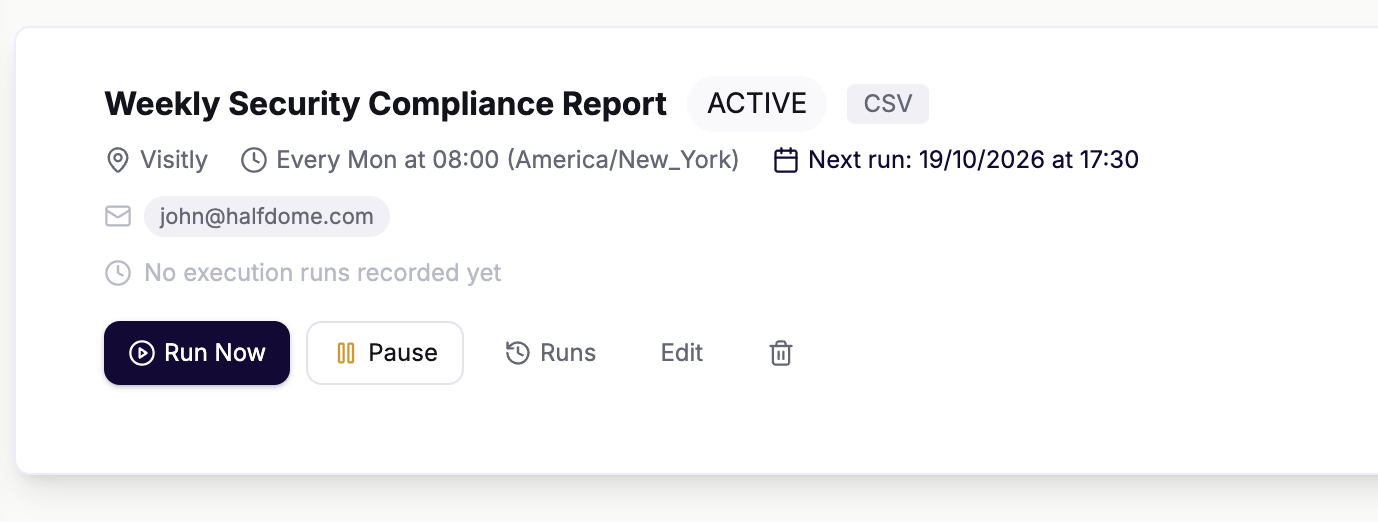
- Run Now — Sends the report right away, covering the same period as a normal run. Recipients get the email within a few minutes.
- Pause / Resume — Stops the report from sending until you resume it. Paused reports are dimmed and marked PAUSED. Runs missed while paused are not sent later.
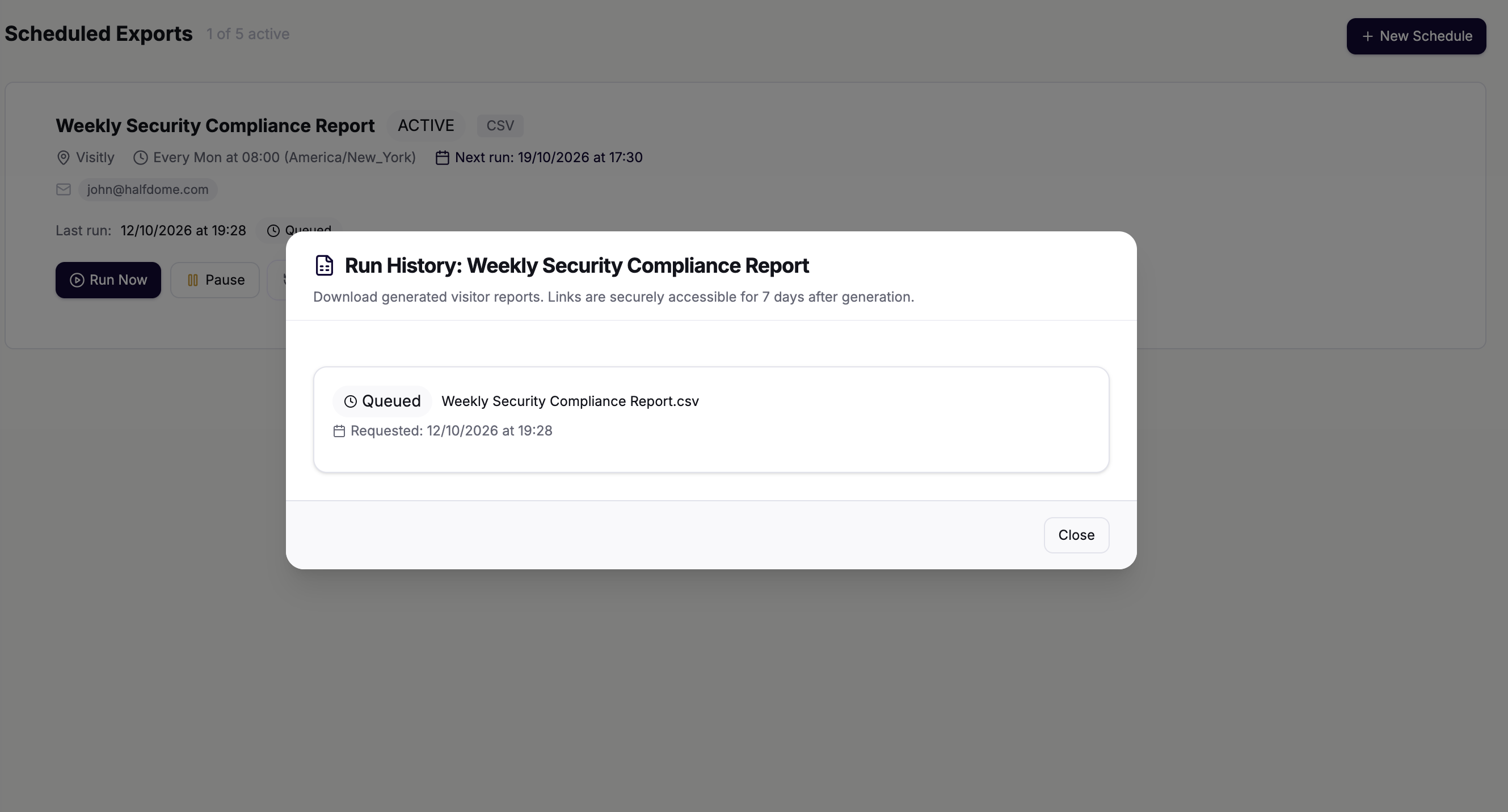
- Runs — Opens the run history: the last 20 runs, with status, record count and a download link for each.
- Edit — Changes any setting. The next run time updates when you save.
- Delete (trash icon) — Permanently removes the report. This can't be undone.
The card also shows when the report last ran, how many records it included, and a Download Latest Report button.
What Recipients Receive
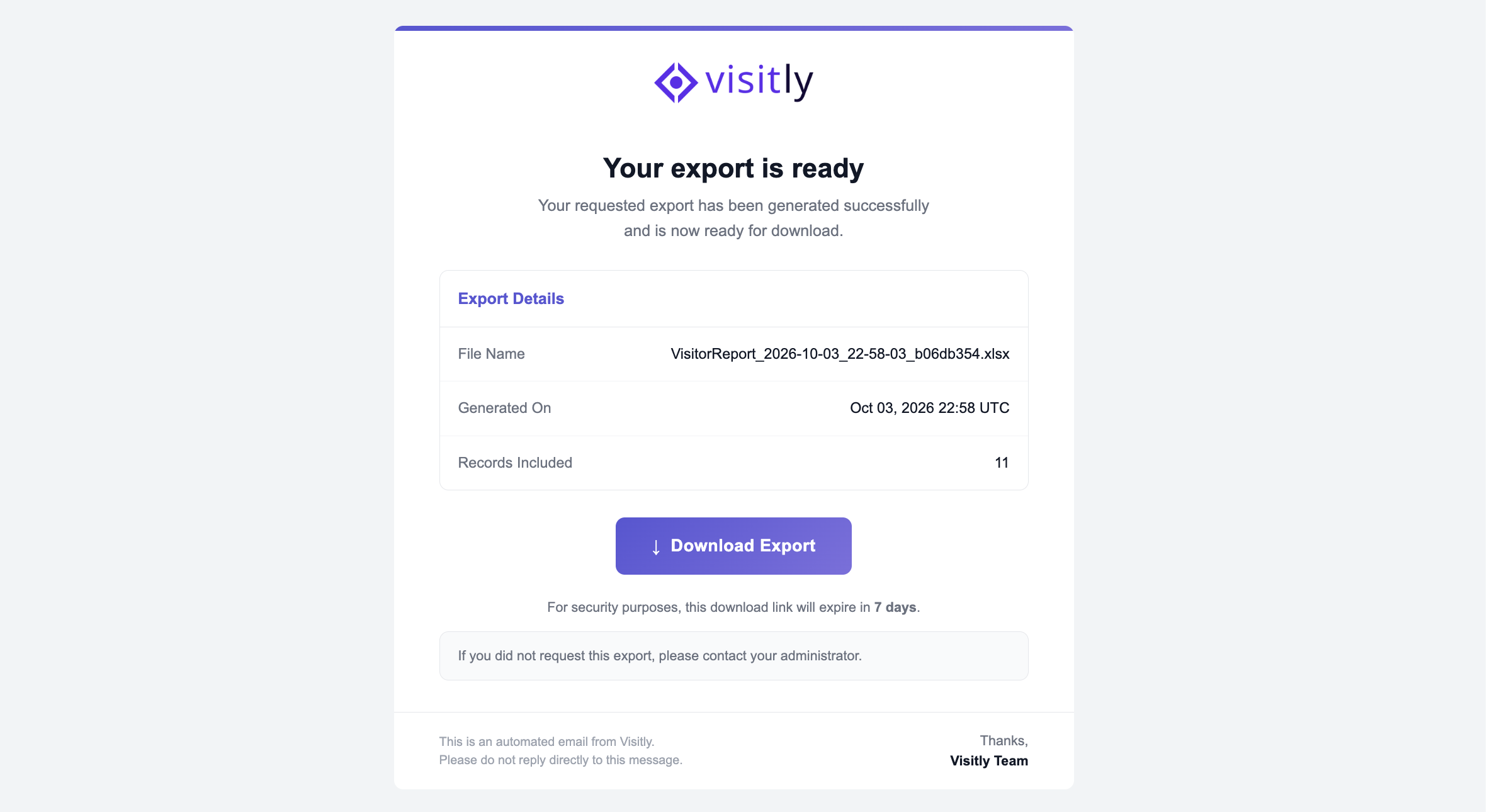
Each recipient gets their own email from Visitly with the subject "Your Export Is Ready". The email lists the file name, when it was generated and how many records it includes.
The report is not attached. Recipients select Download Export to get the file. For security, the link expires after 7 days. After that, a Global Admin can still see the run in the run history, but the file can no longer be downloaded.
Tip: Let external recipients know to expect these emails, so they don't mistake them for spam.
Troubleshooting
Why can't I see the Scheduled Reports tab?
You need to be a Global Admin, and your organization needs a Business or Enterprise plan. If both apply and the tab is still missing, contact Visitly Support.
Why is the New Schedule button greyed out, or why do I get a plan limit error?
Your organization has reached the limit of 5 scheduled reports. Paused reports still count, so delete one you no longer need.
Which reports can I schedule?
The visitor log. Deliveries, employee sign-ins and other reports can still be exported manually from Analytics.
Can I send a report to people outside my company?
Yes. You can add any valid email address, and there is no limit on the number of recipients.
Can one report cover several locations?
No. Each scheduled report covers one location. Create a separate report for each location you need.
Why didn't my report arrive on time?
Reports usually arrive within a few minutes of the run time. Check that the run time matches the location's time zone, not yours. Then open Runs to see the status of the latest run, and ask recipients to check their spam folder.
What does it mean when a run shows as Failed?
The person who created the schedule gets an email when a run fails. Open Runs to see the reason. Try Run Now, or reduce the size of the report by adding filters. If it keeps failing, contact Visitly Support.
Why does the download link say it has expired?
Links last 7 days. Use Run Now to generate a fresh report and a new link.
What happens around daylight saving time changes?
Reports still run once. If the run time doesn't exist that day because clocks go forward, the report runs at the next valid time.
Note: Scheduled Reports is included on the Business and Enterprise plans. For a full comparison, see our pricing page.
Need help? Contact the Visitly support team at support@visitly.io
Was this article helpful?
That’s Great!
Thank you for your feedback
Sorry! We couldn't be helpful
Thank you for your feedback
Feedback sent
We appreciate your effort and will try to fix the article