Admin role required: Global Admin

Feature availability varies by plan. Check What's in each plan on our pricing page to see if it's included in yours, or talk to our sales team about upgrading.
Overview
The Visitly Google Drive integration stores signed visitor documents directly to your Google Drive the moment a visitor checks in. Every visit generates its own organized folder, no manual downloads, no chasing PDFs.
How It Works
- A visitor checks in and signs their required documents on the Visitly kiosk.
- Visitly automatically converts each signed document to a PDF and uploads it to your connected Google Drive folder.
- Files are named using the document's name, visitor's name and entry date, making it easy to search and retrieve any specific document.
- Visitly uses least-privilege access (drive.file scope) — it can only read or edit files it creates. Your existing Drive content is never touched.
- If a document fails to sync, you can manually retrieve it from the Visitor Log at any time.
Before You Begin
Google requirements:
- A Google Workspace or personal Google account
- Admin-level access to authorize the connection
- A destination folder ready in Google Drive (or create one during setup)
Account recommendation:
Authenticate with a shared team or admin Google account. If the original authenticator leaves your organization, the integration will need to be re-enabled — the document folder is tied to the account used during setup.
Browser setup required:
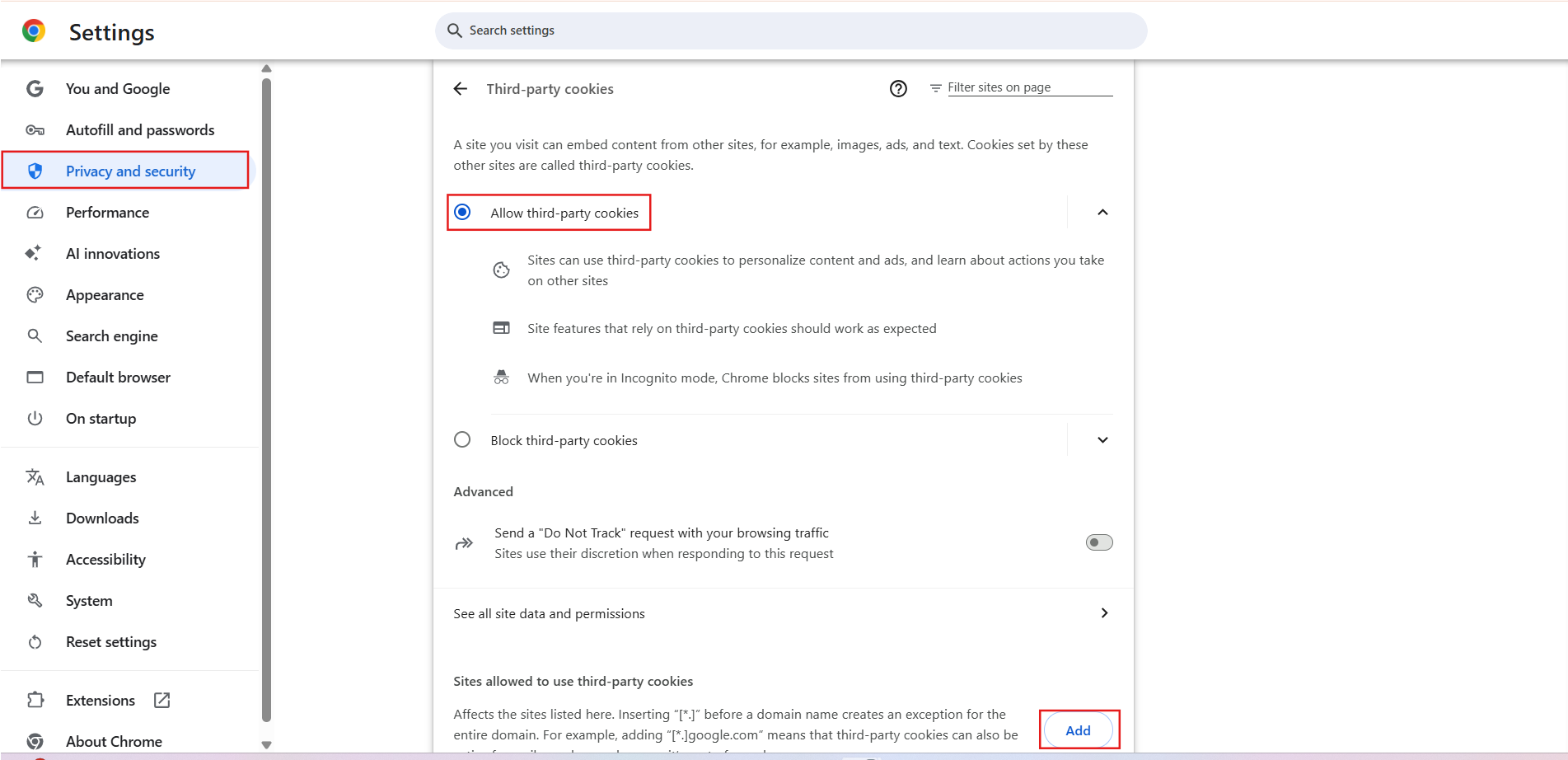
Before connecting, enable pop-ups for app.visitly.io in your browser. Both Safari and Chrome can block the third-party cookies and folder picker Google needs to verify your identity. If you see a "Can't access your Google Account" error or the folder picker does not open:
- Safari: go to Safari → Settings → Privacy and uncheck Prevent cross-site tracking.
- Chrome: go to Chrome → Settings → Privacy and security → Third-party cookies and select Allow third-party cookies (or add app.visitly.io and [*.]google.com to the allowed list).
Setup Guide
Step 1: Open the Integration Hub
- Log in to your Visitly Admin Dashboard.
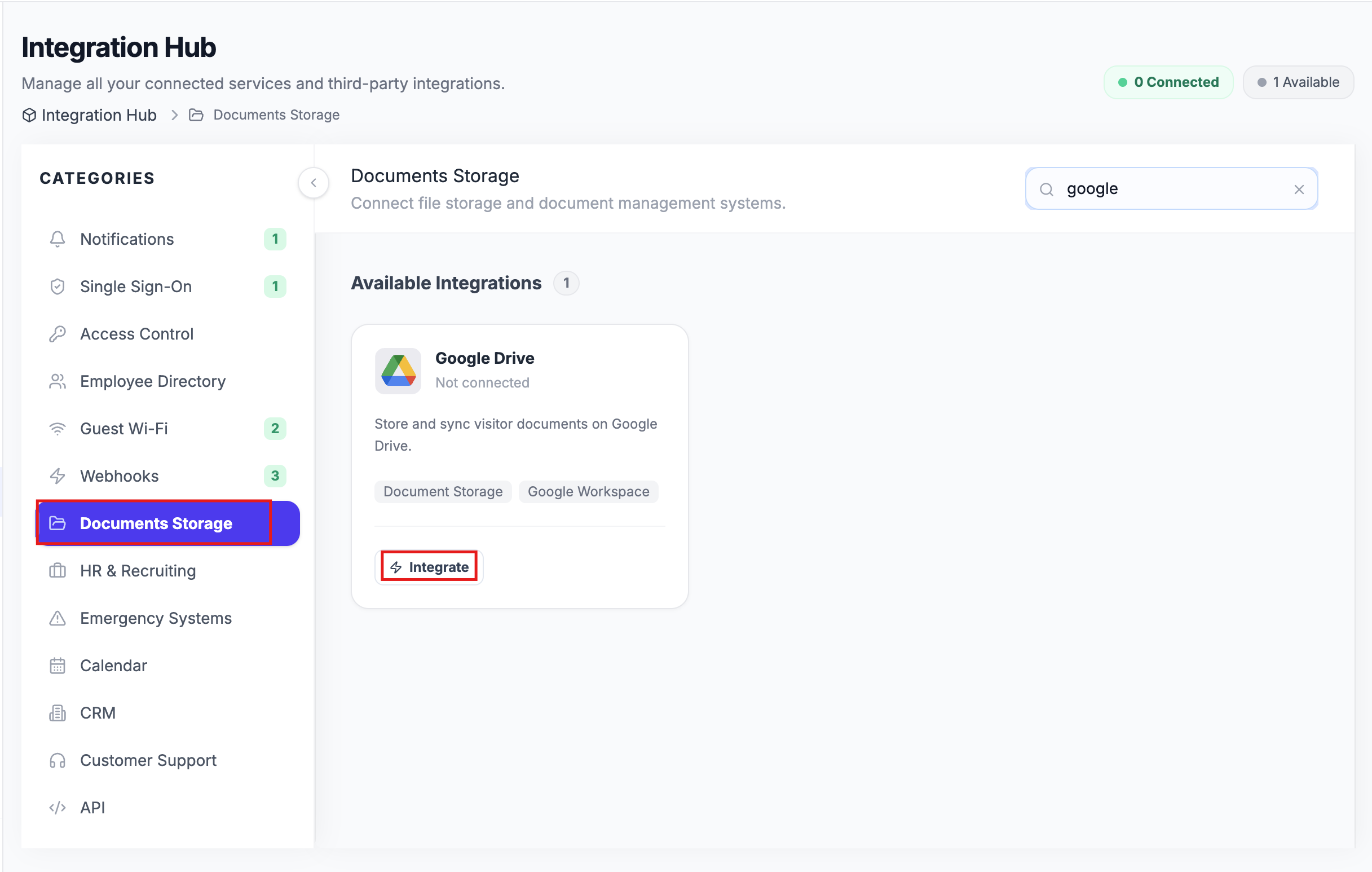
- Navigate to the Integration Hub in the left sidebar.
- Select Documents Storage from the category list.
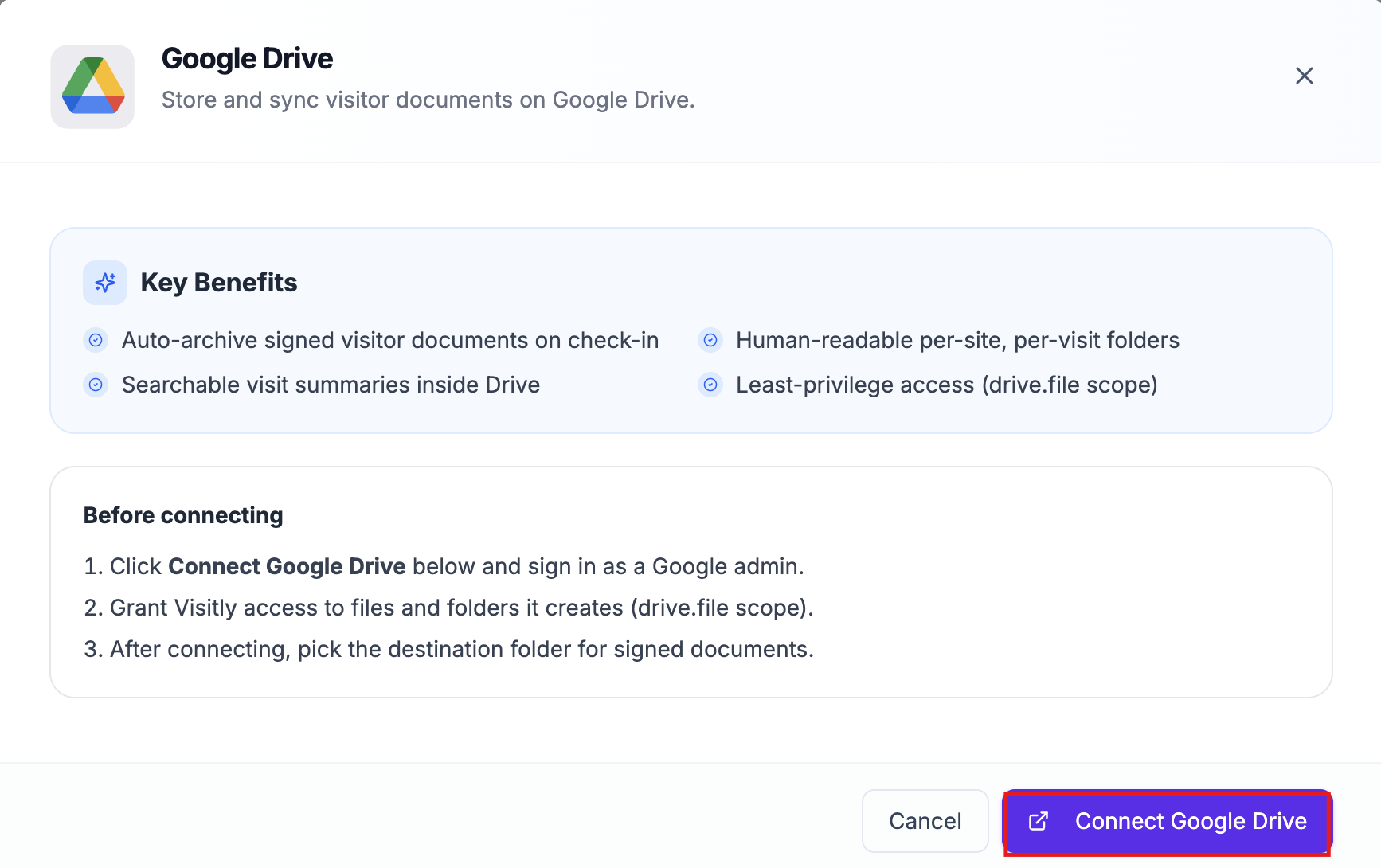
- Navigate to Google Drive > Integrate > Connect Google Drive.
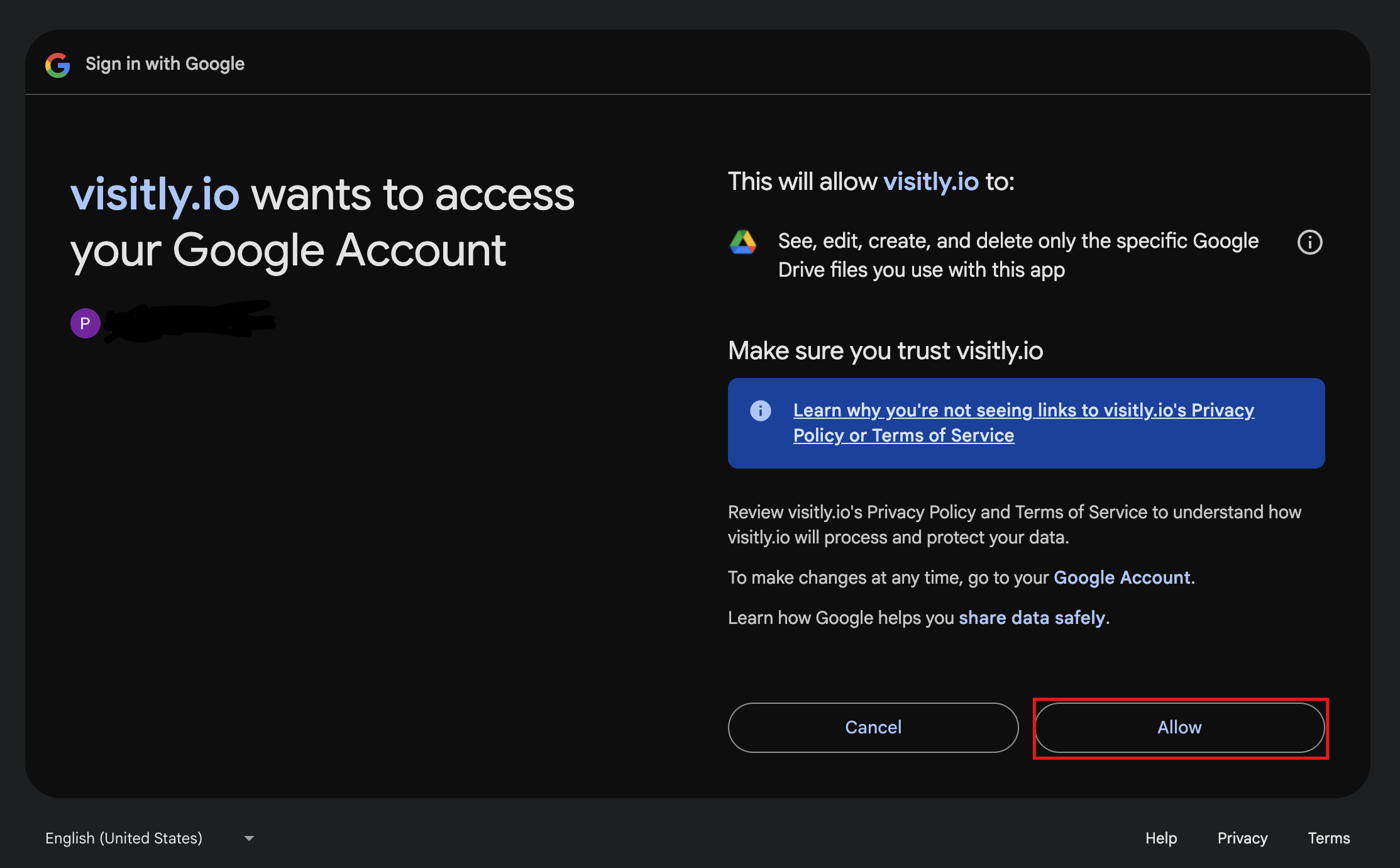
- A Google sign-in window opens. Sign in with the Google account that will own the document folder.
- Google will ask if visitly.io can view and manage files created by this app. Click Allow.
Tip: Use a shared admin Google account rather than a personal one. This prevents disruption if the person who authenticated later leaves your team.
Step 2: Select a Destination Folder
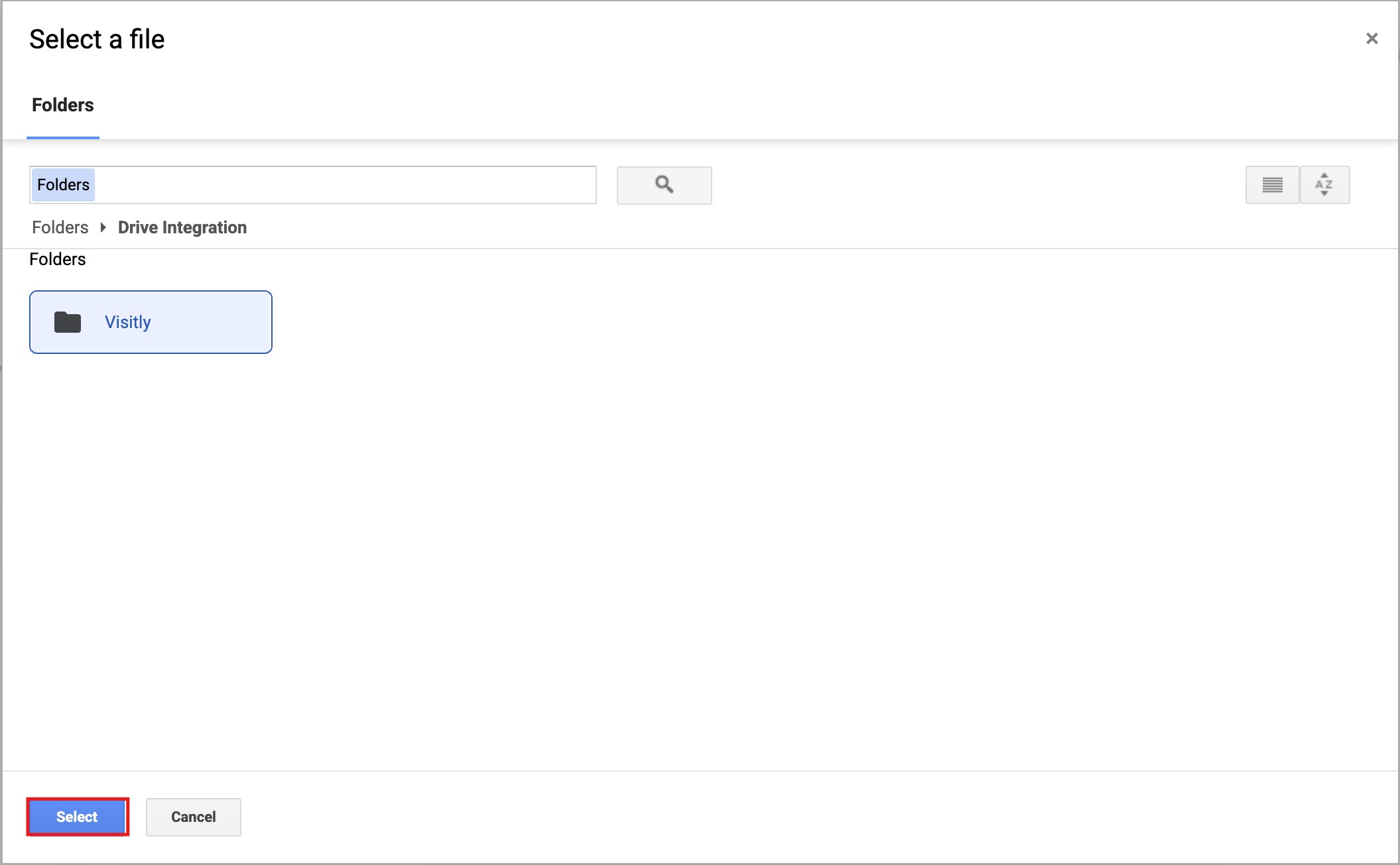
- A Google file picker opens. Browse to the folder where signed documents should be stored.
Note: A shared drive folder can also be selected as a destination folder. - Click the folder to highlight it, then click Select.
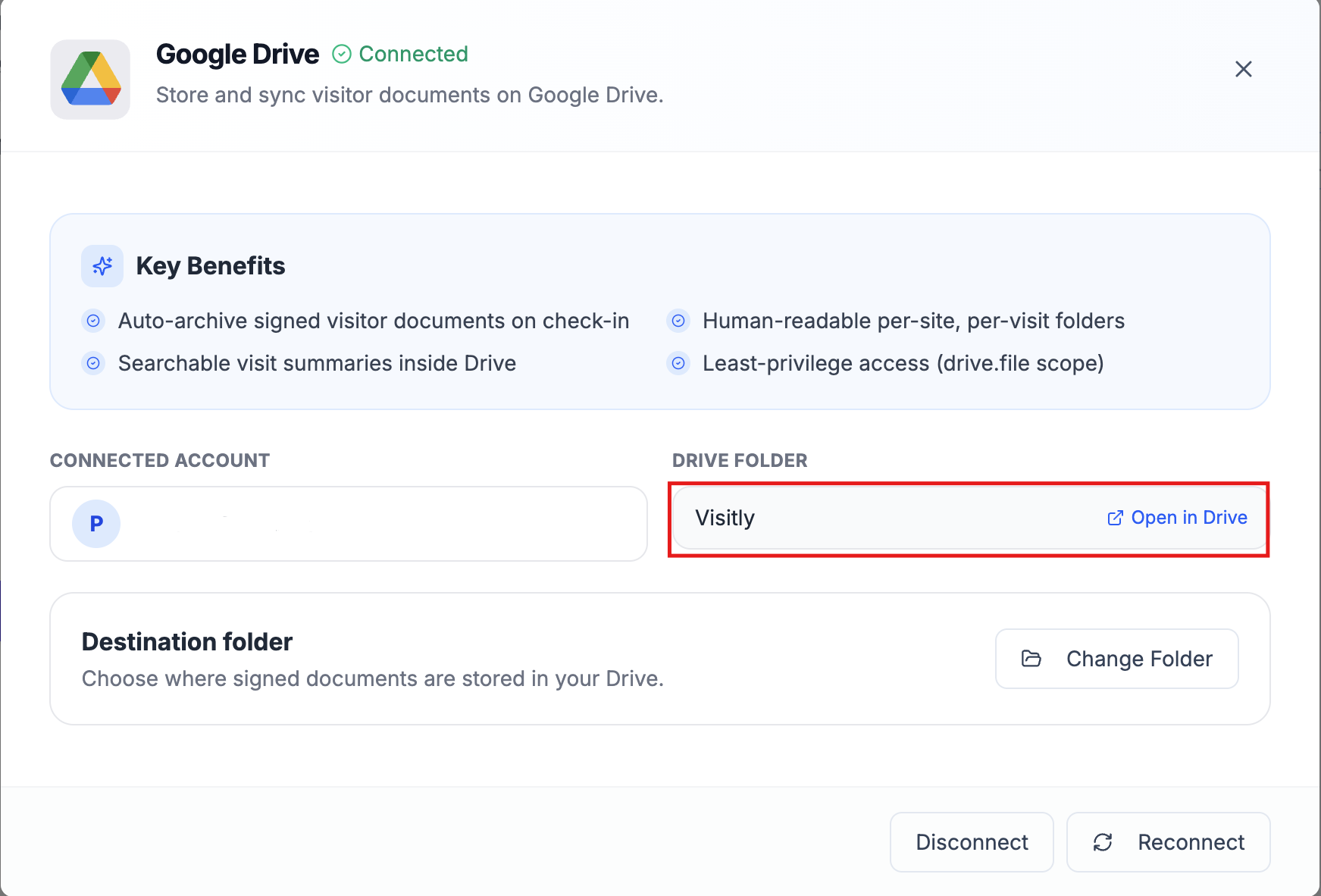
The Drive Integration shows your selected folder name with an Open in Drive link. The integration is fully configured.
Step 3: Configure Sync Scope
- In the Google Drive integration card, go to Enable for Locations. Choose All locations to sync every location's documents, or select Select locations and choose specific locations from the list using the search field. Click Save to apply.
- Go to Sync Visit Events. Choose which visitor events should trigger a sync — Visitor Sign-in, Visitor Sign-out, or both.
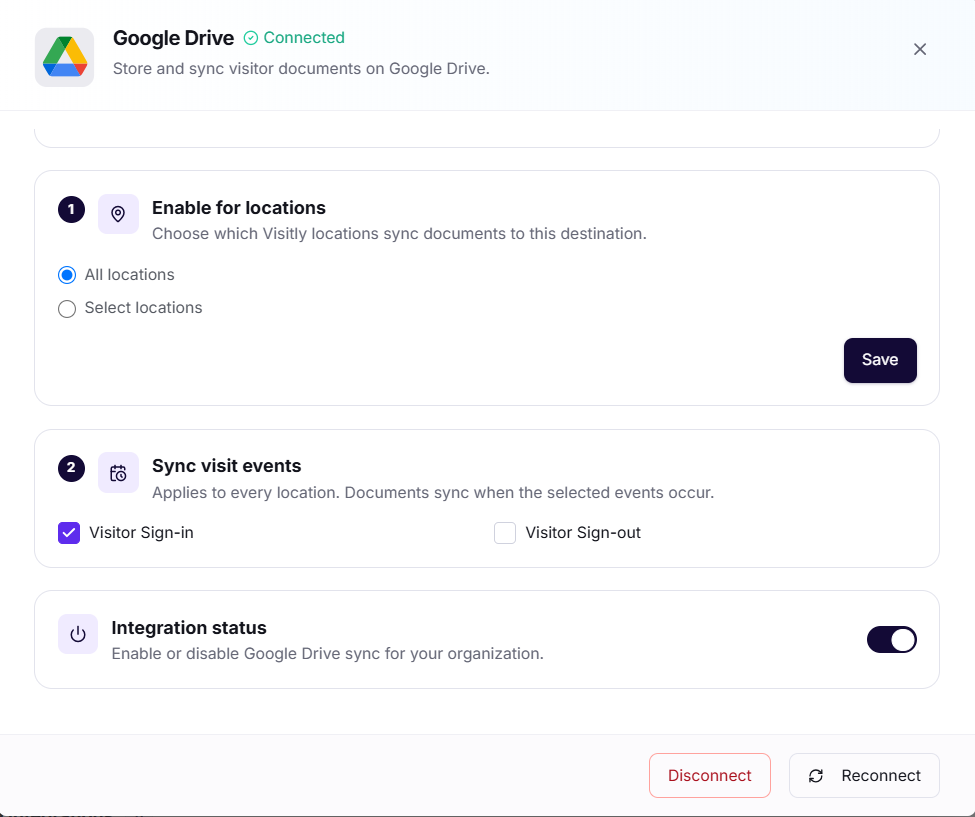
Note: If no event is selected, Visitly displays a warning and no documents will sync until you choose at least one.
Your sync scope is now configured.
How Signed Documents Are Filed
Each signed document is saved as a PDF inside your chosen Google Drive folder. Visitly creates a subfolder per visit, named using the document's name, visitor's name and check-in timestamp, making it straightforward to locate any specific document.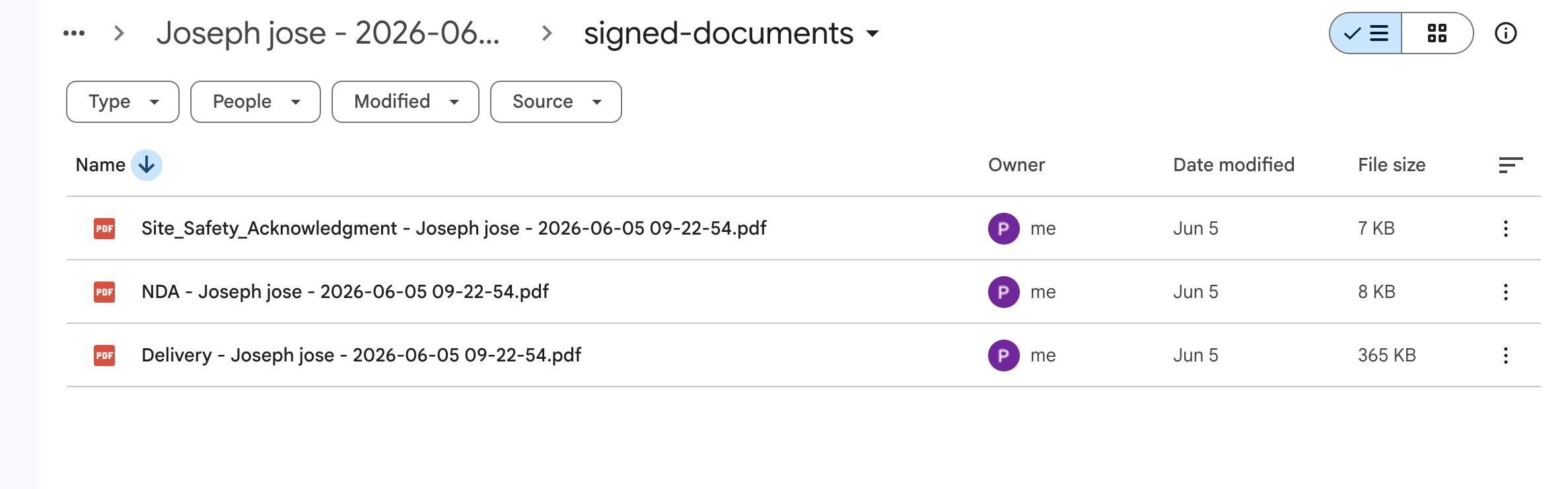
Setting Up Folder Sharing
The destination folder is stored in the Google Drive of the account used to authenticate. If other team members need access to signed documents, configure folder sharing directly in Google Drive.
See Google's guide to file and folder sharing for step-by-step instructions.
Integration Settings
Access these settings at any time from Integration Hub → Documents Storage → Google Drive.
| Setting | Description |
|---|---|
| Connected Account | The Google account authorized for document storage. Displays the connected email address. |
| Drive Folder | Your chosen destination folder. Includes an Open in Drive link for quick access. |
| Change Folder | Select a new destination folder without disconnecting your Google account. New documents route to the updated folder immediately. |
| Disconnect | Removes the Google Drive connection. Existing documents in Drive are not affected. |
| Reconnect | Re-authorizes the existing Google account. Use this if access permissions expire or the connection becomes inactive. |
Troubleshooting
- Signed documents are not appearing in Google Drive.
Confirm the integration status shows Connected in the Integration Hub. Verify that a destination folder has been selected — if Drive Folder shows "Not selected," click Select Folder to complete configuration. Documents only sync on check-ins that occur after setup is complete; past visits are not retroactively archived.
- A document failed to sync.
If any documents fail to sync, you can retrieve them manually. Go to the Visitor Log, click the visitor's name, and click the PDF icon to download the signed document directly.
- The Google sign-in screen shows a warning about visitly.io.
This is a standard Google notice for apps pending OAuth verification. Visitly requests only the drive.file scope, which limits access to files and folders Visitly creates. Click Allow to continue. - I selected a folder but the Drive Folder field still shows "Not selected."
Close the integration card and reopen it from the Integration Hub. If the issue continues, click Reconnect to re-authorize your Google account, then select the folder again.
- Documents are syncing to the wrong folder.
Click Change Folder in the integration card and select the correct destination. New documents will route to the updated folder immediately. Previously archived files remain in the original location.
- The integration broke after a team member left the company.
The document folder is tied to the Google account used during initial setup. If that person's account has been deactivated, you will need to disconnect and re-enable the integration using an active team or admin account. Going forward, use a shared admin account to avoid this situation.
Need help? Contact the Visitly support team at support@visitly.io
Was this article helpful?
That’s Great!
Thank you for your feedback
Sorry! We couldn't be helpful
Thank you for your feedback
Feedback sent
We appreciate your effort and will try to fix the article