Admin role required: Global Admin

Feature availability varies by plan. Check What's in each plan on our pricing page to see if it's included in yours, or talk to our sales team about upgrading.
Overview
This integration connects Visitly to your Google Workspace account so your employee directory stays current without manual updates. When you add, update, or remove employees in Google Workspace, those changes sync to Visitly automatically within 24 hours. You can also trigger a manual sync anytime changes need to appear immediately.
How It Works
- Visitly connects securely to your Google Workspace directory using the Google Admin SDK Directory API.
- New hires, updated profiles, and removed employees in Google Workspace automatically reflect in Visitly within 24 hours.
- No manual updates are needed on the Visitly side after the integration is connected.
- You can trigger a manual sync anytime you need changes to appear immediately.
Before You Begin
Complete all prerequisites before starting setup. Missing any of these will prevent the integration from working.
Visitly requirements:
- Active Visitly account with Global Admin access
- Access to Integration Hub
Google Workspace requirements:
- A Google Workspace Super Admin must complete the one-time setup steps below before the integration can be connected.
- The administrator connecting Visitly must have read permissions for Users, Groups, Organizational Units, and Domains.
- If you are not your organization's Google Workspace Super Admin, share the one-time setup steps below with your IT administrator before continuing.
Grant Administrator Permissions:
The administrator connecting Visitly must have read permissions for Users, Groups, Organizational Units, and Domains in Google Workspace. In most environments, a Super Admin performs this one-time OAuth authorization directly. If you prefer to use a delegated administrator account instead, that account must have all four of these read roles assigned before proceeding.
To verify or assign permissions:
- Open the Google Workspace Admin Console.
- Navigate to Account → Admin Roles.
- Select the administrator account that will connect the integration.
- Confirm that the following read permissions are enabled:
- Users → Read
- Groups → Read
- Organizational Units → Read
- Domains → Read
If the connecting account does not have all required permissions, authentication will fail with the following error: Authorization Error — Error 400: admin_policy_enforced. If you receive this error, ask your Google Workspace Super Admin to grant the required permissions or approve the Visitly application, then try connecting again.
Your Google Workspace Super Admin setup is now complete.
Set Up Guide
Step 1: Connect Google Workspace to Visitly
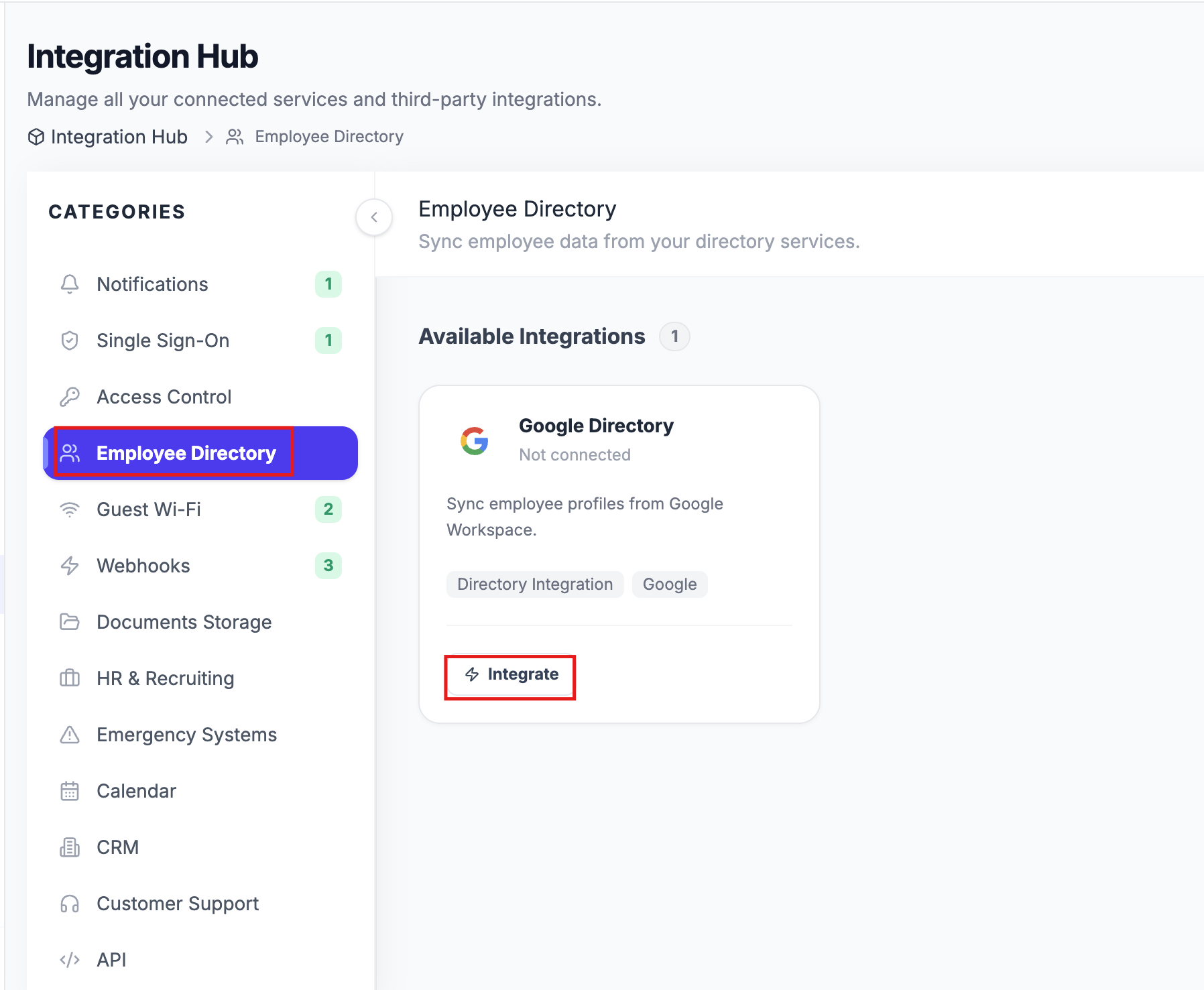
- Navigate to Integration Hub → Employee Directory.
- Find Google Workspace and click Integrate.
- Click on Connect Google Workspace.
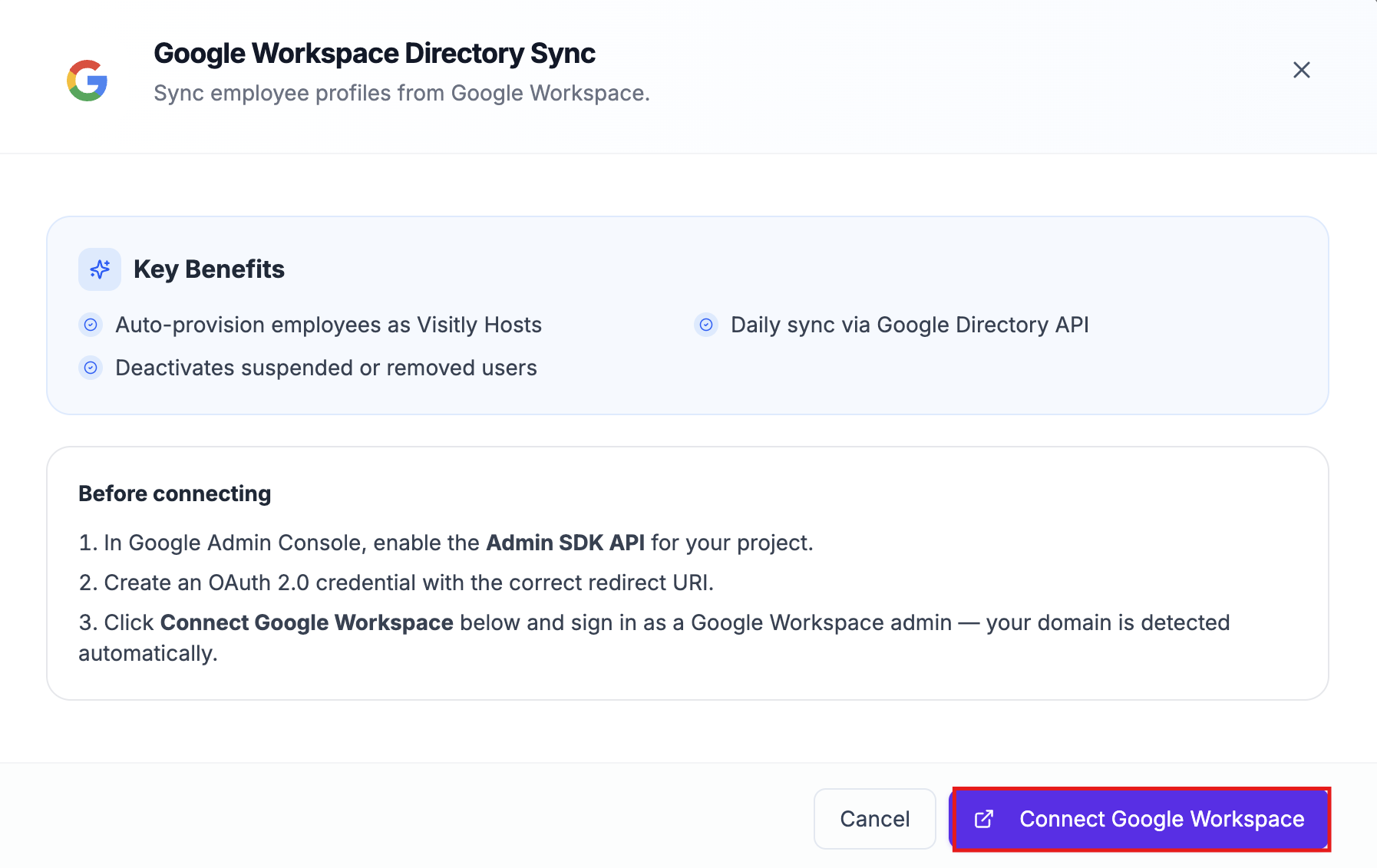
- Select the Google account that has admin permissions.
- Review the permissions requested and click Allow to grant access.
Once connected, Visitly will sync all employees from your Google Workspace directory automatically. You can also trigger an immediate sync anytime by clicking Sync Now. Your Google Workspace account is now connected to Visitly.
Step 2: Configure Sync Scope
By default, Visitly syncs your entire Google Workspace directory via manual sync. You can narrow the sync to specific groups, organizational units, or domains using Sync Configuration.
- Click Manage on the Google Workspace card.
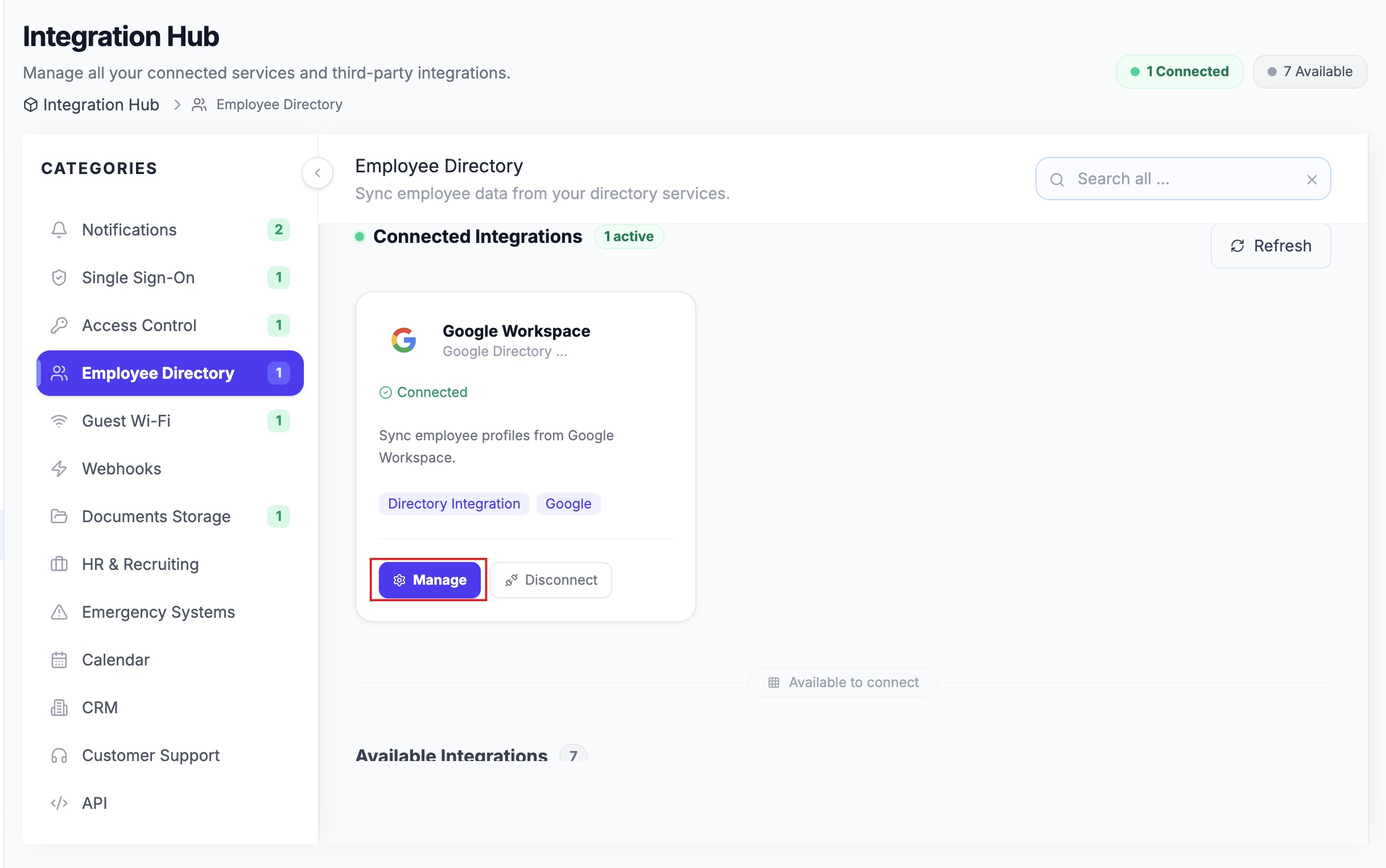
- Click the Sync Configuration tab.
- Under Sync Scope, select which criteria to apply. Users are synced if they match any of the selected criteria.
Google Groups: Syncs only users who are members of selected Google Groups
Organizational Units (OU): Syncs only users from selected Organizational Units
Domains: Restricts sync to users with email addresses from selected domains
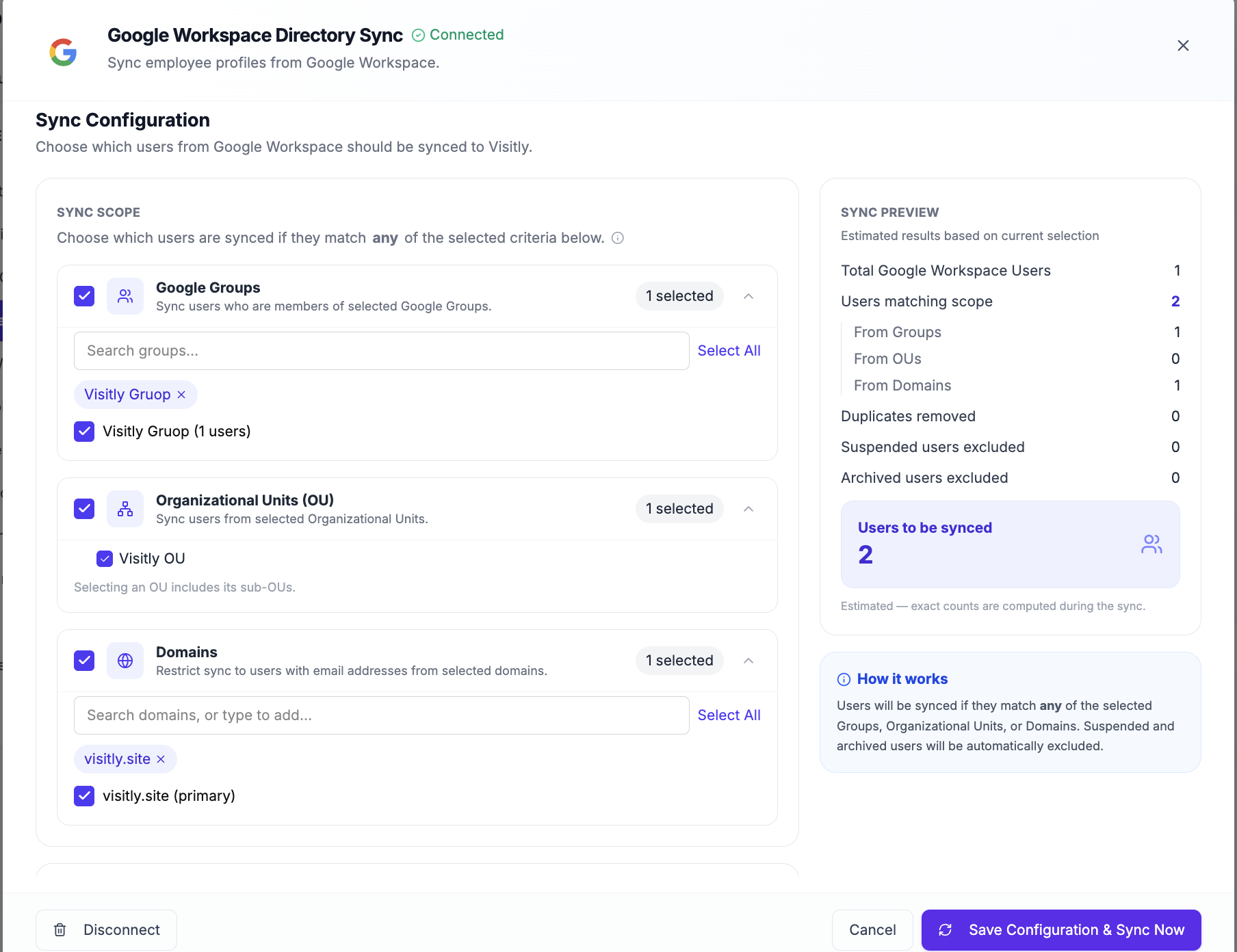
Note: Use Google Groups if your team is organized by group membership, Organizational Units if you follow a department/team OU structure, or Domains if you need to limit sync to a specific email domain (e.g., filtering out contractors on a subdomain).
4. Under Advanced Settings, configure exclusions:
Exclude suspended users: Suspended Google Workspace users will not be synced to Visitly
Exclude archived users: Archived Google Workspace users will not be synced to Visitly
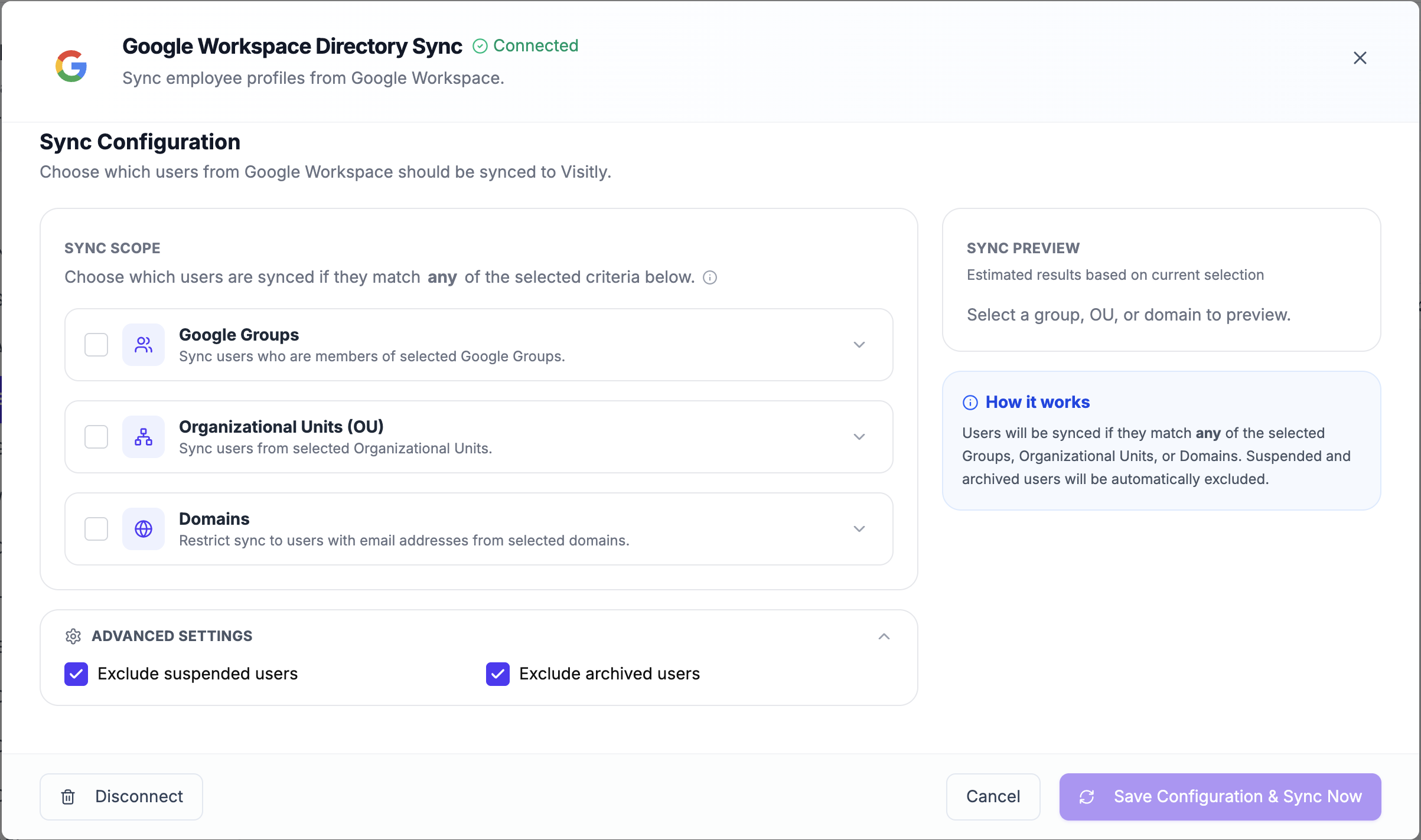
5. Use the Sync Preview panel on the right to see an estimated count of users that will be synced based on your current selections before saving.
6. Click Save Configuration & Sync Now to apply your settings and trigger an immediate sync.
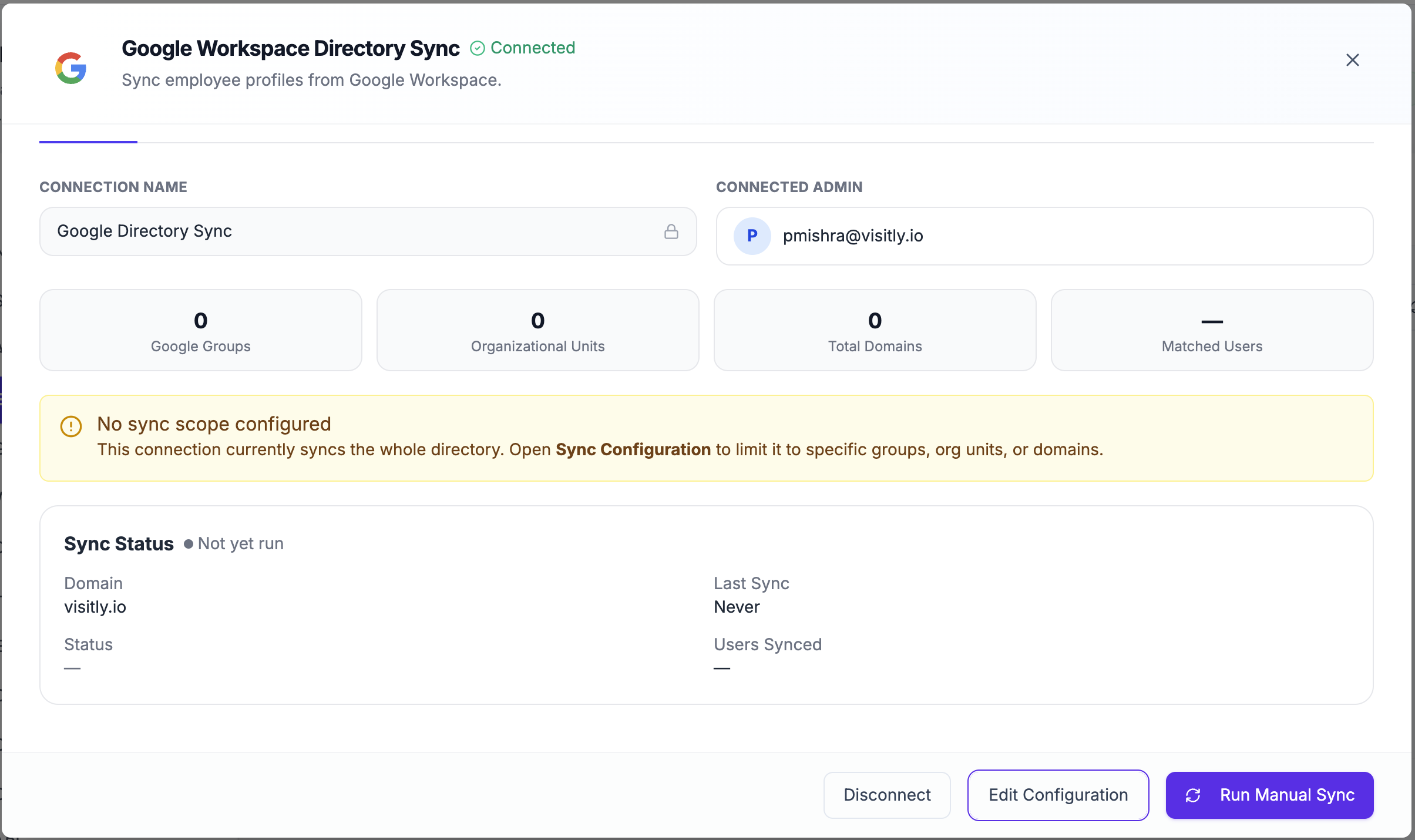
If no sync scope is configured, Visitly syncs your entire directory. A yellow notice will appear on the Overview tab to remind you of this. Your sync scope is now configured.
What Gets Synced
Visitly pulls the following employee details from Google Workspace on each sync:
Field | Notes |
|---|---|
Name & email | Synced automatically |
Job title & department | Synced if filled out in the employee's Google profile |
Work and mobile phone numbers | Synced if listed on the employee's Google profile |
Profile photo | Synced as the employee's avatar in Visitly |
Employee ID | Synced from the employee's Google Workspace profile |
Account status | Active, suspended, or archived — used to automatically activate or deactivate the employee in Visitly |
Any updates to these fields in Google Workspace will carry over to Visitly on the next sync cycle.
Keeping Your Directory Up to Date:
- Automatic sync runs every 24 hours — any additions, edits, or removals in Google Workspace will be reflected in Visitly automatically.
- Manual sync is available anytime from the integration settings if you need an immediate update.
- Manually added employees (like contractors or temps) can coexist alongside synced employees and will not be affected by the sync.
Troubleshooting
- I receive an Authorization Error — Error 400: admin_policy_enforced when connecting.
This error means the connecting account does not have all required directory read permissions, or the Visitly OAuth application has not been approved by your Super Admin. Ask your Google Workspace Super Admin to grant Users, Groups, Organizational Units, and Domains read permissions to the connecting account, or approve the Visitly application in the Google Workspace security policies, then try connecting again. - Changes made in Google Workspace are not appearing in Visitly.
Automatic sync runs every 24 hours. If you need changes to appear immediately, navigate to Integration Hub → Employee Directory, click Manage on the Google Workspace card, and click Sync Now. If the issue persists after a manual sync, contact support@visitly.io. - Some employee fields (job title, department, phone) are not syncing.
These fields only sync if they are filled out in the employee's Google Workspace profile. Confirm the fields are populated in the Google Workspace Admin Console, then trigger a manual sync. - A manually added employee was removed or overwritten after a sync.
Manually added employees (contractors, temps) are not affected by the sync. If an employee was removed unexpectedly, confirm their account status in Google Workspace — suspended or archived accounts are excluded from sync by default and will be deactivated in Visitly.
Need help? Contact the Visitly support team at support@visitly.io
Was this article helpful?
That’s Great!
Thank you for your feedback
Sorry! We couldn't be helpful
Thank you for your feedback
Feedback sent
We appreciate your effort and will try to fix the article