Admin role required: Google Workspace super admin

Feature availability varies by plan. Check What's in each plan on our pricing page to see if it's included in yours, or talk to our sales team about upgrading.
Overview
This article is for Google Workspace administrators. It explains how to allow and install the Visitly app for Google Chat in your domain, what Visitly can access, and how to remove it.
For the full setup, including notification rules in Visitly, see Set up Google Chat notifications in Visitly.
Before you begin
You'll need:
- A Google Workspace super admin account
- Access to the Google Admin console
- An active Visitly subscription with the Google Chat integration enabled on your plan
Step 1: Allow Chat apps in your domain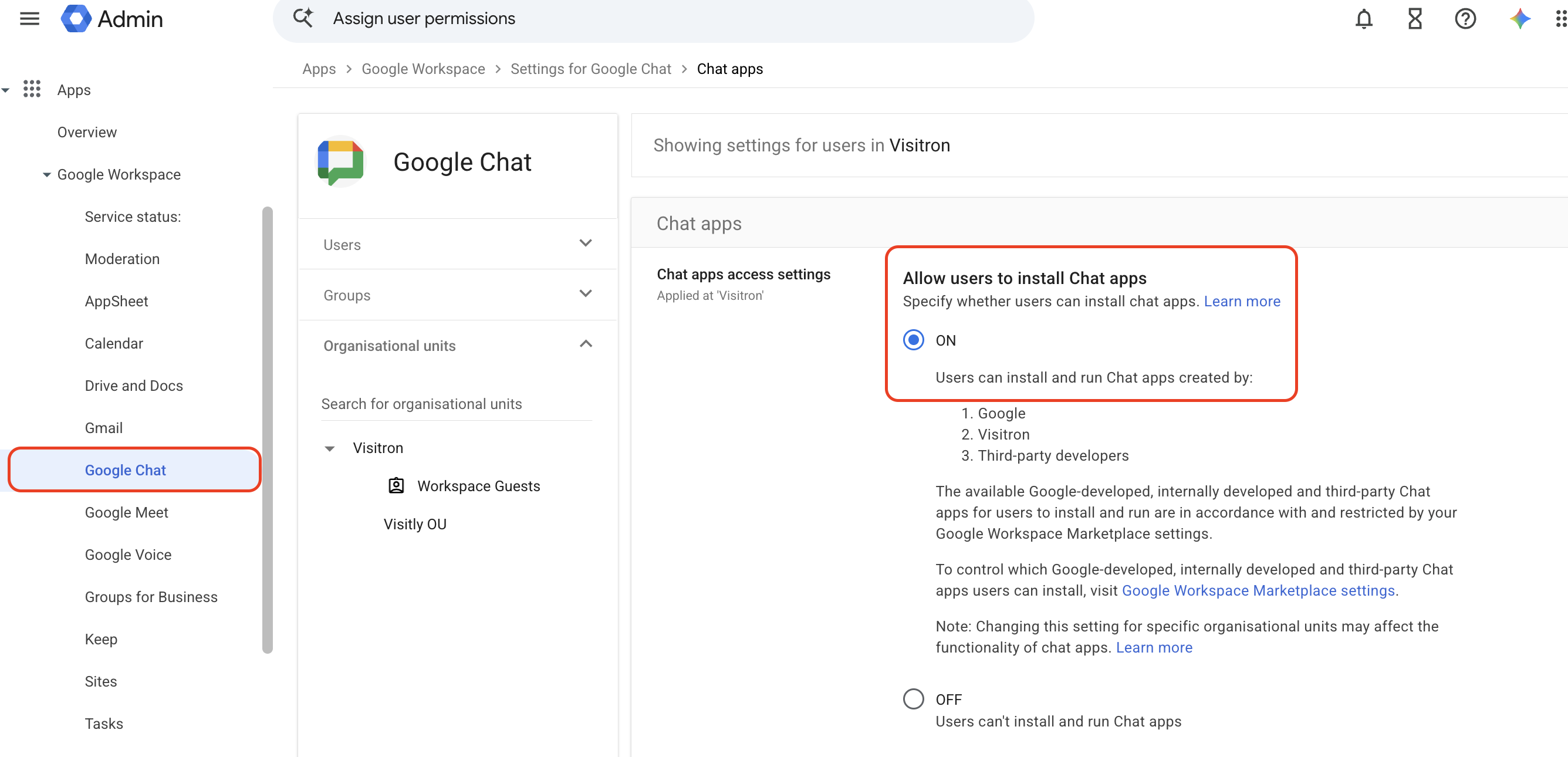
- Sign in to the Google Admin console as a super admin.
- Go to Apps > Google Workspace > Google Chat > Chat apps.
- Turn on Allow users to install Chat apps for the organizational units that need Visitly.
- Select Save.
Step 2: Allow Visitly in Google Workspace Marketplace
Skip this step if users in your domain can install any Marketplace app.
- In the Admin console, go to Apps > Google Workspace Marketplace apps > Apps list.
- Select Add app to Allowlist.
- Search for Visitly and select it.
Step 3: Install Visitly for your domain (optional)
Admin install makes Visitly available to everyone in your domain, or in selected organizational units, without each person installing it.
- Go to Google Workspace Marketplace and open the Visitly listing.
- Select Admin install.
- Choose Everyone in your organization or specific organizational units.
- Review the permissions and select Allow.
Step 4: Grant directory access in Visitly
This step is completed from the Visitly admin portal, but needs a Google Workspace super admin to approve it.
- In the Visitly admin portal, go to Integration Hub → Notifications, select Google Chat, and select Connect.
- Sign in with your Google Workspace super admin account.
- When Google asks for permission to see info about users on your domain, select Allow.
What Visitly can access
- See info about users on your domain (admin.directory.user.readonly): Visitly looks up each host's Google Chat user ID from their email address so it can @mention them. Visitly can't change your directory.
- Post messages as the Visitly Chat app: Visitly posts visitor notifications only in the space where it was added.
Visitly stores the ID of the connected Chat space and the authorization granted in Step 4. It doesn't read messages in the space, except messages that @mention Visitly. For details, see the Visitly Privacy Policy.
Removing Visitly
- In the Visitly admin portal, go to Integration Hub → Notifications, select Google Chat, and disconnect it.
- In Google Chat, remove the Visitly app from the space.
- To revoke access completely, go to the Admin console, open Security > Access and data control > API controls > Manage third-party app access, find Visitly, and set it to Blocked.
- If you used Admin install, go to Apps > Google Workspace Marketplace apps > Apps list, select Visitly, and select Uninstall.
Troubleshooting
Users can't find Visitly when adding apps to a space
Confirm Chat apps are allowed for the user's organizational unit (Step 1) and, if you use an allowlist, that Visitly is on it (Step 2). Changes in the Admin console can take up to 24 hours to apply.
The Google sign-in in Step 4 fails or shows an access error
Sign in with a super admin account. Accounts without admin rights can't grant directory access. Also check that Visitly isn't blocked under Manage third-party app access.
Notifications are posted but hosts aren't @mentioned
Directory access may have been revoked or the admin who granted it may have lost their role. Repeat Step 4.
Need more help?
Contact our support team at support@visitly.io.
Was this article helpful?
That’s Great!
Thank you for your feedback
Sorry! We couldn't be helpful
Thank you for your feedback
Feedback sent
We appreciate your effort and will try to fix the article