Admin role required: Global Admin

Feature availability varies by plan. Check What's in each plan on our pricing page to see if it's included in yours, or talk to our sales team about upgrading.
Visitly makes it easy to send real-time updates directly to your team in Slack. Follow the steps below to set up and manage Slack channel notifications.
Integrate Slack
1. Log in to the Visitly Dashboard.
2. Navigate to Integrations Hub → Notification via the left-hand panel.
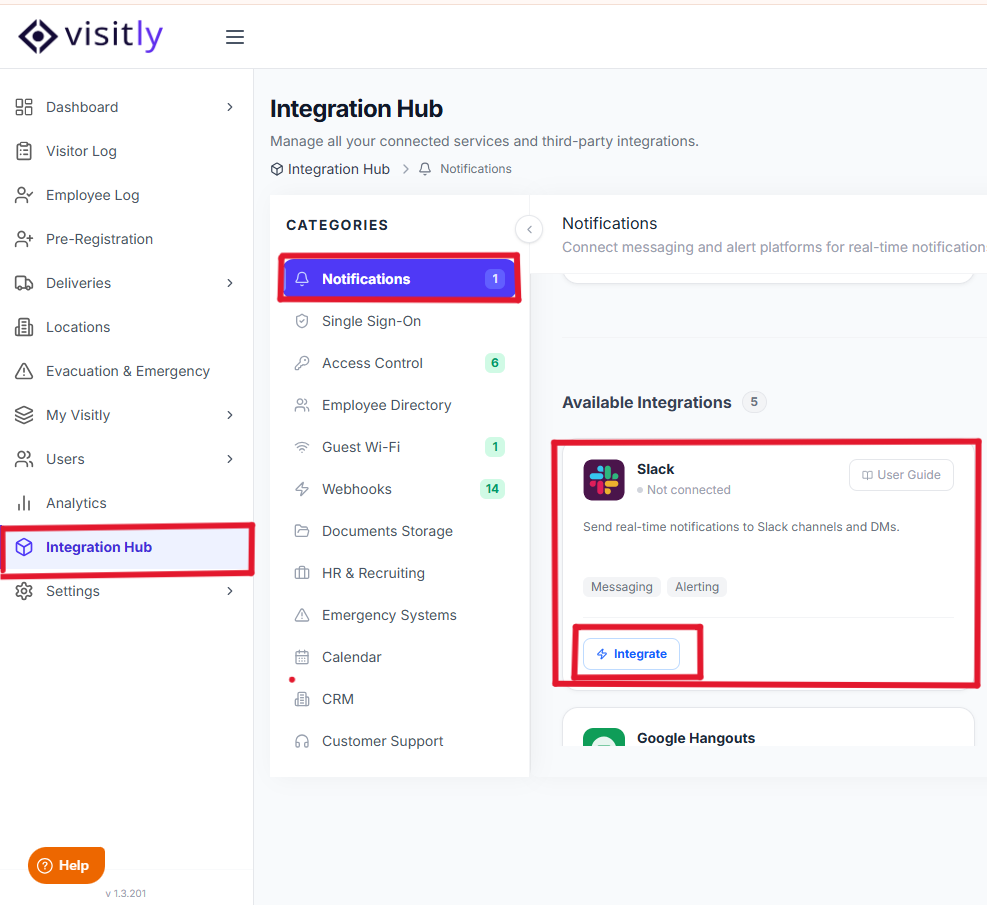
3. Click the Integrate button under Slack.
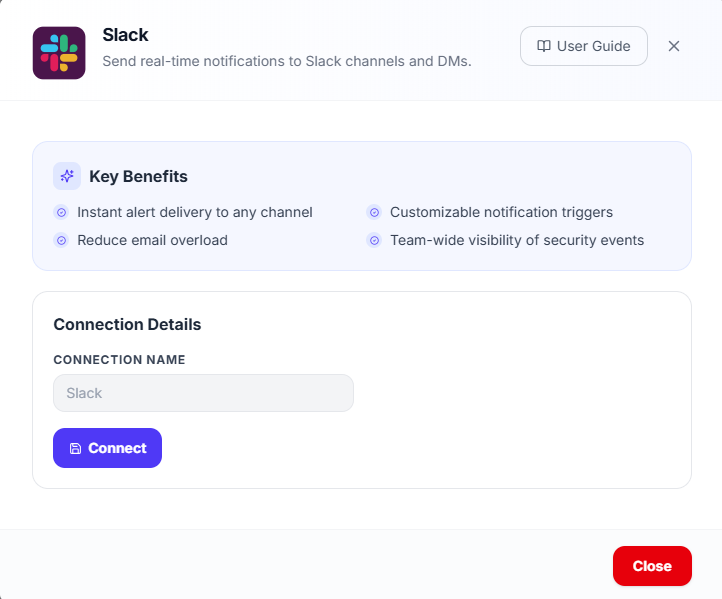
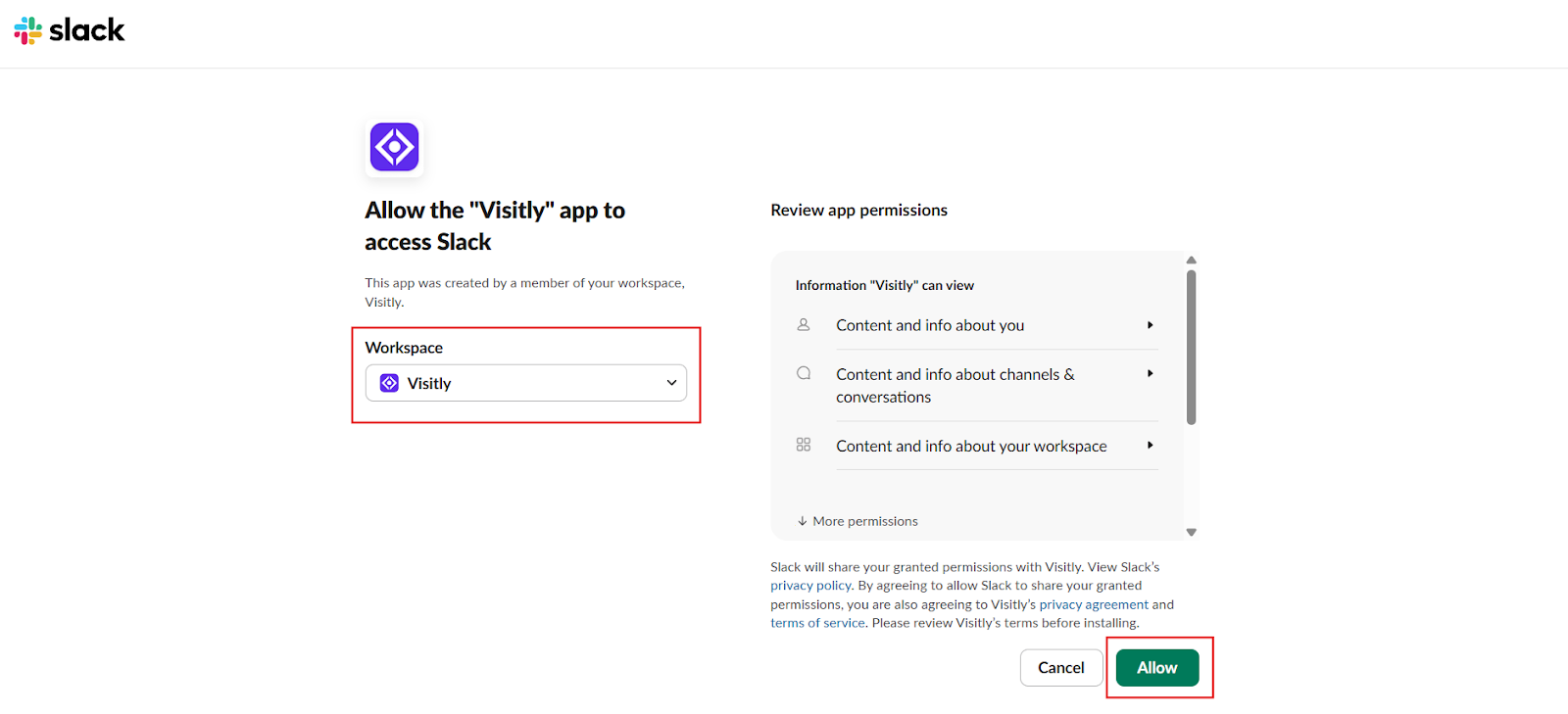
4. Select your workplace.
5. When prompted, grant the required permissions to the Visitly App so it can send notifications to your Slack workspace.
Create a Slack Channel Notification
1. Navigate to the Locations page and click Edit on the location you want to update.
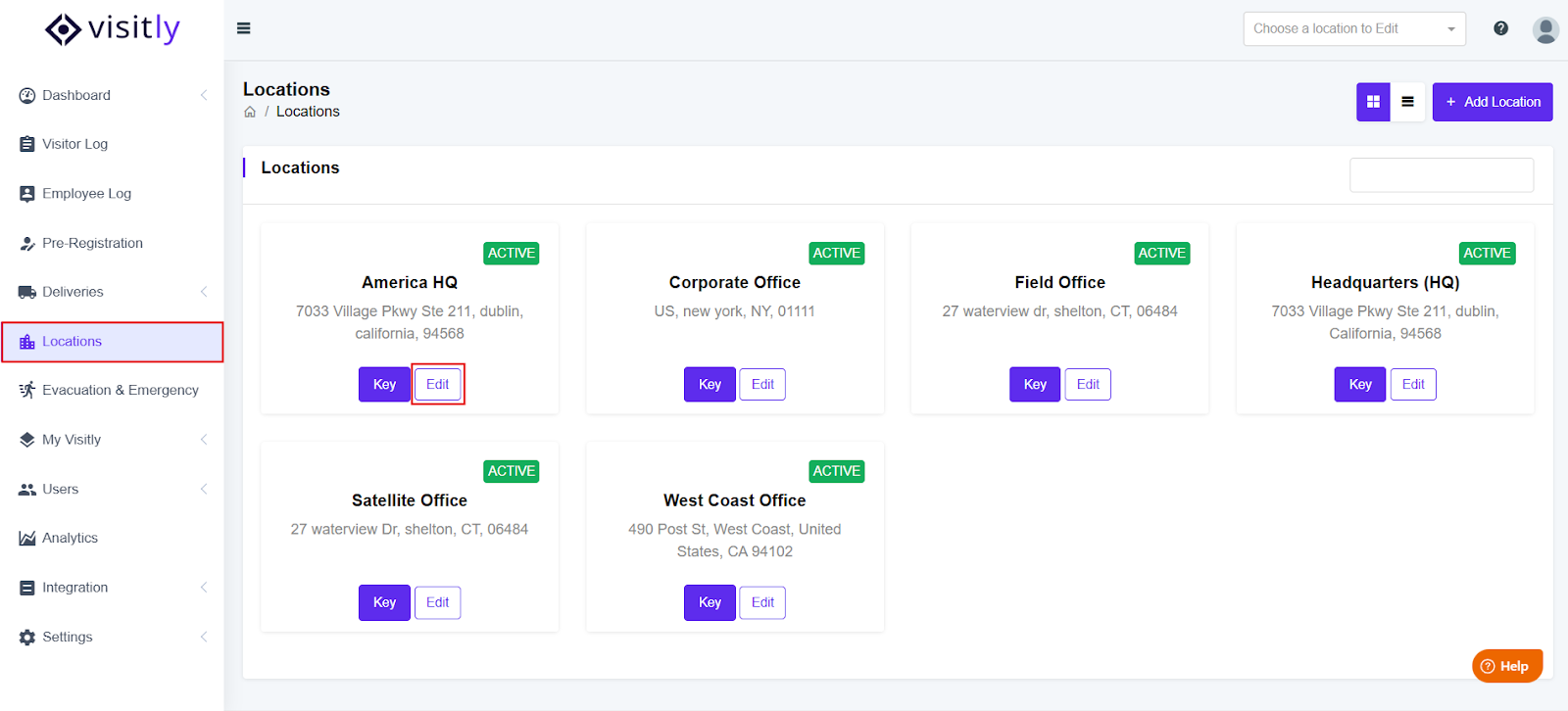
2. From the left panel, open the Notifications page.
3. Click Add New and configure the notification settings.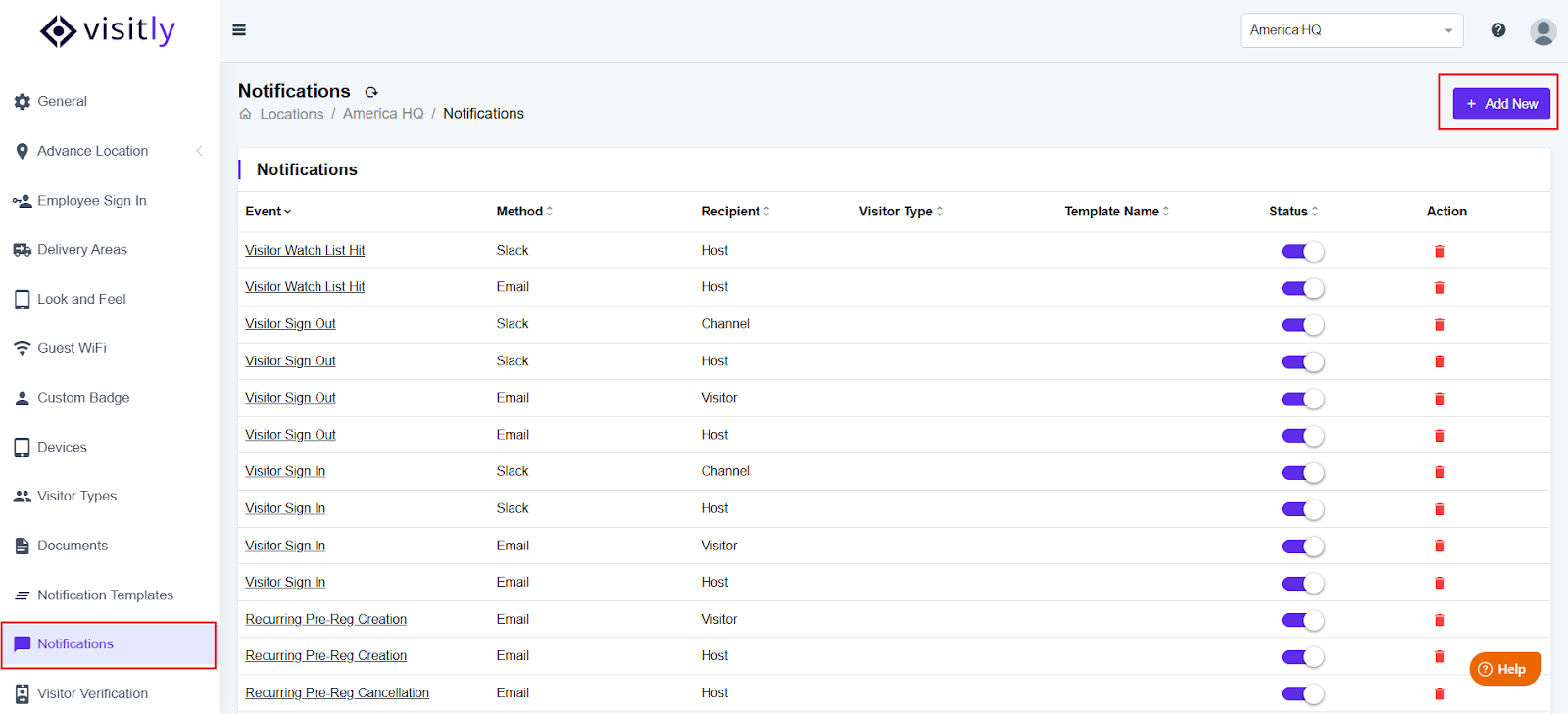
4. Select the Event you want to trigger the notification.
5. Set Recipient to Channel.
6. Choose Slack as the Notification Method. 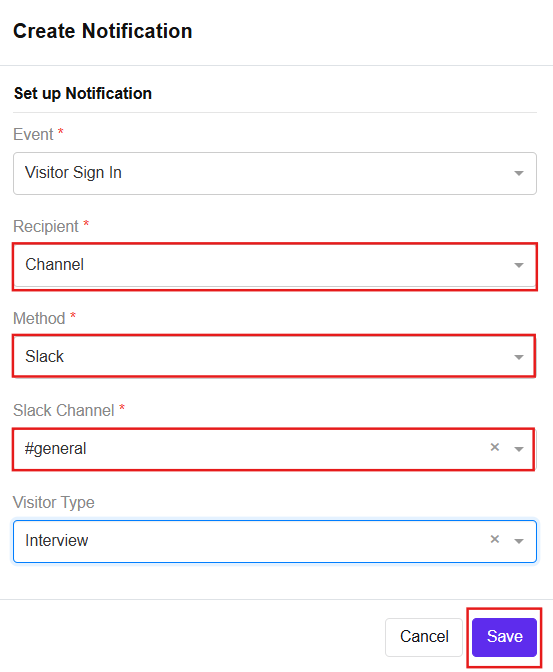
7. Search for and select the Slack channel where you want the notification to appear.
8. Select a Visitor Type if you want to target specific categories (Optional).
9. Click Save to confirm your changes.
Add the Visitly App to the Slack Channel
To ensure notifications are delivered correctly:
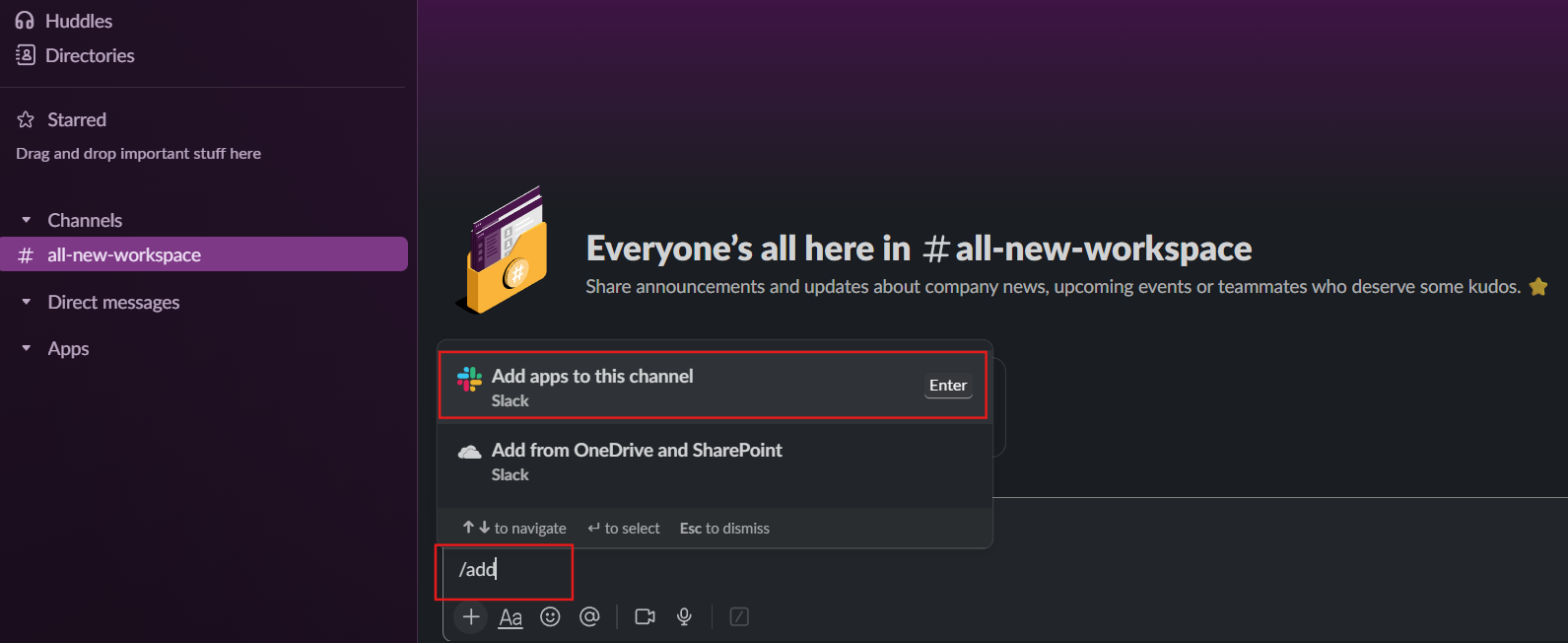
1. Open the Slack channel you selected.
2. Type '/add apps' in the message
3. Search for Visitly.
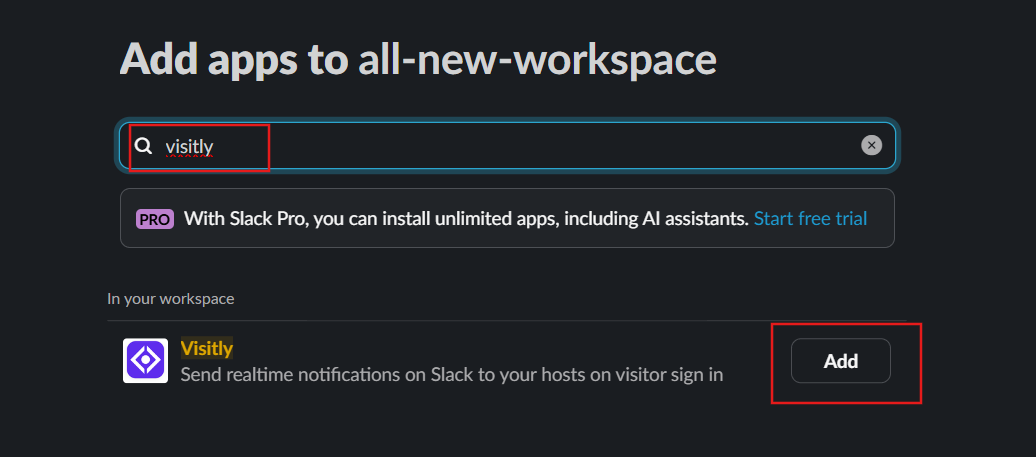
4. Add the app to the channel.
Once added, your Slack notifications are fully set up and ready to go.
Was this article helpful?
That’s Great!
Thank you for your feedback
Sorry! We couldn't be helpful
Thank you for your feedback
Feedback sent
We appreciate your effort and will try to fix the article