Admin role required: Global Admin

Feature availability varies by plan. Check What's in each plan on our pricing page to see if it's included in yours, or talk to our sales team about upgrading.
Overview
Visitly's Custom Fields for Slack Notifications lets you enrich your Slack messages with visitor-submitted data collected at check-in. Instead of receiving a generic alert, your team sees exactly the information that matters — from visitor purpose and company name to custom intake fields specific to your workflow. Custom fields are supported for all notification events and delivered to both Direct Messages and Slack Channels (Public and Private).
How It Works- When a visitor completes check-in, Visitly captures all custom field responses entered during the sign-in flow.
- When the notification event triggers (for example, Visitor Sign-In), Visitly sends a Slack message to your configured DM recipient or channel.
- The message includes standard notification details plus up to 6 custom field values you've chosen — giving your team the right context at the right moment.
Complete all prerequisites before starting setup. Missing any of these will prevent custom fields from appearing in your Slack messages.
Visitly requirements:Active Visitly account with Global Admin or Location Admin access
Custom Fields for Slack enabled on your account (contact support@visitly.io to request access)
At least one location configured with an active Slack notification
Custom fields already created for your visitor sign-in flow (see Custom Fields)
Complete all prerequisites before starting setup. Missing any of these will prevent custom fields from appearing in your Slack messages.
Visitly requirements:
Active Visitly account with Global Admin or Location Admin access
Custom Fields for Slack enabled on your account (contact support@visitly.io to request access)
At least one location configured with an active Slack notification
Custom fields already created for your visitor sign-in flow (see Custom Fields)
Slack requirements:
Visitly Slack integration connected and authorized
A configured Slack DM recipient or channel for at least one notification event
Setup Guide
Make sure you hav e connected Slack and created at least one Slack channel notification before continuing. (See Configure Slack Channel Notifications for setup instructions.)
Step 1: Open the Location
Log in to the Visitly Dashboard.
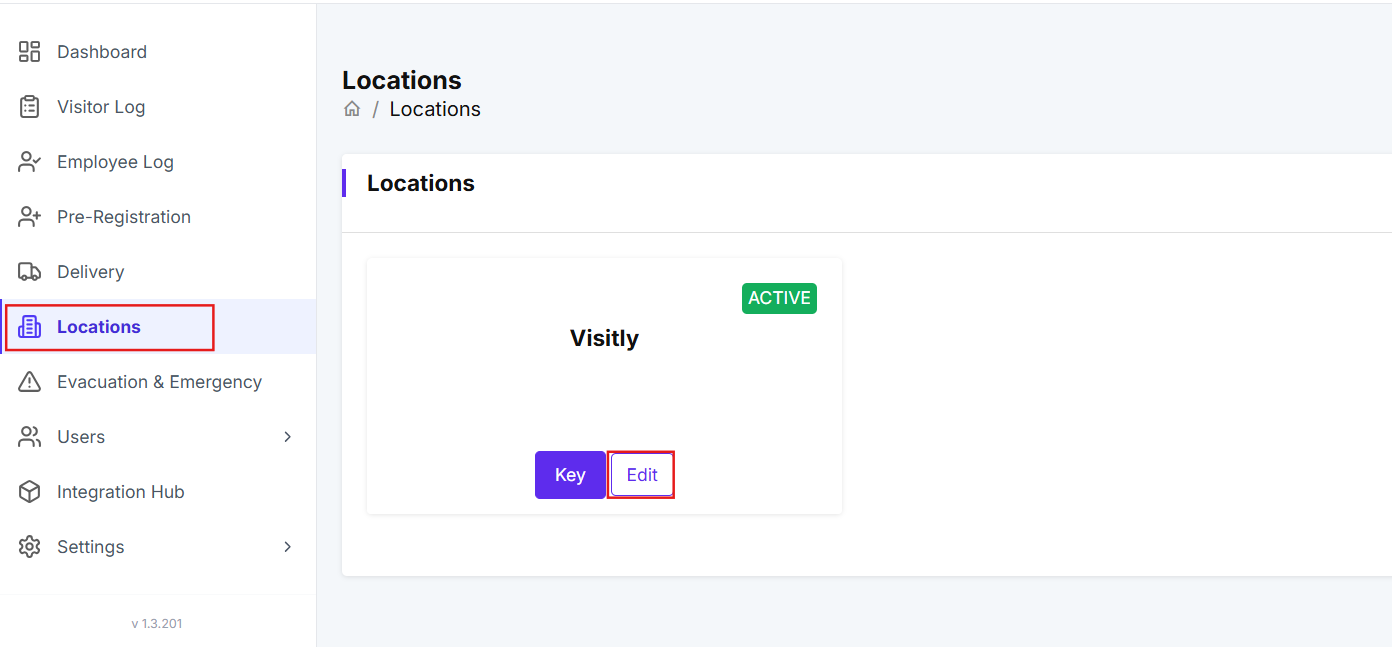
Navigate to the Locations page.
Click Edit on the location you want to update.
Step 2: Open Notifications
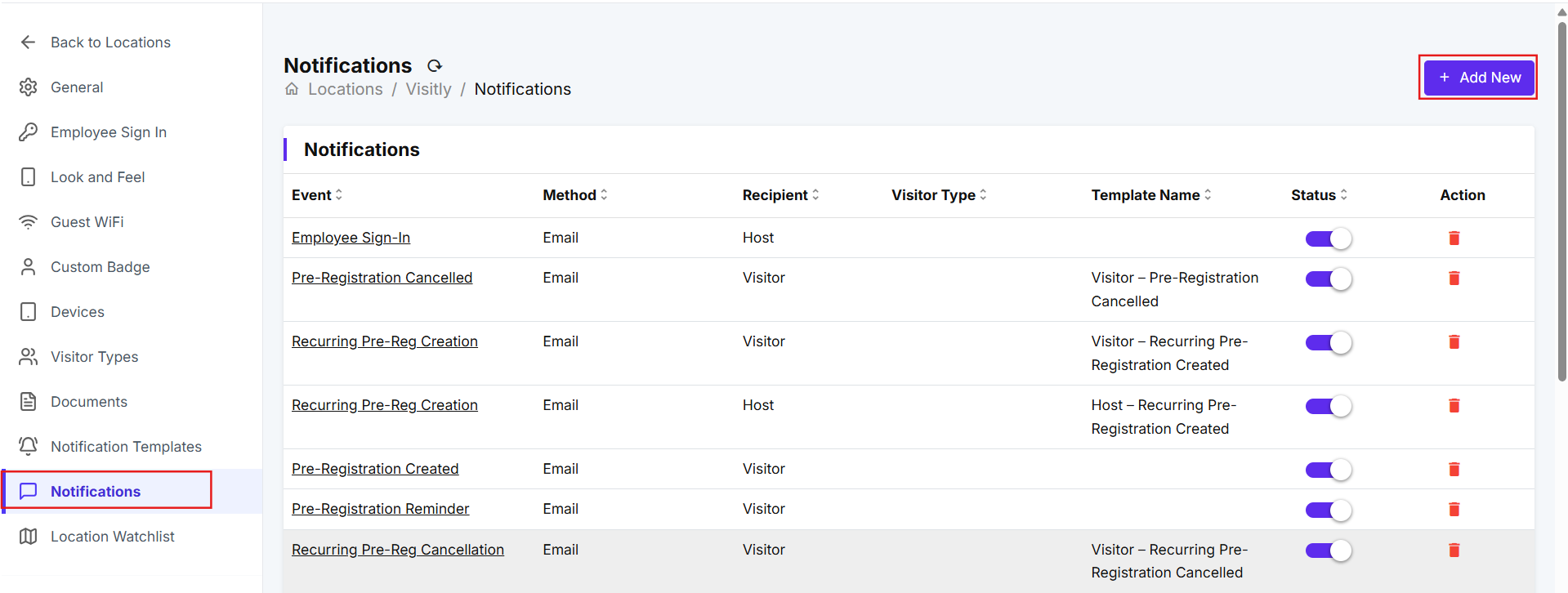
From the left panel, open the Notifications page.
Step 3: Add or Edit a Notification
Click Add New to create a new notification or click Edit on an existing one.
Configure the notification settings — select your Event, choose your Recipient (e.g. a specific person, channel, or group), set Method to Slack.
- Optionally, select a Visitor Type to scope this notification to a specific visitor type. If left blank, the notification applies to all visitor types at this location.
Step 4: Select Custom Fields
In the notification configuration, locate the Custom Fields column.
Select up to 6 custom fields you want to include in the Slack message.
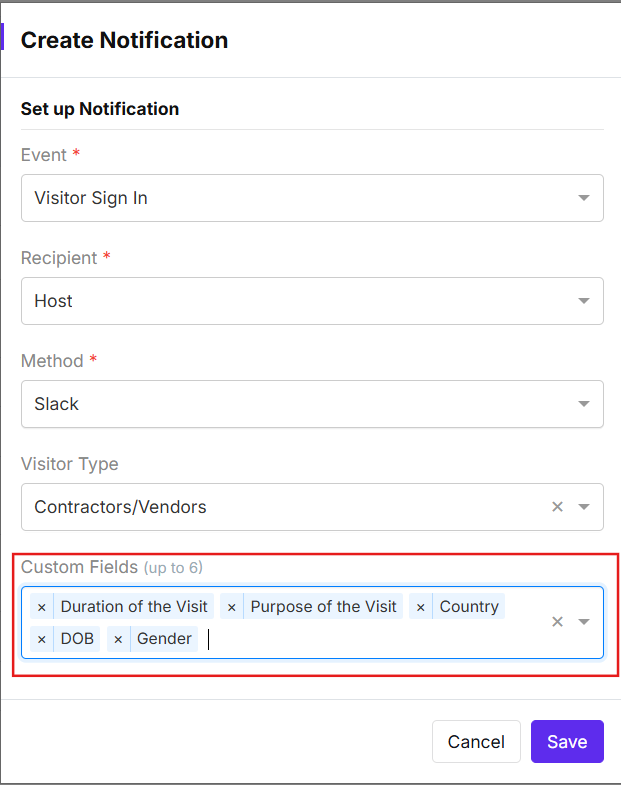
Tip: Prioritize fields that provide actionable context for your team — such as "Purpose of Visit," "Host Name," or "Company." Avoid fields that duplicate information already in the standard notification.
Custom fields are now attached to this notification event.
Step 5: Save the Configuration
Click Save to confirm your changes.
Your notification is now configured to include custom field values in all Slack messages for this event.
Step 6: Verify the Notification
Trigger the event by having a visitor complete sign-in at the configured location.
Check the Slack DM or channel you configured.
Confirm the Slack message displays the custom field labels and the values entered by the visitor during check-in.
Managing multiple locations? Repeat Steps 1–5 for each location where you want custom fields included in Slack notifications.
What the Slack Message Looks Like
When a visitor completes sign-in and the event triggers, Visitly sends a Slack message to your configured destination. The message includes:
Standard notification details (visitor name, time, location, event type)
Each selected custom field (shown as additional information) label paired with the visitor's submitted value
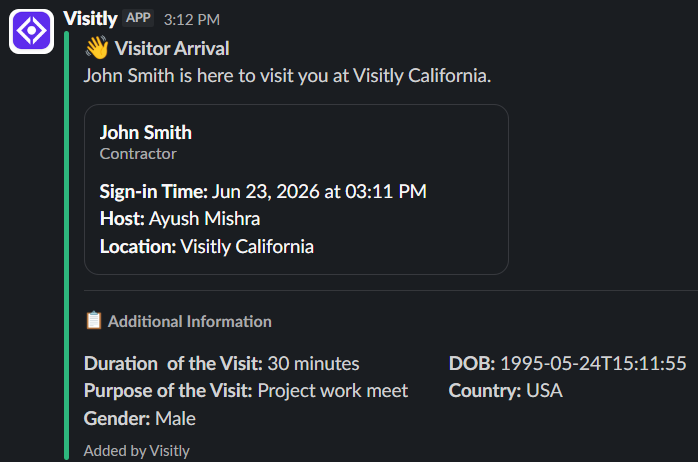
Example — Slack DM:
Visitor Sign-In Name: Sarah Chen Time: 10:32 AM Purpose of Visit: Client Meeting Company: Acme Corp Host: Jordan Lee NDA Signed: Yes
Example — Slack Channel: The same structured message is posted to your configured Public or Private channel, visible to all members of that channel.
Troubleshooting
- Custom fields are not appearing in the Slack message.
Confirm the Custom Fields for Slack feature is enabled on your account — contact support@visitly.io if you are unsure. Also verify that you selected and saved at least one custom field in the notification configuration, and that the visitor completed those fields during sign-in.
- The custom field appears blank in the Slack message.
The visitor did not complete that field during check-in. If the field is required for your workflow, configure it as a mandatory field in your sign-in flow so visitors cannot skip it.
- I saved the configuration but the Slack message still shows no custom fields.
Navigate back to Notifications → Edit for the event and confirm the custom fields are still selected — occasionally a browser session timeout can prevent a save from completing. Re-select the fields and save again.
- The Slack notification is not being delivered at all.
Verify that the Visitly Slack integration is still authorized by checking Integrations → Slack in your Admin Dashboard. If the connection has expired, reconnect and re-authorize the integration.
- I can only see some of the custom fields I selected.
Visitly supports a maximum of 6 custom fields per notification configuration. If you selected more than 6, only the first 6 will appear. Review your configuration and prioritize accordingly.
Need help? Contact the Visitly support team at support@visitly.io
Was this article helpful?
That’s Great!
Thank you for your feedback
Sorry! We couldn't be helpful
Thank you for your feedback
Feedback sent
We appreciate your effort and will try to fix the article