The Devices page in Visitly allows you to view and manage all iPads and kiosks assigned to a specific location. From this page, you can monitor device status, manage printer connections, reset device PINs, and keep device information up to date.
How to Access the Devices Page
1. Log in to your Visitly Admin Dashboard
2. Click Locations from the left-hand menu
3. Select the Location you want to manage by clicking Edit
4. Navigate to Devices from the left-hand menu
You will now see all devices associated with this location.
Device Card Overview
Each device is displayed as a Device Card, giving you important information at a glance without opening full details.
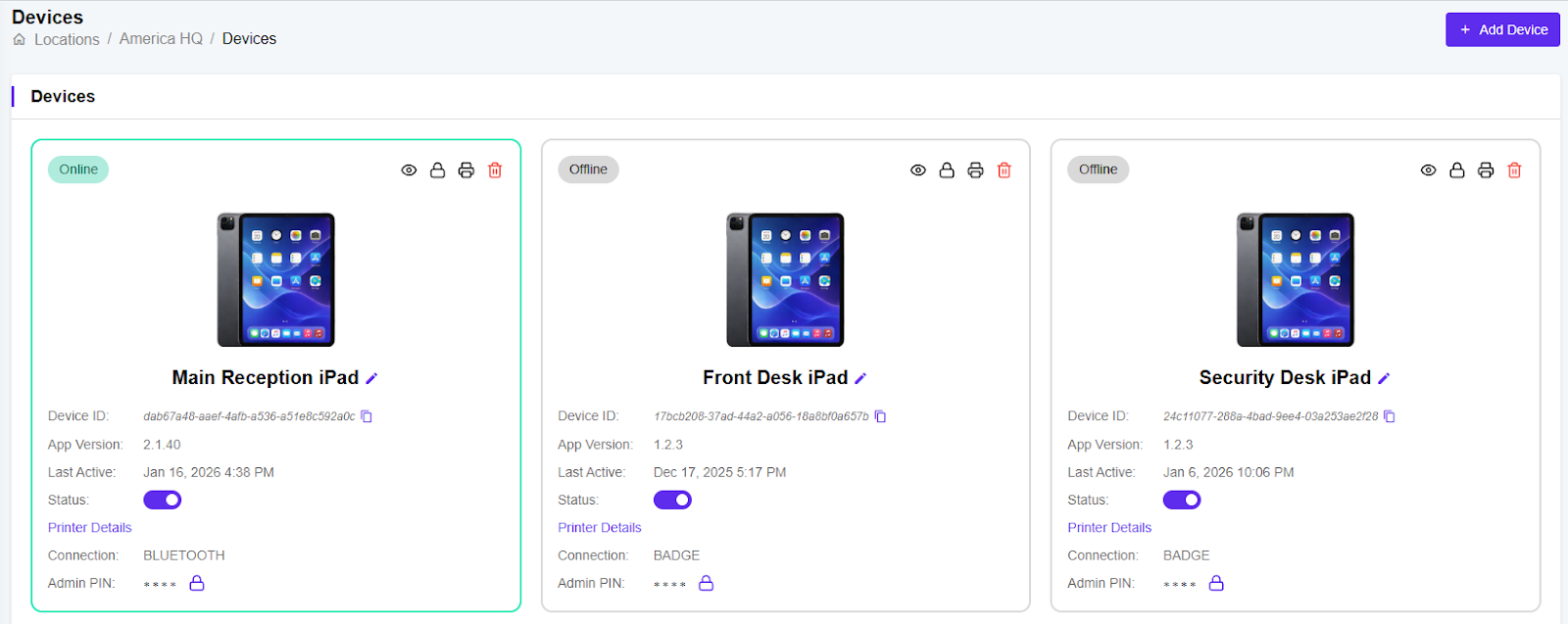
The Device Card shows:
Device Name
Device Status (Online / Offline)
Printer Connection Type
Bluetooth
AirPrint
Proxy
Organization
Last Active time
Quick actions, such as resetting the device PIN using the Lock icon
This helps admins quickly confirm whether a device is online and how it is connected to a printer.
Device Details View
By clicking the Details view icon on a Device Card, you can access complete device information, including:
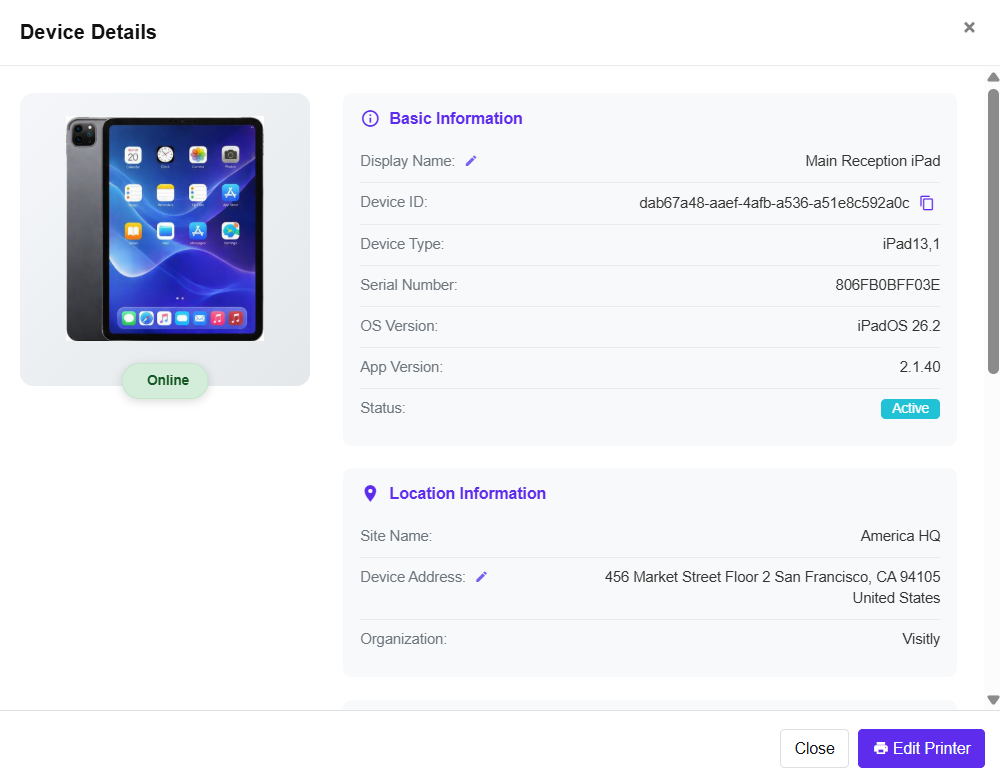
Device Information
Display Name
Device ID
Device Type
Serial Number
OS Version
App Version
Status (Active)
Location Information
Site Name
Device Address
Organization
Device & Network Status
Online / Offline
Last Active
MAC Address
IP Address
External IP (if configured)
Printer Information
Printer Model
Connection Type (Bluetooth, AirPrint, or Proxy)
Media Type
Color Type
Activity of Device
Created date
Last Modified
Last Active
All device-related details are available in this view for easy monitoring and troubleshooting.
Actions You Can Perform on the Devices Page
Add or Edit Device Name
Rename devices to make them easy to identify, especially when managing multiple kiosks.
Add or Update Device Address
Add or update the device’s physical address from the Details view to help manage large offices or multi-floor locations.
Reset Device PIN
Click the Lock icon on the Device Card
Reset the PIN directly
Use the Admin PIN if prompted
Refresh the Visitly Kiosk App on the device and sign in using the new PIN.
Configure Printer Details
View and manage printer information, including:
Printer model
Connection type (Bluetooth, AirPrint, or Proxy)
Badge and label printing setup
Need More Help?
If a device or printer is not working as expected, please contact Visitly Customer Support.
Was this article helpful?
That’s Great!
Thank you for your feedback
Sorry! We couldn't be helpful
Thank you for your feedback
Feedback sent
We appreciate your effort and will try to fix the article