With Visitly you can configure video viewing for visitors during their sign-in process.
Admin role required: Global Admin and Location Admin

Feature availability varies by plan. Check What's in each plan on our pricing page to see if it's included in yours, or talk to our sales team about upgrading.
Overview
Visitly lets you play a check-in video in Kiosk, Contactless Sign-In and Pre-Arrival for visitors as part of the sign-in process, so you can share safety briefings, NDAs, facility orientations, or welcome messages before a visitor reaches their host. You can require visitors to watch the video in full, and you can control whether it starts muted or with sound by default on the Kiosk, Contactless Sign-In and Pre-Arrival.
How It Works
- You add a video link to a Visitor Type, and Visitly plays it automatically when a visitor signs in under that type.
- You can require full video completion before the visitor can continue their sign-in.
- You can set whether the video starts muted or with sound by default on the Kiosk, Contactless Sign-In and Pre-Arrival.
- Visitors can always toggle sound on or off themselves while the video plays, regardless of your default setting.
Complete all prerequisites before starting setup. Missing any of these will prevent the video from playing correctly.
Visitly requirements:
- Active Visitly account with admin access to the location
- A configured Visitor Type at the location
Video requirements:
- A secure (HTTPS) video link from YouTube, Vimeo, or Wistia — no other video sources are supported
Setup Guide
Step 1: Open the Visitor Type
- Go to Locations and select Edit on the location card you want to manage.
- Select the Visitor Types tab from the left-hand panel.
- Select the visitor type you want to configure.
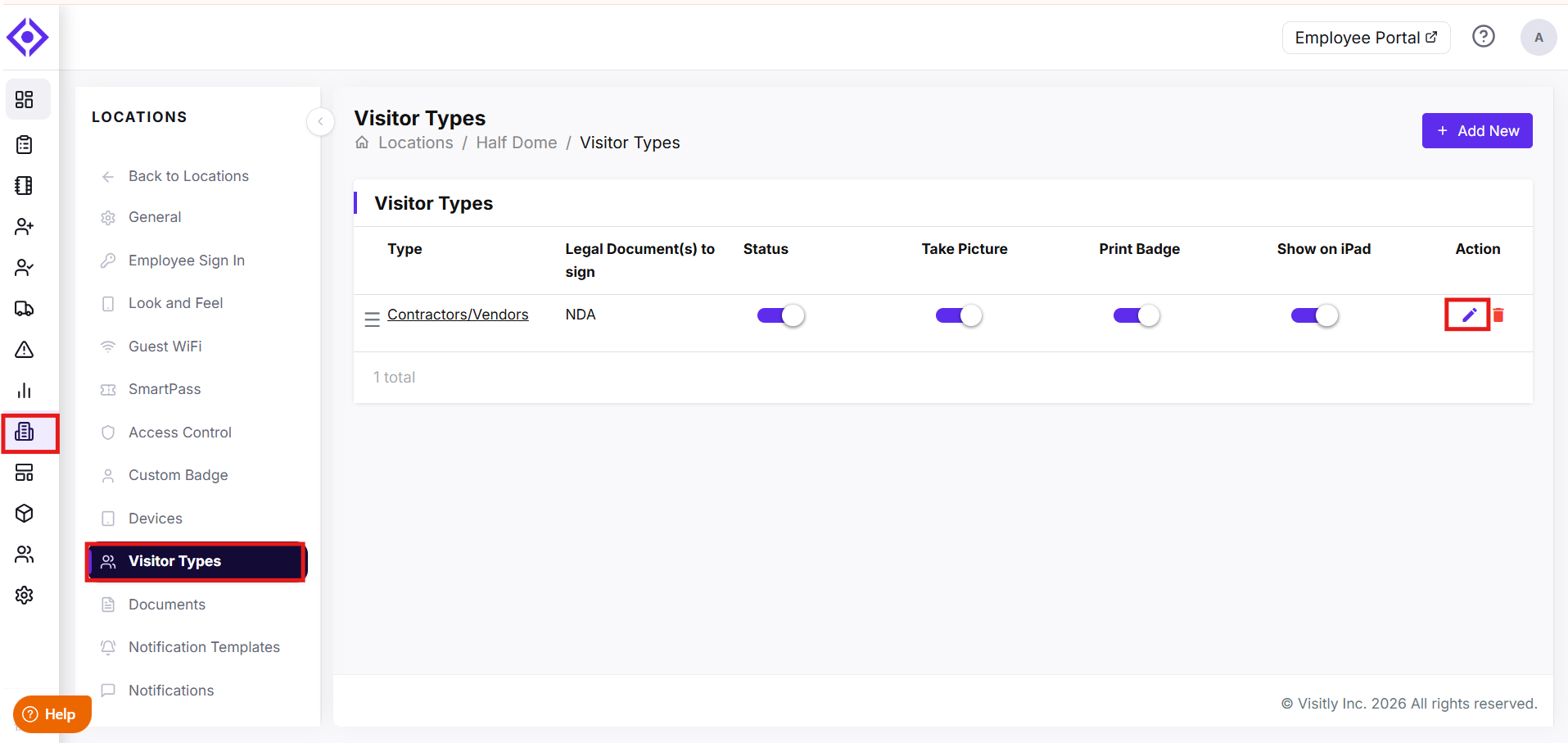
Your account is now in the Update Visitor Type modal for that visitor type.
Step 2: Add the check-in video
- Scroll to the Video Settings section.
- In the Video URL field, enter the video link.
- In Video Validity (in days), enter how many days visitors can watch this video before Visitly prompts them to view it again. Enter 0 if the video should never expire.
- Enable Require Video Completion if visitors must finish watching before continuing sign-in, or leave it disabled to let them skip ahead.
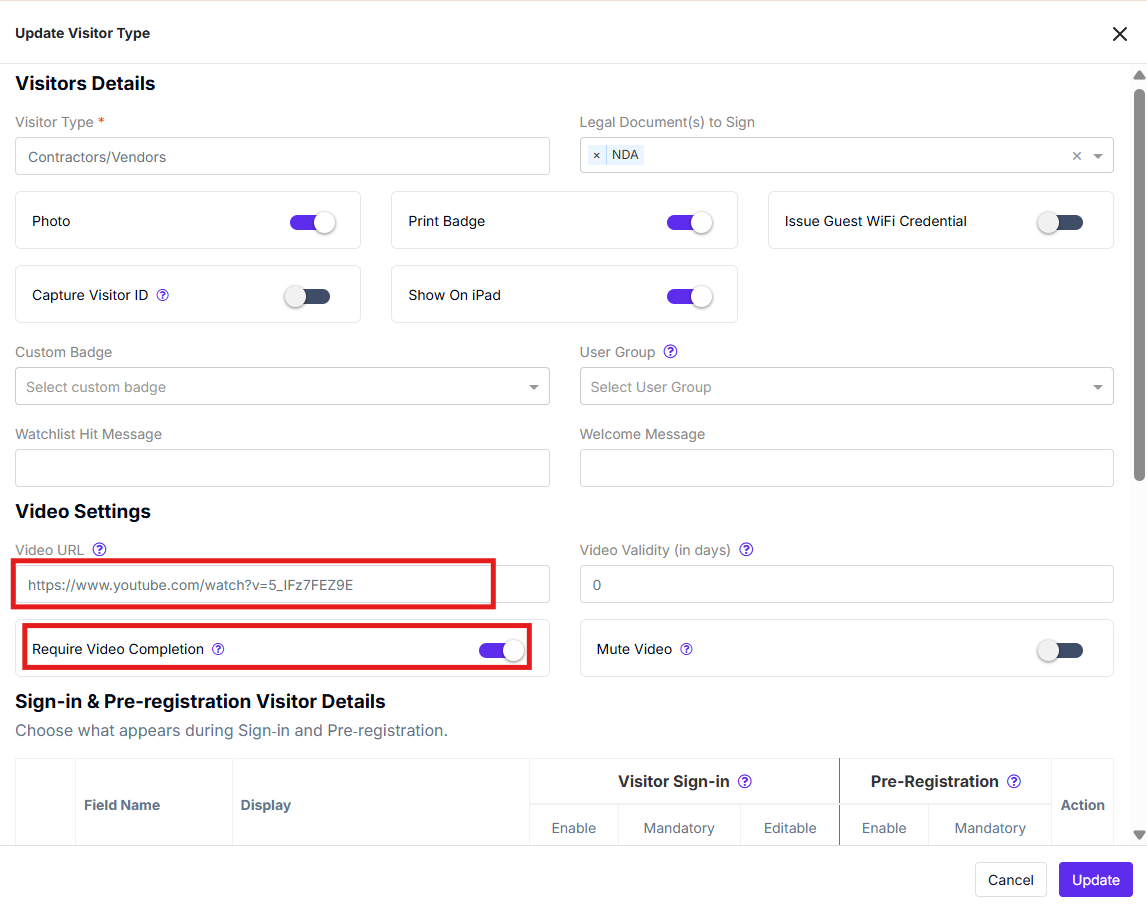
Visitly now plays this video for visitors signing in under this visitor type.
Step 3: Set the default video sound
- In the Video Settings section, locate the Mute Video toggle next to Require Video Completion.
- Enable Mute Video for the video to start muted on the Kiosk, Contactless Sign-In and Pre-Arrival or disable it for the video to start with sound by default.
- Select Update to save your changes.
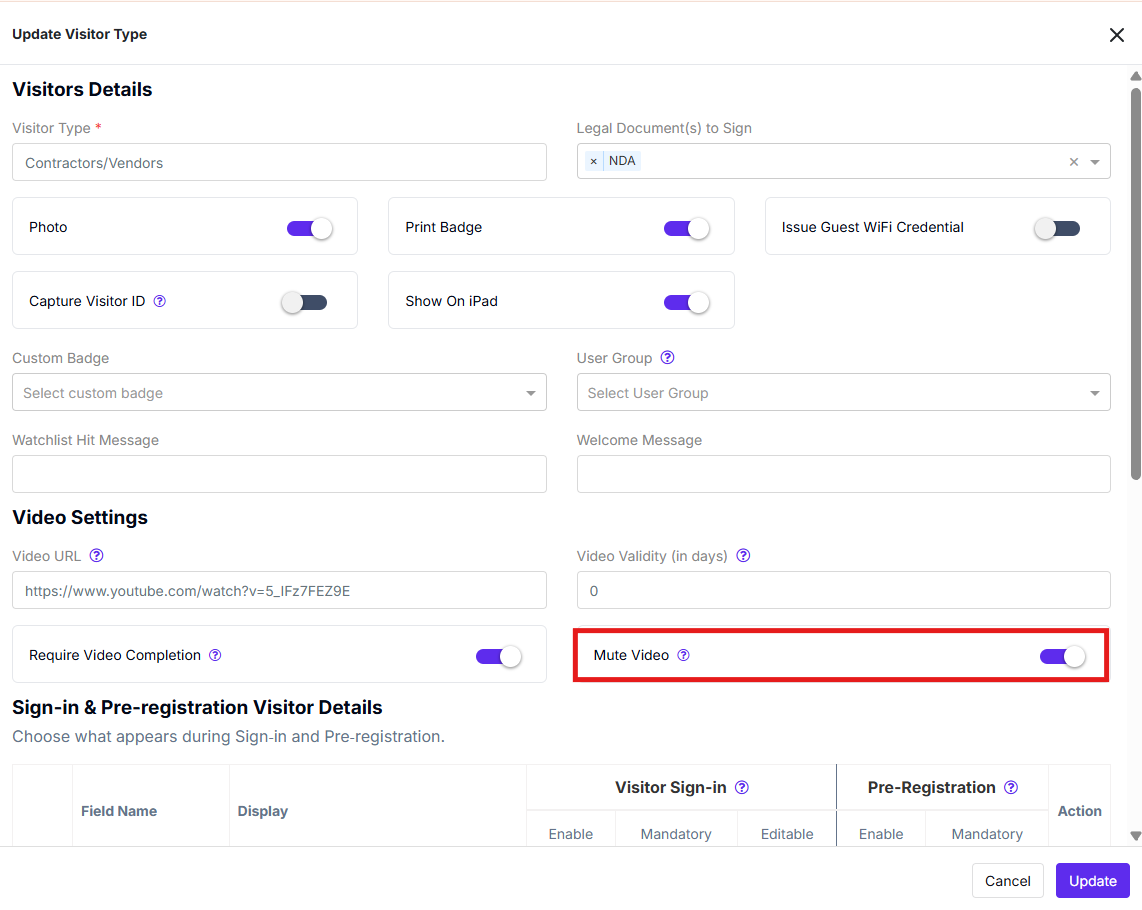
Managing multiple locations? Repeat these steps for each location's visitor types — video and mute settings are configured per visitor type, per location.
Configuration Settings
Video URL — The secure (HTTPS) link to the check-in video. Supports YouTube, Vimeo, and Wistia links only.
Video Validity (in days) — Number of days a visitor's video view stays valid before Visitly requires them to watch it again. Enter 0 for no expiration.
Require Video Completion — When enabled, visitors must finish the video before continuing sign-in. When disabled, visitors can skip ahead.
Mute Video — Controls the video's default sound state on the Kiosk, Contactless Sign-In and Pre-Arrival. Enabled starts the video muted; disabled starts it with sound. Only applies when a Video URL has been added.
Using the Feature
At check-in:
- A visitor selects a visitor type with a video configured.
- The video opens automatically, muted or with sound based on the visitor type's Mute Video setting.
- If Require Video Completion is enabled, the visitor must finish the video before continuing sign-in.
- The visitor can select the mute/unmute icon on the video player at any time to change the sound themselves — this doesn't change your default setting for future visitors.
Troubleshooting
The video isn't playing on the Kiosk, Contactless Sign-In and Pre-Arrival.
Confirm the Video URL is a secure (HTTPS) link from YouTube, Vimeo, or Wistia. Links from other sources or non-HTTPS links aren't supported and won't play.
Visitors can bypass the video.
Check that Require Video Completion is enabled for the visitor type. If it's disabled, visitors can continue sign-in without finishing the video.
The Mute Video setting doesn't seem to apply.
Confirm a Video URL has been added to the visitor type — the Mute Video toggle only takes effect when a video is configured. Also confirm you selected Update after changing the toggle.
Visitors keep being prompted to rewatch the video.
Check the Video Validity (in days) field. A low value causes Visitly to prompt returning visitors to rewatch sooner than expected. Set this higher, or to 0, if the video shouldn't expire.
Need help? Contact the Visitly support team at support@visitly.io
Was this article helpful?
That’s Great!
Thank you for your feedback
Sorry! We couldn't be helpful
Thank you for your feedback
Feedback sent
We appreciate your effort and will try to fix the article