Admin role required: Global Admin

Feature availability varies by plan. Check What's in each plan on our pricing page to see if it's included in yours, or talk to our sales team about upgrading.
Visitor Watchlist strengthens workplace security by automatically flagging visitors who match predefined rules. You can maintain a Global Watchlist that applies across all locations, or a Local Watchlist scoped to specific sites.
For information on configuring a Local Watchlist, see the Local Watchlist guide.
Setting Up a Global Watchlist Rule
Step 1: Navigate to Global Watchlist Rules
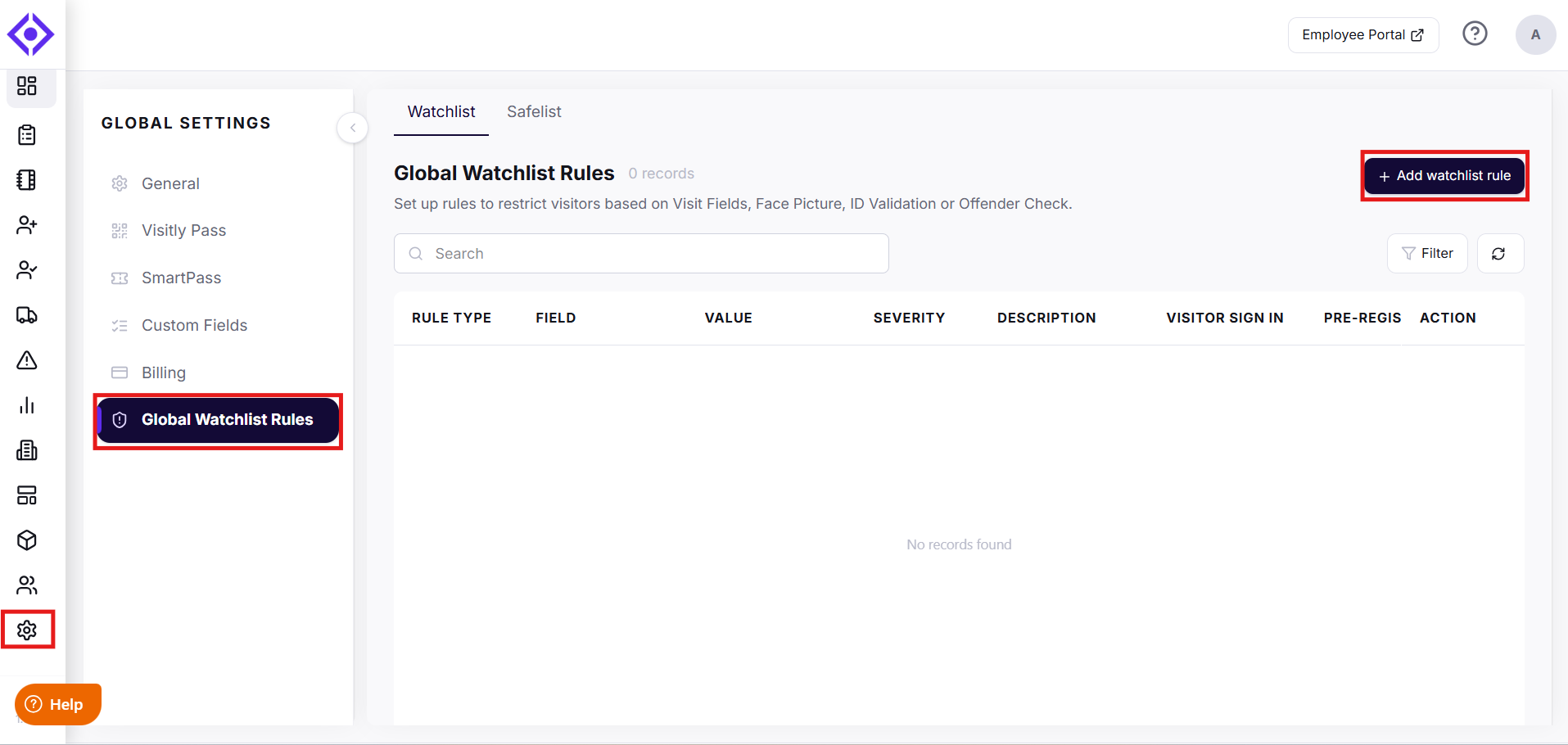
- Navigate to Admin Dashboard > Global Settings > Global Watchlist Rules.
- Click Add Watchlist Rules in the top-right corner.
The Create Global Watchlist panel will open.
Step 2: Select a Watchlist Group Type
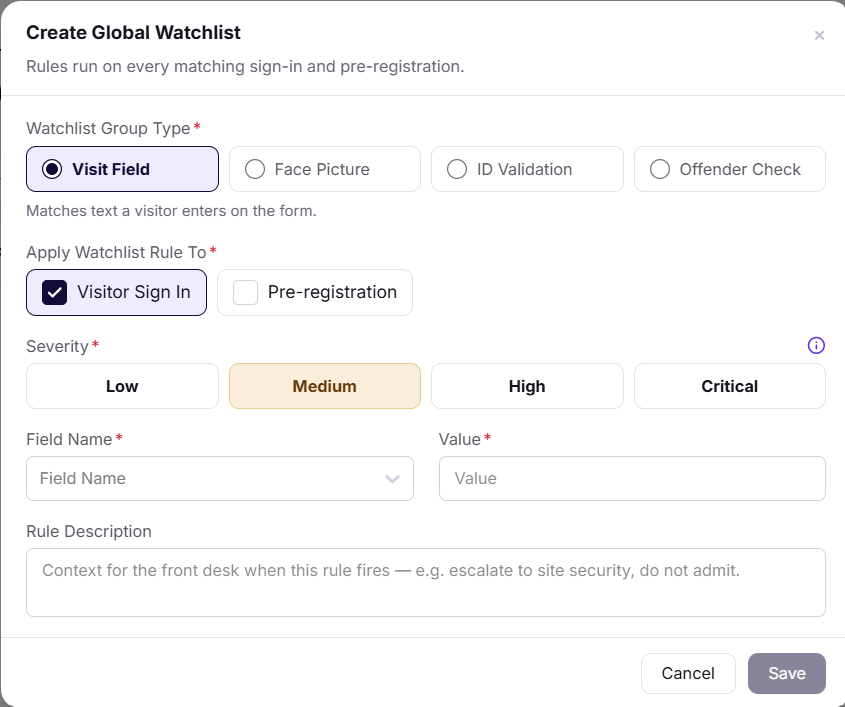
Under Watchlist Group Type, select the category of data this rule will monitor. The type you select determines which fields and value options are available in the steps that follow.
- Visit Field — Matches against visitor form fields such as name, email, phone, or company
- Face Picture — Flags visitors based on facial recognition against stored images
- ID Validation — Triggers based on the outcome of a visitor's ID document scan
- Offender Check — Triggers based on the result of an offender database lookup
Step 3: Choose When the Rule Applies
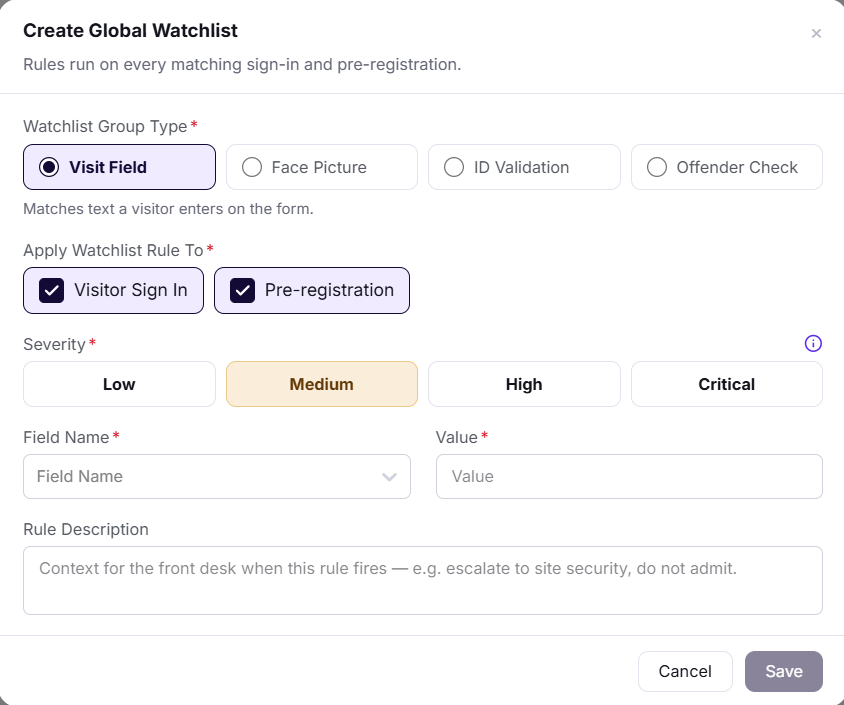
Under Apply Watchlist Rule To, select when the rule should be enforced:
- Visitor Sign In — Applies when a visitor checks in via Kiosk, Visitor Log (Dashboard), or Contactless Check-In (Available for: All group types)
- Pre-registration — Applies when creating or uploading bulk pre-registrations (Available for: Visit Field only)
Tip: For Visit Field rules, you can enable both options to catch watchlist matches at both the pre-registration and sign-in stages.
Step 4: Set the Severity Level 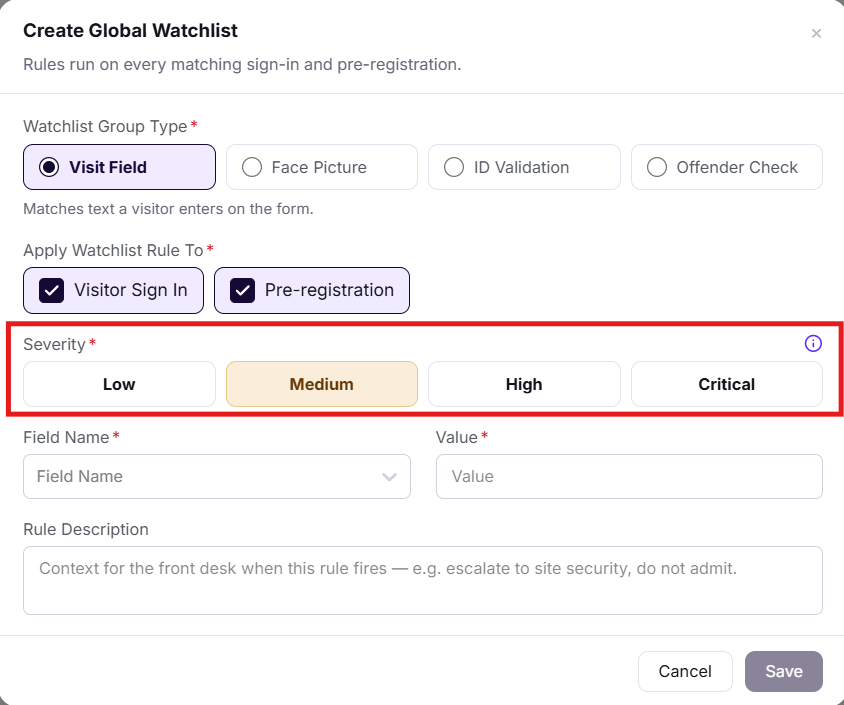
Select a Severity level to indicate how urgently staff should respond when this rule is triggered:
- Low — Informational flags; no immediate action required
- Medium — Warrants review before the visit proceeds
- High — Requires immediate attention from staff
- Critical — Blocks or escalates the visit without exception
Step 5: Configure the Rule Value
The fields available here depend on the Watchlist Group Type selected in Step 2.
Visit Field:
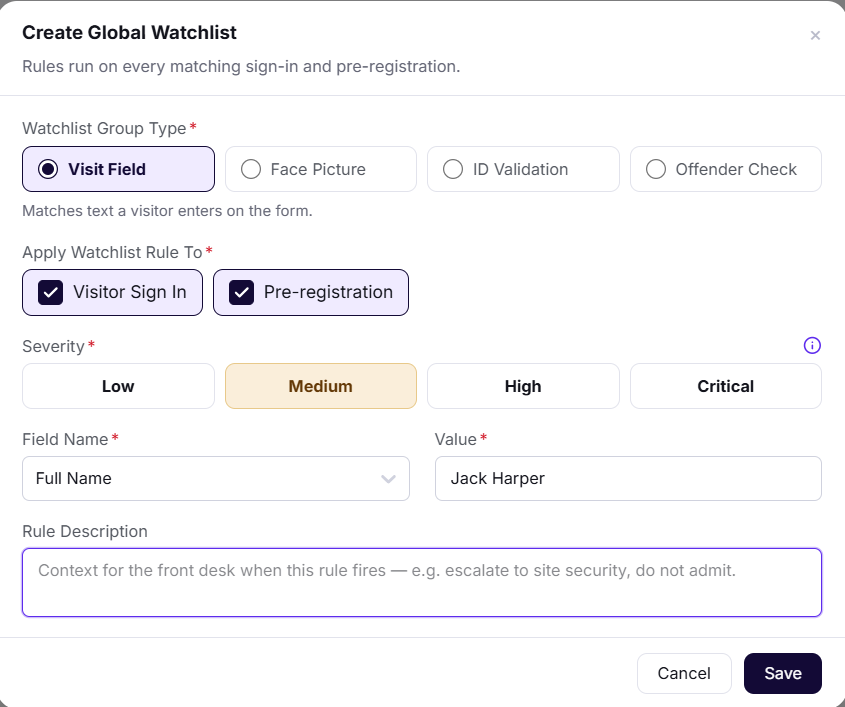
- Choose a Field Name from the dropdown (e.g., Full Name, Email, Phone) to specify which visitor attribute to monitor.
- Enter the Value that will trigger the match (e.g., a specific name or email address).
- Add a Rule Description to document the purpose of this rule for your team.
Face Picture:
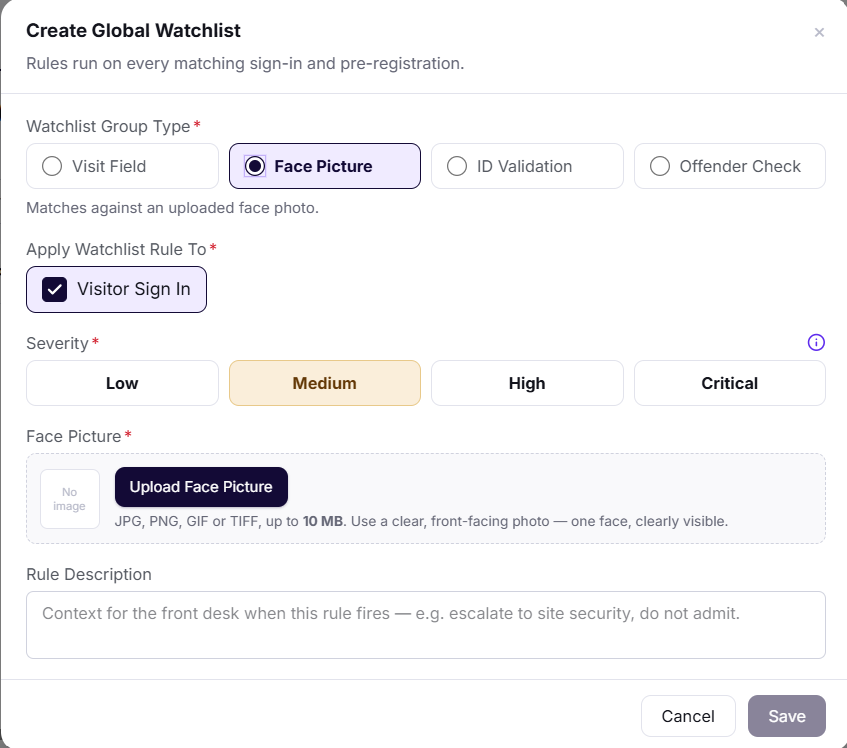
- Select or upload the reference image to match against.
- Add a Rule Description.
ID Validation:
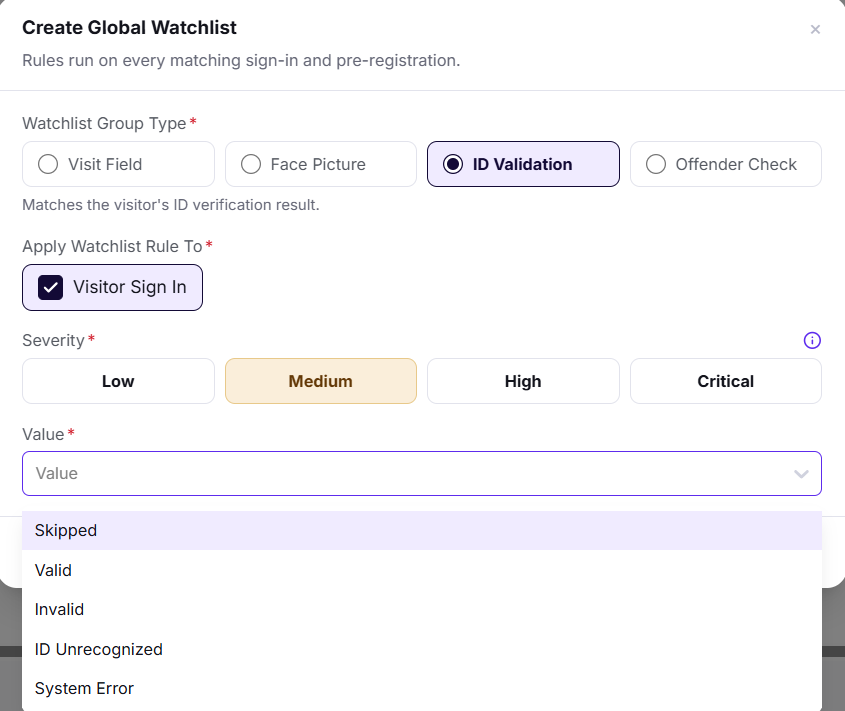
Select the ID scan outcome that should trigger this rule from the Value dropdown:
- Skipped — The visitor skipped the ID scan step
- Valid — The ID was scanned and verified successfully
- Invalid — The ID scan returned a failed verification
- ID Unrecognized — The system could not read or identify the document
- System Error — A technical error occurred during the scan
Offender Check: 
Select the offender check outcome that should trigger this rule from the Value dropdown:
- Match Found — The visitor's details matched a record in the offender database
- Match Not Found — No matching record was found
- System Error — A technical error occurred during the check
- Unable to Perform — The check could not be completed (e.g., missing required data)
Step 6: Save the Rule
Click Save to activate the watchlist rule.
Your new Global Watchlist rule is now live and will be applied across all locations based on your selected settings.
How Pre-registration Rules Work
When the Pre-registration option is enabled (available for Visit Field rules only), Visitly validates visitor details against the Watchlist at the time a pre-registration is created.
Single Pre-Registration
- If a visitor's details (e.g., name, email, phone, or company) match a Watchlist rule, an error message appears when you attempt to save.
- On the first attempt, a Save Anyway button also appears.
- Clicking Save Anyway lets you bypass the warning, complete the pre-registration, and still record the Watchlist hit reason for audit purposes.
Bulk Pre-Registration
- If one or more visitor records match a Watchlist rule, the system continues processing the full upload but displays a warning for each matched entry.
- Each flagged record shows a warning icon in the Action column. Hover over the icon to see the reason for the match (e.g., name, email, phone, or company).
- Bulk pre-registration does not include a Save Anyway option — flagged records must be reviewed before finalizing.
Example: Single Pre-Registration with a Watchlist Match
You add Jessica James to your Global Watchlist using a Visit Field rule with the Pre-registration option enabled.
When creating a pre-registration for Jessica:
- Go to Pre-registration.
- Click Pre-register Visit.
- Enter the visitor's details.
- Click Save — a warning message appears because Jessica James matches a Watchlist rule.
At this point, you can either:
- Click Cancel to discard the entry, or
- Click Save Anyway to bypass the warning and complete the pre-registration while recording the Watchlist hit.
This ensures your team is notified of every Watchlist match while maintaining flexibility for trusted visitors.
Troubleshooting
- A Visit Field watchlist rule is not triggering on sign-in.
Confirm the Visitor Sign In option is checked under Apply Watchlist Rule To for that rule. Also verify the Field Name and Value exactly match the format visitors enter at check-in (e.g., capitalization and spacing). - A pre-registration is not being flagged despite a matching visitor.
Confirm the Pre-registration option is enabled for the relevant rule. This option is only available for Visit Field rules — it is not available for ID Validation, Face Picture, or Offender Check types. - The Severity level is showing as Medium by default.
Medium is the default selection when creating a new rule. Select the appropriate severity level before saving. - An ID Validation or Offender Check rule is not appearing on sign-in.
These rule types only support Visitor Sign In — confirm that option is selected. Also verify the Value matches the actual scan or check outcome being produced at your kiosk. - I cannot find the Global Watchlist Rules menu.
Confirm your Visitly account has Global Admin permissions. Global Watchlist settings are not accessible to location-level admins.
Need help? Contact the Visitly support team at support@visitly.io
Was this article helpful?
That’s Great!
Thank you for your feedback
Sorry! We couldn't be helpful
Thank you for your feedback
Feedback sent
We appreciate your effort and will try to fix the article