Admin role required: Global Admin and Location Admin

Feature availability varies by plan. Check What's in each plan on our pricing page to see if it's included in yours, or talk to our sales team about upgrading.
Adding a Location
- Go to Locations from your Visitly Dashboard.
- Click Add Location in the top-right corner.
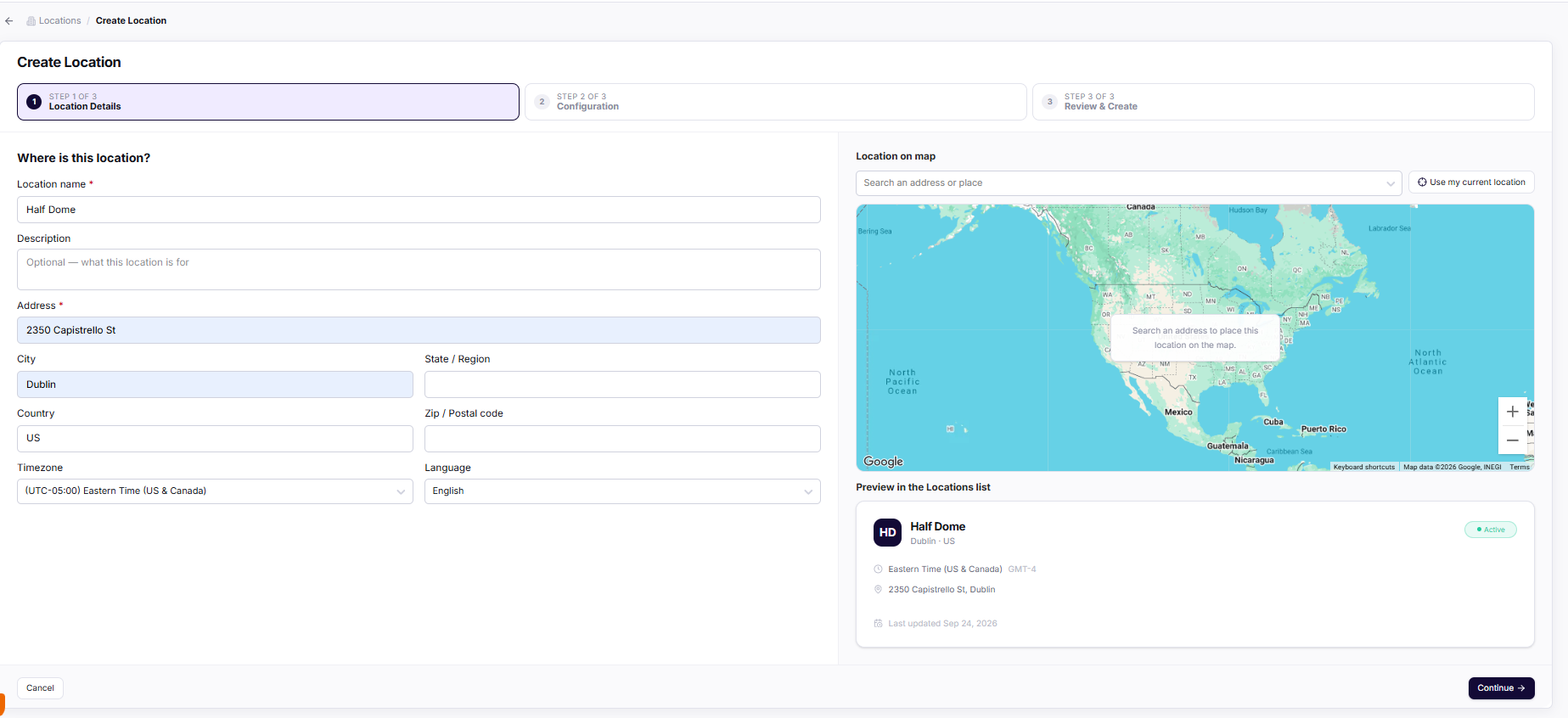
1. Location Details
- Complete the fields in the Create Location pop-up.
- Click Continue.
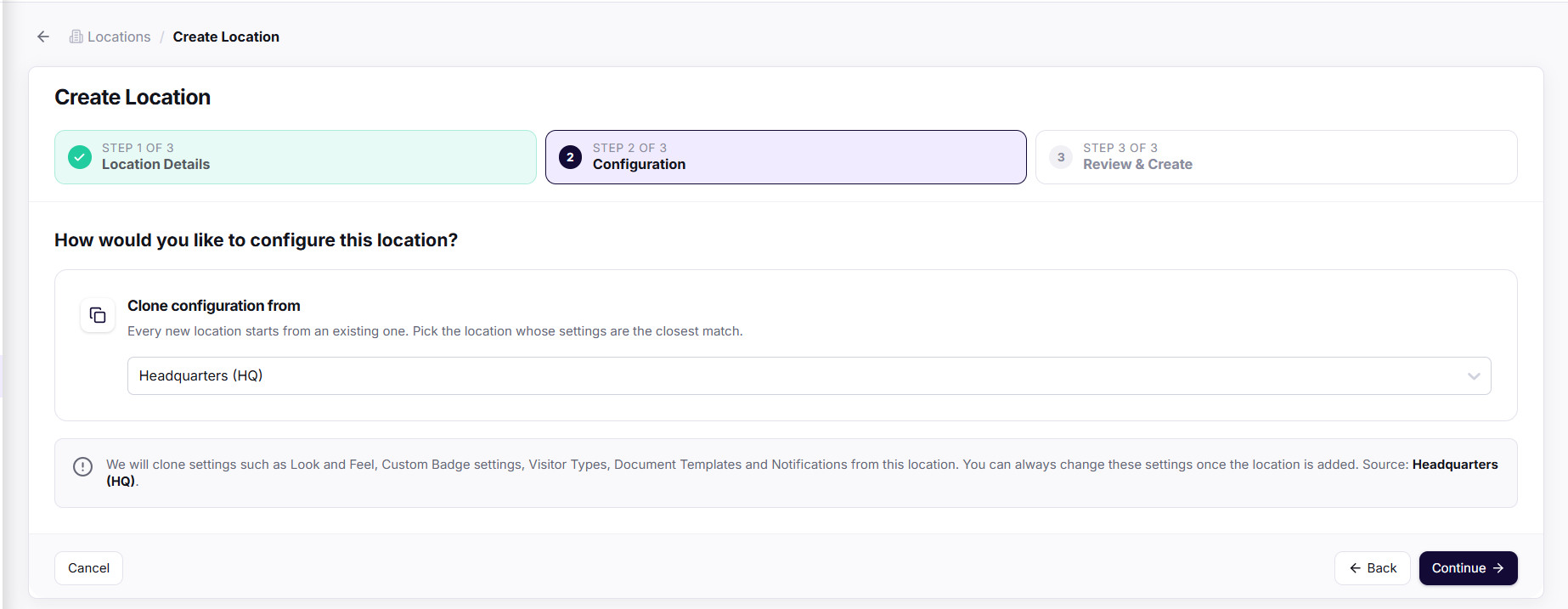
2. Configuration
- Copy settings from an existing location to clone its configuration, including look and feel, visitor types, document templates, and notifications. You can adjust these settings after you add the new location.
- Click Continue.
3. Review & Create
- Review the location details and configuration.
- Click Create to add the location.
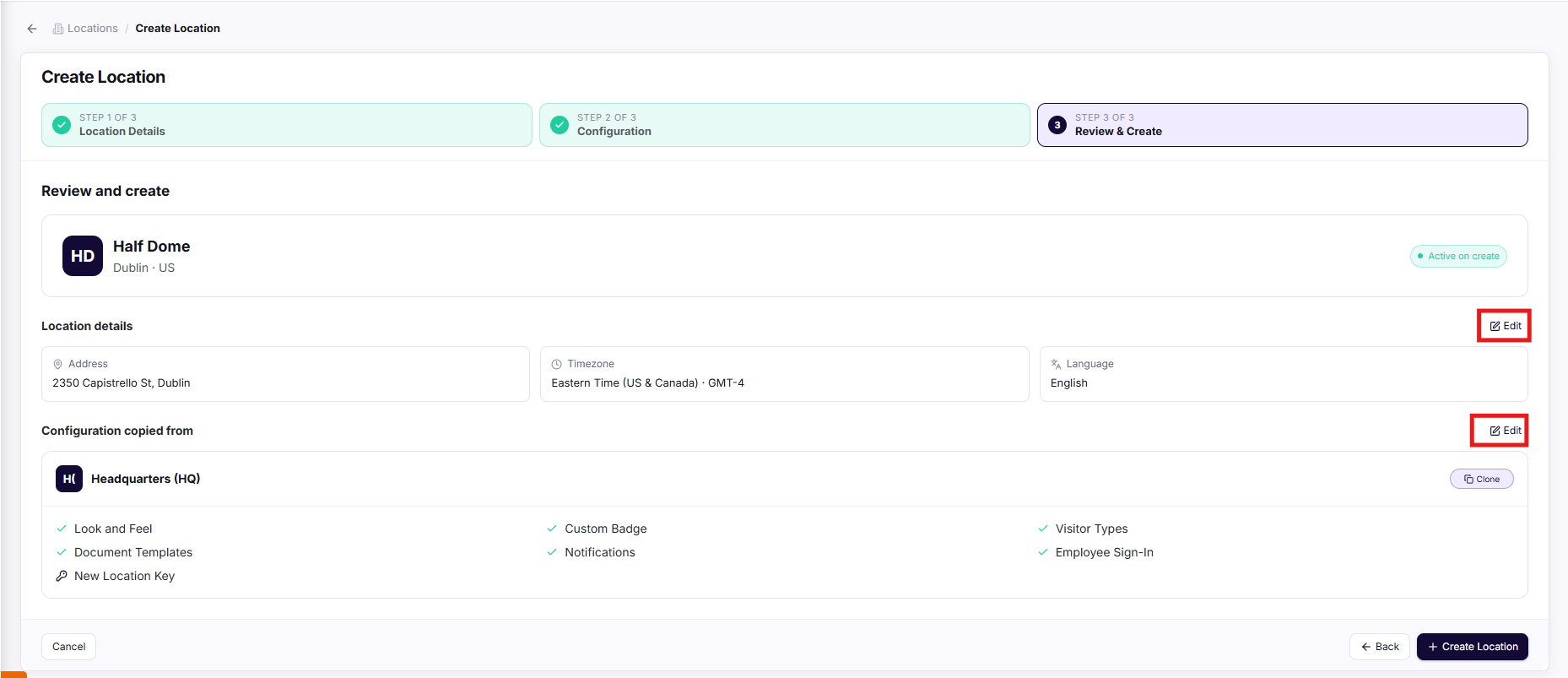
Your new location now appears on the Locations page.
Updating General Location Information
Configure how visitors and employees are managed at each location. These settings control sign-in methods, security checks, and access options for your site.
- Go to Locations from the Visitly Dashboard.
- Select Edit on the location you want to update.
- Make any necessary updates to the fields provided.
- Click Save to apply your changes.
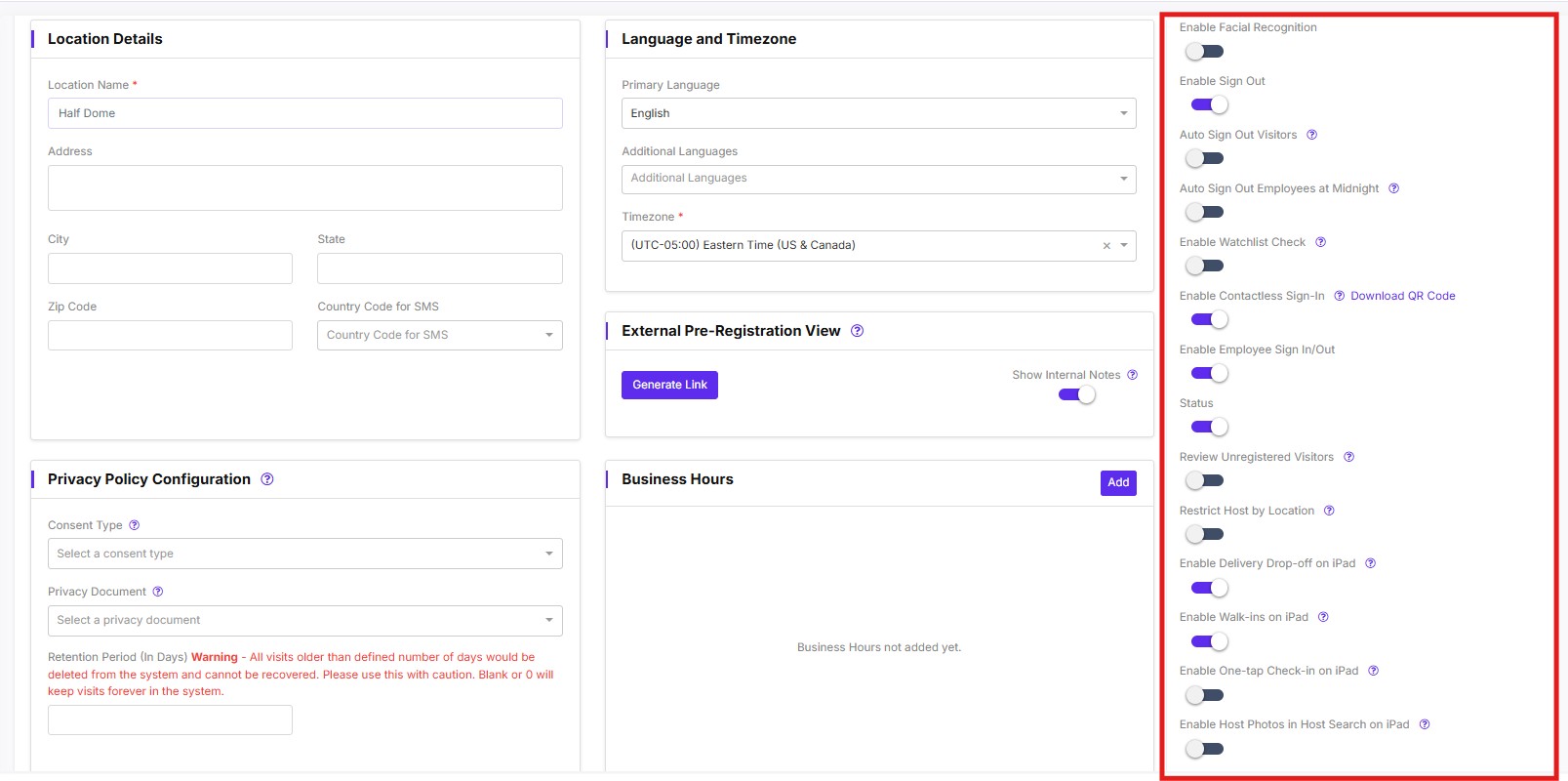
Location Settings
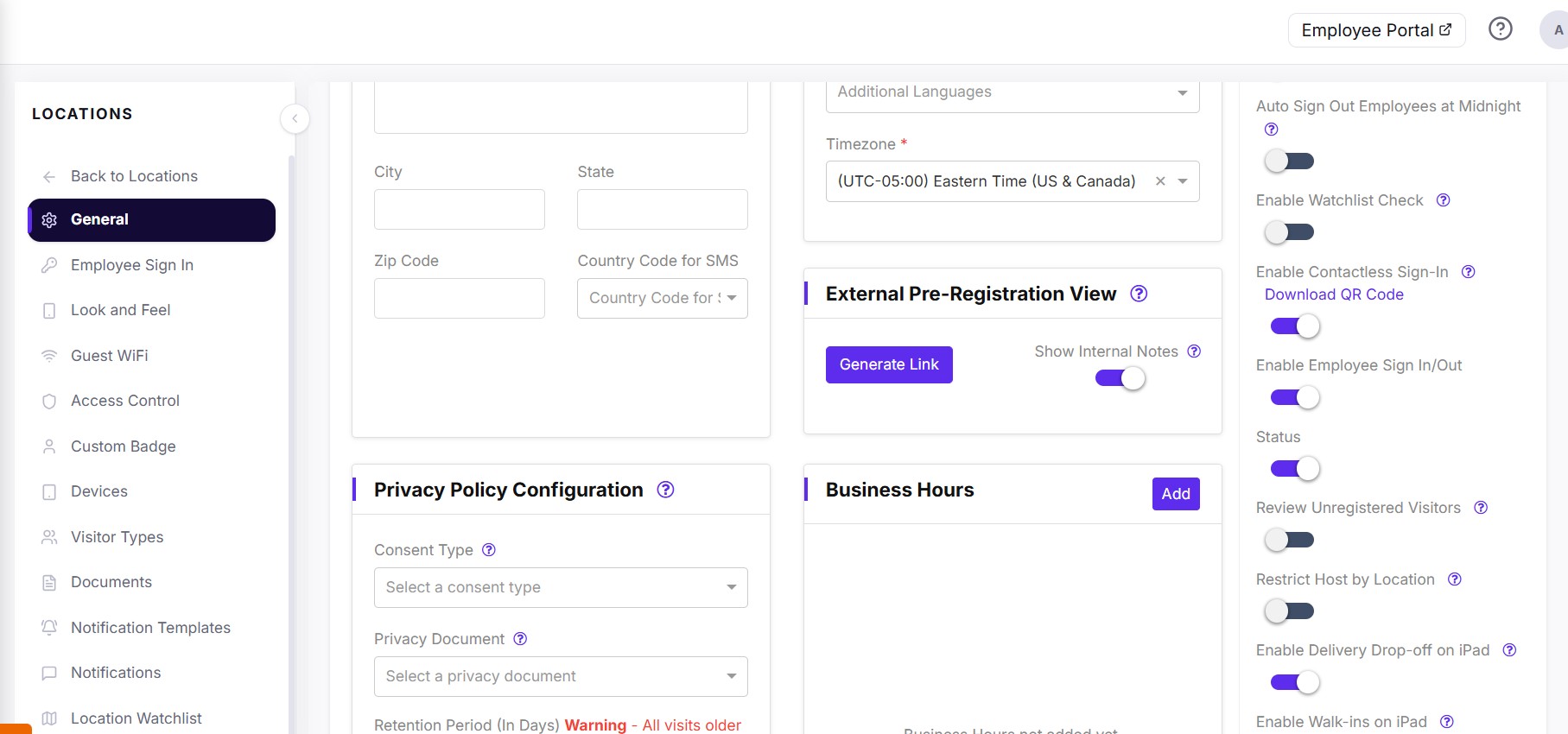
Toggle specific features on or off using the options on the right side of the screen.
- Enable facial recognition: Enables camera-based identity verification at sign-in kiosks. When active, Visitly recognizes visitors and employees automatically without manual check-in.
- Enable sign out: Allows visitors and employees to sign out when leaving the premises. Disabling this removes the sign-out option from kiosks, which can be useful for one-way entry flows.
- Auto sign out visitors: Automatically signs out all active visitors at a set time each day, defaulting to midnight local time. This keeps your visitor log accurate without manual action at the end of the day.
- Auto sign out employees at midnight: Automatically signs out employees who are still signed in at midnight. This helps you track accurate on-site hours without relying on staff to sign out each shift.
- Enable watchlist check: Screens visitors against a configured watchlist during sign-in. If Visitly finds a match, it alerts the relevant host or admin immediately so your team can respond before entry is granted.
- Enable contactless sign-in: Lets visitors sign in by scanning a QR code with their phone, with no need to touch the front desk iPad. Use the Download QR Code link to print or display the code at your entrance.
- Enable employee sign in/out: Shows the employee sign-in flow on the location's iPad. When disabled, the kiosk handles visitor sign-ins only, which simplifies the interface for locations that manage employee tracking separately.
- Status: Controls whether this location is active in your account. Disabling the status pauses all sign-in activity at the location without removing its configuration or historical data.
- Review unregistered visitors: Flags visitors who are not pre-registered for host or admin review before they are fully signed in. This adds an approval step that gives your team visibility over unexpected arrivals.
- Restrict host by location: Limits the host selection list to users assigned to this location. This prevents visitors from selecting hosts from other sites, which is especially helpful for organizations with multiple offices. For a full walkthrough, see Restrict hosts by location.
- Enable delivery drop-off on iPad: Adds a delivery log option to the iPad kiosk, so couriers can record package drop-offs without going through the full visitor sign-in flow.
- Enable walk-ins on iPad: Allows visitors who were not pre-registered to sign in directly at the iPad as walk-ins. Disabling this restricts sign-in to pre-registered visitors only, giving you tighter control over who can enter the location.
- Enable host photos in host search on iPad: Displays each host's photo next to their name during sign-in, so visitors can confirm they've picked the right person, even when names are similar or common.
Privacy Documents
Before you select a privacy document, make sure it has already been created. To create one, see Updating Document Templates.
Retention Period
⭐ Note: Visitly permanently deletes visits older than the retention period you set. Leave the field blank or set it to 0 to keep records indefinitely. Use this setting carefully.
Updating Location Settings
To access and update location settings, go to the Locations page. Use the left panel to manage specific settings for each location.
Troubleshooting
I don't see the Add Location button.
Confirm you are signed in as a Global Admin or Location Admin. If your role is correct, check that your plan includes multiple locations on our pricing page.
My changes aren't showing on the iPad kiosk.
Make sure you clicked Save after editing the location. Then close and reopen the Visitly app on the iPad to load the latest settings.
Visitors can't sign in at the location.
Check that the location Status is active. If visitors aren't pre-registered, confirm Enable walk-ins on iPad is turned on.
Visitors are seeing hosts from other offices.
Turn on Restrict host by location and confirm each host is assigned to the correct location.
My privacy document doesn't appear in the dropdown.
Create the document first in Document Templates, then return to the location and select it.
Older visit records are missing.
Check the Retention Period for the location. Visitly permanently deletes visits older than this period, and deleted records cannot be restored.
Need help? Contact the Visitly support team at support@visitly.io.
Was this article helpful?
That’s Great!
Thank you for your feedback
Sorry! We couldn't be helpful
Thank you for your feedback
Feedback sent
We appreciate your effort and will try to fix the article