Admin role required: Global Admin

Feature availability varies by plan. Check What's in each plan on our pricing page to see if it's included in yours, or talk to our sales team about upgrading.
Interactive Slack Actions let Hosts and Admins respond to visitor, delivery, and watchlist notifications directly from Slack, without opening Visitly. Once enabled, action buttons appear on the relevant Slack notifications, and every response updates the original message automatically so the status is always current.
How It Works
- You take action on a notification right from Slack instead of switching over to Visitly.
- Visitly checks every action against your role and permissions before processing it.
- The original Slack message updates automatically once a response is recorded, so there's no need to refresh or check Visitly separately.
- Each notification type shows only the actions that are relevant to it.
Before You Begin
Complete all prerequisites before starting setup. Interactive Slack Actions will not appear on any notification until it's turned on for your organization.
Visitly requirements:
- Global Admin access to your Visitly account
- Slack connected as an integration in Visitly
Slack requirements:
- Visitly app installed and authorized in your Slack workspace
- Hosts, Admins, Delivery Managers, and recipients added to Slack with notifications enabled
Setup Guide
- Go to the Admin Dashboard.
- Navigate to Integration Hub > Notifications > Slack.
- Select Manage next to Slack.
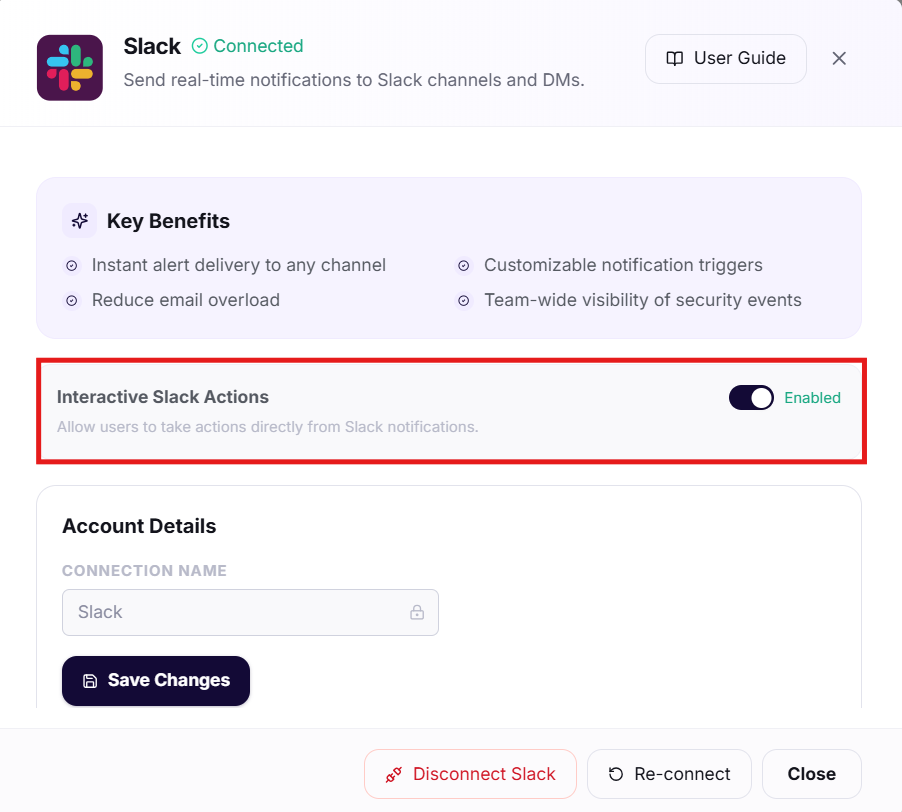
- Locate the Interactive Slack Actions toggle. ( Contact support@visitly.io to get access to Interactive Slack Actions)
- Turn the toggle on.
Interactive Slack Actions is now enabled, and action buttons will begin appearing on new Slack notifications.
Managing multiple locations? This toggle applies at the organization level, so you only need to turn it on once — it applies across all locations.
What You Can Do From Slack
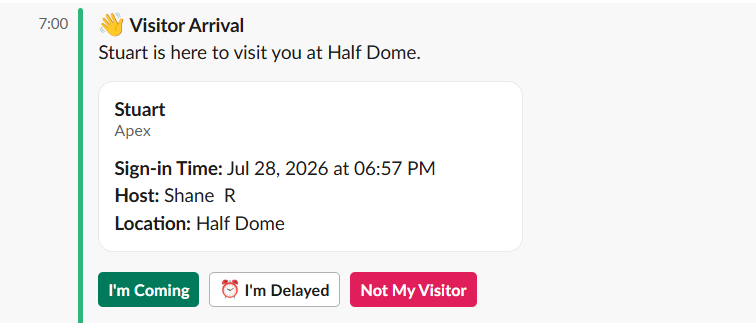
- Visitor sign-in: The assigned host receives notification for visitor sign-in with three response buttons- I'm Coming, I'm Delayed, and Not My Visitor.
- Visitor watchlist match: If a visitor matches a watchlist rule, Admins receive a notification with Approve and Decline buttons to resolve it directly.
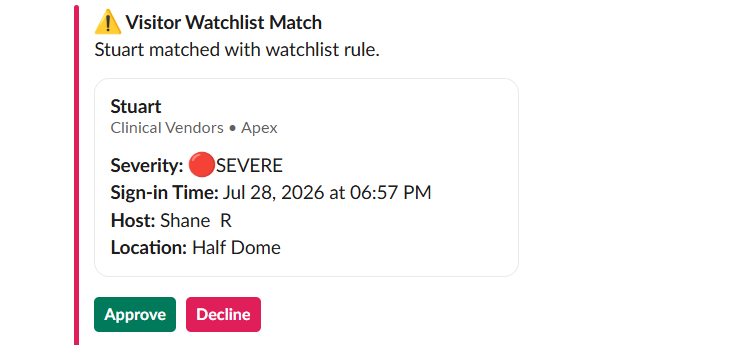
- Employee watchlist match: If an employee sign-in matches a watchlist rule, Admins receive the same Approve and Decline options.
Respond to Delivery with Slack
When a delivery arrives, the recipient gets a direct message from Visitly letting them know it's ready to collect. The message includes three response buttons.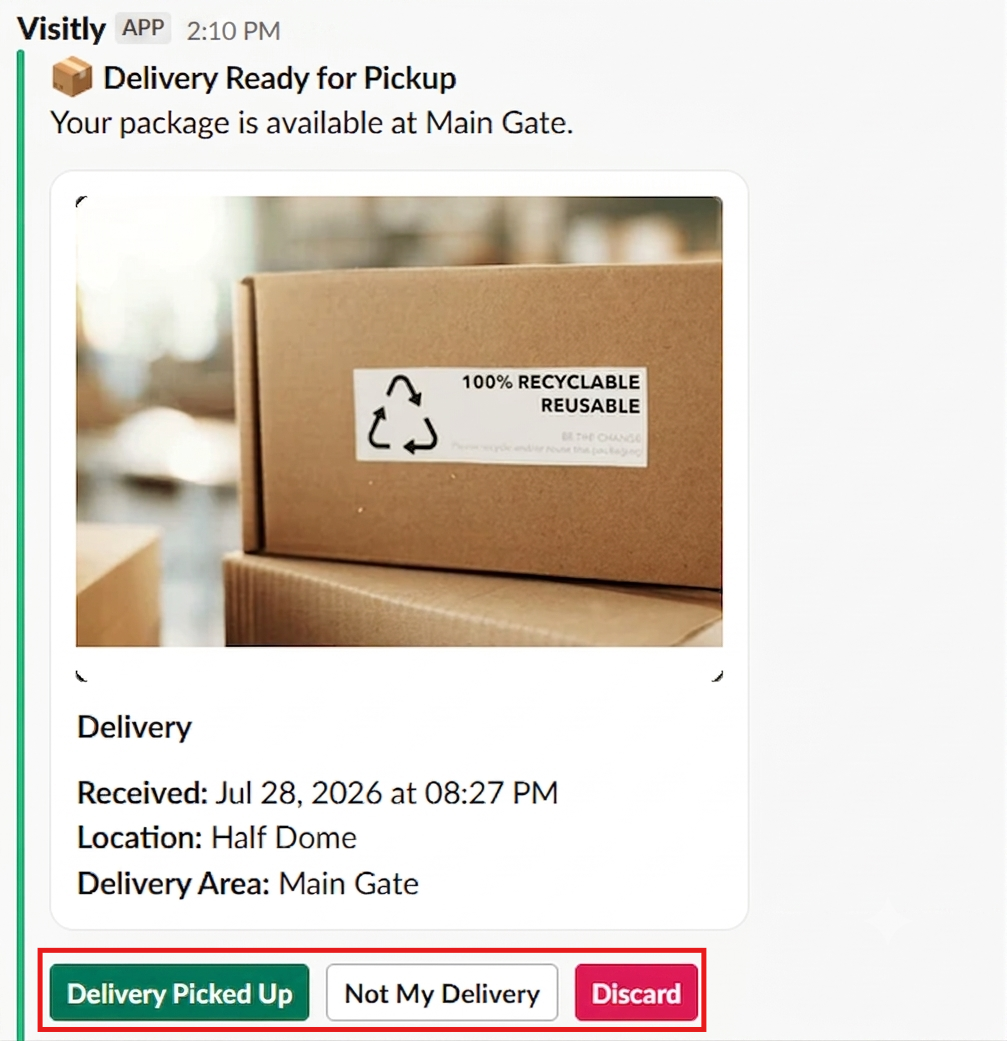
Picked Up : Confirms the delivery has been collected. The delivery is marked as picked up in Visitly.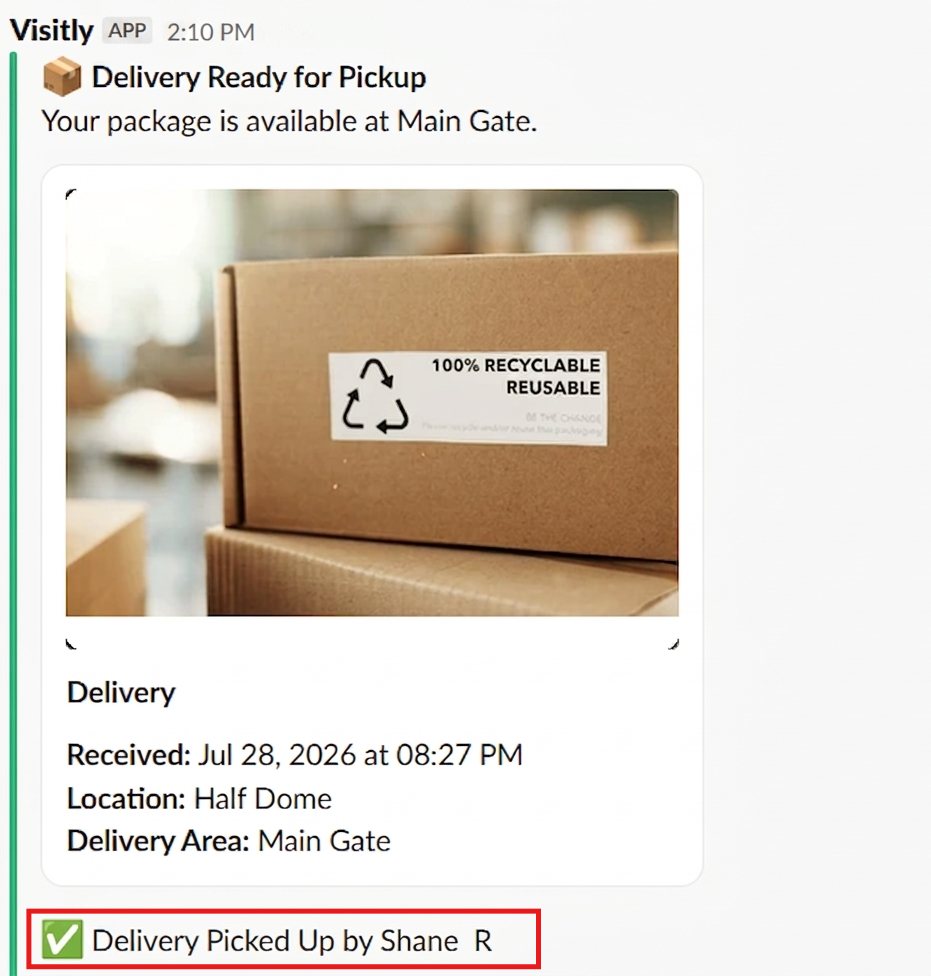
Not My Delivery : Flags that the delivery wasn't intended for this recipient, so it can be reassigned to the correct person.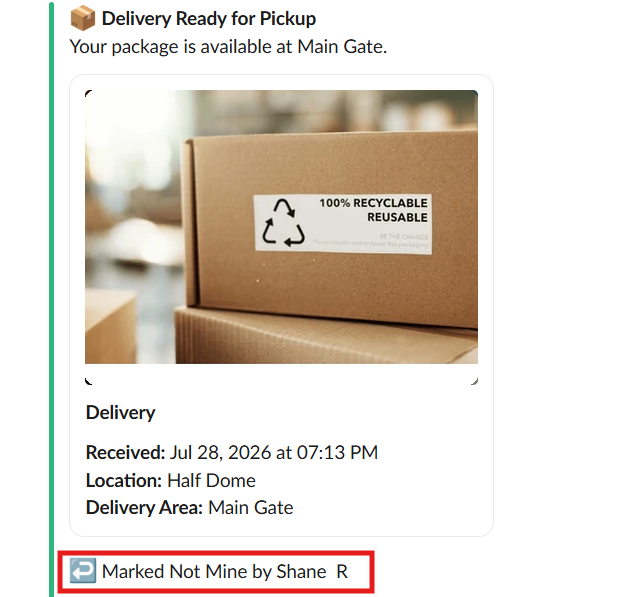
Discard : Marks the delivery as discarded, for items that don't need to be picked up.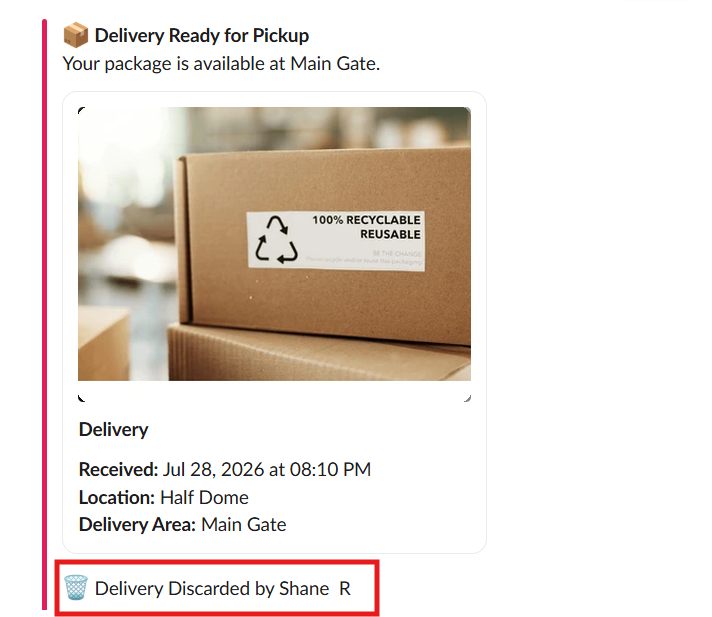
Note: These action buttons only appear on direct messages — not on deliveries posted to a channel.
Who Can Take Action
- The assigned host can respond to their own visitor sign-in notifications.
- Front Desk Admins, Location Admins, and Global Admins can respond to visitor and employee watchlist matches.
- Delivery Managers and the delivery's recipient can respond to delivery notifications.
Troubleshooting
The action buttons aren't showing up on Slack notifications.
Confirm a Global Admin has turned on the Interactive Slack Actions toggle in Admin Dashboard → Integration Hub → Slack → Manage. Notifications sent before the toggle was turned on won't retroactively gain buttons.
I tapped a button, but the Slack message didn't update.
Check your connection and refresh Slack. If the message still hasn't updated after a minute, confirm your role has permission to take that action — Visitly only updates the message once the action passes the permission check.
Someone else already responded before I could.
Once any authorized person takes action on a notification, the message updates for everyone and the buttons are replaced with the recorded status. This is expected behavior for shared approvals like watchlist matches.
The delivery notification doesn't have any buttons.
Delivery action buttons only appear on direct messages to the recipient. If the delivery was posted to a shared channel instead, no buttons will appear there by design.
I have the right role, but I still can't take action.
Confirm your Slack account is linked to the correct Visitly user profile and that your assigned role (Host, Front Desk Admin, Location Admin, Global Admin, or Delivery Manager) matches the action you're trying to take.
Need help? Contact the Visitly support team at support@visitly.io
Was this article helpful?
That’s Great!
Thank you for your feedback
Sorry! We couldn't be helpful
Thank you for your feedback
Feedback sent
We appreciate your effort and will try to fix the article