Overview
Visitly lets you export visitor log data to a CSV file for reporting, compliance, auditing, or record-keeping. There are three ways to export: a quick export of all default fields, a custom export where you select specific fields (including custom fields), or a filtered export that narrows down records before downloading.
How It Works
- Navigate to the Visitor Log from the left sidebar.
- Choose your export method: quick export, field selection, or filtered export.
- For exports with fewer than 2,000 records, the CSV downloads directly to your device. The file name includes the export date for easy reference.
- For exports with 2,000 or more records, Visitly processes the export in the background and emails you a secure download link. The file name includes the export date.
Quick Export (All Default Fields)
Use this method when you want to export all visitor records without customizing fields or applying filters.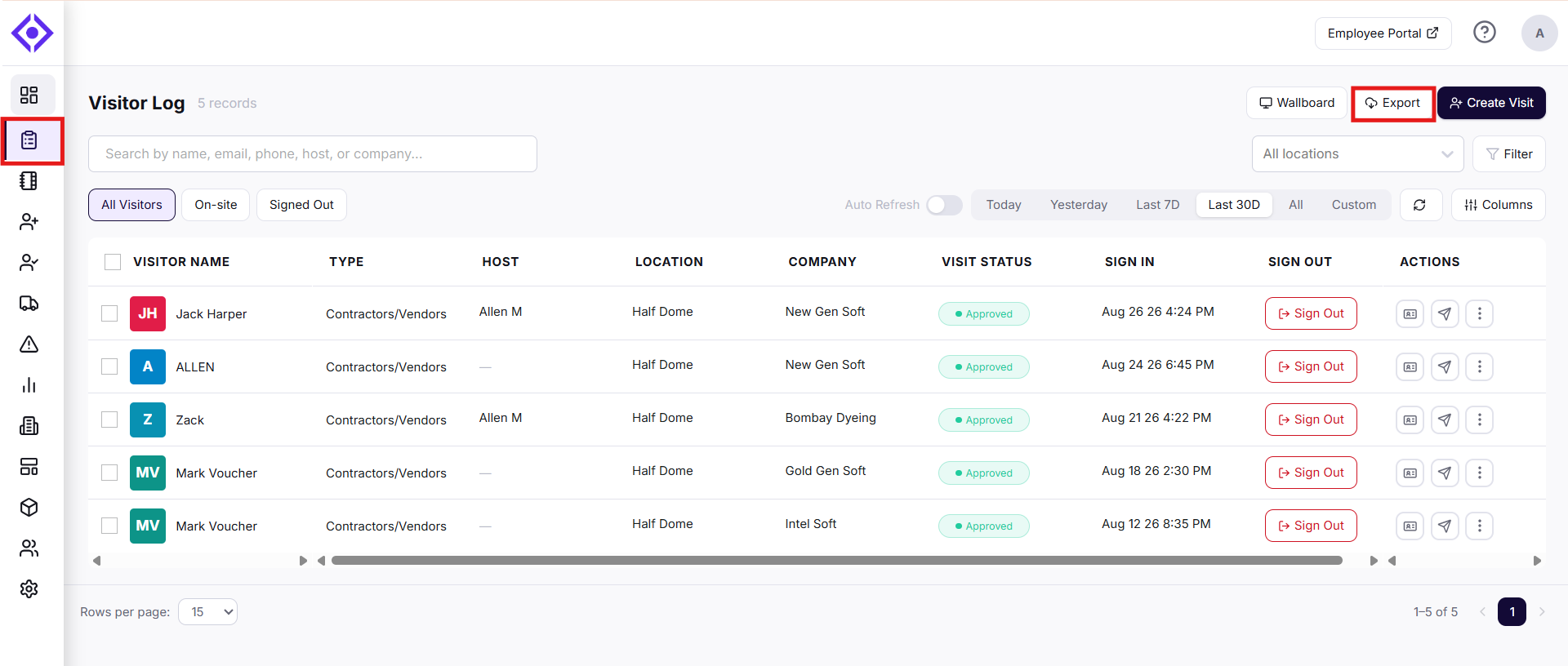
- Log in to your Visitly Admin Dashboard.
- In the left navigation, click Visitor Log.
- In the toolbar, click Export.
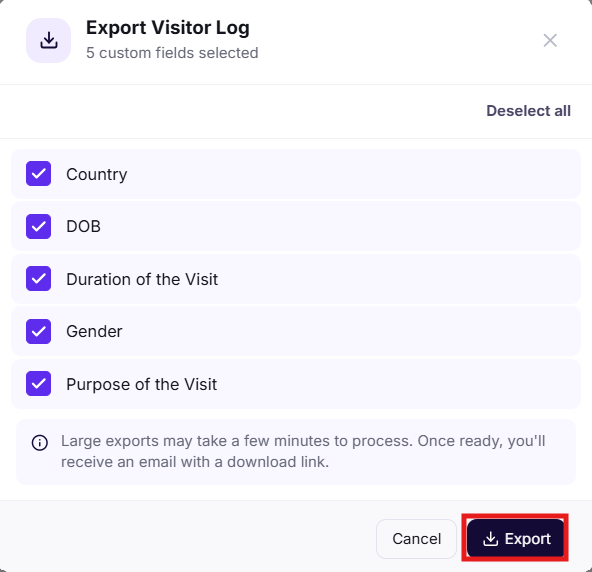
- In the Export modal, click Select all to include every available field.
- Click Export.
Your export will process and download based on record count (see Retrieving Your Export below).
Select Specific Fields (Custom Fields)
Use this method when you want to include only certain data columns — including any custom fields your organization has configured.
- Log in to your Visitly Admin Dashboard.
- In the left navigation, click Visitor Log.
- In the toolbar, click Export.
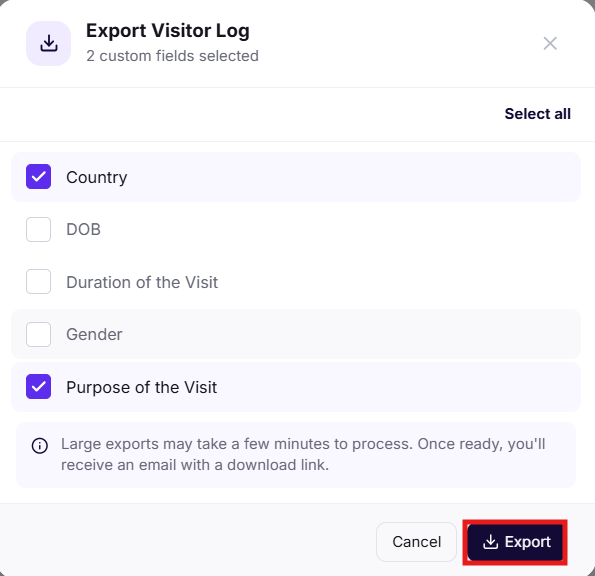
- The Export modal will display all available fields. Check only the fields you want to be included.
- Click Export.
Your export will process and download based on record count (see Retrieving Your Export below).
Export with Filters Applied
Use this method when you want to export only a specific subset of records — for example, visitors at a particular location, with a specific status, or within a date range.
- Log in to your Visitly Admin Dashboard.
- In the left navigation, click Visitor Log.
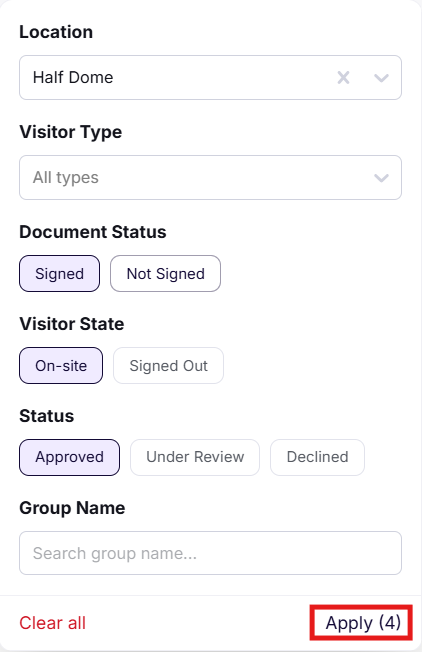
- In the toolbar, click the filter icon (sliders icon, next to the On-Site Visitors toggle).
- The Filters panel will open. Configure any combination of the following:Location: Limit results to a specific office or site.
Visitor Type: Filter by visitor type.Visitor State: Filter by visitor state i.e onsite, signed out.Document Status: Filter by NDA or document completion status
Status: Filter by statusGroup Name: Filter by a visitor group label
- Click Apply Filters. The Visitor Log table will update to show only matching records.
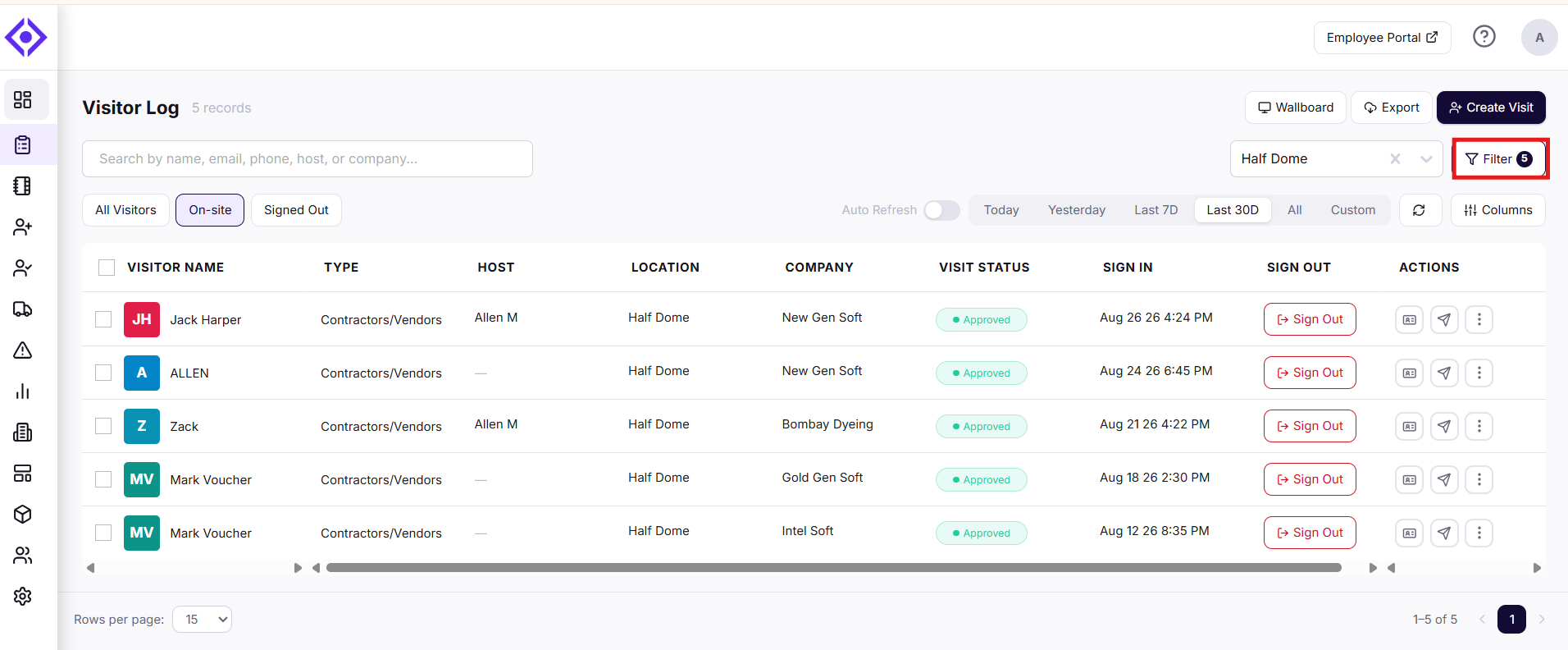
- Click Export in the toolbar.
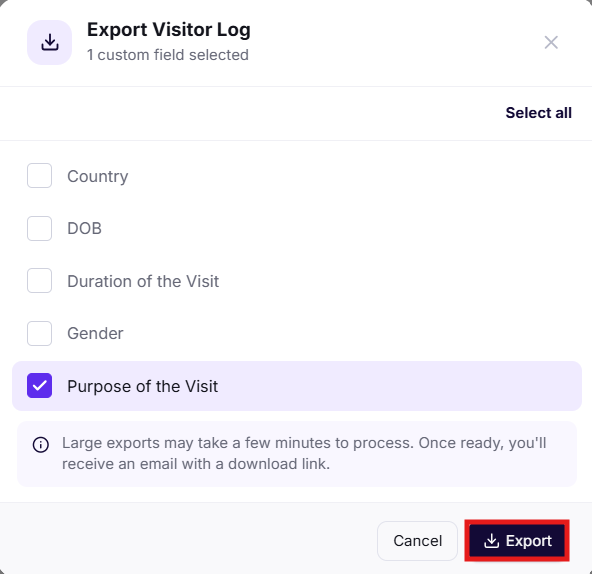
- Select the fields you want included, then click Export.
Tip: To remove all active filters before exporting, open the Filters panel and click Reset Filter.
Your export will process and download based on record count (see below).
Retrieving Your Export
Fewer than 2,000 records: The CSV file downloads directly to your device. The file name includes the export date for easy identification.
2,000 or more records: Visitly processes the export in the background. Once complete, a download link is sent to your account email address. Large exports may take a few minutes to process.
Check your spam or junk folder if the download email does not arrive within 10 minutes.
Troubleshooting
- I clicked Export but nothing downloaded.
If your export contains 2,000 or more records, the file does not download immediately. Visitly will email you a download link once processing is complete. Check your inbox, including spam and junk folders. - I did not receive the export email.
Confirm your account email address is correct in your profile settings. If the email does not arrive within 15 minutes, contact support@visitly.io. - The export is missing records I expected to see.
Check whether filters are active in the Visitor Log — active filters carry over to the export. Open the Filters panel and click Reset Filter to clear all filters, then re-export. - The exported CSV is missing columns I selected.
Confirm you checked the correct field checkboxes before clicking Export. Custom fields may appear empty if they were not collected during visitor check-in (e.g. fields added after visits were already recorded). - The export file name does not show a date.
File names include the export date automatically. If you do not see it, check whether your device renamed the file on download, or contact support@visitly.io.
Need help? Contact the Visitly support team at support@visitly.io
Was this article helpful?
That’s Great!
Thank you for your feedback
Sorry! We couldn't be helpful
Thank you for your feedback
Feedback sent
We appreciate your effort and will try to fix the article