Admin role required: Global Admin and Evacuation Manager

Feature availability varies by plan. Check What's in each plan on our pricing page to see if it's included in yours, or talk to our sales team about upgrading.
Reviewing evacuation data in Visitly provides critical insights to ensure everyone’s safety, meet compliance requirements, and improve your emergency response plans.
How To View Evacuation History
1. Go to the Evacuation & Emergencies from left navigation bar .
2. Click on Evacuation History. 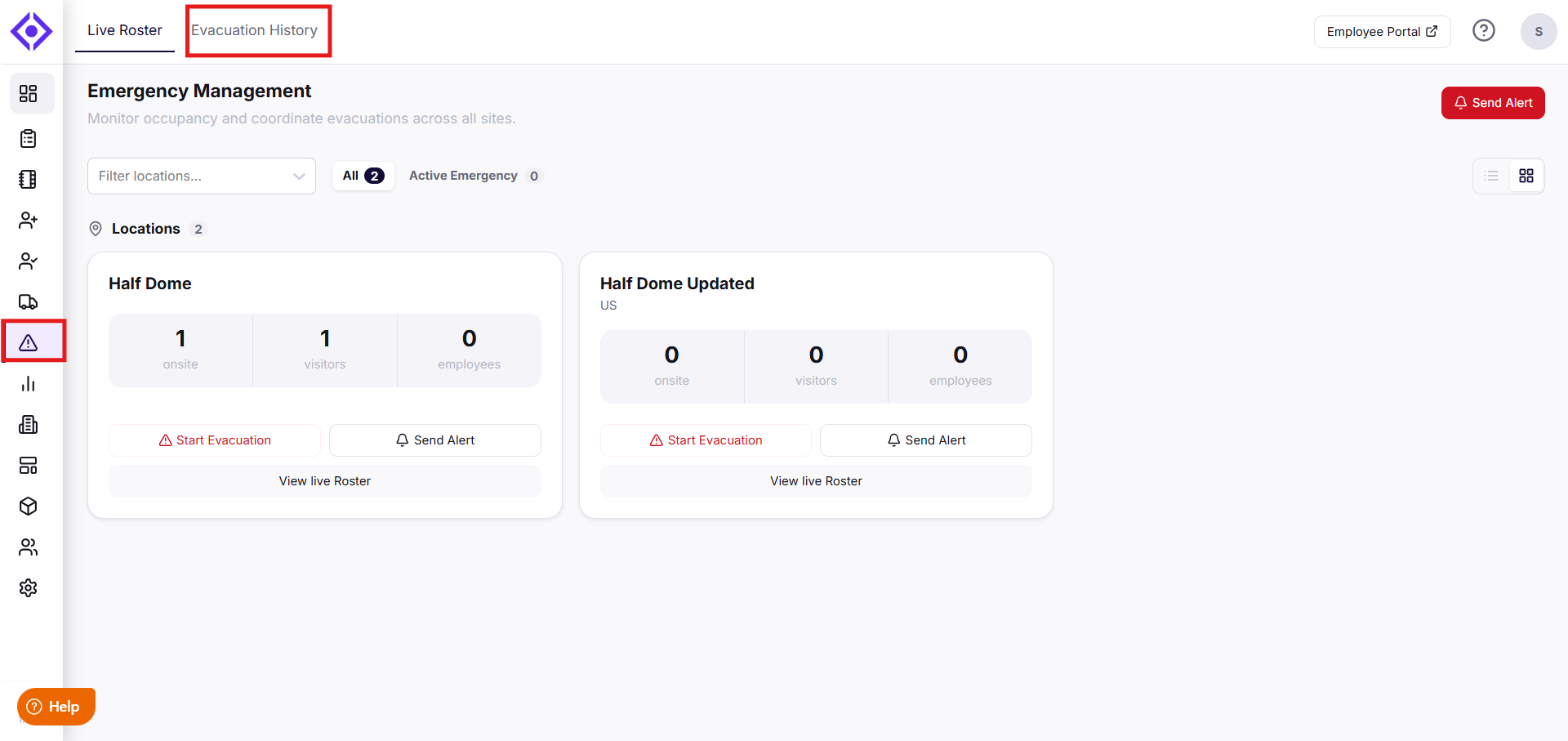
3. Use the Search bar or the Filter by location dropdown to narrow the list, and toggle between All and Active to filter by evacuation status.
4. The table lists every evacuation on record, with the following columns:
- Name — the event, shown as "Evacuation Started."
- Location — the site where the evacuation took place.
- Started By / End User — who initiated and who ended the evacuation.
- Start Time / End Time — when the evacuation began and concluded.
- Actions — select the eye icon to view full details of that evacuation.
5. Clicking the eye icon opens the Evacuation Detail page for that event, showing:
- Total Affected — the number of people involved in the evacuation.
- Confirmed Safe — how many were evacuated successfully.
- Unaccounted — how many were not confirmed safe.
- Started At, Duration, and Initiated By — when the evacuation began, how long it lasted, and who started and ended it.
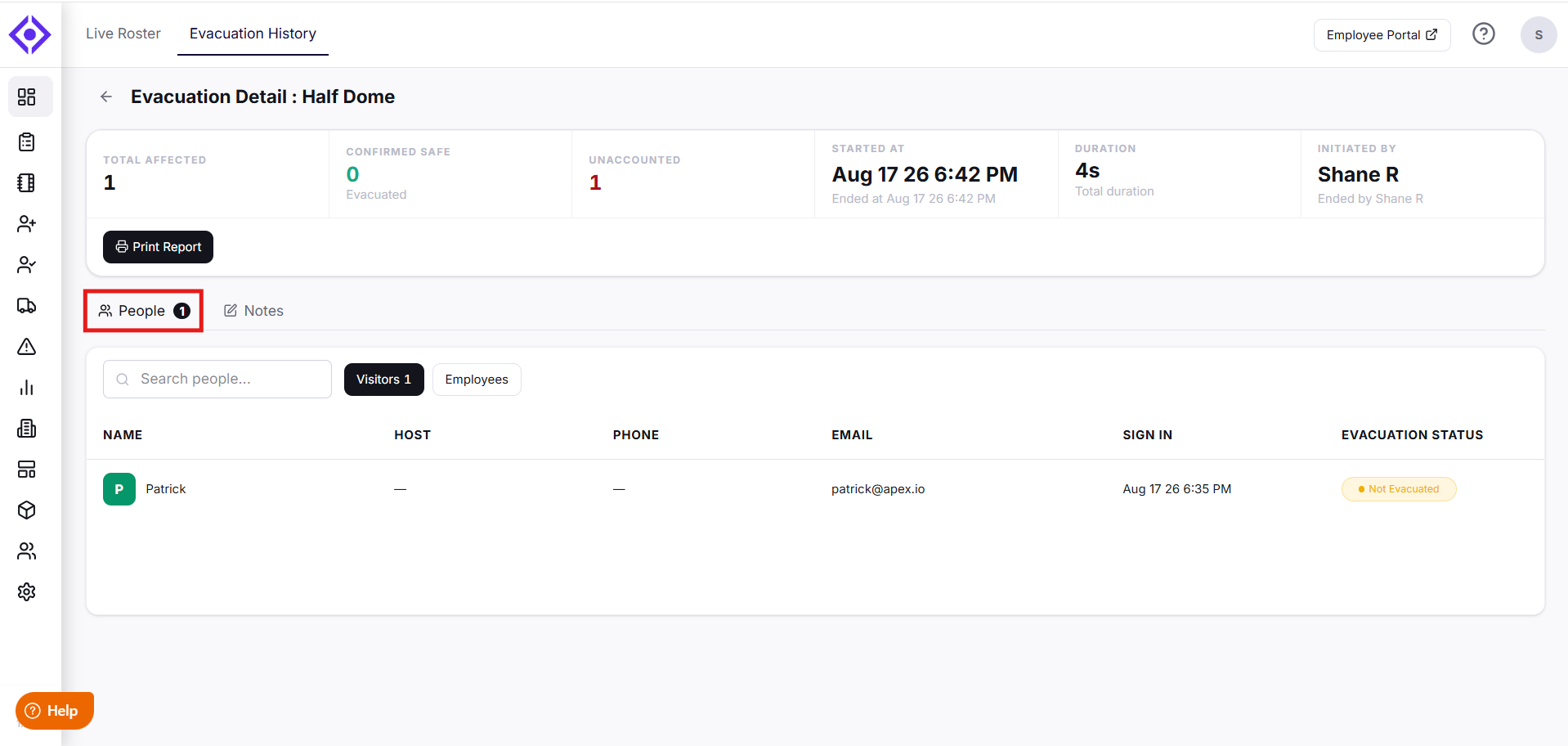
6. Select Print Report to generate a printable copy of this evacuation's details.
7. Below this, the People tab lists everyone affected — toggle between Visitors and Employees — with columns for Name, Host, Phone, Email, Sign In time, and Evacuation Status (e.g., Not Evacuated). A separate Notes tab is also available for this evacuation.
By reviewing evacuation history, you can ensure your organization is prepared for future emergencies, keeping everyone on-site safe and compliant with safety regulations.
Need help? Contact the Visitly support team at support@visitly.io
Was this article helpful?
That’s Great!
Thank you for your feedback
Sorry! We couldn't be helpful
Thank you for your feedback
Feedback sent
We appreciate your effort and will try to fix the article