Admin role required: Global Admin and Evacuation Manager

Feature availability varies by plan. Check What's in each plan on our pricing page to see if it's included in yours, or talk to our sales team about upgrading.
Overview
During an emergency, the Evacuation Manager or Global Admin can quickly initiate the evacuation process to track and account for everyone on-site in real time. This article walks you through starting an evacuation, monitoring who is still onsite, and closing it out once everyone is safe.
Starting an Evacuation
Step 1: Open Evacuation & Emergency
Navigate to the Evacuation & Emergency tab from the left navigation bar.
Step 2: Start the evacuation for a location
Find the location you need under Locations, and select Start Evacuation on that location's card.
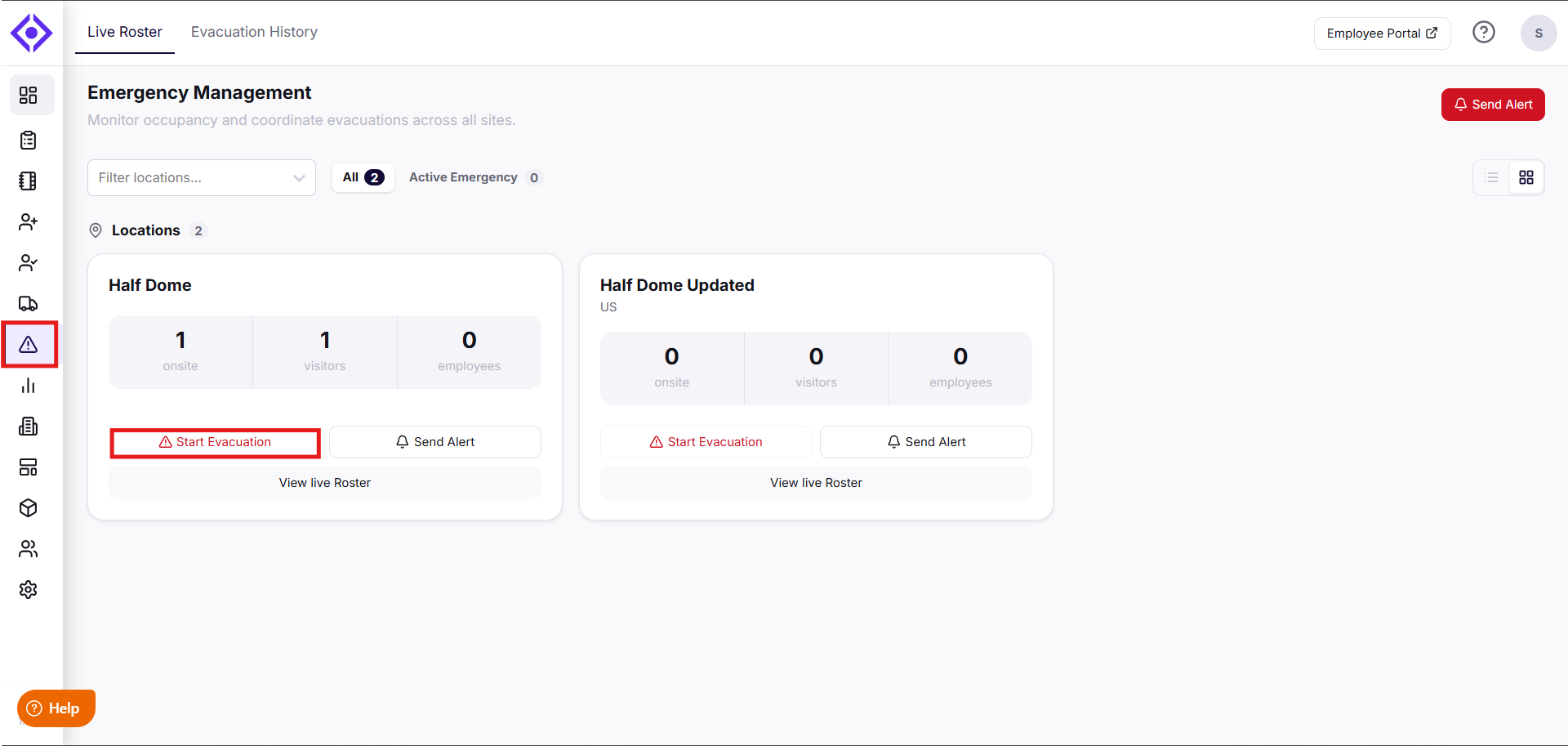
Step 3: Confirm the evacuation
Select Start Evacuation again in the pop-up to confirm.
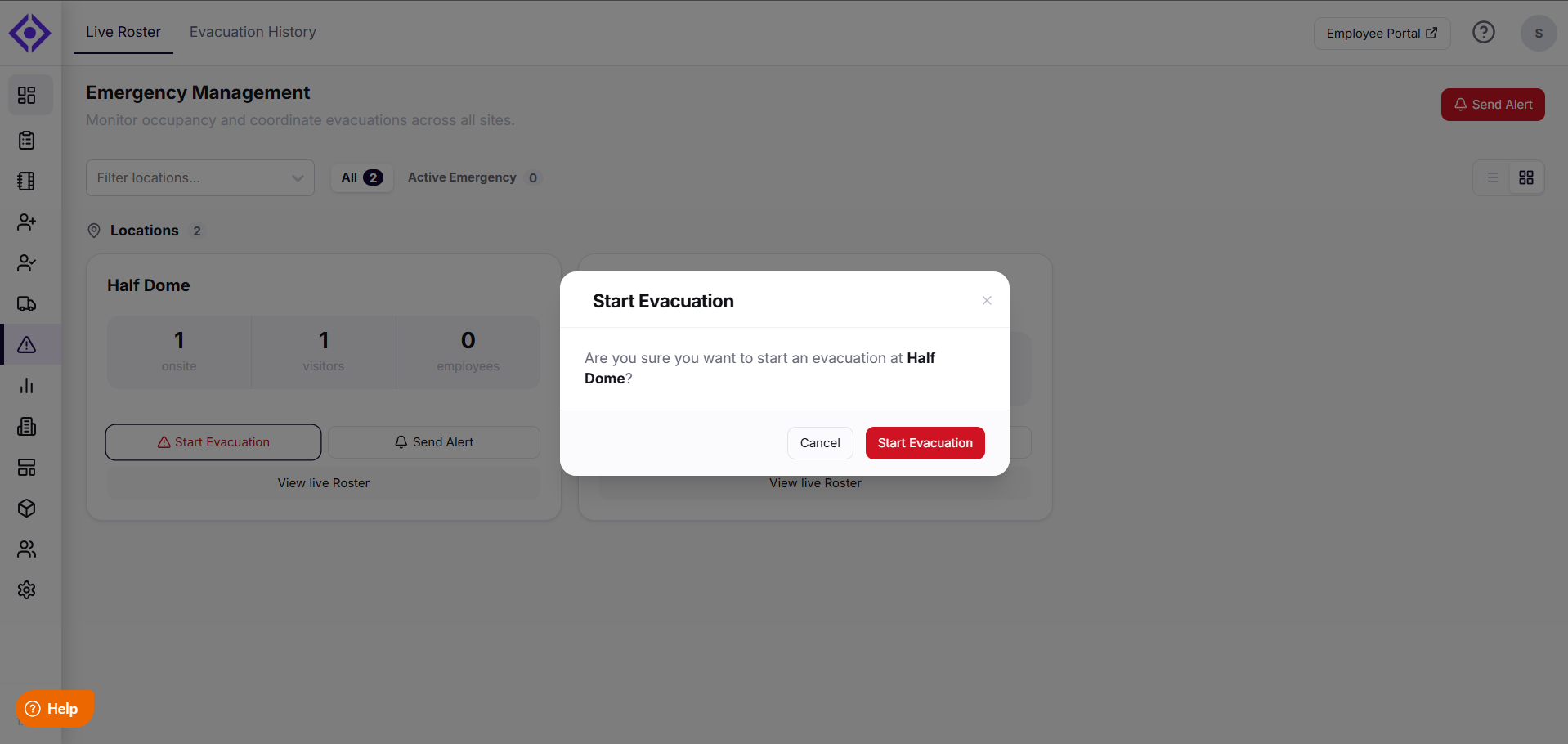
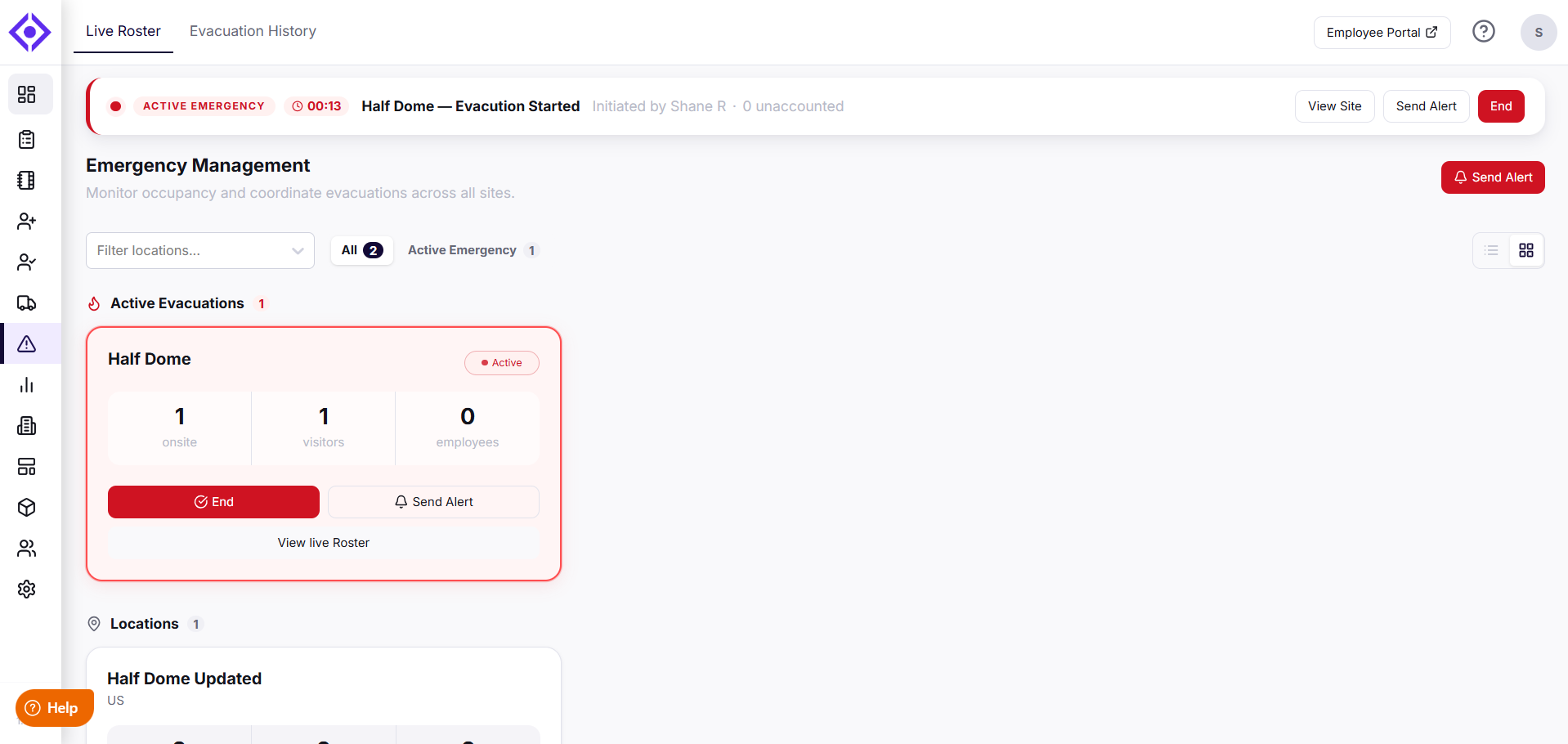
Your evacuation is now active for this location.
Once confirmed, an Active Emergency banner appears at the top of the page showing the location, a live timer, who initiated it, and the number of unaccounted individuals — with quick actions to View Site, Send Alert, or End the evacuation directly from the banner.
The location's card also moves into a new Active Evacuations section, highlighted in red, showing:
- The total number of people onsite, broken down into visitors and employees.
- End, Send Alert, and View live Roster actions.
Step 4: Account for everyone
Select View live Roster to see everyone still onsite. As individuals are accounted for, sign them out of the system from the roster.
Step 5: End the evacuation
Once the emergency is resolved and everyone is safe, select End to complete the process.
- Select End on the active evacuation card or from the top of the page.
- In the End Evacuationwindow, choose what happens to everyone still on-site:
- Keep everyone signed in – leaves all on-site visitors and employees signed in so you can sign them out manually later.
- Sign everyone out – automatically signs out all on-site visitors and employees.
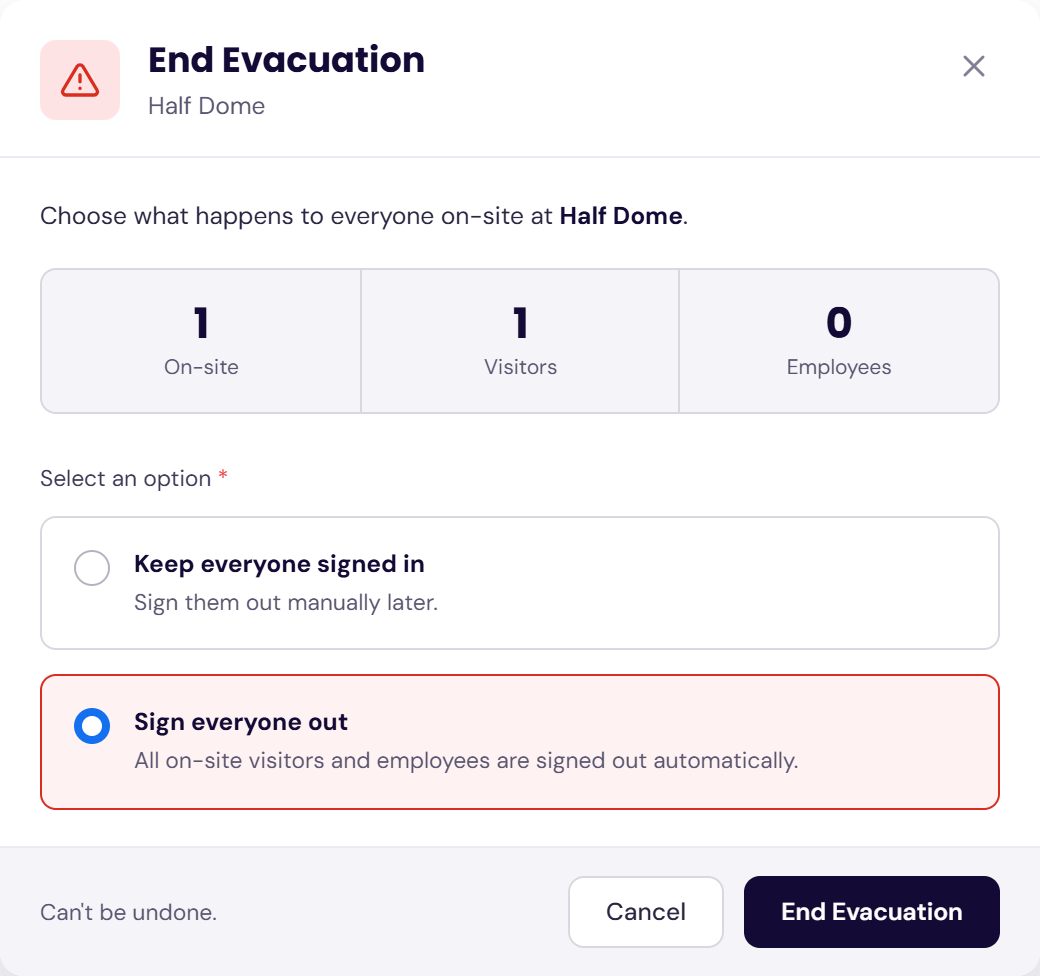
- Select End Evacuation to confirm. This action can't be undone.
Your evacuation record is now closed and the location returns to its normal status.This feature ensures seamless real-time tracking of all individuals, helping you maintain safety and compliance during critical situations.
Note: You can also conduct evacuations from the My Visitly App. For instructions, refer to the Start an Evacuation Using the My Visitly App guide.
Troubleshooting
I don't see a Start Evacuation option on a location's card.
Confirm you're logged in as an Evacuation Manager or Global Admin. Only these roles can start an evacuation for a location.
The unaccounted count in the Active Emergency banner isn't updating.
Refresh the page or reopen the live Roster. The roster reflects real-time sign-outs, so any delay usually resolves after a refresh.
I can't sign someone out of the roster.
Confirm the individual is still marked as onsite and that you have permission to manage that location. If the issue continues, contact support.
I ended the evacuation by mistake.
Start a new evacuation for the location following the steps above. Past evacuation records remain available for reference and cannot be reopened.
Need help? Contact the Visitly support team at support@visitly.io