Learn how to import users, employees, and hosts into Visitly in bulk.
Save Time With Bulk Imports
Adding users in bulk is a great way to save time and keep your organization up to date. With Visitly, you can upload a list of users all at once instead of adding them one by one.
How to Import Users in Bulk
1. Navigate to Users > Users/Employees.
2. Click the Import button in the top right corner.
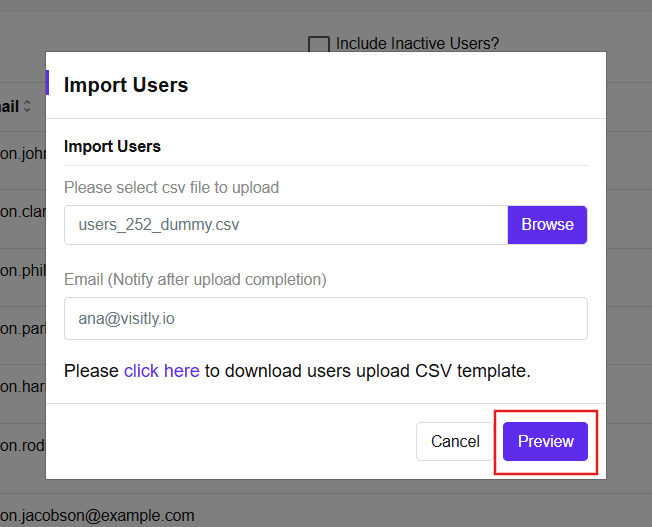
3. Upload Your CSV File by clicking Browse.
Use the Template for Best Results
⭐ Tip: To ensure a smooth import, make sure your data is formatted correctly.
Click Download Template to get the recommended CSV format.
Fill in the template with your users’ information, following the provided structure.
Save the completed file as a CSV.
Preview Your Import Before Saving
Before completing the import, Visitly allows you to preview your data so you can confirm everything looks correct.
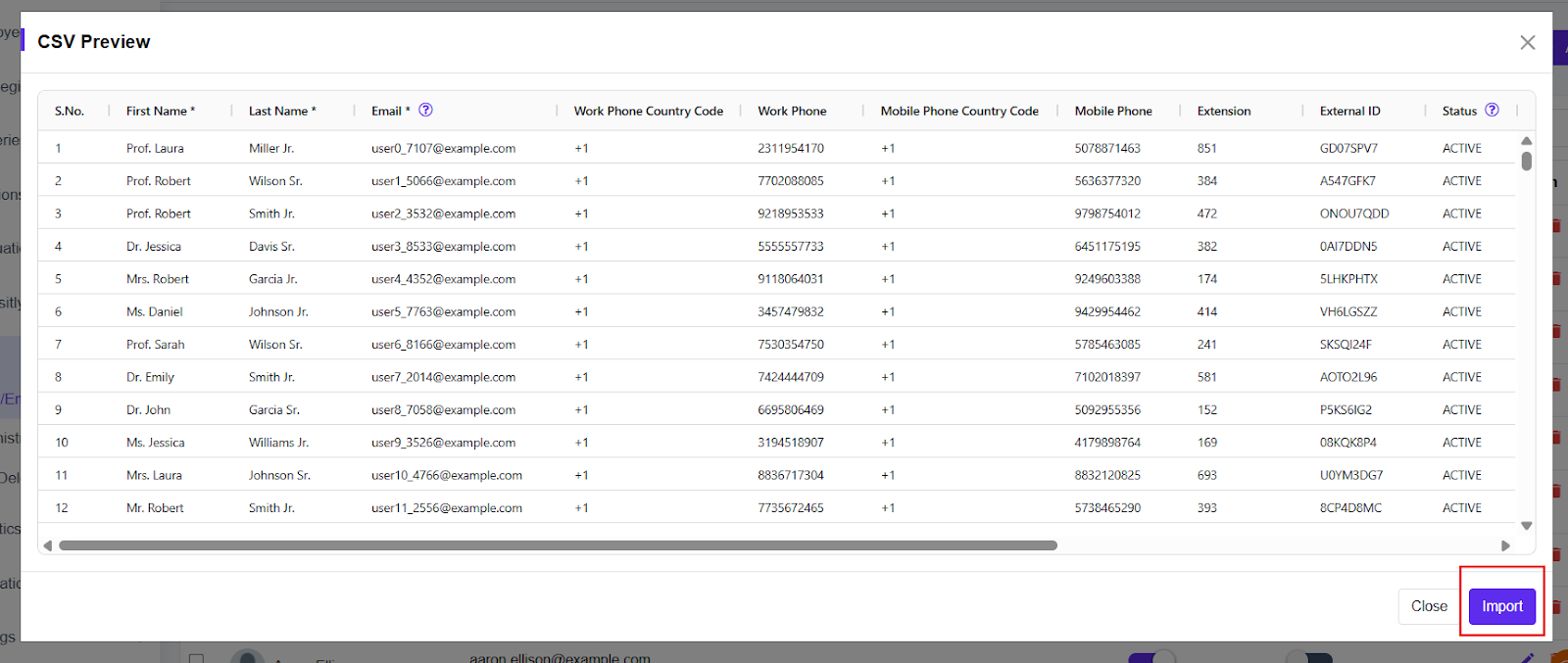
Review user details such as names, email addresses, and other fields
Check for missing or incorrectly formatted information
Make changes to your CSV file if needed before proceeding
This step helps prevent errors and ensures users are added correctly the first time.
Complete the Import
4. Enter your email address to receive a notification once the import is complete.
5. Click Save to start the import.
Your users will be added to Visitly once the import is complete. If any issues are found, you’ll be notified by email.
If you have any questions or need assistance, feel free to reach out to our support team.
Was this article helpful?
That’s Great!
Thank you for your feedback
Sorry! We couldn't be helpful
Thank you for your feedback
Feedback sent
We appreciate your effort and will try to fix the article