Admin role required: Global Admin

Feature availability varies by plan. Check What's in each plan on our pricing page to see if it's included in yours, or talk to our sales team about upgrading.
Overview
Connecting Genetec Security Center to Visitly lets you automatically issue access credentials to visitors when they check in, and revoke those credentials when they check out. Once configured, your front desk and Genetec system stay in sync without any manual credential work. How It Works
- Visitly issues a Genetec access credential automatically the moment a visitor checks in.
- Visitors receive their credential details by email, SMS, or both, depending on your notification settings.
- Pre-registered visitors can activate their credential shortly before their scheduled arrival, if you enable pre-arrival access.
- Visitly revokes the credential automatically at sign-out, or lets it expire naturally based on your access duration settings.
- Each Visitly Visitor Type maps to a Genetec cardholder group, so different visitor populations get the right level of access.
Complete all prerequisites before starting setup. Missing any of these will prevent the integration from working.
Visitly requirements:
- Active Visitly account with Global Admin access
- At least one location configured
Genetec requirements:
- Genetec Security Center with WebSdk enabled
- Your Genetec Directory URL, username, and password
- Cardholder groups and access rules already configured in Genetec Security Center
Connecting Your Organization to Genetec
This is a one-time setup, and only Global Admins can do it.
Step 1: Open the Genetec connection screen
- Go to Integration Hub and select Access Control.
- Find Genetec and select Integrate.
Step 2: Enter your connection details
- Enter a Connection Name (for example, "Genetec Security Center").
- Enter your Directory URL — your Genetec WebSdk address.
- Enter your Username and Password.
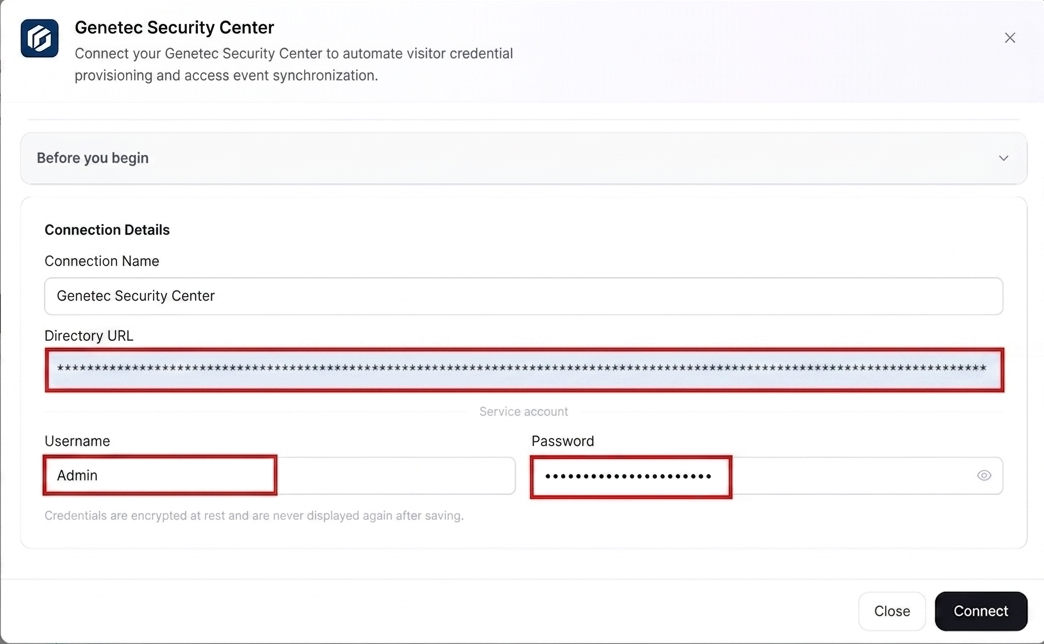
- Select Test Connection to confirm Visitly can reach your Genetec server.
- Select Save.
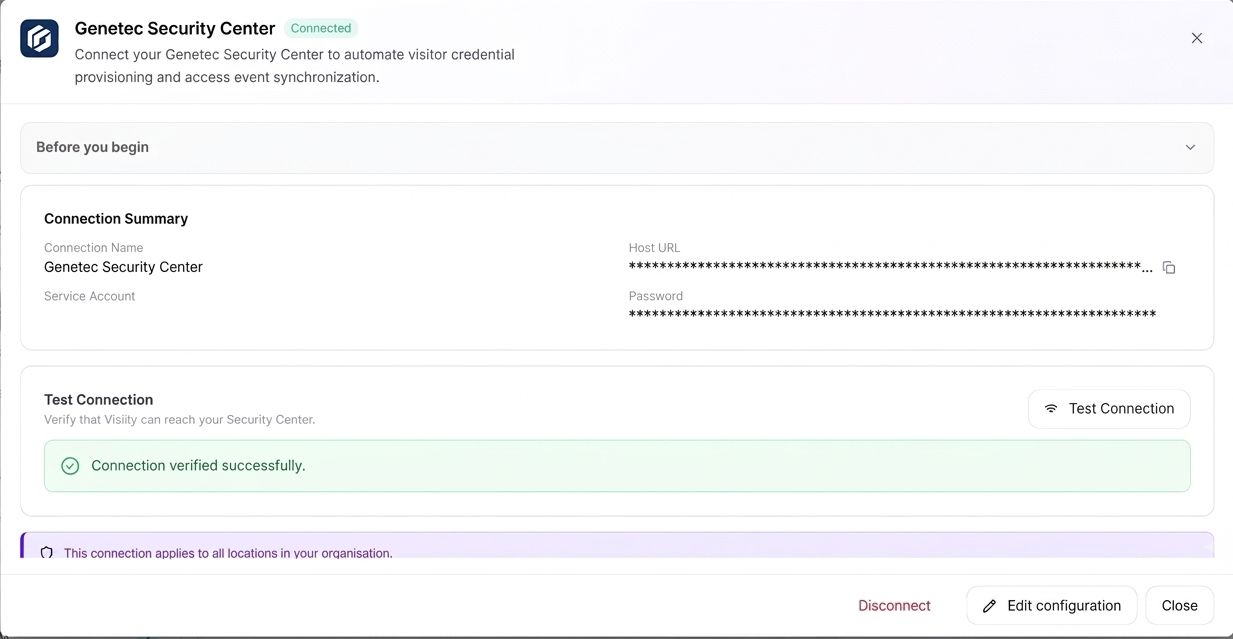
Your Visitly account is now connected to Genetec.
Setting Up Access Control for a Location
Step 1: Add the Genetec connection to your location
- Go to Locations.
- Select the location you want to manage, and select Edit.
- Go to the Access Control tab.
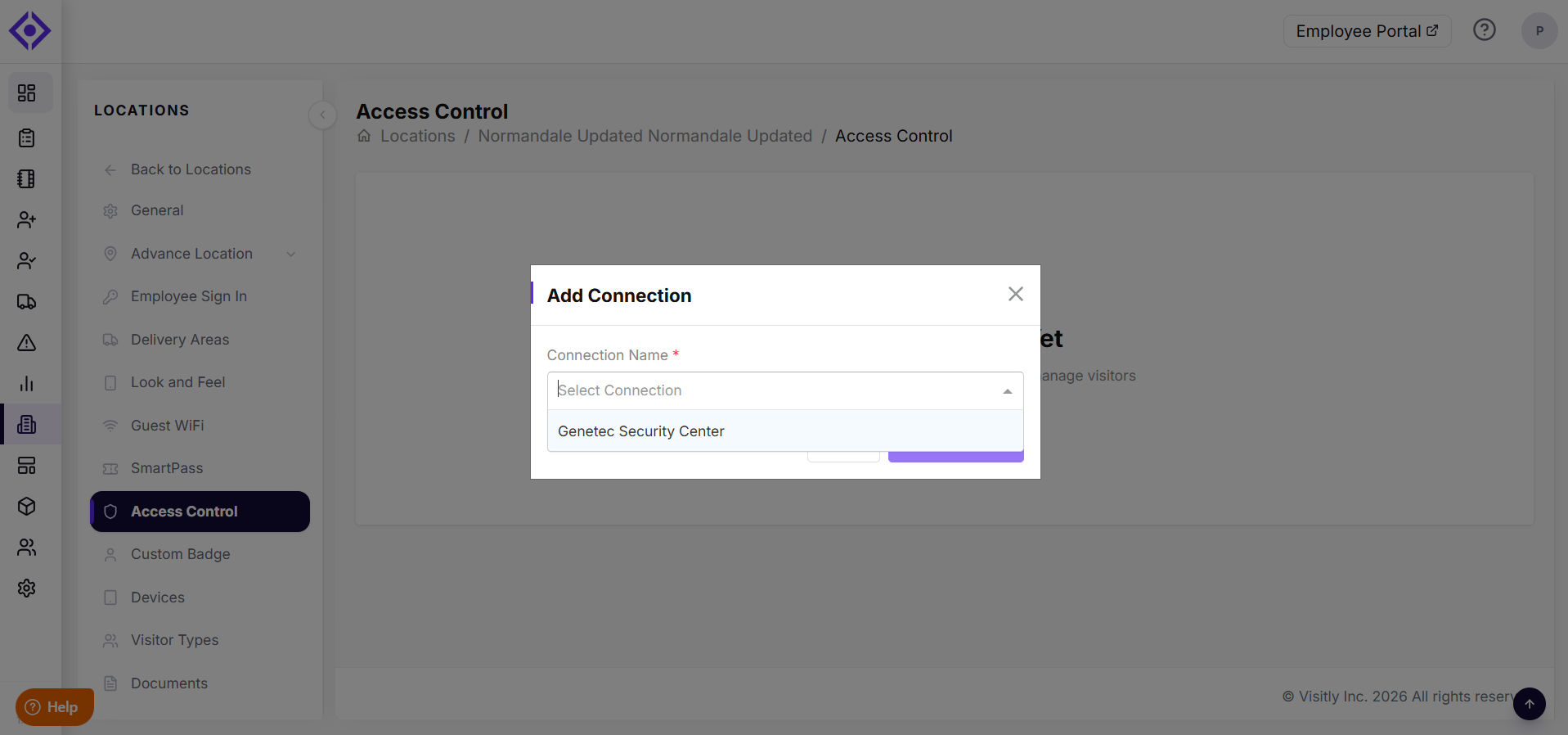
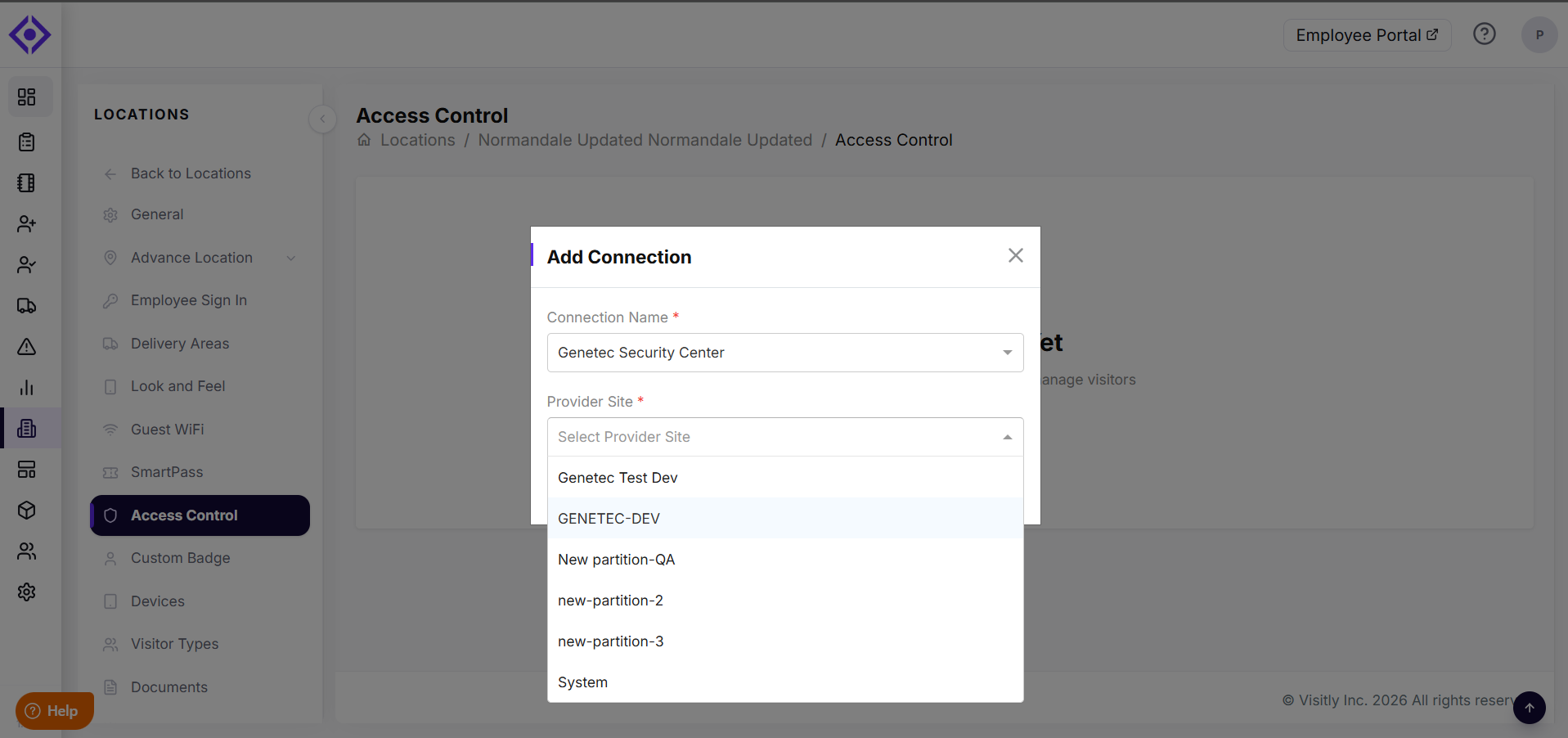
- If this is the first time setting up this location, select + Add New Connection, choose your organization's Genetec connection, and select the matching Provider Site.
- Go to the Visitor Access Config tab.
This location is now linked to your Genetec connection.
Managing multiple locations? Repeat this step for each location that needs Genetec access control.
Turning On Credential Provisioning
Toggle Enable for Check-in to have Visitly provision access credentials automatically when visitors check in at this location.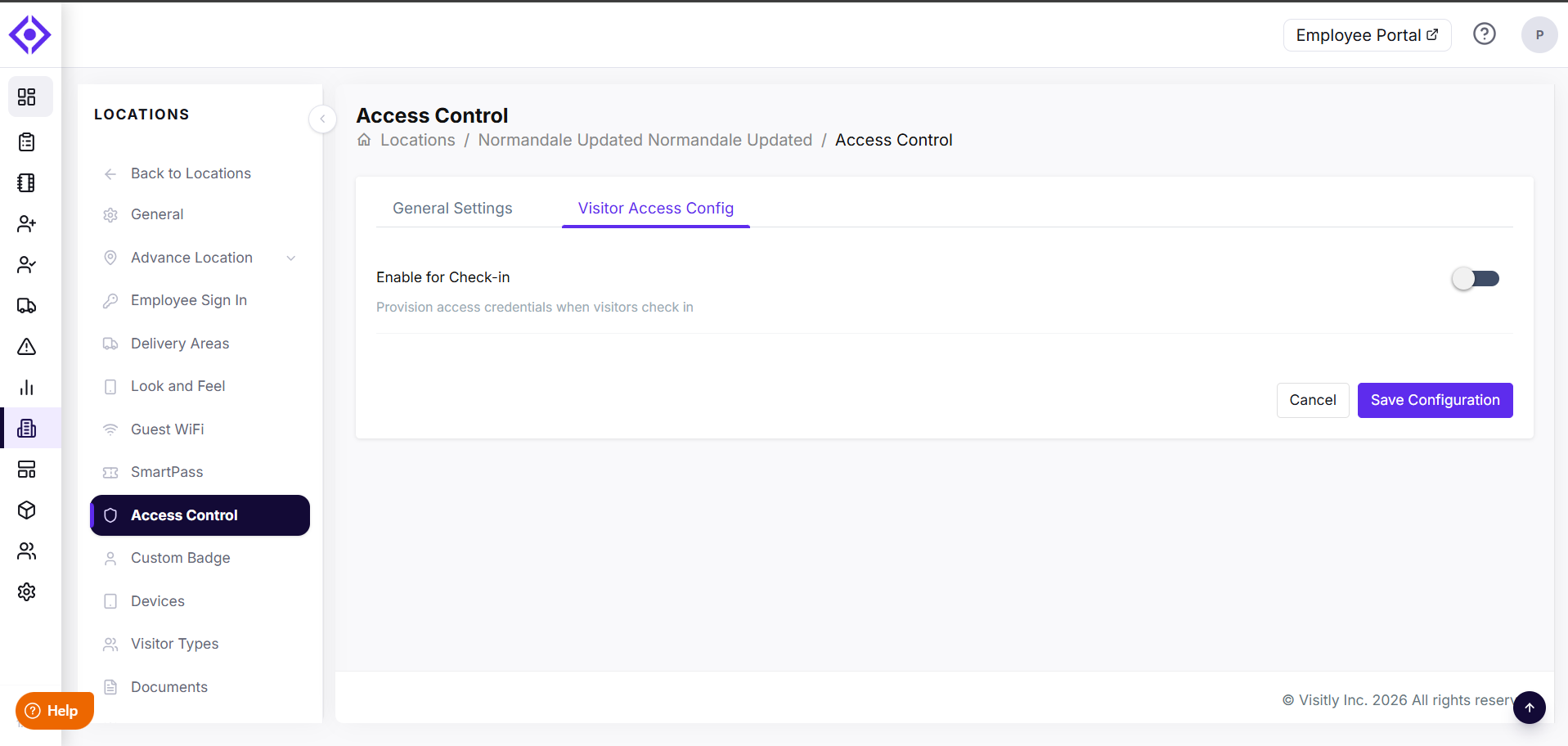
With this on, you'll also see the following settings:
- Enable Visitor Access Notifications — sends credential details to visitors by email, SMS, or both.
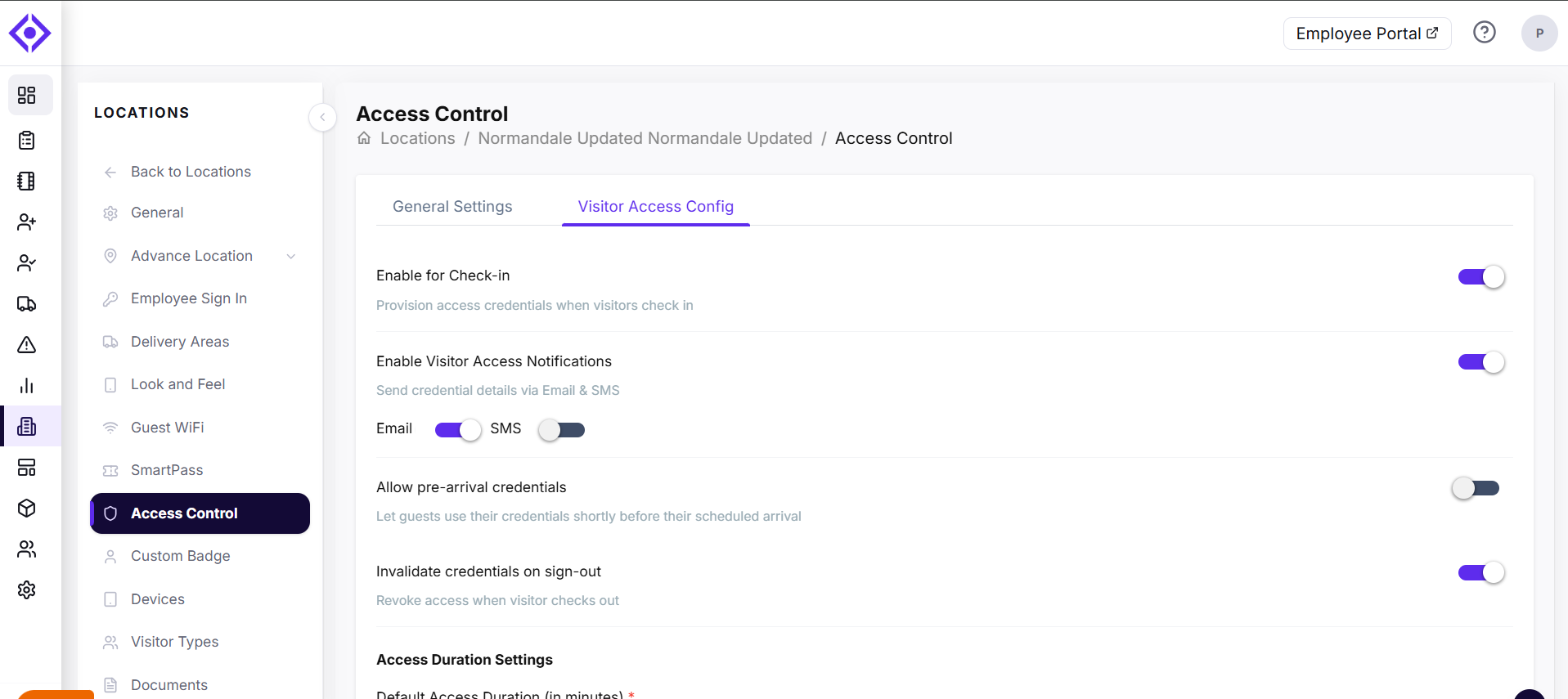
- Allow pre-arrival credentials — lets pre-registered visitors use their credentials shortly before their scheduled arrival. Choose how far ahead under Activate credentials before arrival.
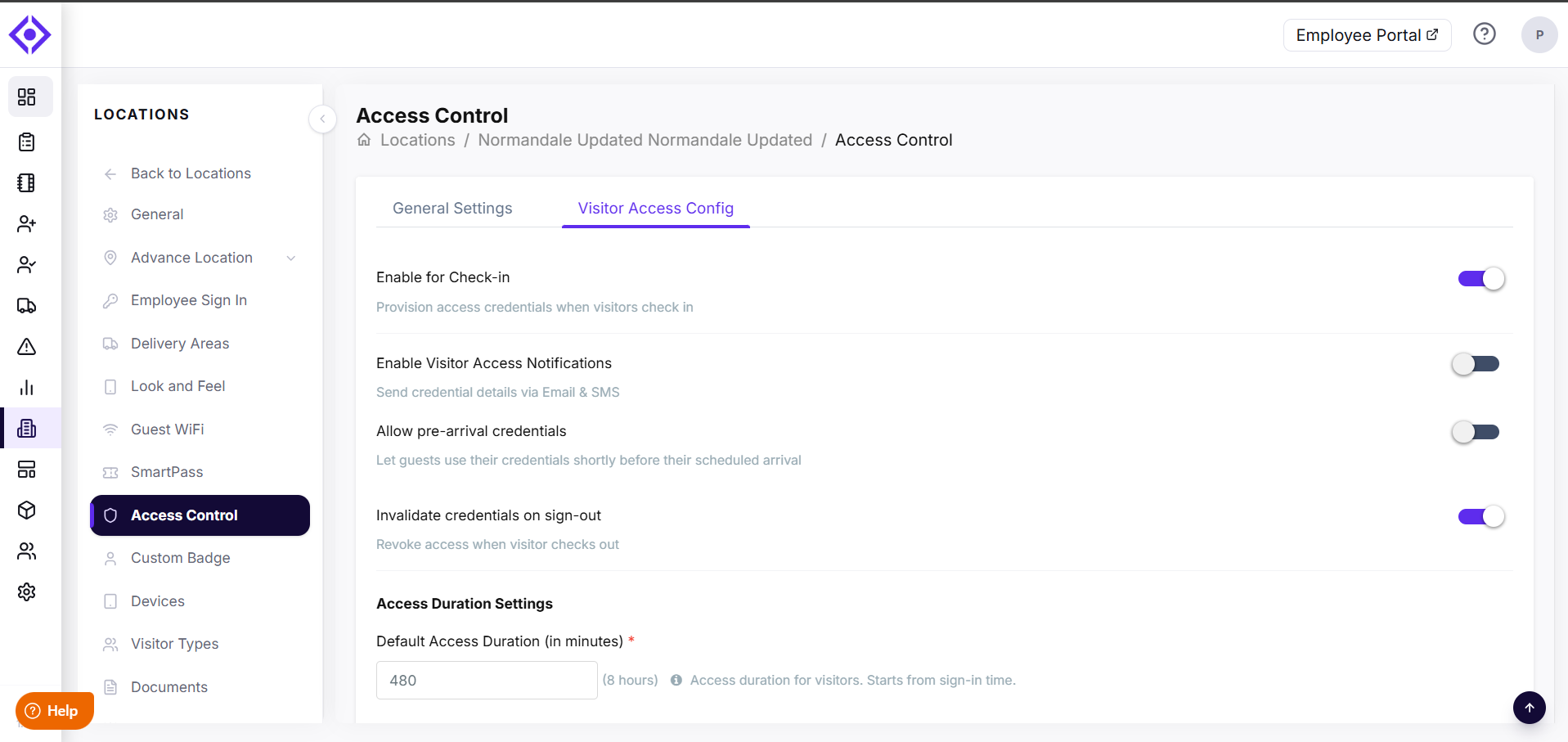
- Invalidate credentials on sign-out — automatically revokes access when the visitor checks out. Turn this off if you'd rather let credentials expire naturally.
- Default Access Duration — how long a credential stays valid, starting from sign-in time.
Choosing a Credential Type
Under Credential Settings, choose how visitors receive access.
PIN:
Generates a code at check-in and needs no additional setup.
Card:
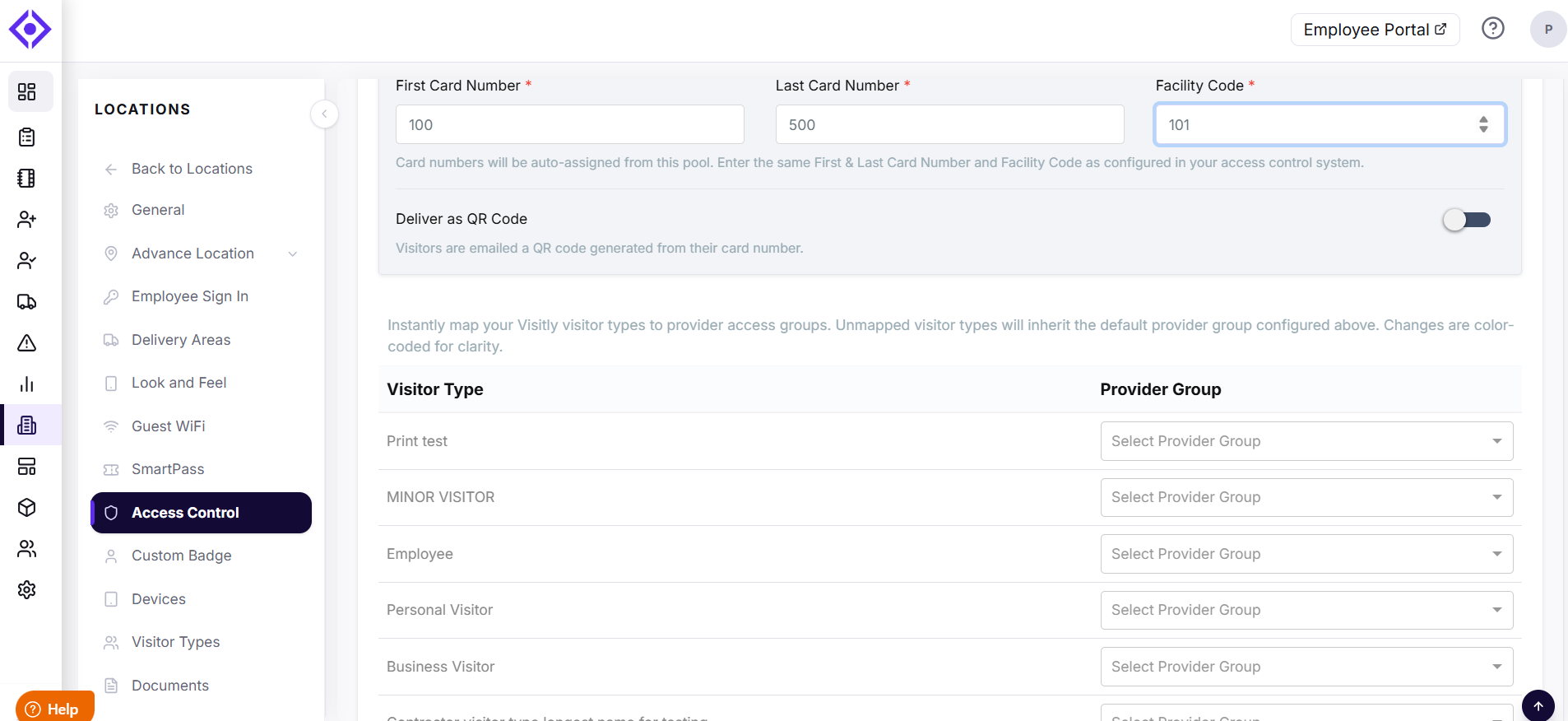
Assigns credentials from a number pool you define. Enter the First Card Number, Last Card Number, and Facility Code exactly as configured in Genetec. Visitly then auto-assigns card numbers from that range.
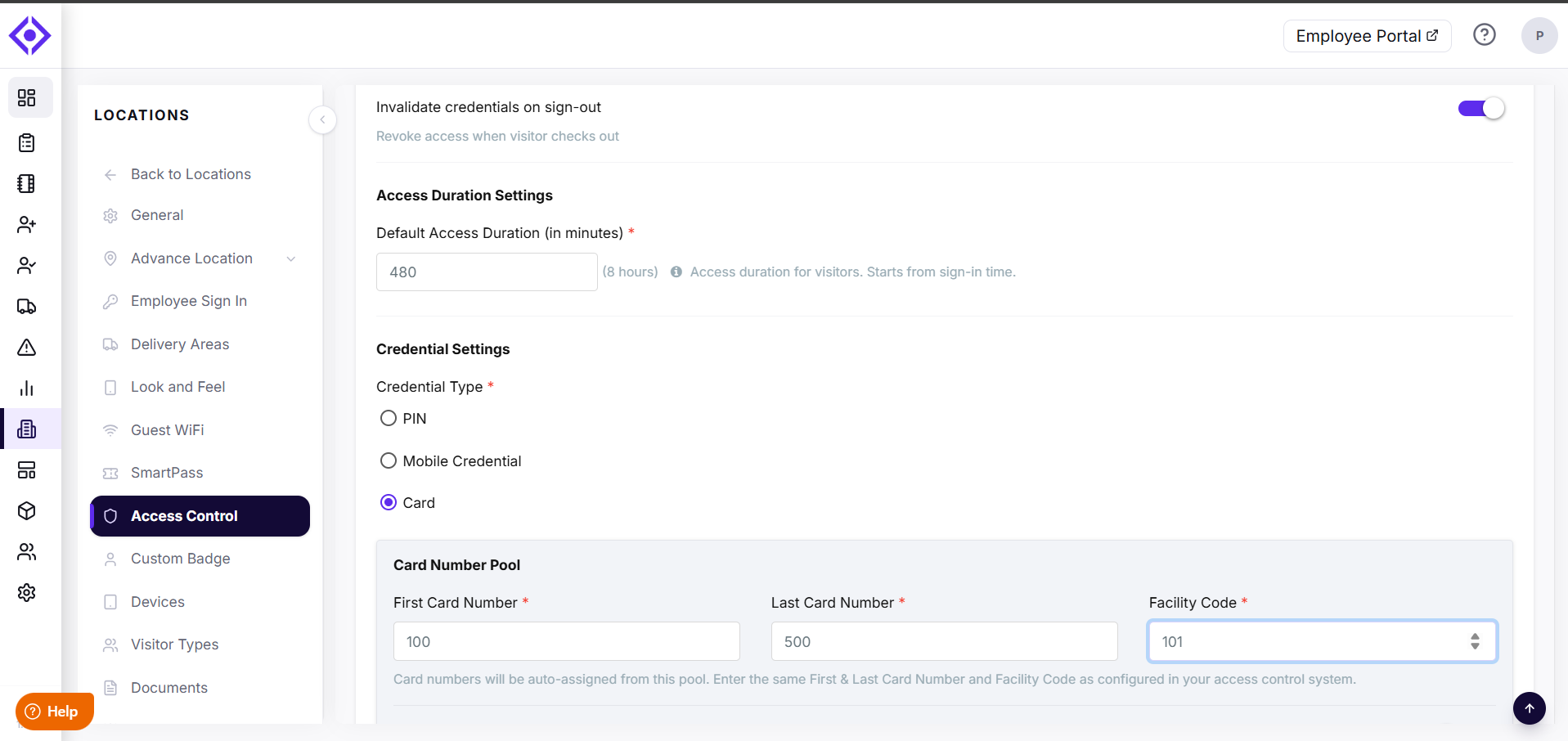
With Card selected, you can also turn on Deliver as QR Code so visitors are emailed a QR code generated from their card number, in addition to the physical card.
Mapping Visitor Types to Cardholder Groups
Map each of your Visitly Visitor Types to a Genetec cardholder group. 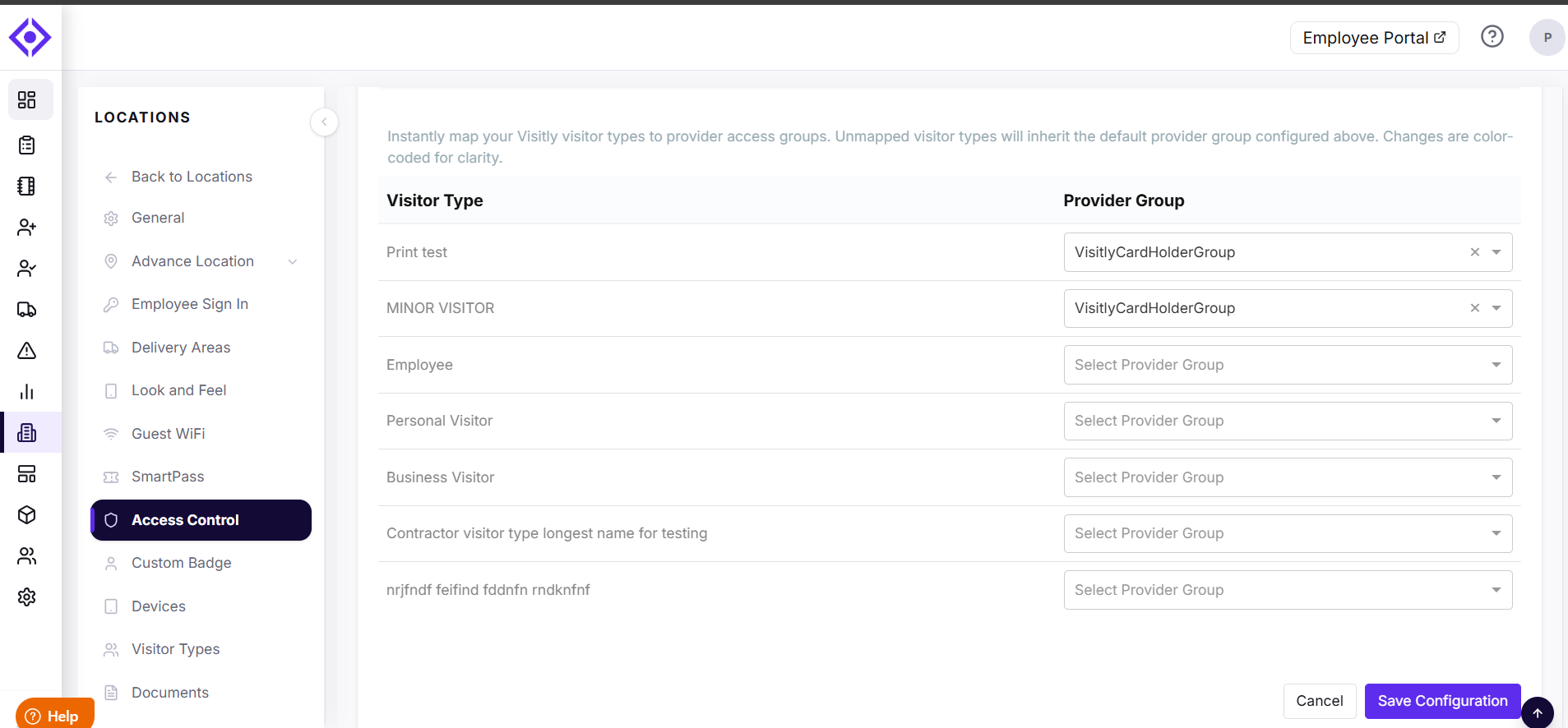
Important: Make sure each cardholder group you map here is included in an access rule in Genetec Security Center.
Select Save Configuration when you're done.
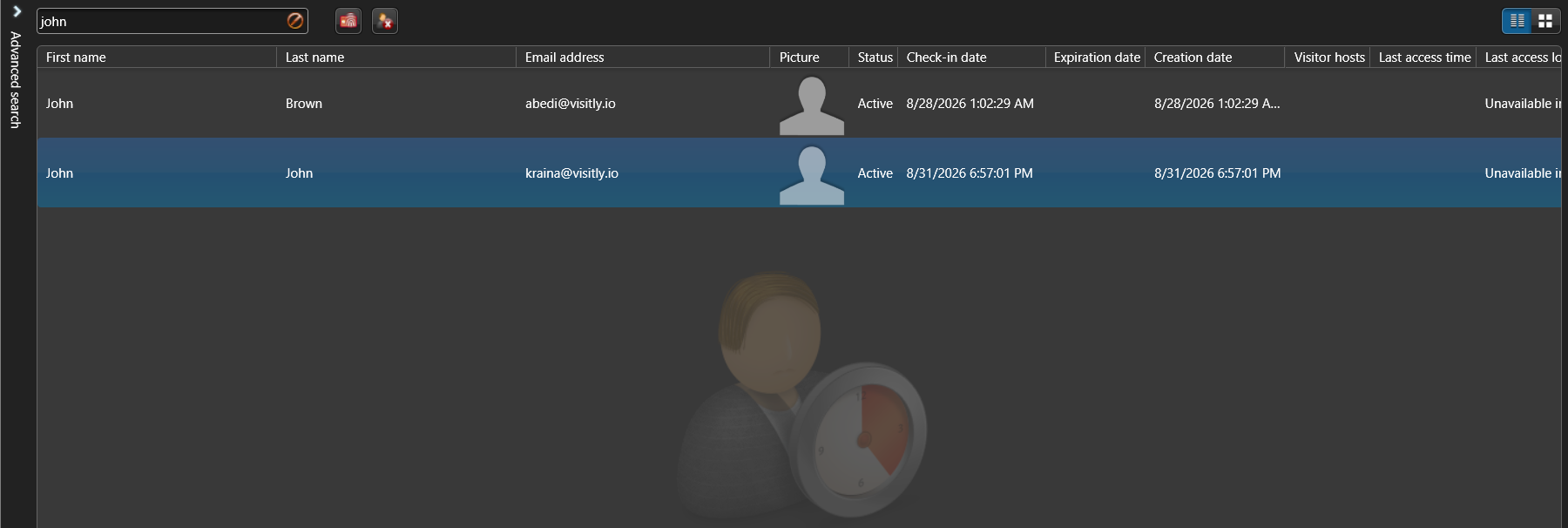
This is how mapping will look in Genetec.
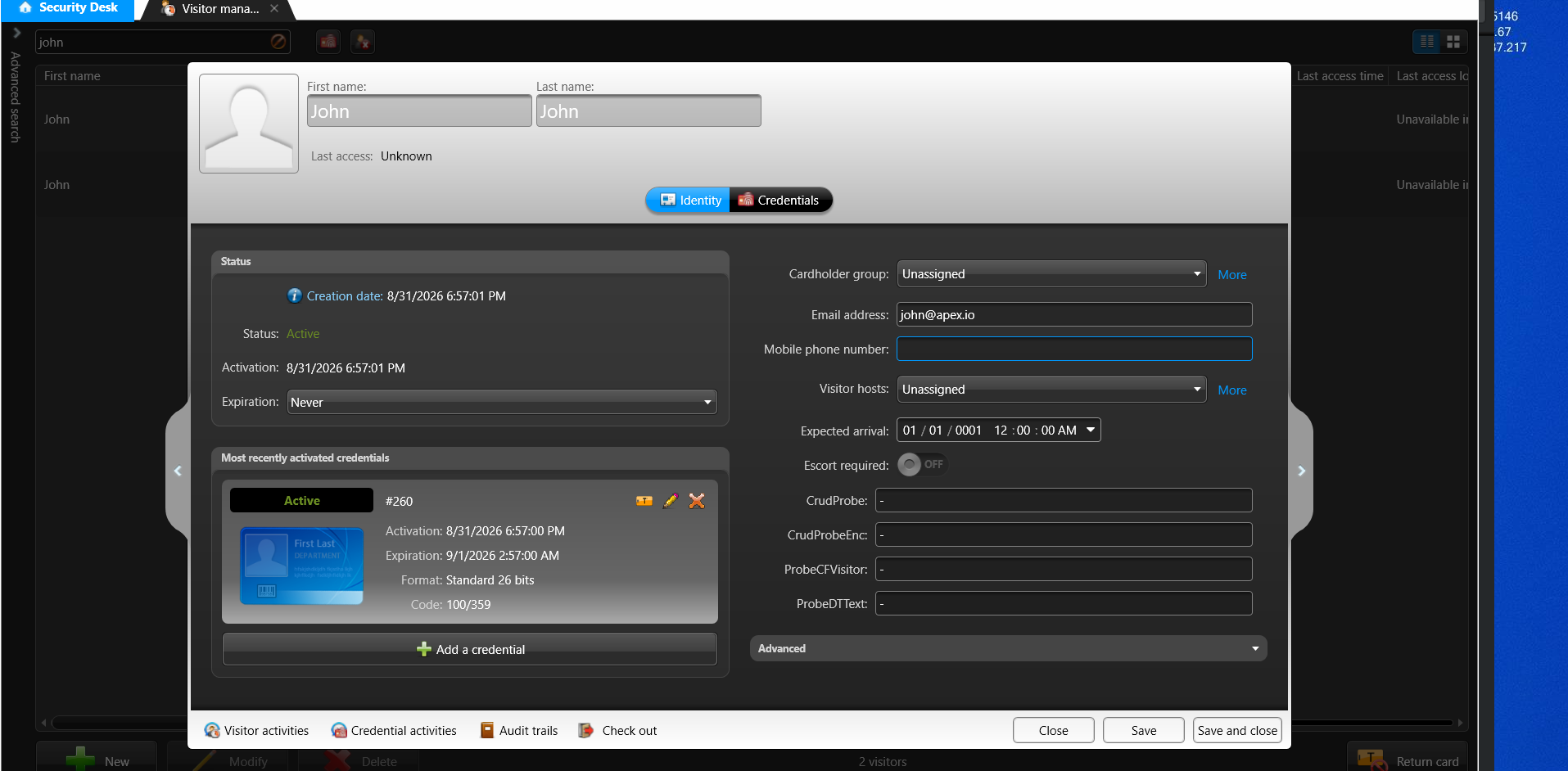
Using the Integration
At check-in:
- Visitly issues an access credential based on the visitor's mapped cardholder group.
- If notifications are enabled, the visitor receives their credential details by email, SMS, or both.
- Pre-registered visitors can activate their credential during the pre-arrival window, if enabled.
At sign-out:
- Visitly revokes the credential immediately, if Invalidate credentials on sign-out is enabled.
- Otherwise, the credential remains valid until the Default Access Duration expires.
Troubleshooting
The visitor did not receive their credential email.
Confirm the visitor's email address is correctly entered in the visit record. Check that Enable Visitor Access Notifications is turned on and email is selected as a delivery method.
The connection test failed.
Double-check your Directory URL, username, and password. Confirm your Genetec WebSdk is enabled and reachable from outside your network, and that the account you're using has sufficient permissions.
The credential was issued, but it doesn't open any doors.
Check that the cardholder group mapped to the visitor's Visitor Type is included in an access rule in Genetec Security Center. Visitly can issue a valid credential even if the group has no access rule attached.
Card numbers aren't being assigned correctly.
Confirm the First Card Number, Last Card Number, and Facility Code match exactly what's configured in Genetec. A mismatch in the Facility Code is the most common cause of failed card assignments.
Credentials aren't being revoked at sign-out.
Confirm Invalidate credentials on sign-out is toggled on for the location. If it's off, credentials are expiring naturally based on the Default Access Duration instead.
Was this article helpful?
That’s Great!
Thank you for your feedback
Sorry! We couldn't be helpful
Thank you for your feedback
Feedback sent
We appreciate your effort and will try to fix the article