All key management actions are available from the Integrations Hub › API screen in your Admin Dashboard. Each key row has a three-dot menu (⋮) on the right side with the following actions:
Note: To create a new API Key, refer to the article Getting Started with the Visitly API 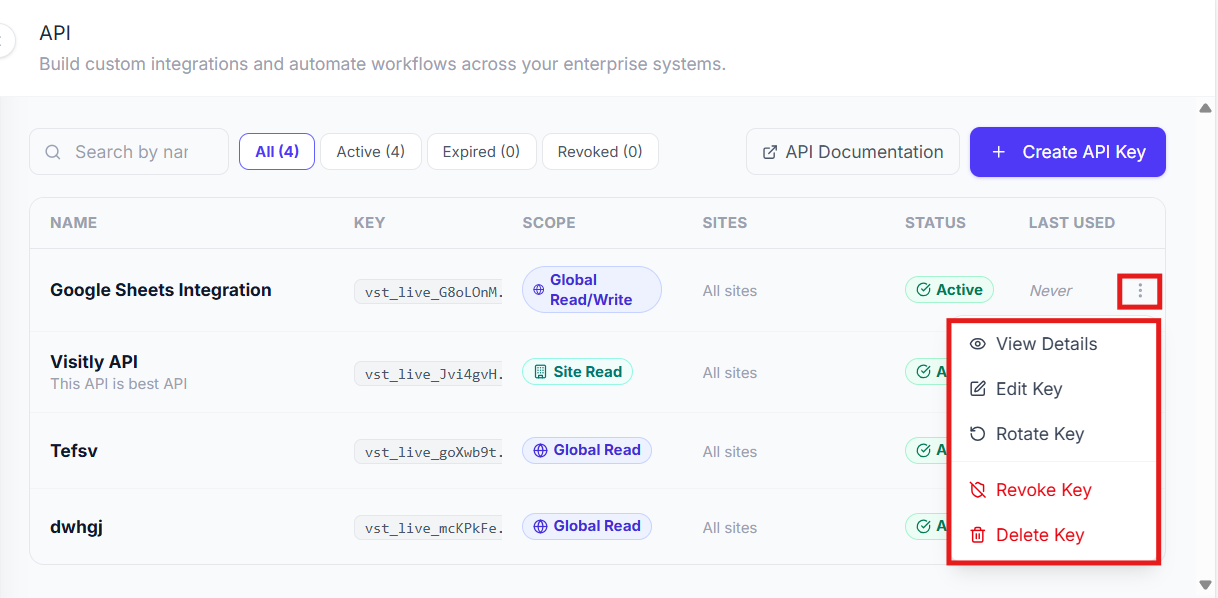
View Details
See the full configuration and usage information for an API key.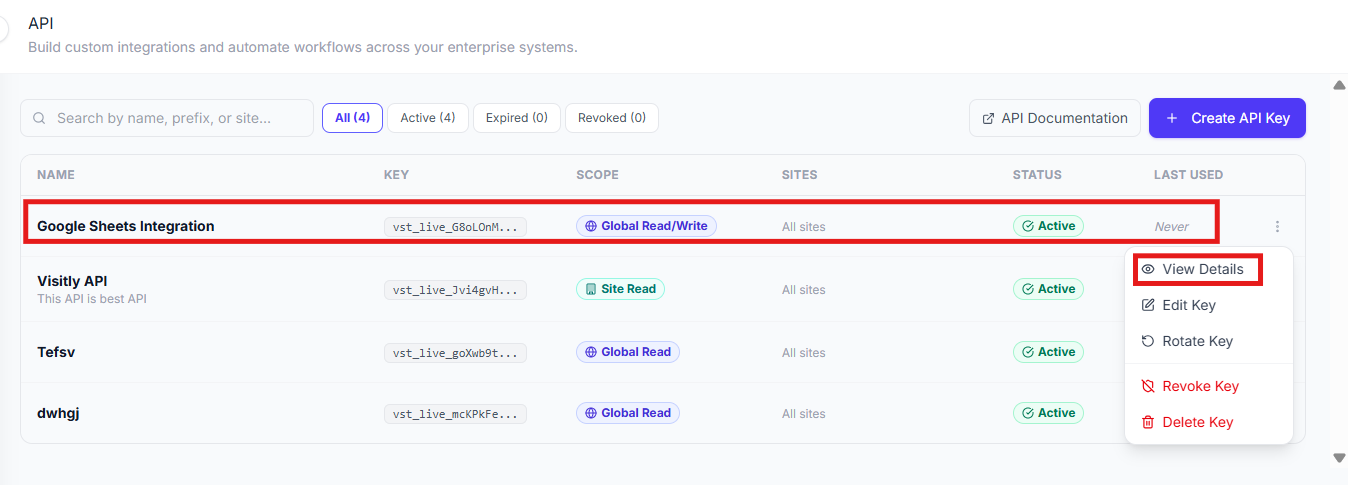
Find the key in your API keys list.
Click the three-dot menu (⋮) on the right side of that key’s row.
Select View Details.
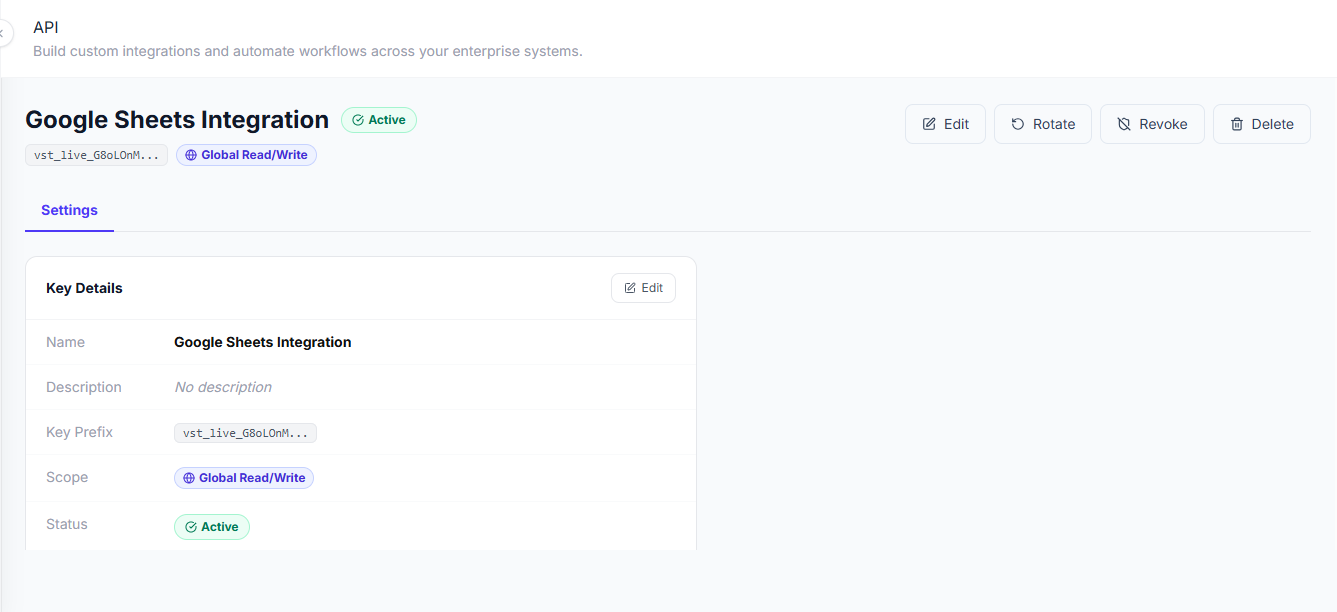
This shows the key’s name, scope, assigned sites, status, creation date, and recent usage history.
Edit Key
Update a key’s name or access level without generating a new key value.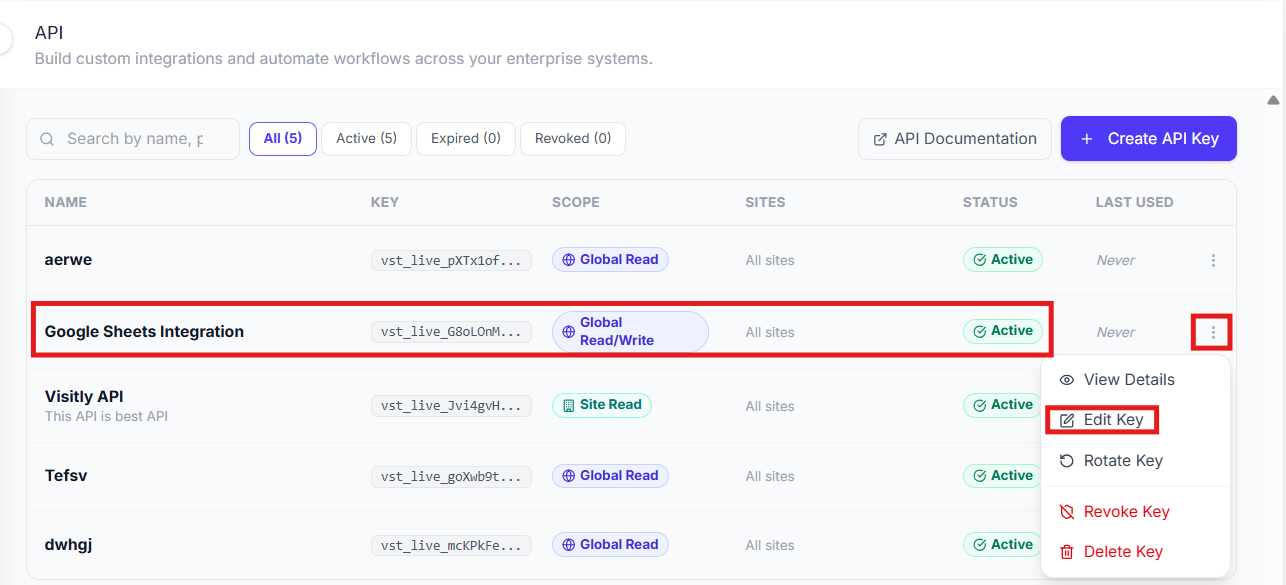
Click the three-dot menu (⋮) next to the key you want to edit.
Select Edit Key.
Update the key name, access level, or site assignment as needed.
Click Save to apply your changes.
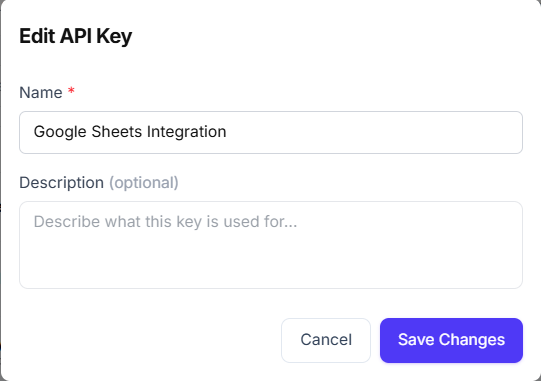
Tip: Editing a key does not change the key value itself. Your existing integrations will continue working without any code changes.
Rotate Key
Generate a new key value while keeping the same configuration (name, scope, and site assignments). Use this to periodically refresh credentials as part of your security practices.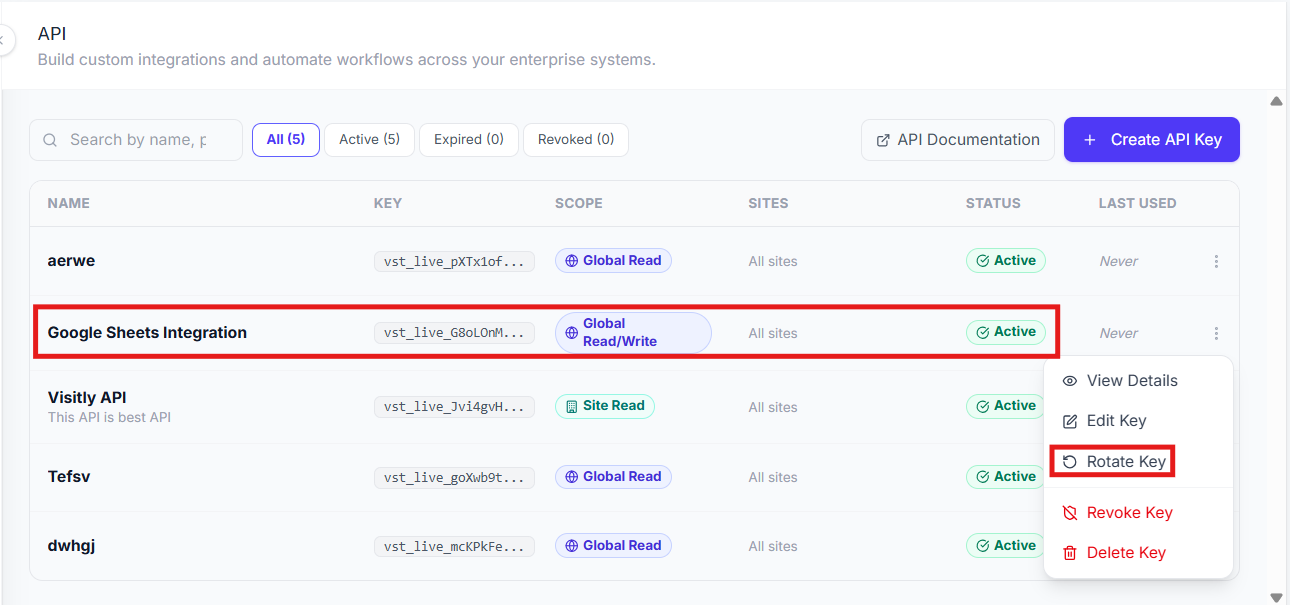
Click the three-dot menu (⋮) next to the key you want to rotate.
Select Rotate Key.
Confirm the rotation when prompted.
Copy the new key value immediately; it will only be shown once.
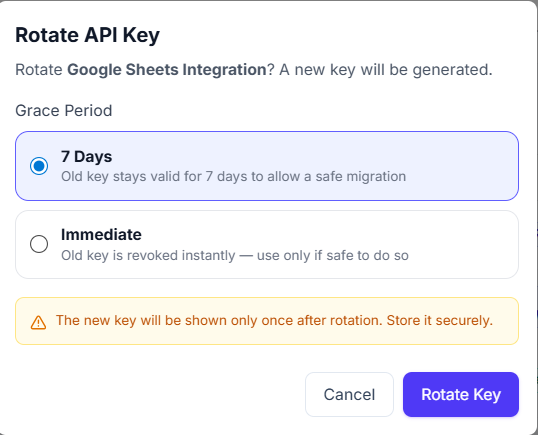
Important: The old key is invalidated immediately upon rotation. Update your integrations with the new key right away to avoid downtime.
Revoke Key
Deactivate a key so it can no longer be used to make API requests. Revoke a key immediately if you suspect it has been compromised.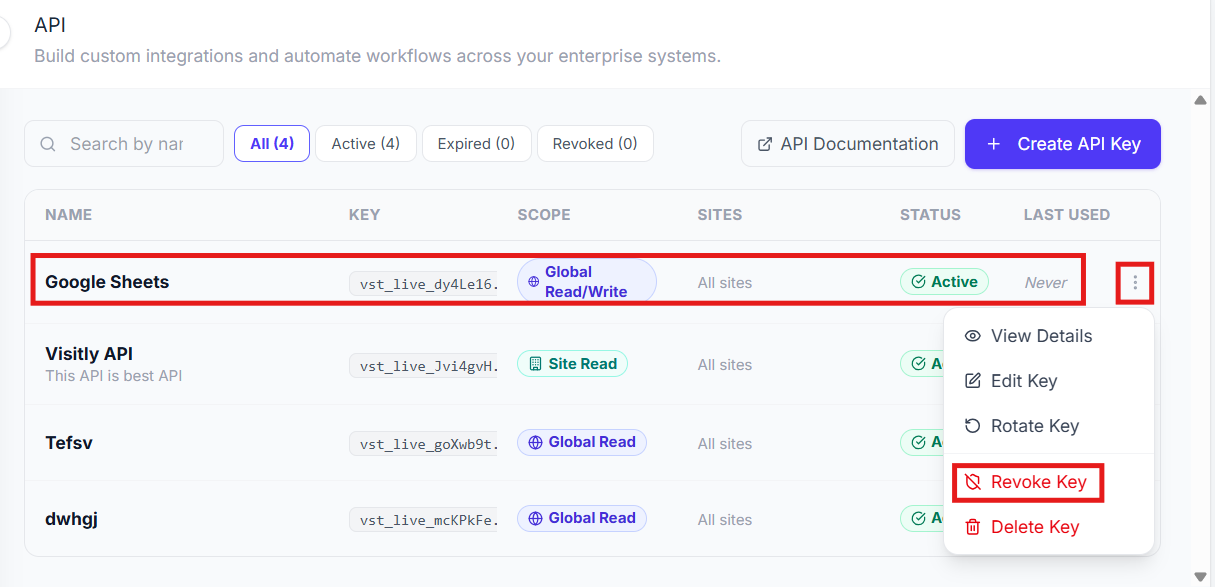
Click the three-dot menu (⋮) next to the key you want to revoke.
Select Revoke Key (shown in red).
Confirm the revocation when prompted.
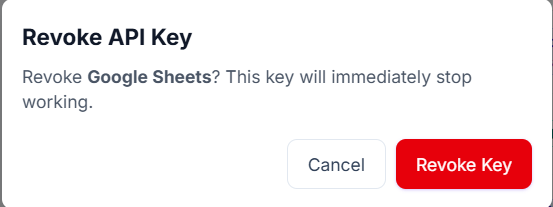
Once revoked, the key’s status changes to Revoked and any API request using it will return a 401 Unauthorized error. Revoked keys appear under the Revoked filter tab at the top of the API keys list.
Tip: Revoking a key is required before you can delete it. If you just want to temporarily disable a key, revoking is the right action.
Delete Key
Permanently remove a key from your organization. This action is irreversible.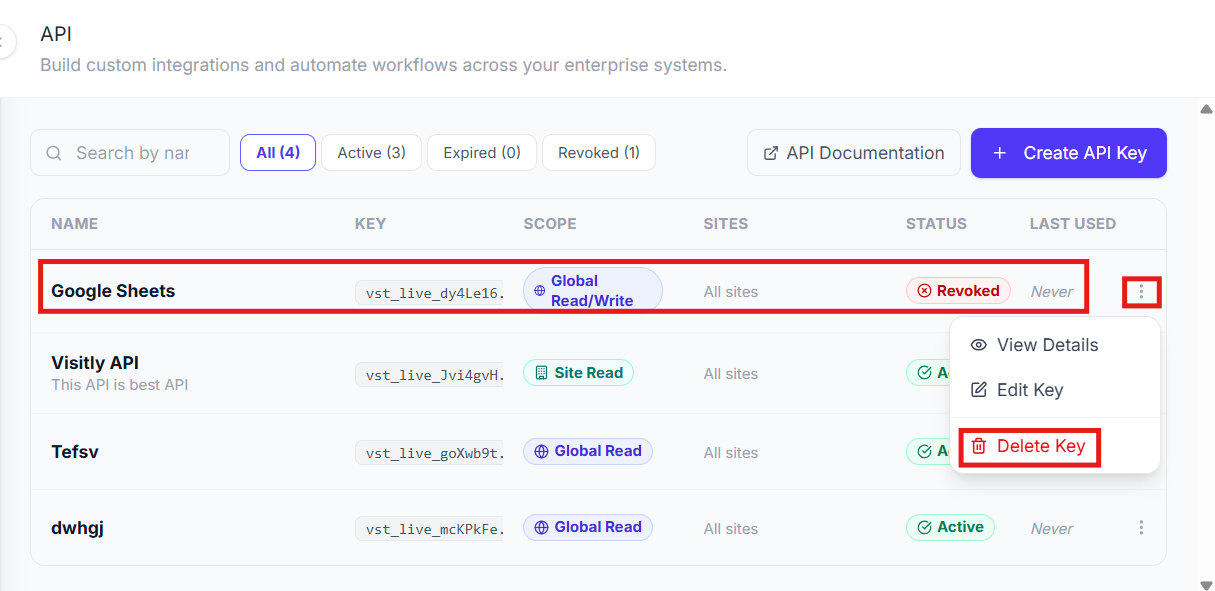
First, revoke the key using the steps above. Active keys cannot be deleted directly.
Click the three-dot menu (⋮) on the revoked key.
Select Delete Key (shown in red).
Confirm the deletion when prompted.
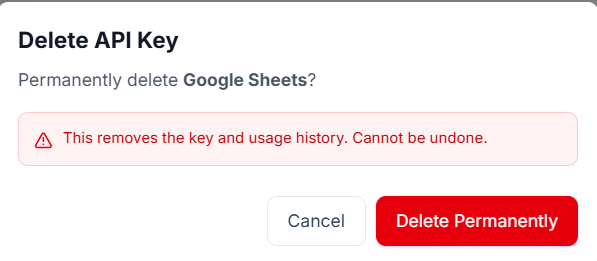
Important: Deletion is instant and irreversible. If you attempt to delete an active key without revoking it first, the system will return an error. Always revoke before deleting.
Quick Reference
Error Handling
If something goes wrong, the API returns a standard HTTP error code along with a JSON error body:
{ "error": { "code": "ERROR_CODE", "message": "Description", "details": {}, "requestId": "abc123" } }
Tip: Always include the requestId from error responses when contacting support. It helps us trace issues quickly.
Best Practices
Store keys securely. Never hard-code API keys in your source code. Use environment variables or a secrets manager.
Use the least privilege. Assign the narrowest access level that your integration requires.
Rotate keys periodically. Schedule regular key rotations (e.g., every 90 days) as part of your security hygiene.
Handle errors gracefully. Implement retry logic with exponential backoff for 429 (rate-limited) responses.
Use separate keys per integration. This way, you can revoke or rotate one key without affecting others.
Need Help?
We’re here to support you at every step:
API Documentation: developer.visitly.io
Email Support: support@visitly.io
Include your organization name, the API key name (not the key itself), and the requestId from any error responses when reaching out for support.
Was this article helpful?
That’s Great!
Thank you for your feedback
Sorry! We couldn't be helpful
Thank you for your feedback
Feedback sent
We appreciate your effort and will try to fix the article