Admin role required: Global Admin and Location Admin

Feature availability varies by plan. Check What's in each plan on our pricing page to see if it's included in yours, or talk to our sales team about upgrading.
Overview
The Visitly API lets users integrate Visitly directly into their existing systems and build custom workflows. Whether you’re syncing visitor logs with your internal tools, automating employee check-in/out, or managing deliveries programmatically — the API gives you full control over your Visitly operations.
Full API reference and interactive documentation are available at developer.visitly.io.
What You’ll Need
Don’t have an Enterprise plan yet? Contact support@visitly.io to upgrade your subscription and enable API access.
Step 1: Request API Access
Send an email to support@visitly.io with the subject line “API Access Request”. Include your organization name and a brief description of how you plan to use the API.
Our team will review your request and enable API access on your account. You’ll receive a confirmation email once it’s activated.
Tip: Mention your specific use case (e.g., “We want to sync visitor pre-registrations from our internal scheduling tool”). This helps us set up your account with the right configuration.
Step 2: Generate Your API Key
Once API access is enabled on your account, follow these steps to create your first API key:
Log in to your Visitly Admin Dashboard.
Navigate to Integrations Hub › API in the left sidebar.
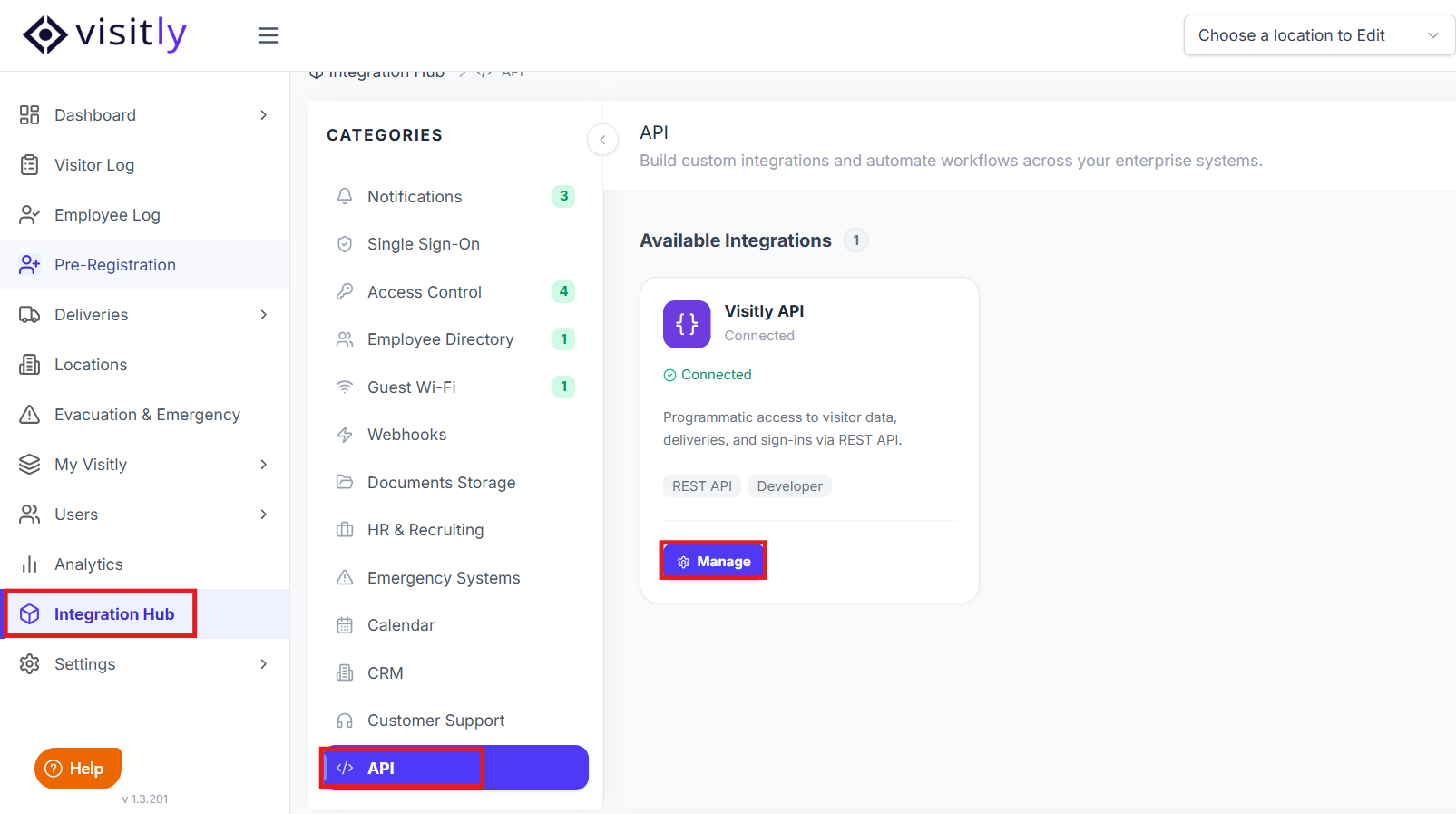
Click Create API Key.
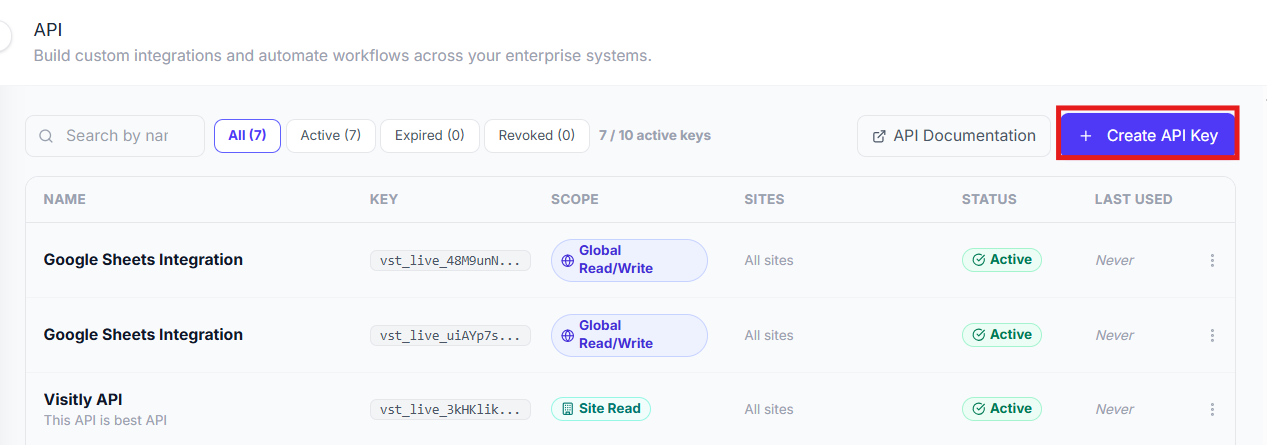
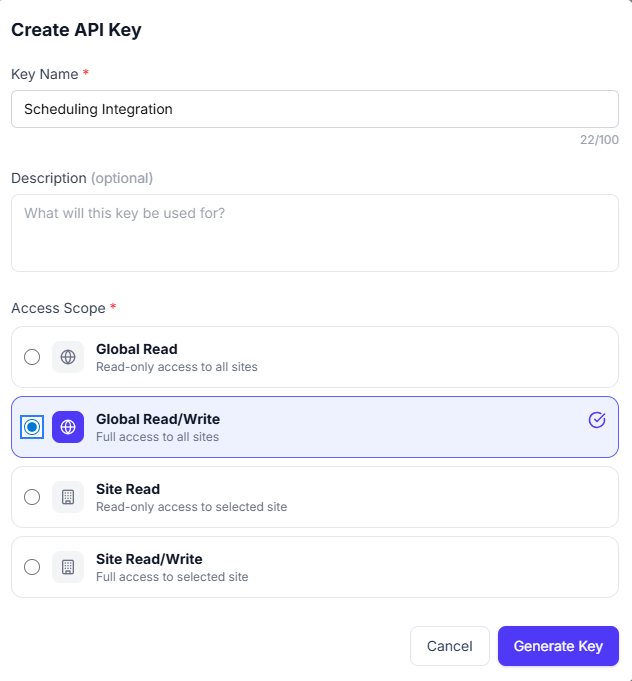
Give your key a descriptive name (e.g., “Concierge App Integration” or “HR System Sync”).
Select the Access Scope appropriate for your use case (see table below given in Step 3).
If you prefer to choose site level access scope, then you have to select the site as well.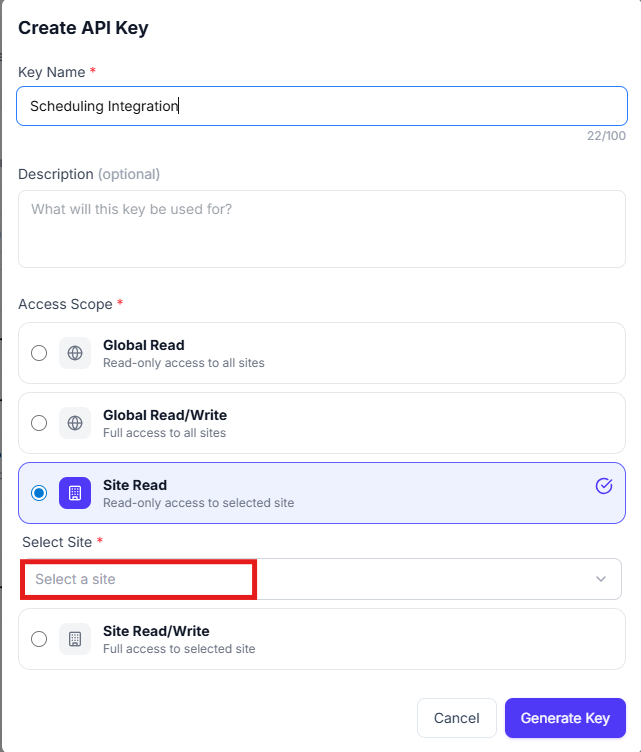
Click Generate Key. Your API key will be displayed on screen.
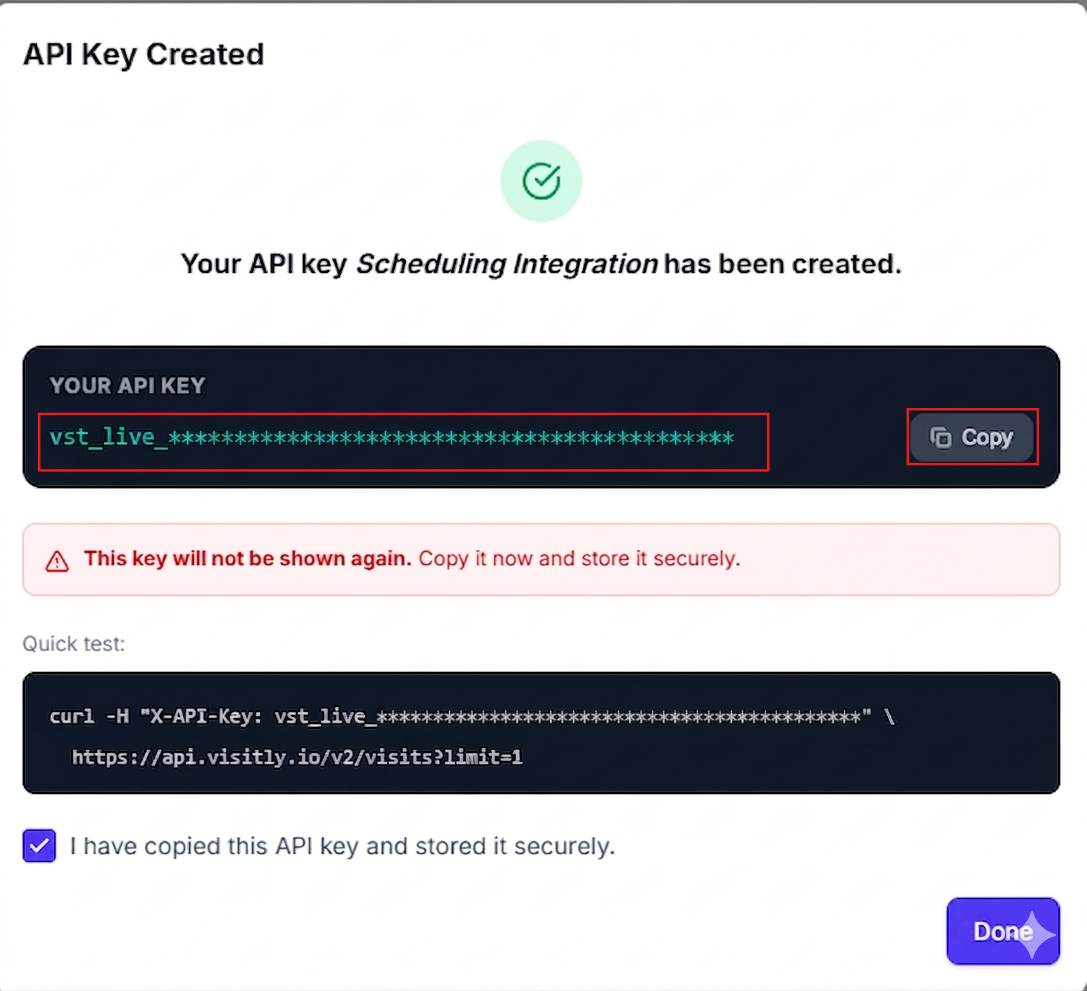
Important: Copy your API key immediately and store it securely. The raw key is only shown once at the time of creation and cannot be retrieved later. If you lose it, you’ll need to create a new key.
Tip: You can create up to 10 API keys per organization. Use separate keys for different integrations so you can rotate or revoke them independently.
Step 3: Choose the Right Access Scope
Each API key is assigned an access scope that controls what it can read and write. Choose the most restrictive scope that meets your needs:
Tip: Follow the principle of least privilege. Give each key only the permissions it actually needs. If your integration only reads visitor logs, a Read-only key is the safest choice
Step 4: Make Your First API Call
All API data endpoints use the base URL below and require your API key in the request header:
Base URL
https://api.visitly.io/developer
Authentication Header
X-API-Key: YOUR_API_KEY
1. Click on API documentation.
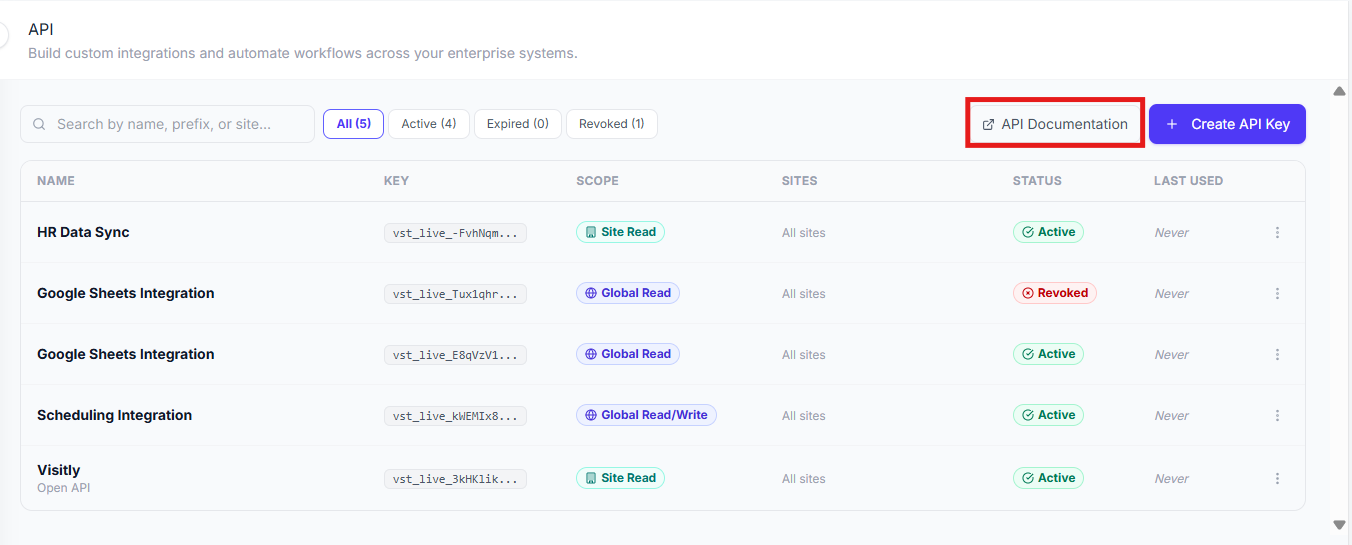
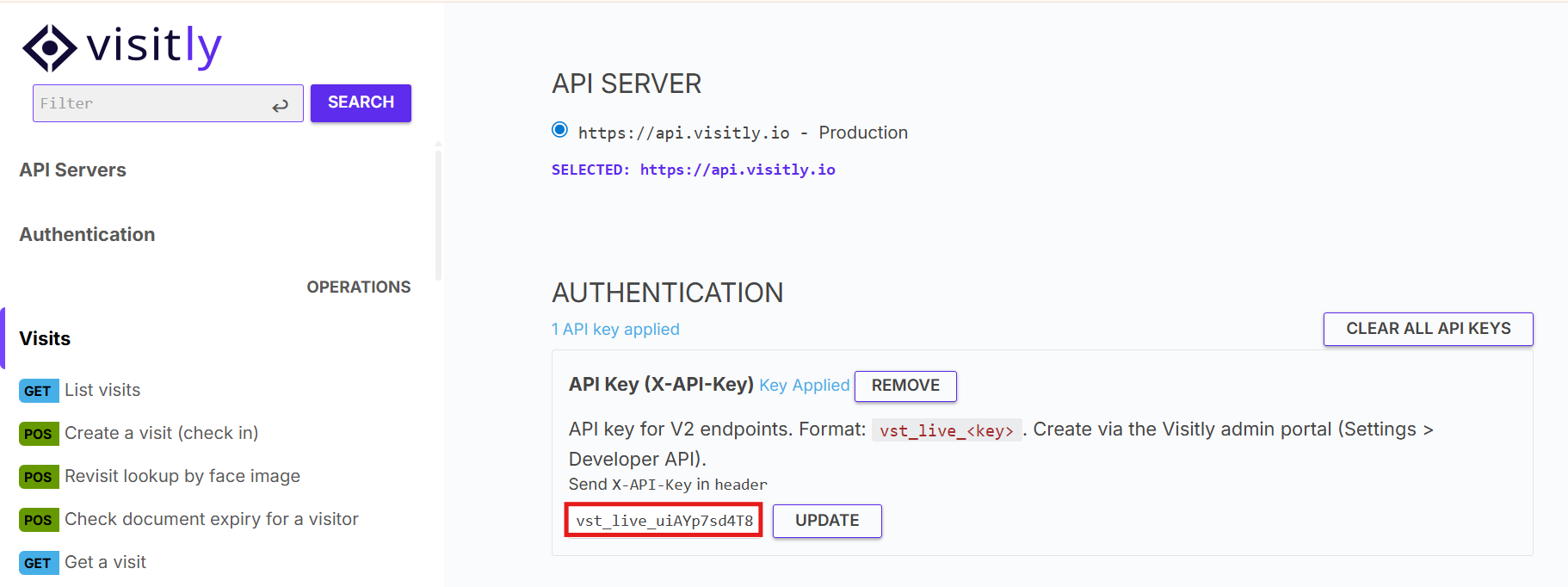
2. Paste your API key into the X-API-Key field and click Set to apply it to all subsequent requests.
3. Browse to any endpoint, click Try, it sends a live request and you can view the response.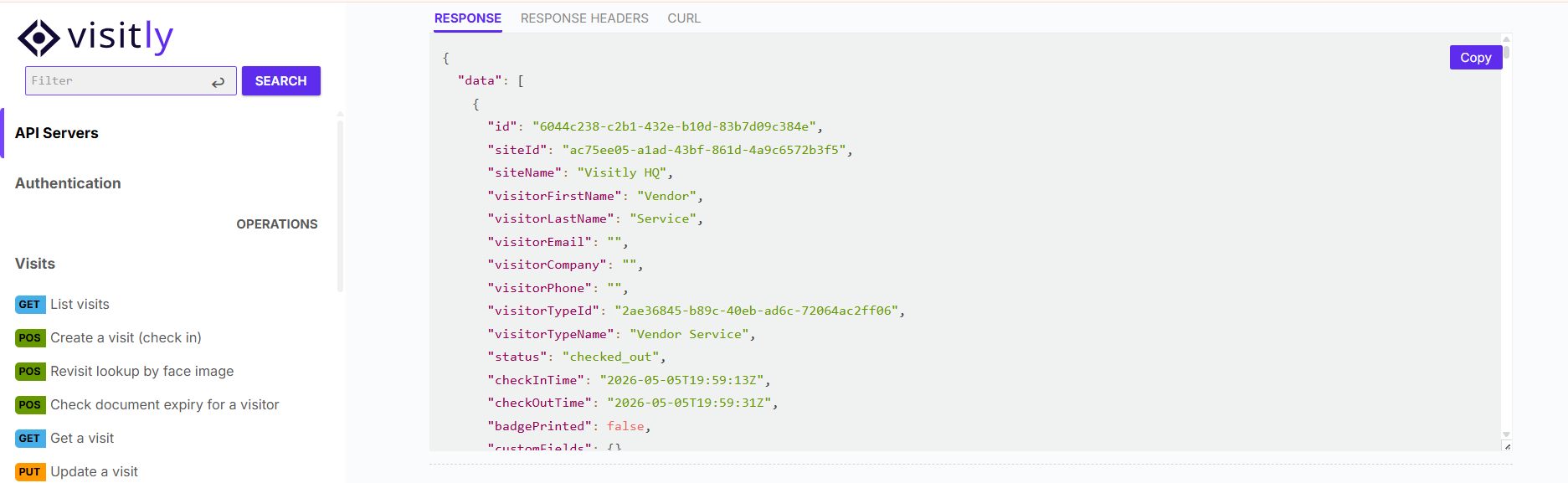
Example: List All Sites
Try this request to confirm your key is working. It returns all sites in your organization:
GET https://api.visitly.io/developer/v2/sites
Header: X-API-Key: YOUR_API_KEY
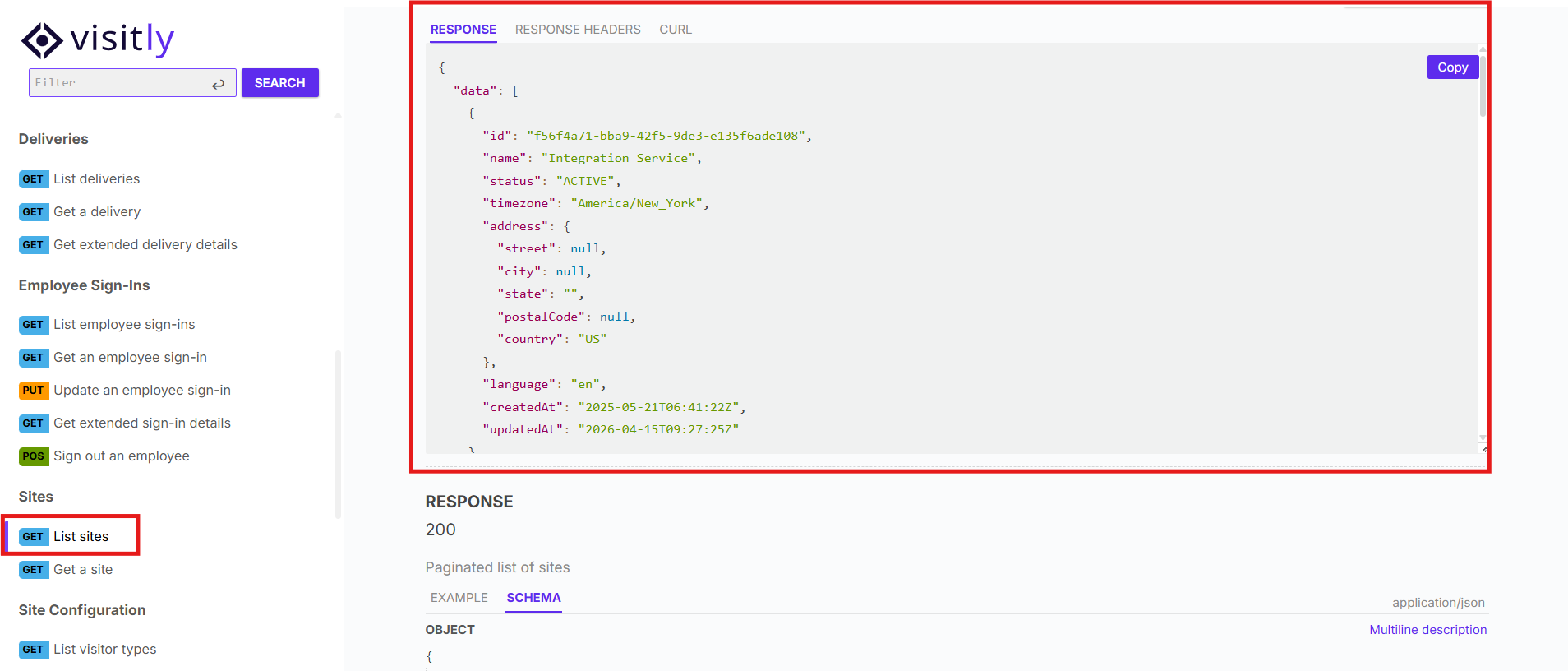
Response Format
All responses return JSON in a consistent structure:
{ "data": { ... }, "pagination": { "limit": 10, "offset": 0 }, "meta": {} }
You can use the following query parameters to filter, sort, and paginate results:
Was this article helpful?
That’s Great!
Thank you for your feedback
Sorry! We couldn't be helpful
Thank you for your feedback
Feedback sent
We appreciate your effort and will try to fix the article