Learn how to integrate Arista Guest WiFi Manager with Visitly
Admin role required: Global Admin

Feature availability varies by plan. Check What's in each plan on our pricing page to see if it's included in yours, or talk to our sales team about upgrading.
The Arista Guest WiFi integration allows organizations to automatically issue secure WiFi credentials to visitors during check-in. With the new site-level configuration, Global Admins can manage multiple Arista connections centrally, while each location can select the appropriate connection and control how credentials are shared with visitors and hosts. This provides greater flexibility, security, and scalability for multi-site environments.
Arista Configuration
1. Log in to the Arista Launchpad.
2. Navigate to Admin → Keys and click New Key.
3. Assign a custom profile with Launchpad, Wireless Manager, and Guest Manager access.
4. Save the Key ID and Key Value securely.
5. Go to Dashboard → Guest Manager.
6. Copy the Base URL (e.g., https://agm11007.srv.wifi.arista.com/) and save it securely.
7. From Dashboard → CloudVision Wifi, navigate to the desired location folder.
8. Go to Configure → WiFi and create a Guest SSID (if it doesn’t exist). Configure it as follows:
SSID Type: Guest
Security: Open
Captive Portal:
Login Method: Admin Generated Credentials
9. Configure email settings for credential notifications.
10. Customize the splash page as needed.
Visitly Configuration
Step 1: Create Arista Connections (Global Admin Only)
1. Log in to the Visitly Dashboard
2. Navigate to Integrations Hub → Guest WiFi
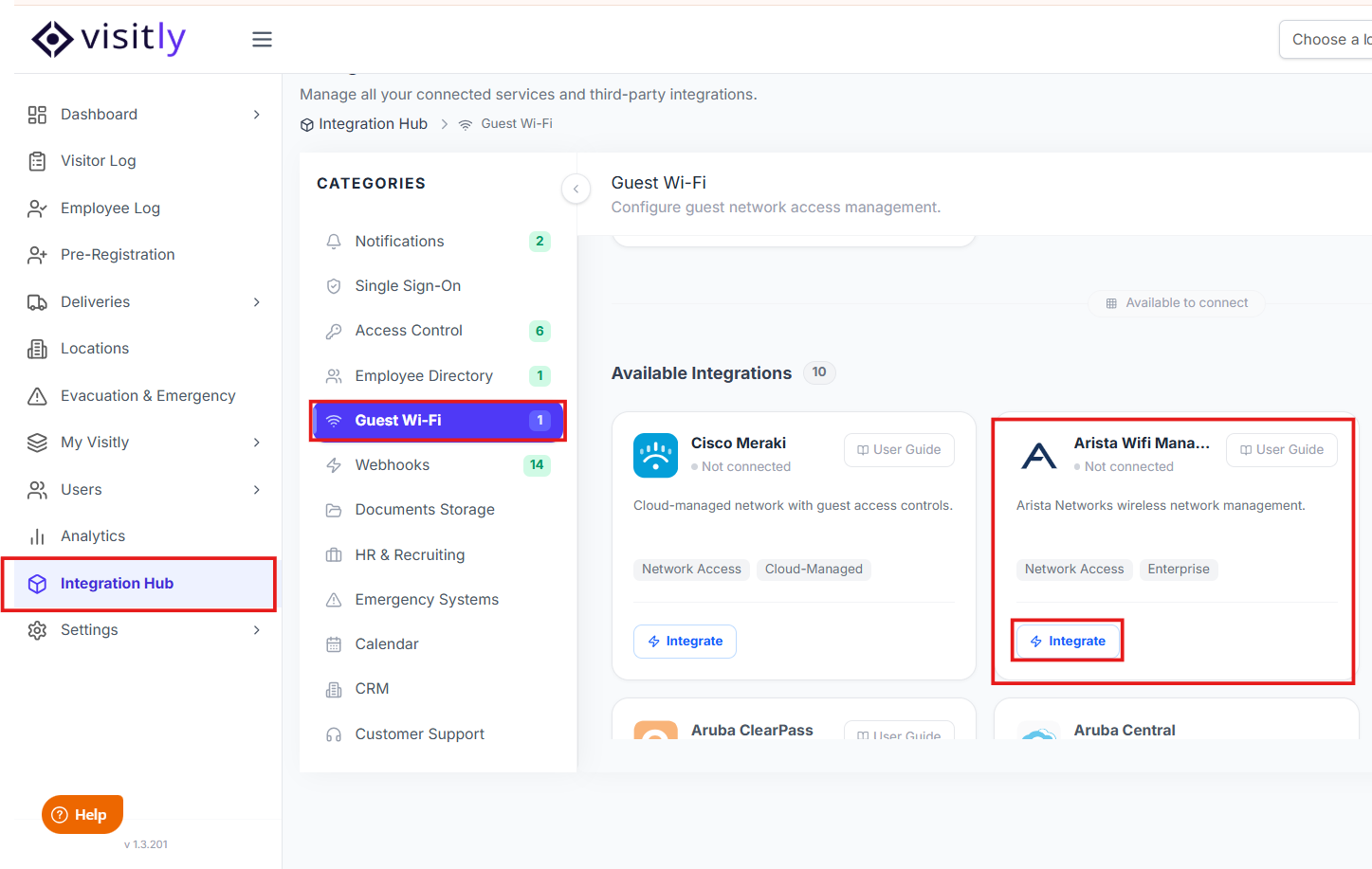
3. Locate Arista and click Integrate
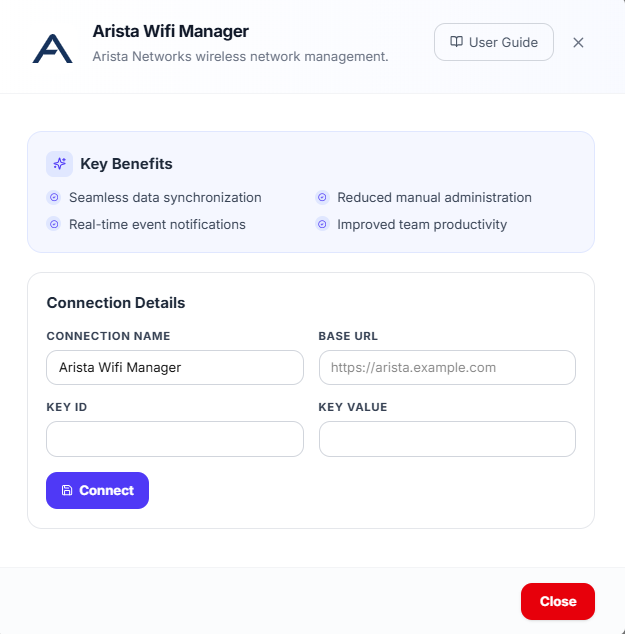
4. Enter the following details from the Arista setup:Key ID
Key Value
Base URL
5. Save the connection
⭐ Note: Global Admins can create multiple Arista connections in the Integration Hub. This is useful when managing multiple sites, regions, or Arista environments.
Step 2: Configure Guest WiFi at the Location Level
1. Go to Locations, and choose the one you want to configure.
2. Click on Guest WiFi in the left-hand panel
3. Select Configure Guest WiFi
4. Enter or select the following:
Provider: Arista
Arista Connection: Select the required Arista connection created in the Integration Hub
Select Portal: Choose the Guest SSID created earlier.
Validity Period: Set access duration (e.g., hours).
Invalidate Access on Sign Out: Choose “Yes” to deactivate credentials upon sign-out.
Approval Required: Choose “Yes” for host/staff approval before granting access.
Send Credentials to Host: Enable this toggle to share the visitor’s WiFi credentials with the host
Step 3: Enable Guest WiFi for Visitor Types
1. Navigate to the Visitor Types
2. Select those you want to enable guest Wi-Fi for
3. Under Issue Guest WiFi Credential, select Yes
4. Save your changes
Step 4: Test the Integration
1. Create a test visitor sign-in.
Upon successful registration:
The visitor should receive WiFi credentials
If enabled, the host also received the credentials
2. Verify access using the configured Arista SSID
Important Notes
Arista integrations are managed centrally via the Integration Hub
Multiple Arista connections can be created by Global Admins
Each location independently selects which Arista connection to use
Hosts can optionally receive guest WiFi credentials based on location settings
For further assistance, please reach out to Visitly Support.
Was this article helpful?
That’s Great!
Thank you for your feedback
Sorry! We couldn't be helpful
Thank you for your feedback
Feedback sent
We appreciate your effort and will try to fix the article