Overview
The Visitly + Brivo integration automates credential management across your visitor lifecycle — from check-in to sign-out — without any manual steps. Once configured, Visitly issues Brivo credentials automatically when a visitor arrives and revokes them the moment they leave.
How It Works
- When a visitor checks in, Visitly automatically issues a Brivo credential (PIN, card, or mobile pass) and notifies the host.
- Pre-arrival access: For pre-registered visitors, Visitly can issue the Brivo credential when the visit is scheduled. It becomes active shortly before the visitor's arrival time, so they can go straight to the door.
- QR code credentials: Visitors can receive their access as a QR code by email and scan it at a QR-enabled door reader. No physical card is needed.
- Each visitor type (e.g. Guest, Contractor, Vendor) maps to a specific Brivo user group, controlling which doors they can access.
- Credentials are time-bound — access expires automatically after a defined duration, even without a formal sign-out.
- When a visitor signs out, Visitly immediately revokes the credential in Brivo in real time.
- You manage the entire visitor lifecycle — invitations, check-ins, credentials, and sign-outs — from a single Visitly dashboard.
Before You Begin
Complete all prerequisites before starting setup. Missing any of these will prevent the integration from working.
Visitly requirements:
- An active Visitly account with Global Admin access
- Brivo Access enabled in your Integration Hub (not enabled by default — contact support@visitly.io)
Brivo requirements:
- An active Brivo OnAir account
- A Visitly-specific Brivo API key (request this directly from Brivo at developer.brivo.com)
- At least one Brivo site configured in your account
Setup Guide
Step 1: Connect Brivo to Visitly
- In Visitly, go to Admin Dashboard → Integration Hub → Access Control.
- Locate Brivo Access and click Integrate.
- Enter a name for this connection and paste your Brivo API key.
- Click Connect.
- A Brivo authorization prompt will appear. Enter your Brivo Admin ID and account password.
- Confirm the API key authorization when prompted, then click Submit.
Your Visitly account is now connected to Brivo.
Step 2: Link a Brivo Site to a Visitly Location
- Go to Admin Dashboard → Locations, select the location you want to configure, and click Edit location.
- In the location editor, scroll to the Access Control section and click Add new connection.
- Select the Brivo connection you created in Step 1, then choose the Brivo site to link to this location.
- A confirmation card showing the connection name and site name will appear in General Settings.
Managing multiple locations? Repeat Steps 1–2 for each Visitly location that requires Brivo access control.
Step 3: Configure Brivo for Visitor Check-In
1. Go to Admin Dashboard → Locations.
2. Select the location you have configured, and click Edit location.
3. Go to Access Control and select the Brivo connection you have added.
4. Go to Visitor Configuration Settings for the location and configure the following options:
| Setting | Description |
|---|---|
| Enable for check-in | Toggle on to activate automatic credential issuance when a visitor checks in. |
| Notifications | Enable Email and/or SMS to share the credential when the visitor arrives. |
| Invalidate credentials at sign-out | Enable to automatically revoke visitor access when they sign out. |
| Duration | Set how long credentials remain valid (e.g. 8 hours, 1 day). Access expires automatically after this period — no manual revocation needed. |
| Visitor type mapping | For each Visitly visitor type (e.g. Guest, Contractor, Vendor), select the Brivo user group that defines which doors they can access. |
| Allow pre-arrival credentials | Toggle on to issue credentials when a visit is pre-registered, so invited visitors can use them shortly before they arrive. |
| Activate credentials before arrival | Appears when pre-arrival is on. Choose how early the credential starts working before the scheduled arrival: 15, 30, 45 or 60 minutes. |
Choose a credential type:
| Credential | How It Works | Visitor Requirement | Best For |
|---|---|---|---|
| PIN | Visitly generates a PIN and sends it to the visitor by email at check-in. | Valid email address on file | Facilities without card infrastructure; quick visitor access |
| Card | Enter the first card number, last card number, and facility code from your Brivo account. Visitly assigns the next available card from this range at check-in. If all cards in the range are already assigned, check-in will fail and no credential will be issued — ensure your card range has unassigned cards available before enabling this option. | A pre-assigned physical card from your card inventory | Sites with an existing card-based access system |
| Brivo Mobile Pass | Brivo sends a pass invitation directly to the visitor by email. The visitor must download the Brivo app and accept the invitation before arriving. | Smartphone with the Brivo app installed | Contactless access; frequent or recurring visitors |
| QR Code (Card + Deliver as QR Code) | Select Card, enter your card range and facility code, then turn on Deliver as QR Code. At check-in, or at pre-registration if pre-arrival is on, Visitly assigns a random card from your range and emails the visitor a QR code of it. Front desk staff can also print the QR, with the visitor's name, from the visit record. | A valid email address, or a printed QR from the front desk | Contactless access without physical cards or the Brivo app. Requires QR readers at your doors. |
Using card or QR credentials? Regularly review your card range in Brivo to ensure unassigned cards are available. A depleted range will prevent check-in from completing. To expand your range, update the card number values in Visitor Configuration Settings.
Your location is now fully configured for Brivo-enabled visits.
Creating a Visit with Brivo Access
Once setup is complete, Brivo-enabled visits follow the same workflow as any standard visit in Visitly. Credentials are issued and revoked automatically in the background.
- Go to Visitor Log in your Visitly dashboard and click Add Visit or add a visit with kiosk.
- Enter the visitor's name, email address, host, and visit date and time.
- Select the appropriate visitor type (e.g. Guest, Contractor). This determines which Brivo user group and door access the visitor receives.
- Save the visit.
At check-in:
- Visitly issues the visitor's credential automatically
- The host receives an email, SMS, slack or MS Teams notification as per configuration
- The visitor receives their credential (e.g. PIN code given below in the screenshot) by email
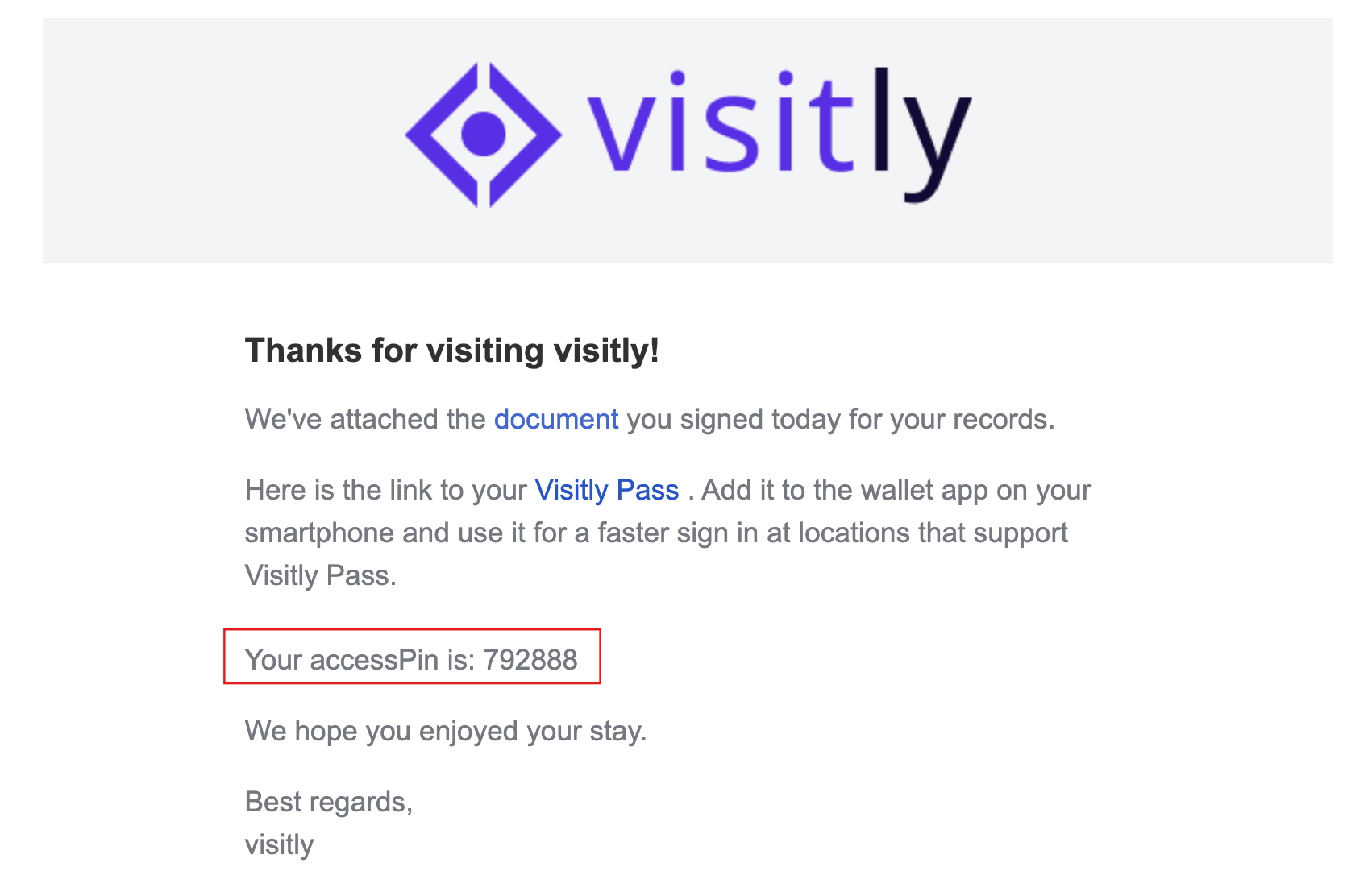
- At sign-out:
- The credential is immediately revoked
Access is terminated in Brivo in real time
Pre-registered visits (with Allow pre-arrival credentials on):
- When you save the invitation, Visitly creates the visitor's Brivo credential.
- The visitor receives their PIN or QR code by email.
- The credential starts working [15–60] minutes before the scheduled arrival time.
- If you edit the visit's visitor type, door access updates and the credential stays the same. If you change the location, a new credential is issued. If you cancel the visit, the credential is revoked.
- At check-in, the existing credential is used. No new one is issued.
Troubleshooting
The visitor did not receive their credential email.
Confirm the visitor's email address is correctly entered in the visit record. Check that Enable for check-in is toggled on under Visitor Configuration Settings, and that Notifications is set to Email. If the email still doesn't arrive, ask the visitor to check their spam or junk folder.
The Brivo API key is not connecting.
Verify that the API key was generated specifically for Visitly in your Brivo developer portal at developer.brivo.com. Generic or expired keys will fail authentication. If the issue persists, generate a new key and re-enter it in Step 1.
Visitor credentials are not being revoked at sign-out. Confirm that Invalidate credentials at sign-out is enabled under Visitor Configuration Settings for the relevant location. If the toggle is on and revocation is still not occurring, contact support@visitly.io with the visit record details.
A pre-registered visitor's credential isn't working yet. It only becomes active the set number of minutes before the scheduled arrival time. Check the visit time and the Activate credentials before arrival setting.
The QR code doesn't open the door. Confirm the door has a QR reader connected to your Brivo panel, and that the card range and facility code in Visitly match your Brivo account.
I can't turn on "Deliver as QR Code" / saving fails. Check that your card range has unassigned cards and that the card numbers and facility code are entered exactly as they appear in Brivo.
The Brivo Mobile Pass invitation was not received.
The pass invitation is sent directly by Brivo, not Visitly. Ask the visitor to check their spam folder and confirm the email address on their visit record is correct. If the invitation still hasn't arrived after 10 minutes, ask the visitor to check their Brivo app inbox directly — invitations sometimes appear in-app before email.
A visitor type is not appearing in the mapping dropdown.
Visitor types in the mapping dropdown are pulled from your Visitly account configuration. If a type is missing, go to Admin Dashboard → Visitor Types and confirm it has been created. Brivo user groups must also exist in your Brivo account before they appear as mapping options.
Need help? Contact the Visitly support team at support@visitly.io
Was this article helpful?
That’s Great!
Thank you for your feedback
Sorry! We couldn't be helpful
Thank you for your feedback
Feedback sent
We appreciate your effort and will try to fix the article