Overview
Upgrading takes you from your trial straight into a paid plan without losing any of your existing setup — your locations, visitor types, templates, and integrations carry over exactly as configured. You can choose the plan that fits your organization, pick monthly or yearly billing, and set the number of locations you need, all from inside the dashboard.
How to Upgrade:
Step 1: Start from the trial banner
While you're on a trial, a banner at the top of your dashboard shows how many days remain. Select Subscribe Now next to the banner to begin.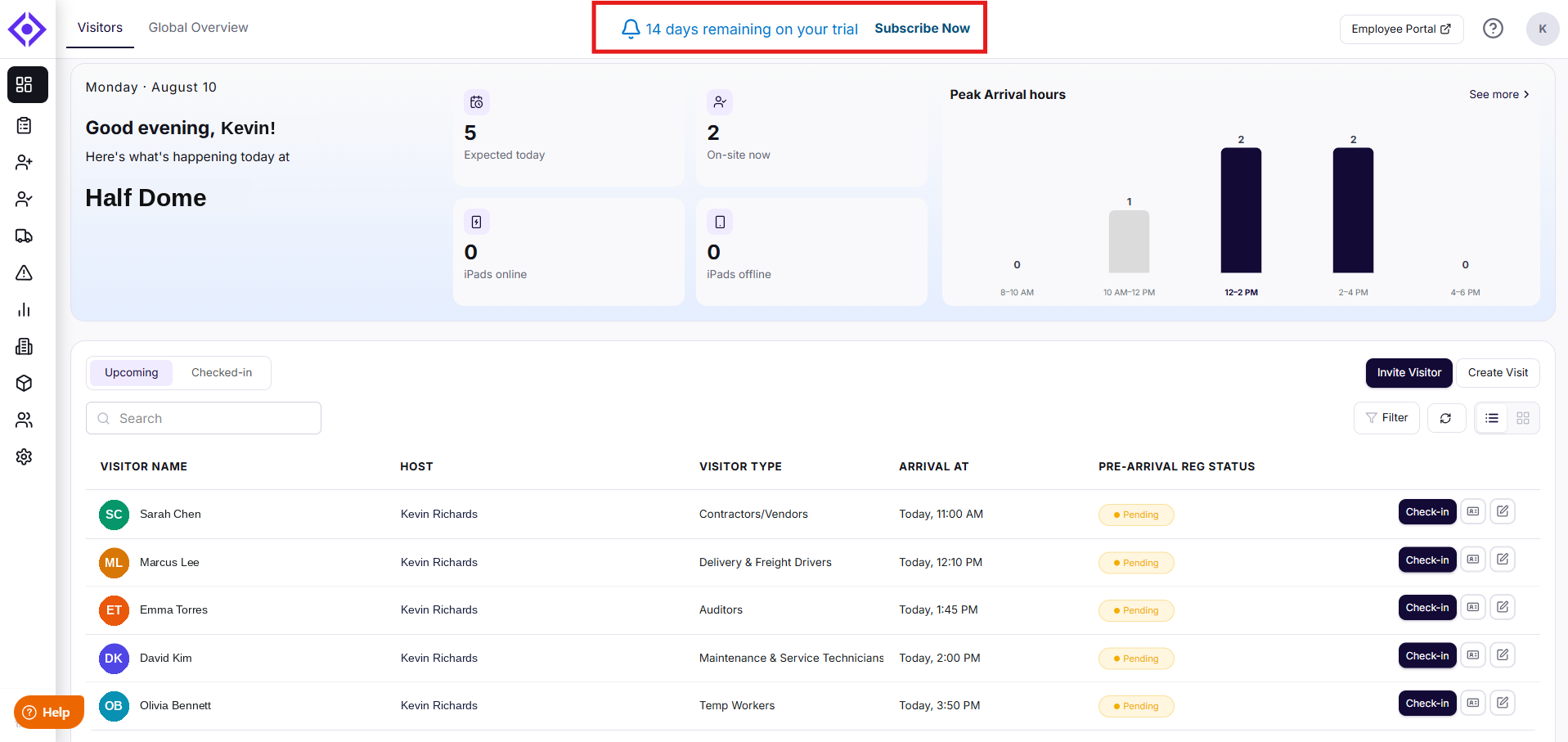
Step 2: Compare plans and select one
Visitly offers three plans — Starter, Business, and Enterprise — each building on the one before it. Review the features included with each and select Select Plan under the plan that fits your organization.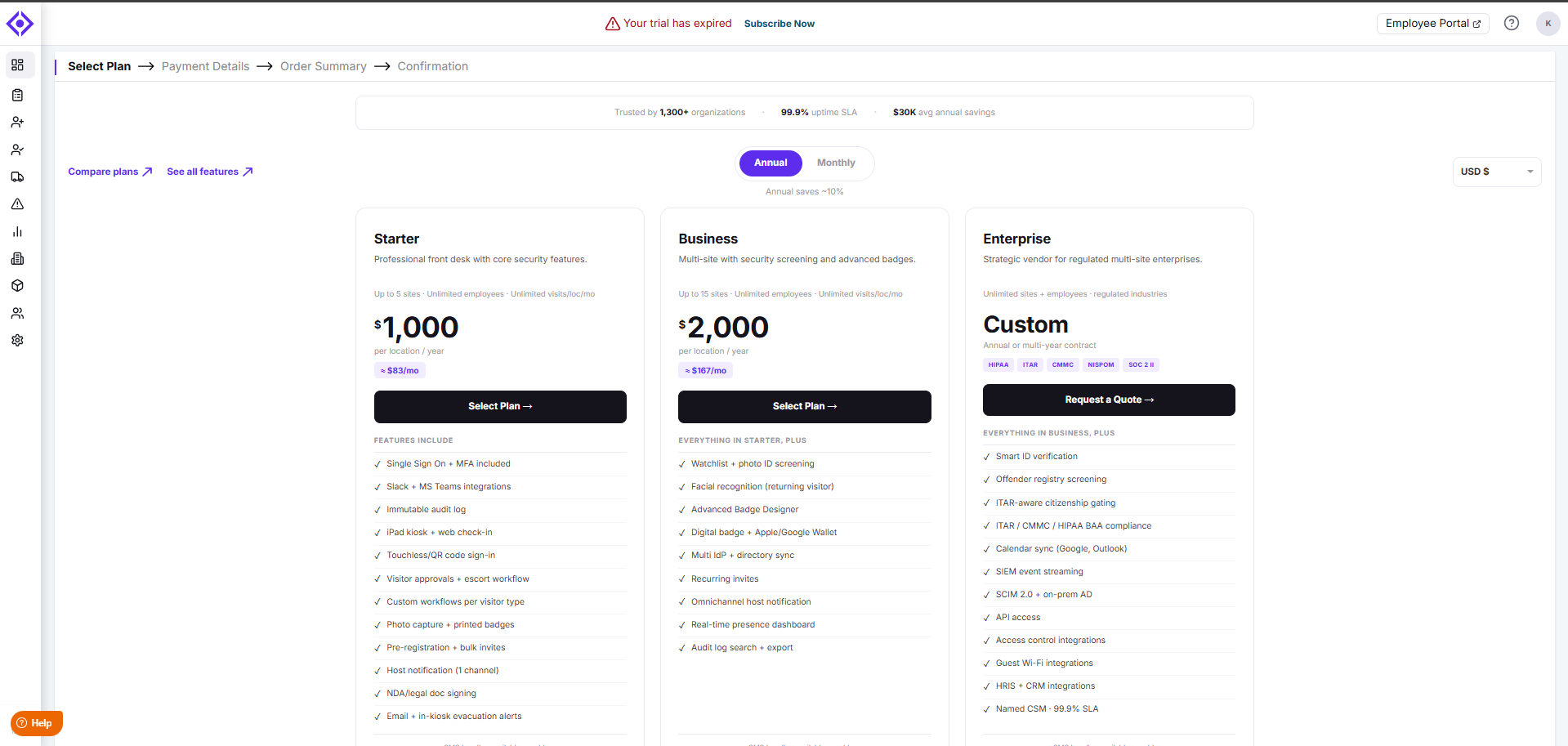
Enterprise is billed on an annual or multi-year contract and is set up through Request a Quote rather than self-serve checkout. You can also talk to our sales team directly if you'd rather discuss your needs first.
Step 3: Choose billing frequency and number of locations
On the Payment Details screen, choose whether to pay monthly or annually — paying annually saves 20% compared to paying monthly.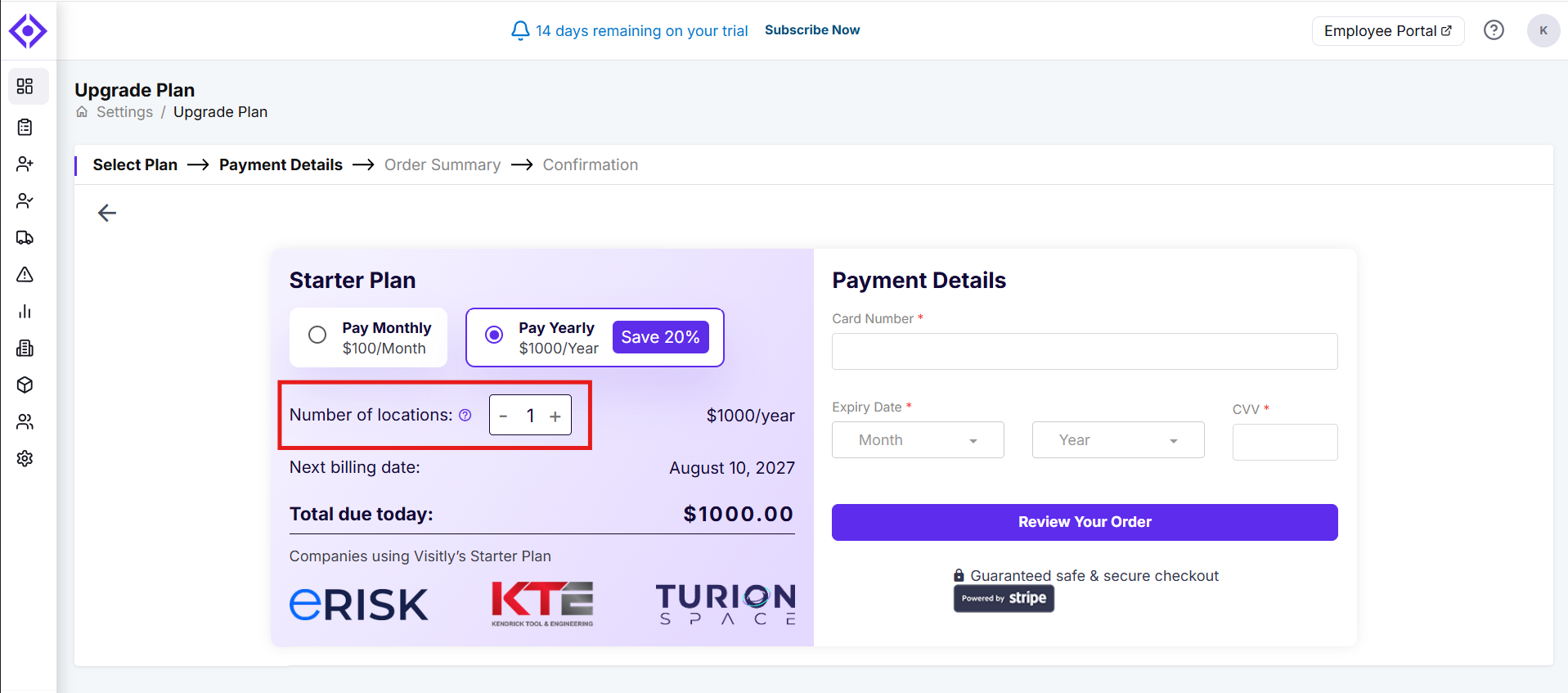
Use the location stepper to set how many locations your plan should cover; the price and total due update automatically as you adjust it. Your next billing date is shown here as well.
Step 4: Enter your payment details
Enter your card number, expiry date, and CVV, then select Review Your Order. Checkout is secured and processed through Stripe.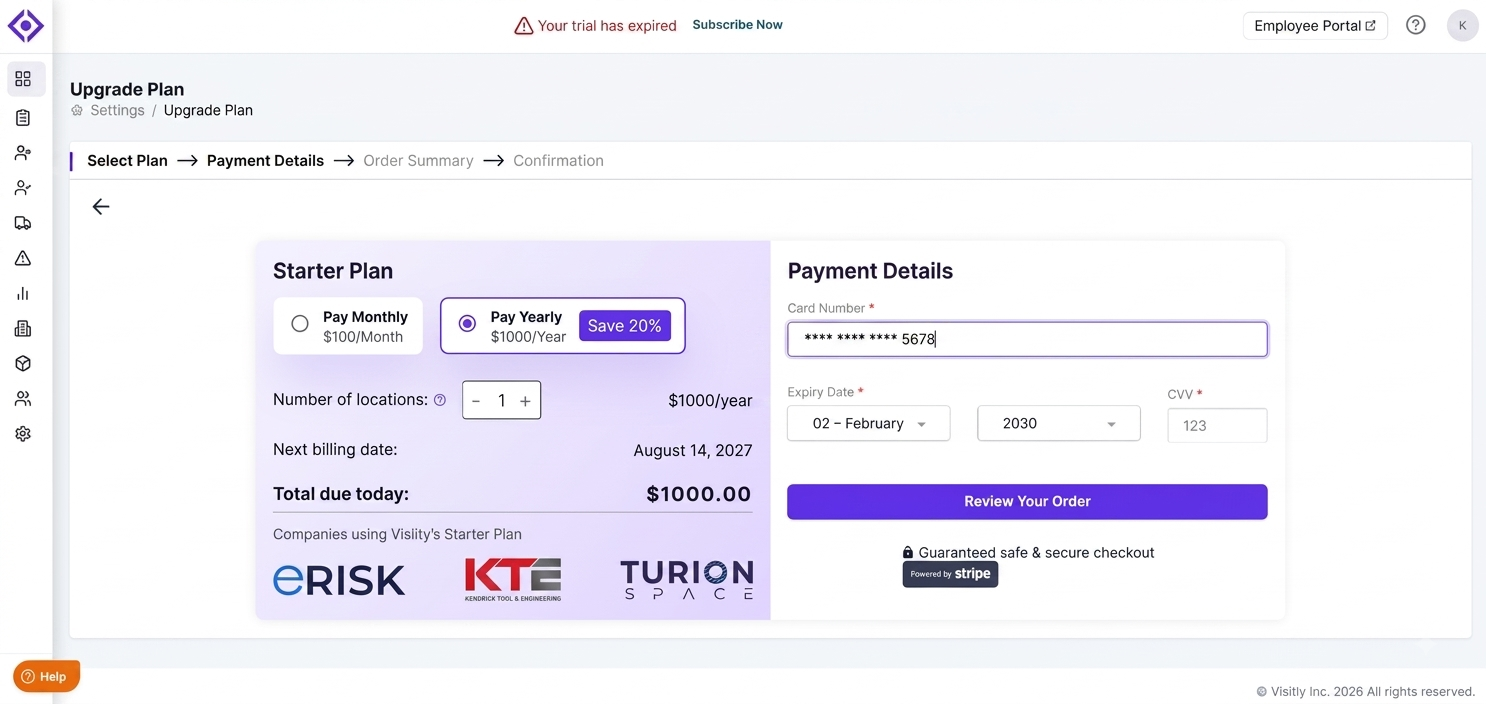
Step 5: Review your order
The Order Summary screen brings together everything you've chosen so far. The Selected Plan card confirms your plan, price, location count, and the full list of features included. The Billing Summary card shows your billing frequency, the total due today, and your next payment date. Once everything looks right, select Confirm & Pay.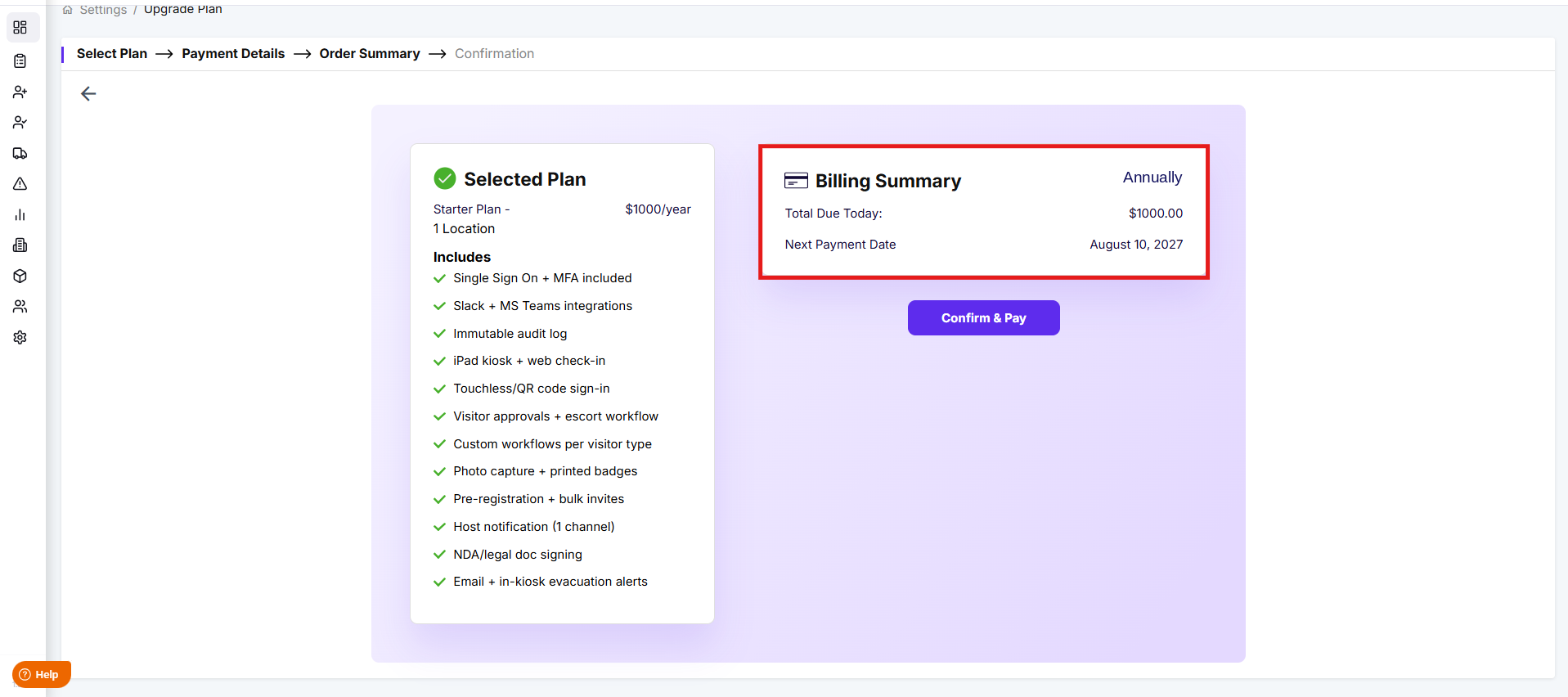
Step 6: You're all set
After payment goes through, you'll land on a confirmation screen letting you know your upgrade is complete, along with a reminder of your next payment date.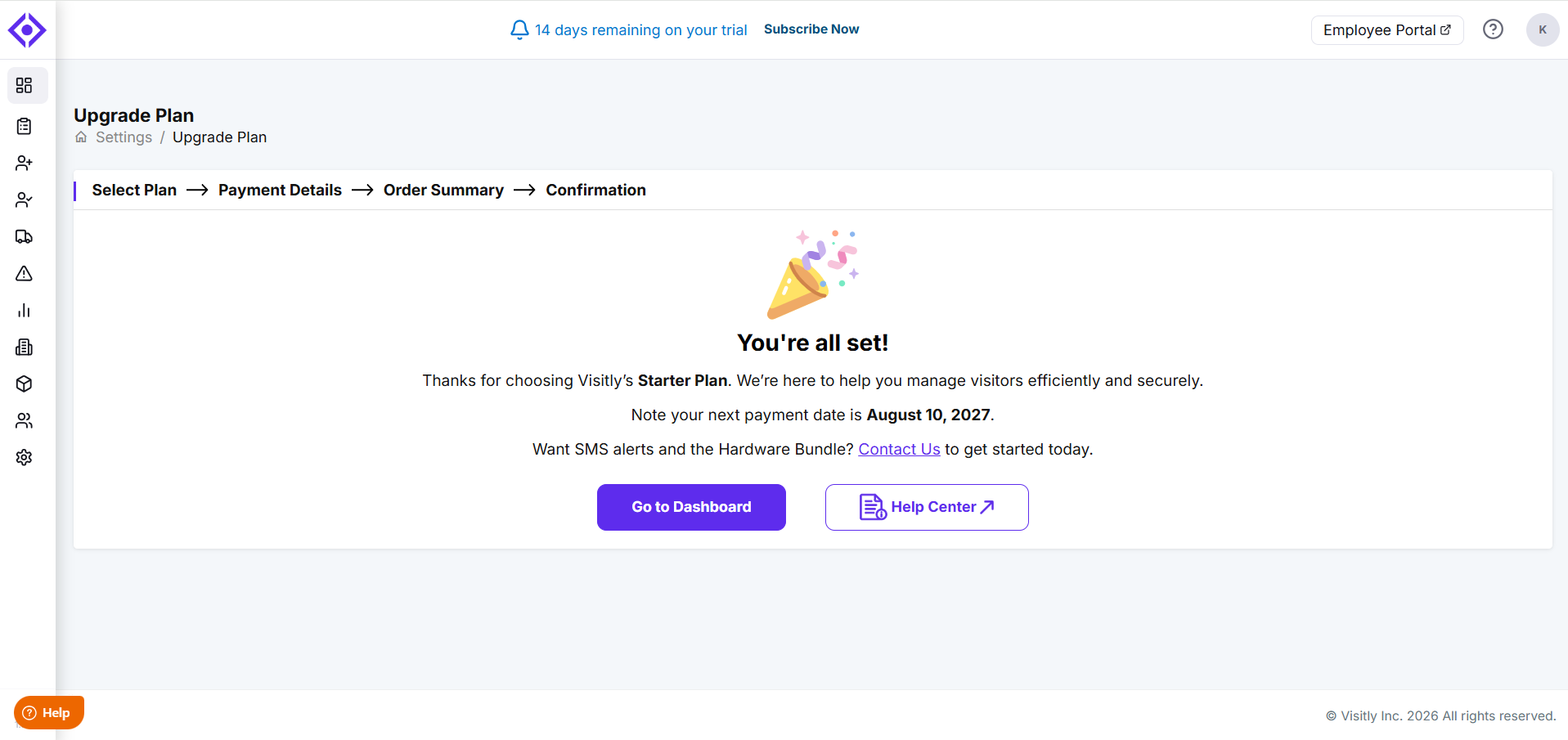
From here, select Go to Dashboard to get back to work, or Help Center if you want to explore what's next.
Need help? Contact the Visitly support team at support@visitly.io
Was this article helpful?
That’s Great!
Thank you for your feedback
Sorry! We couldn't be helpful
Thank you for your feedback
Feedback sent
We appreciate your effort and will try to fix the article